Table of Contents >> Show >> Hide
- First, do this 60-second sanity check
- 11 reasons iMessage keeps turning off (and exactly how to fix each one)
- 1) Apple’s iMessage servers are having a moment
- 2) Your internet connection is unstable (Wi-Fi or cellular)
- 3) Date & time settings are wrong (yes, seriously)
- 4) Your Apple Account (Apple ID) is signed out, unverified, or needs attention
- 5) “Send & Receive” is misconfigured (your number isn’t selected)
- 6) iMessage activation needs SMSand your carrier is blocking it
- 7) eSIM/SIM changes (or dual SIM confusion) are tripping iMessage
- 8) Your carrier settings are outdated (and iMessage is paying the price)
- 9) iOS is outdatedor the last update left a weird glitch behind
- 10) Screen Time, Restrictions, or MDM (work phone management) is turning it off
- 11) Network settings or security tools are interfering (VPN, profiles, filters, corrupted configs)
- If nothing works: the “no-fun but effective” escalation plan
- Bonus: How to keep iMessage from “rage-quitting” again
- Real-world experiences: what people run into (and what actually fixed it)
- SEO Tags
iMessage is supposed to be the “it just works” part of the iPhone experience. And yet here you arewatching the iMessage toggle flip off like it’s got places to be. One minute you’re sending crisp blue bubbles. The next minute you’re back to green texts like it’s 2011 and everyone’s arguing about group chats.
The good news: iMessage usually turns itself off for a reasonannoying, yes, but also diagnosable. The better news: most fixes are quick, and the ones that aren’t quick are still doable without sacrificing your entire weekend (or your dignity).
First, do this 60-second sanity check
Before we go full detective mode, run this fast checklist. It fixes a surprising number of “iMessage keeps turning off” cases:
- Toggle Airplane Mode on for 10 seconds, then off.
- Confirm you have internet (Wi-Fi or cellular data) by loading any webpage.
- Restart your iPhone (yes, really).
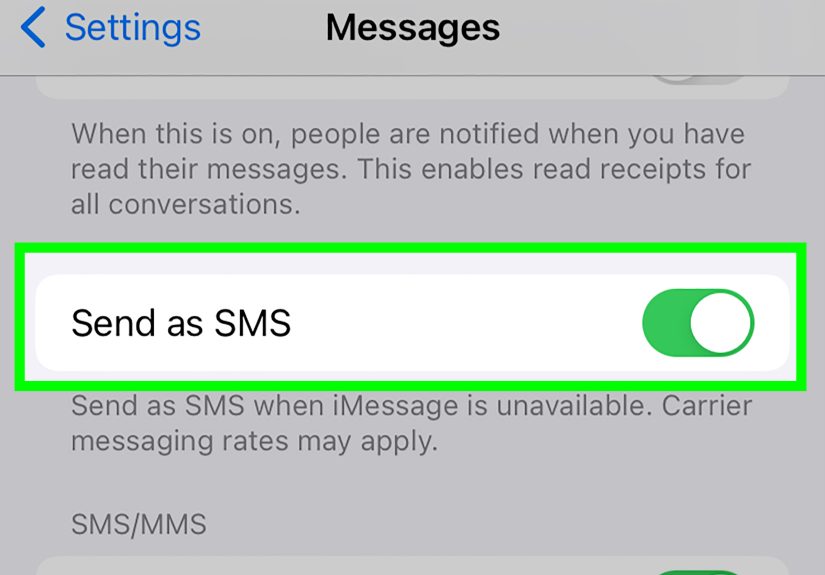
- Go to Settings → Apps → Messages (or Settings → Messages on older iOS) and turn iMessage on. Wait a minute.
- Go to Settings → General → About and pause for ~30 seconds in case a Carrier Settings Update prompt appears.
If iMessage stays on, congratulationsyou just fixed it with the digital equivalent of “unplug it and plug it back in.” If it switches off again, keep reading. One of the reasons below is almost certainly your culprit.
11 reasons iMessage keeps turning off (and exactly how to fix each one)
1) Apple’s iMessage servers are having a moment
Sometimes it’s not you. It’s Apple. If iMessage is experiencing a service disruption, your iPhone may struggle to activate iMessage properly or keep it stable, and you’ll see symptoms like “Waiting for Activation,” messages failing to deliver, or sudden fallbacks to SMS/RCS.
How to fix it:
- Check Apple’s System Status page for iMessage-related issues. If iMessage is down, the only real fix is to wait it out.
- While you wait: keep iMessage enabled, stay on a stable network, and avoid repeatedly signing in/out (more on that below).
Pro tip: If multiple friends are texting “Is iMessage broken for you too?” that’s usually your sign to stop panicking and start blaming the cloud.
2) Your internet connection is unstable (Wi-Fi or cellular)
iMessage runs on data. If your connection is weak, constantly switching between Wi-Fi and cellular, or stuck behind a cranky router, iMessage activation can failor your phone may silently flip to SMS/RCS and make you think iMessage “turned off.”
How to fix it:
- Switch networks: try Wi-Fi if you’re on cellular, or cellular if Wi-Fi is flaky.
- Turn Wi-Fi off and on (Settings → Wi-Fi). If the Wi-Fi network is the issue, try forgetting it and reconnecting.
- If you’re using a VPN, ad blocker, or “security” app that filters traffic, disable it temporarily (we’ll cover this more in Reason #11).
- If you’re in a basement, elevator, or “one bar forever” zonemove. iMessage is not a fan of concrete.
3) Date & time settings are wrong (yes, seriously)
iMessage activation relies on secure connections and time-based verification. If your iPhone’s date, time, or time zone is off, iMessage may fail to authenticate and can behave unpredictably.
How to fix it:
- Go to Settings → General → Date & Time.
- Turn on Set Automatically.
- Restart your iPhone and try enabling iMessage again.
Reality check: If your phone thinks it’s 2007, iMessage will treat your login attempt like a suspicious time traveler.
4) Your Apple Account (Apple ID) is signed out, unverified, or needs attention
iMessage ties into your Apple Account. If your password changed, two-factor authentication needs verification, or your account is temporarily failing to authenticate, iMessage can flip off or refuse to activate.
How to fix it:
- Go to Settings and tap your name at the top.
- Look for any “Update Apple Account Settings” alerts and complete them.
- Then go to Settings → Apps → Messages → Send & Receive and confirm you’re signed in with the correct Apple Account.
- If it still misbehaves: sign out of iMessage, restart, then sign back in (not 12 timesonce or twice is enough).
If you recently changed your Apple Account password, expect a little “re-authentication turbulence” across services (Messages, FaceTime, iCloud).
5) “Send & Receive” is misconfigured (your number isn’t selected)
Sometimes iMessage is “on,” but your phone number isn’t set correctly for sending/receivingespecially after switching phones, restoring from a backup, changing SIMs, or signing in/out. This can make it look like iMessage is turning off when it’s really just not using the right identity.
How to fix it:
- Go to Settings → Apps → Messages → Send & Receive.
- Make sure your phone number (and any email you want) is checked under “You can receive iMessages to and reply from.”
- Under “Start New Conversations From,” select your phone number (unless you prefer email).
- If your number is missing or stuck: toggle iMessage off/on, restart, then re-check this screen.
Example: If your iMessage suddenly sends from your email instead of your number, it can confuse contactsand you’ll get messages like “Who is this?” from people who definitely have your number saved. Love that for you.
6) iMessage activation needs SMSand your carrier is blocking it
To activate iMessage with a phone number, carriers typically require an SMS step (and sometimes roaming rules apply). If SMS is disabled on your plan, you have no texting capability, you’re in a roaming situation, or your carrier blocks certain verification texts, activation can fail and iMessage may refuse to stay enabled.
How to fix it:
- Confirm you can send regular SMS messages (green bubbles) to any number.
- Check that your line is active: Settings → Cellular (make sure your line is turned on).
- If you’re traveling: temporarily disable roaming restrictions if needed, or try activating on Wi-Fi with a stable signal.
- If you suspect carrier blocking: contact your carrier support and ask if any messaging restrictions are applied to your line.
7) eSIM/SIM changes (or dual SIM confusion) are tripping iMessage
If you recently changed carriers, moved to eSIM, added an eSIM after setup, or you have multiple SIMs, iMessage can get confused about which line is “the real you.” In some cases, an inactive SIM profile hanging around can prevent iMessage from activating with your phone number.
How to fix it:
- Go to Settings → Cellular and confirm the correct line is active and selected for messaging.
- Remove inactive SIMs/eSIMs you no longer use (especially if you see duplicates of the same number).
- After SIM/eSIM changes: go to Settings → Apps → Messages, toggle iMessage off, restart, then toggle it on.
- If you added an eSIM after initial setup and iMessage won’t behave, updating iOS and re-toggling iMessage is often the key.
Common sign: Your messages show as green bubbles to iPhone users, or you see “Not Delivered” when it should be a blue bubble moment.
8) Your carrier settings are outdated (and iMessage is paying the price)
Carrier settings updates can affect messaging, network registration, and how your iPhone handles services tied to your phone number. If you’ve switched carriers, updated iOS, or your phone hasn’t pulled carrier updates in a while, iMessage can act flaky.
How to fix it:
- Connect to Wi-Fi or cellular data.
- Go to Settings → General → About.
- Wait on that screen for 20–30 seconds. If a Carrier Settings Update prompt appears, tap Update.
Why this works: Carrier settings updates can quietly fix network authentication and messaging-related issues without requiring a full iOS update.
9) iOS is outdatedor the last update left a weird glitch behind
iMessage issues can appear after a major iOS update, during beta periods, or when you’re running an older version that doesn’t play nicely with newer carrier bundles or activation flows. Sometimes the fix is simply “update iOS.” Other times, it’s “restart everything and re-activate iMessage like you mean it.”
How to fix it:
- Go to Settings → General → Software Update and install any available update.
- After updating, restart your iPhone.
- Then toggle iMessage off/on and check Send & Receive again.
Specific example: Some iOS versions have known quirks with iMessage activation after eSIM changes; Apple often addresses these in point releases.
10) Screen Time, Restrictions, or MDM (work phone management) is turning it off
If Screen Time restrictions are enabled (especially on a child/family device) or your iPhone is managed by a workplace (MDM profile), Messages and iMessage settings can be restricted, reset, or blocked. This can look like iMessage “mysteriously” switching offbecause, technically, it’s being told to.
How to fix it:
- Go to Settings → Screen Time and look for Content & Privacy Restrictions.
- Check whether Messages is allowed, and whether app limits are interfering.
- If this is a managed device: go to Settings → General → VPN & Device Management and see if a management profile exists. If it’s a work phone, you may need your IT team to adjust restrictions.
Clue: If settings keep reverting after you change them, and your phone is “owned by Organization,” it’s not hauntedit’s administered.
11) Network settings or security tools are interfering (VPN, profiles, filters, corrupted configs)
VPNs, “security” DNS filters, certain device profiles, or corrupted network settings can prevent iMessage from contacting Apple’s servers reliably. If iMessage can’t maintain a clean connection, activation can fail and the toggle may not stick.
How to fix it (in order, least dramatic to most dramatic):
- Turn off VPN (Settings → VPN or your VPN app), then try enabling iMessage again.
- Remove suspicious profiles (Settings → General → VPN & Device Management) if you recognize them as unnecessary.
- Reset Network Settings:
- Go to Settings → General → Transfer or Reset iPhone → Reset → Reset Network Settings.
- Note: this removes saved Wi-Fi networks/passwords, VPN settings, and other network-related configurationsso have your Wi-Fi password handy.
- After the reset: reconnect to Wi-Fi, restart once, then toggle iMessage on and wait a few minutes.
Why this works: Network resets clear out bad routing, broken VPN configs, and weird Wi-Fi/cellular handoff issues that can break iMessage activation.
If nothing works: the “no-fun but effective” escalation plan
If iMessage still won’t stay enabled after trying the relevant fixes above, here’s the clean escalation path that minimizes chaos:
- Check Apple System Status again (rule out an outage).
- Update iOS to the latest available version.
- Update carrier settings (Settings → General → About).
- Sign out of iMessage, restart, then sign in:
- Settings → Apps → Messages → Send & Receive → tap Apple Account → Sign Out
- Restart → sign back in → toggle iMessage on
- Reset Network Settings (and reconnect carefully).
- If it’s still failing: contact your carrier to confirm SMS/short code restrictions and line provisioning, then contact Apple Support.
Bonus: How to keep iMessage from “rage-quitting” again
- Keep iOS updatedespecially after carrier changes or eSIM migrations.
- Avoid toggling iMessage repeatedly in a short time. If activation is stuck, give it a few minutes between attempts.
- After switching carriers: remove old SIM/eSIM profiles you no longer use and update carrier settings.
- If you rely on VPN or filtered DNS, whitelist Apple services if your tool supports itor test iMessage briefly without it.
- If you manage family devices: review Screen Time limits so Messages isn’t accidentally blocked.
Real-world experiences: what people run into (and what actually fixed it)
The internet is full of iMessage horror stories, but the patterns are surprisingly consistent. Here are the most common “in the wild” scenarios and the fixes that tend to sticktold in plain English, with a little empathy for your future self.
Scenario A: “It worked yesterday, I updated iOS, and now iMessage won’t stay on.”
This is the classic post-update wobble. People often assume the update “broke iMessage,” but it’s usually one of three things: the phone needs a clean restart, the Apple Account needs re-verification, or the carrier settings didn’t update. The reliable combo looks like this: update carrier settings (Settings → General → About), restart, then toggle iMessage off/on and wait. The waiting part matters. If you keep flipping switches while your phone is still negotiating activation, you’re basically heckling the process.
Scenario B: “My number keeps unchecking in Send & Receive.”
This one feels personallike your iPhone is rejecting your identity. It often happens after changing Apple Account credentials, switching devices, or restoring a backup. The fix that helps most often is: sign out of iMessage, restart, sign back in, then re-select your phone number under Send & Receive. If your number still won’t stick, that’s when you look at carrier/SMS activation issues or SIM/eSIM confusion. People with dual SIM setups sometimes discover the wrong line is selected for messagingor an inactive eSIM is still hanging around like an ex who won’t stop watching your stories.
Scenario C: “I switched carriers (or moved to eSIM) and iMessage went green.”
When you change carriers, your phone number has to re-register cleanly. If iMessage activation doesn’t follow along, your messages may default to SMS/RCS. The practical fix list is: remove the old SIM/eSIM profile, confirm the correct line is active, update carrier settings, then toggle iMessage off/on. If you set up an eSIM after the initial device setup, the extra-important step is re-toggling iMessage so it re-associates your phone number properly. This is one of those cases where “turn it off and on again” isn’t a memeit’s literally the supported solution.
Scenario D: “It only breaks at home (or only breaks on Wi-Fi).”
If iMessage behaves on cellular but not on your home Wi-Fi, your router or network filtering is the prime suspect. People often fix this by forgetting and rejoining the Wi-Fi network, rebooting the router, or disabling a VPN/ad-block DNS temporarily. If you use a “family safety” DNS or security profile, it might be blocking the exact Apple endpoints iMessage needs. The giveaway: FaceTime also acts weird, App Store downloads stall, or iCloud sync feels sluggish.
Scenario E: “It’s a kid’s phone and iMessage keeps turning off ‘by itself.’”
On family-managed devices, Screen Time restrictions can quietly steer the ship. Sometimes Messages is limited, sometimes the child can’t change account settings, and sometimes the device is managed in a way that resets toggles. The fix usually isn’t technicalit’s administrative: adjust Screen Time rules, confirm Messages is allowed, and remove overly aggressive limits. In these cases, iMessage isn’t broken; it’s grounded.
Scenario F: “I tried everything. Everything. Then I reset network settings and it worked.”
This is the “fine, I’ll do the annoying thing” ending. Resetting network settings can feel like a hassle because you’ll re-enter Wi-Fi passwords and re-pair Bluetooth devices. But when iMessage keeps turning off due to corrupted network configuration, it’s often the cleanest fix. The key is doing it once, then setting things back up calmlyconnect to Wi-Fi, restart, enable iMessage, and wait. When it works, it feels like magic. When it doesn’t, at least you’ve eliminated a huge category of possible causes before contacting your carrier or Apple Support.