Table of Contents >> Show >> Hide
- Quick Setup Checklist (Do This Before You Log In)
- Way 1: Sign In Using an Existing Google Account on Your iPhone/iPad (Fastest)
- Way 2: Add a Different Google Account Inside the YouTube TV App (Best for Multi-Account Humans)
- Way 3: Sign In with a Passkey (Face ID/Touch ID) Instead of a Password (Fast + Secure)
- Way 4: Use AutoFill Passwords (and 2-Step Codes) on iPhone/iPad (The “Let iOS Handle It” Method)
- Common YouTube TV Login Problems on iPhone/iPad (And How to Fix Them)
- Mini “Nail It on the First Try” Login Checklist
- Experience Corner: Real-World Login Moments on iPhone and iPad (What People Actually Run Into)
- Conclusion
Logging into YouTube TV on an iPhone or iPad should be a two-tap victory lap. Yet somehow, it can turn into a mini escape room:
“Why is it asking me to sign up again?” “Where did my account go?” “Why is my keyboard suddenly allergic to passwords?”
Don’t worrythis guide walks you through four reliable ways to log in to the YouTube TV app on iOS, plus the most common sign-in
faceplants and how to recover gracefully.
Quick Setup Checklist (Do This Before You Log In)
Before we hit the four login methods, make sure you’re not trying to start a car without gas:
- Install the correct app: “YouTube TV” (not the regular YouTube app).
- Update iOS/iPadOS and the app: outdated versions can cause sign-in screens to misbehave.
- Know your actual login: YouTube TV uses a Google Accountthe same one tied to your subscription.
- Heads-up: On iPhone and iPad, you can sign in and watch, but you may need to subscribe or manage billing on the web (more on this below).
Way 1: Sign In Using an Existing Google Account on Your iPhone/iPad (Fastest)
This is the “I already live here” option. If your Google account is already recognized on the device (common if you use Gmail, Google Maps,
YouTube, or Chrome), YouTube TV will often show it as a one-tap choice.
Step-by-step
- Open the YouTube TV app.
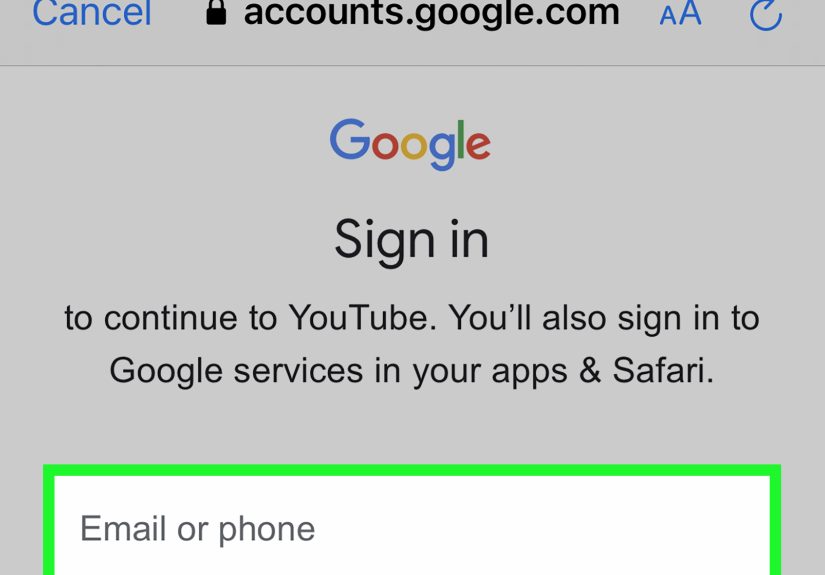
- Tap Sign in (usually in the top-right corner).
- Tap Continue.
- Select the Google account associated with your YouTube TV membership.
- Approve any prompts (permissions or confirmation screens), then you’re in.
When this works best
- You use Google services on this device already.
- You want the quickest “tap-tap-done” login.
- You’re signing in on a personal device with Face ID/Touch ID enabled.
Pro tip
If the app shows multiple accounts, slow down for half a second and choose carefully. The #1 reason people “lose” access is simply picking
the wrong Google account (usually a work email or an old Gmail).
Way 2: Add a Different Google Account Inside the YouTube TV App (Best for Multi-Account Humans)
If your YouTube TV subscription is on an account that isn’t showing upno panic. You can add it directly from the YouTube TV sign-in flow.
This method is perfect if you have a “real life” Gmail and a “coupon signups” Gmail and a “why did I make this?” Gmail.
Step-by-step
- Open the YouTube TV app and tap Sign in.
- Tap Continue.
- If your account isn’t listed, tap Add account.
- Enter your Google email and password (or use a passkeysee Way 3).
- Complete any verification prompts (2-Step Verification, device confirmation, etc.).
- Return to the app and confirm you’re signed in to the correct account.
When this works best
- Your subscription is tied to a Google account you rarely use on this device.
- You’re setting up a new iPhone/iPad and nothing is “remembered” yet.
- You’re switching between personal and family accounts.
Common mistake to avoid
Don’t sign in with a “channel profile” that looks right but isn’t actually the subscription account. YouTube TV access follows the Google
account that pays (or is in the family group), not whichever channel avatar is cutest.
Way 3: Sign In with a Passkey (Face ID/Touch ID) Instead of a Password (Fast + Secure)
Passkeys are the modern “passwords are cancelled” option. If your Google Account has a passkey set up, you can often log in using Face ID or Touch ID
instead of typing a passwordespecially helpful on iPad where typing long passwords can feel like writing a novel with oven mitts.
What you’ll need
- A Google Account with a passkey already created (or the ability to create one).
- Face ID, Touch ID, or device passcode enabled on your iPhone/iPad.
How it typically looks in the login flow
- Start sign-in from the YouTube TV app (Way 1 or Way 2).
- When Google prompts for a password, choose an option like “Sign in with a passkey” or select a passkey from the account selector.
- Confirm with Face ID/Touch ID (or your device passcode).
- Doneno password typing, and fewer chances to mistype “P@ssw0rd!” as “P@sswOrd!” and spiral into self-doubt.
Why passkeys are great for YouTube TV login
- Speed: Face ID is faster than manual typing.
- Security: passkeys resist phishing better than passwords.
- Convenience: fewer lockouts from incorrect password attempts.
Reality check
Passkeys are awesome, but they work best on devices you personally control. If this is a shared iPad, you may prefer Way 4 (AutoFill + normal password)
and keep account access tightly managed.
Way 4: Use AutoFill Passwords (and 2-Step Codes) on iPhone/iPad (The “Let iOS Handle It” Method)
If passkeys aren’t your thingor you still use a passwordAutoFill is your best friend. iOS can fill your Google password from the Passwords app,
iCloud Keychain, or a trusted password manager (like 1Password). It can also auto-suggest one-time verification codes when Google asks for them.
Step-by-step: Turn on AutoFill
- Open Settings on your iPhone/iPad.
- Go to General → AutoFill & Passwords.
- Turn on AutoFill Passwords and Passkeys.
- Select where AutoFill should pull from (Passwords/iCloud Keychain or a password manager).
Then sign in
- Start sign-in from YouTube TV (Way 1 or Way 2).
- Tap the username/email field. If your saved login appears, select it.
- Let AutoFill insert your password.
- If Google requests a verification code, use the suggested code if iOS offers it.
Why this works so well
- Fewer typos: AutoFill doesn’t “accidentally” add a space at the end of your email.
- Faster recovery: even if you forgot your password, your device may remember it.
- Cleaner sign-in: especially on iPad’s split keyboard or with a finicky on-screen browser window.
Common YouTube TV Login Problems on iPhone/iPad (And How to Fix Them)
Problem: “It only shows ‘Try it free’ / ‘Sign up’where’s ‘Sign in’?”
First: double-check you’re in the YouTube TV app (not YouTube). Next: confirm you’re not being pushed into a sign-up path because you’re
not recognized as an active member on that Google account.
- Fix #1: Tap the profile area or sign-in option and choose the correct Google account (Way 1 or Way 2).
- Fix #2: If you need to start a membership, do it on the web (some sign-ups/purchases aren’t supported inside the iOS app).
- Fix #3: Update the app, restart your device, and try again.
Problem: “Sorryyou can’t sign in to YouTube TV with this account.”
This often happens when you try to use a Brand Account (a YouTube channel brand/profile) instead of a personal Google account.
YouTube TV requires a compatible Google account for membership access.
- Fix: Switch to a different Google account (Way 2) and make sure it’s the one that owns the YouTube TV subscription.
- Bonus tip: If you’re juggling work/personal/brand profiles, label your accounts in your password manager so you pick the right one.
Problem: Sign-in loop, blank login page, or buttons won’t tap
If the Google sign-in screen is glitching (especially if it opens inside an in-app browser view), try these practical fixes:
- Update the YouTube TV app and iOS/iPadOS.
- Force-close the app and reopen.
- Switch networks (Wi-Fi to cellular) to rule out filtering issues.
- Reinstall the YouTube TV app to clear corrupted cache-like data.
- Try sign-in from a browser first (Safari/Chrome), then return to the app and retry.
Problem: You’re signed in on a device you don’t have anymore
If you traded in an old iPad and forgot to sign out, you can remove YouTube TV’s access from your Google account permissions and effectively log it out.
Mini “Nail It on the First Try” Login Checklist
- Use the Google account that actually has the YouTube TV membership.
- If your account isn’t listed, use Add account.
- Use a passkey if available (Face ID/Touch ID = faster).
- Turn on AutoFill so you don’t type passwords like it’s 2009.
- If you hit an error, update the app firstthen troubleshoot.
Experience Corner: Real-World Login Moments on iPhone and iPad (What People Actually Run Into)
Let’s talk about the stuff that doesn’t show up in neat “Step 1, Step 2” tutorialsthe real-life moments where you’re trying to log in while your
pizza is cooling, your group chat is yelling about the game, and iOS decides today is the day it will “helpfully” suggest the wrong account.
1) The “Wrong Google Account” trap is undefeated. On iPhone and iPad, Google’s account chooser is convenient… until it isn’t. If you’ve
ever used a work Gmail, a school account, or an old email for one random app years ago, it might appear as a tempting option. You tap it, YouTube TV loads,
and suddenly the app acts like you’ve never heard of television. That’s not YouTube TV being dramaticthat’s you being signed into an account with no
membership. The fix is simple (switch accounts), but the confusion is legendary. A good habit: the moment you see a sign-up screen, treat it like a smoke
alarm. It doesn’t always mean “fire,” but it absolutely means “check what account you’re in.”
2) iPad typing is a comedy sketch. Passwords were not designed for thumbs that are also holding a tablet. Split keyboard, floating keyboard,
external keyboard with caps lock onthere are so many ways to accidentally type your password wrong that it’s practically a mini sport. That’s why
AutoFill is the unsung hero of YouTube TV login on iOS. People who turn it on usually stop having “mysterious password problems,” because
the mystery was their keyboard all along.
3) Passkeys feel like magicuntil you set them up on the wrong device. When passkeys work, the flow is beautiful: tap, Face ID, done.
But the experience depends on how your Google account security is set up. If you’re using a shared family iPad, you might not want a setup where
“anyone who can unlock the device can sign in.” In those cases, many folks prefer traditional passwords with a password manager, because it keeps control
where it belongs: with the account owner, not whoever knows the iPad passcode.
4) The “Sign up on iPhone” confusion is real. A lot of people assume every subscription can be purchased inside every app. But YouTube TV’s
iOS experience can be more “sign in and watch” than “sign up and pay right here.” That leads to a common scene: someone pays on a computer (or already has
YouTube TV at home on a TV device), downloads the app on iPhone, and then sees an offer screen and thinks, “Did I just pay for nothing?” Usually nousually
they’re simply not signed in with the same Google account that holds the membership. The fastest sanity check is to sign in on the web with the account you
think is correct, confirm you see YouTube TV access, then return to the iPhone/iPad app and choose that exact account.
5) The best “experience hack” is labeling your logins. In a password manager, rename entries like “Gmail (YouTube TV Billing)” or
“Google (Family Manager)” so future-you doesn’t have to play detective. This one tiny habit saves the most time, because it prevents the “I signed in
successfully… to the wrong universe” problem.
Conclusion
Logging into YouTube TV on iPhone or iPad doesn’t have to be a whole journey. Start with the simplest option: sign in with an existing Google account.
If that account isn’t listed, add it inside the app. Want the smoothest ride? Use a passkey (Face ID/Touch ID) or let AutoFill handle passwords and codes.
And if the app acts like you’re a brand-new user, don’t panic99% of the time it’s just the wrong Google account, a Brand Account mismatch, or an app update
waiting to happen.