Table of Contents >> Show >> Hide
- Before You Start: Figure Out Which Keyboard You’re Using
- The 9-Step Playbook to Make Your Keyboard Bigger
- Step 1: Update Your Keyboard App (Yes, Really)
- Step 2: Resize Gboard (Two Common Ways)
- Step 3: Turn Off “Floating” Keyboard (It Shrinks Things)
- Step 4: Use One-Handed Mode Strategically (Counterintuitive, but Helpful)
- Step 5: Make Samsung Keyboard Bigger (Size and Transparency)
- Step 6: Resize Microsoft SwiftKey (Layout & Keys)
- Step 7: Increase Your Phone’s Display Size (Screen Zoom)
- Step 8: Boost Readability with Font Size, Bold Text, and Keyboard Font Options
- Step 9: Turn On Magnification (and “Follow Typing”) for Precision
- Extra Accuracy Tips (Because Bigger Isn’t the Only Fix)
- Real-World Experiences: What Changes When You Finally Make the Keyboard Bigger (About )
- Conclusion
If your Android keyboard feels like it was designed for squirrels with tiny thumbs, you’re not imagining it. Between bigger screens,
skinnier phones, and life happening while you’re trying to text (“BRB” while holding coffee, a bag, and your dignity), typing can turn into a
typo festival fast.
The good news: you usually don’t need a new phone or a magnifying glass necklace. Android gives you multiple ways to make the keyboard bigger
and you can mix and match them depending on whether you use Gboard, Samsung Keyboard, SwiftKey, or something else.
This guide walks you through nine practical steps, with examples and quick “why this works” explanations, so you can get larger keys and fewer
“sorry autocorrect” messages.
Before You Start: Figure Out Which Keyboard You’re Using
Android phones can use different keyboard apps. The resizing options live inside your keyboard’s settings, so first identify it:
- Gboard (Google’s keyboard) is common on Pixel, Motorola, OnePlus, and many others.
- Samsung Keyboard is the default on Galaxy phones and tablets (unless you changed it).
- Microsoft SwiftKey is a popular alternative with strong prediction and theme options.
Quick check: open any app with a text box (Messages, Notes, a search bar), bring up the keyboard, and look for a gear icon or three-dot menu.
If you see a “G” logo, that’s typically Gboard. On Samsung, you’ll often see Samsung-style icons and settings labeled “Samsung Keyboard.”
The 9-Step Playbook to Make Your Keyboard Bigger
Step 1: Update Your Keyboard App (Yes, Really)
Resizing features can move around after updates (and sometimes get betterlike finally letting you drag the size instead of picking from a tiny list
of sizes, which feels ironic). Before you chase settings that don’t exist on your phone:
- Open the Google Play Store.
- Search your keyboard app: Gboard, Samsung Keyboard (updates via system updates), or Microsoft SwiftKey.
- Tap Update if available.
Why this works: Different versions show “Keyboard height,” “Resize,” or different menu layouts. Updating reduces guesswork.
Step 2: Resize Gboard (Two Common Ways)
If you’re using Gboard, you can usually increase height (and sometimes width) in one of these ways, depending on your version:
Option A: Use the “Resize” tool from the keyboard
- Open the keyboard in any text field.
- Tap the four-square icon (toolbar/menu) or the three-dot menu if you see it.
- Tap Resize.
- Drag the edges/handles to make the keyboard taller.
- Tap the checkmark or Done.
Option B: Find “Keyboard height” inside Gboard settings (older layout)
- Open Settings > System (or General management) > Languages & input.
- Tap On-screen keyboard (or Virtual keyboard) > Gboard.
- Go to Preferences > Keyboard height.
- Pick Tall or Extra-tall.
If you don’t see the toolbar/menu: Turn on the suggestion strip. In Gboard settings, go to Text correction and enable
Show suggestion strip. Then re-open the keyboard and look for the menu icon again.
Why this works: Increasing height makes each key’s tap target larger. That’s the single biggest improvement for accuracy
(especially on narrow phones).
Step 3: Turn Off “Floating” Keyboard (It Shrinks Things)
Sometimes your keyboard isn’t “small”it’s in floating mode, which is designed to move around the screen and stay compact.
Great for dragging, not great for hitting keys reliably.
- Open the keyboard.
- Tap the menu/toolbar icon (four-square or three dots).
- Look for Floating and tap it to toggle floating mode off.
Why this works: Floating keyboards often reduce width and height. Switching back restores full-size real estate.
Step 4: Use One-Handed Mode Strategically (Counterintuitive, but Helpful)
“One-handed mode” sounds like it would make everything smallerand sometimes it does. But it can also make keys feel easier to hit by shifting the
keyboard toward your thumb and reducing awkward reach (especially on tall phones).
- Open the keyboard.
- Tap the menu/toolbar icon.
- Select One-handed (left or right).
- If you can, combine it with a slightly taller keyboard from Step 2.
Why this works: If the problem is missed taps near the far edge, moving the keyboard closer can reduce errors even without massive resizing.
Step 5: Make Samsung Keyboard Bigger (Size and Transparency)
On Samsung Galaxy devices, the built-in keyboard has a straightforward resizing tool. The wording might differ a little by model, but the path is usually:
- Open Settings.
- Tap General management.
- Tap Samsung Keyboard settings.
- Tap Size and transparency.
- Drag the handles to adjust keyboard height/width.
- Use the arrow to move it up/down if needed.
- Tap Done (and Reset if you want to revert later).
Why this works: Samsung’s resizer changes the keyboard frame directlysimple, visual, and effective.
Step 6: Resize Microsoft SwiftKey (Layout & Keys)
SwiftKey includes a dedicated resize tool. It’s one of the easiest ways to get a larger keyboard without changing your phone’s overall display scaling.
- Open the Microsoft SwiftKey app (or go to SwiftKey settings from the keyboard).
- Tap Layout & keys.
- Tap Resize.
- Drag edges/handles to make it bigger.
- Confirm and test in your messaging app.
Why this works: SwiftKey resizing adjusts the keyboard footprint directly, so your keys become easier targets.
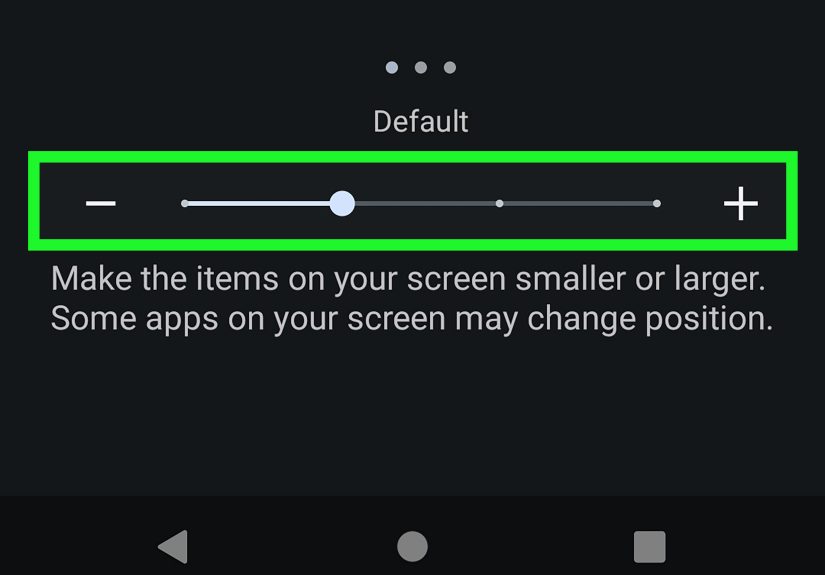
Step 7: Increase Your Phone’s Display Size (Screen Zoom)
If you want the keyboard and everything else to scale upicons, text, settings screens, and those tiny “Skip” buttons in appsuse Android’s
Display size (often called Screen zoom on Samsung).
- Open Settings.
- Search for Display size, Screen zoom, or Display size and text.
- Move the slider toward Larger.
- Open a text app and check your keyboard size again.
Tradeoff: Larger display size reduces how much fits on screen (more scrolling), but it can make typing dramatically easier.
Why this works: System scaling increases UI elements across the device, including many keyboard layouts.
Step 8: Boost Readability with Font Size, Bold Text, and Keyboard Font Options
Bigger keys help your fingers; bigger labels help your eyes. If your issue is “I can’t see what I’m hitting,” try these:
- Increase Font size: Settings > Display (or Accessibility) > Font size.
- Enable Bold text if available (Samsung often includes this).
- Look for keyboard font size settings (some Gboard versions add a dedicated keyboard font scaling option).
- High contrast options: Some phones include a high-contrast keyboard or theme options that improve clarity.
Why this works: Even if the keyboard isn’t much larger, clearer labels reduce hesitation and mis-pressesespecially in low light.
Step 9: Turn On Magnification (and “Follow Typing”) for Precision
If you want a “zoom lens” specifically for reading what you’re typing or seeing small UI elements, Android’s accessibility tools can help.
Magnification can zoom part of the screen or follow your typing cursor (depending on device and settings).
- Open Settings.
- Tap Accessibility.
- Tap Magnification.
- Choose a magnification type (full screen or partial) and enable it.
- If you see an option like Follow typing (or similar), enable it and test in a notes app.
Why this works: Magnification doesn’t necessarily change keyboard size, but it makes it easier to confirm text and tap accurately when vision
is the main issue.
Extra Accuracy Tips (Because Bigger Isn’t the Only Fix)
Try Landscape Mode
Rotate your phone sideways when typing long messages. Many keyboards widen keys in landscape, which can feel like instant relief for large thumbs.
Reduce “Thumb Gymnastics” with Voice Typing
If your main struggle is long texts, consider voice typing for the first draft, then edit with the keyboard. You’ll type less, and your thumbs will
stop filing complaints with HR.
Reset If Things Get Weird
If your keyboard suddenly shrinks after an update or a setting change, look for Reset inside the keyboard’s size settings
(Samsung often provides this) or turn off floating/one-handed modes and reapply your preferred size.
Real-World Experiences: What Changes When You Finally Make the Keyboard Bigger (About )
People usually resize their Android keyboard for one of three reasons: accuracy, comfort, or visibility. And in real life, those reasons overlap
in ways that don’t show up in a neat little settings menu.
1) The “walking and texting” reality check. Even if you know you shouldn’t text while walking (and yes, sidewalks are not a
multiplayer obstacle course), it happens. A slightly taller keyboard can be the difference between “On my way” and “On my yak,” whichunless you
own a yakis a confusing update. Increasing keyboard height gives your thumbs more room to land, and fewer edge-of-key taps that trigger the wrong letter.
2) Cold hands and screen sensitivity. In colder weather or heavily air-conditioned spaces, fingers get stiff and less precise.
A bigger keyboard helps because you don’t need perfect aim. Pair that with a higher-contrast theme or bigger labels (font/bold text), and you’ll
notice less time squinting and more time actually finishing the message before your friend sends “???”
3) The “new phone, new problems” moment. Many people upgrade to a phone with a different aspect ratiotaller, narrower, thinner bezels
and suddenly the keyboard feels unfamiliar. The keys might technically be similar, but muscle memory is brutally honest. Resizing is like moving
your car seat after someone else drove: the car didn’t change, but you’ll be miserable until you adjust it.
4) Accessibility isn’t only for emergencies. Magnification and display scaling sound dramatic, like you’re about to pilot a spaceship,
but they’re surprisingly useful for everyday comfort. If you’re tired, dealing with dry eyes, or just don’t want to fight tiny UI elements, turning
up display size or using magnification can make your phone feel less like a “tiny computer” and more like a tool that respects your time.
For some users, increasing display size is the most reliable keyboard “enlargement” because it affects the whole interface consistently.
5) Finding the sweet spot takes a couple of tries. Most people don’t get it perfect on the first adjustment. Too tall, and you
lose too much screen space in chat apps. Too short, and your thumbs go back to freelancing as chaos agents. The best approach is incremental:
adjust, type for a day, then tweak. A keyboard that feels “slightly too big” at first often becomes “exactly right” once your hands adapt.
The biggest win is psychological: when your keyboard fits your hands, you stop bracing for mistakes. You type faster, correct less, and your texts
become less of a suspense novel (“What did autocorrect do this time?”). Bigger keys don’t just reduce typosthey reduce friction.
Conclusion
Making your Android keyboard bigger doesn’t have to be a scavenger hunt. Start by resizing inside your keyboard app (Gboard, Samsung Keyboard, or SwiftKey),
then use system tools like Display size (screen zoom) and Accessibility magnification if you need a bigger overall interface or better visibility.
Aim for the smallest change that produces the biggest reduction in typosbecause more screen space for your conversation is still nice, and you deserve both.