Table of Contents >> Show >> Hide
- Before You Start: Know Where Your Contacts Actually Live
- Method 1: Turn On Google Contacts Sync on iPhone (Best for Ongoing Sync)
- Method 2: Export iCloud Contacts as a vCard, Then Import to Google Contacts (Best for Moving Everything)
- Method 3: Use a Mac to Move Contacts Between iCloud and Gmail (Cleanest “No File” Method)
- Method 4: Transfer Just a Few Contacts (Share as vCard and Import)
- Method 5: Use Google One (or a Trusted Backup App) When You Want “Set It and Forget It”
- After the Move: Clean Up Duplicates and Keep Contacts Syncing Smoothly
- Troubleshooting Cheatsheet (Common Problems, Quick Fixes)
- Experiences From the Real World: What Usually Trips People Up (And How to Avoid It)
- Conclusion: The Best Way to Transfer iPhone Contacts to Gmail (Without Stress)
Moving contacts from an iPhone to Gmail sounds like it should be a one-tap miracle. And sometimes it is. Other times,
it’s more like herding cats… who all have the same name, two phone numbers, and a mysterious old AOL email address.
The good news: you’ve got a few reliable ways to transfer iPhone contacts to Gmail, and you can pick the one that fits
your situationwhether you’re moving 12 contacts or 1,200.
In this guide, you’ll learn the easiest methods to transfer contacts from iPhone to Gmail, including turning on Google
Contacts sync, exporting an iCloud vCard file, importing to Google Contacts, and cleaning up duplicates so your address
book doesn’t look like it got hit by a copy machine.
Before You Start: Know Where Your Contacts Actually Live
Here’s the thing most people don’t realize: your iPhone doesn’t store “one big universal contacts list.”
It shows contacts from accountslike iCloud, Gmail, Exchange, or “On My iPhone.” That means you can be looking
at everyone in the Contacts app while the contacts themselves are scattered across different accounts behind the scenes.
Quick check: which account are your contacts in?
- Open the Contacts app.
- Tap Lists (usually at the top-left) to see lists by account.
- Look for lists like All iCloud, All Gmail, or On My iPhone.
If most of your contacts appear under iCloud, your best “transfer everything” method is typically exporting from iCloud
and importing into Google Contacts. If they’re already tied to Gmail, you might be closer than you think.
Make a backup (future you will say thank you)
Before you move anything, create a quick safety net:
- If you use iCloud Contacts, make sure Contacts is toggled on in iCloud so everything is synced.
- Plan to export a .vcf (vCard) file from iCloud.com as a “just in case” backup.
Method 1: Turn On Google Contacts Sync on iPhone (Best for Ongoing Sync)
If your goal is to have Gmail contacts appear on your iPhone and keep them syncing going forward, this is the
cleanest setup. It doesn’t always “copy” old contacts into Gmail automatically, but it lays the foundation so new contacts
can go straight to Gmail.
Step-by-step: add your Google account and enable Contacts
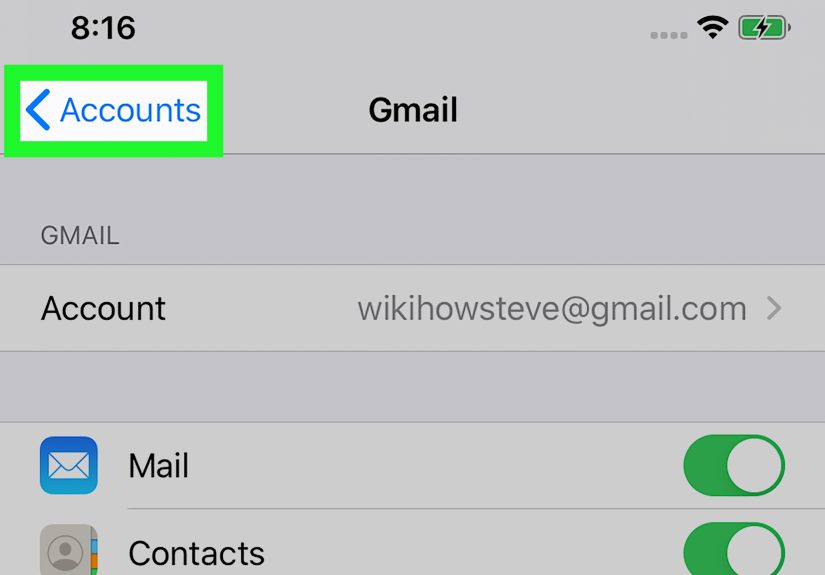
- Open Settings on your iPhone.
- Go to Apps (or scroll to find Contacts, depending on iOS version).
- Tap Contacts → Contacts Accounts (or Accounts).
- Tap Add Account → choose Google.
- Sign in and make sure Contacts is toggled On.
Make Gmail the default account for new contacts
This is the “stop saving contacts to the wrong place” setting.
- Go to Settings → Apps → Contacts.
- Tap Default Account.
- Select your Gmail account.
What this method does (and doesn’t) do
- Does: Sync Google contacts to your iPhone and keep future Gmail contacts flowing smoothly.
- Doesn’t always: Bulk-move existing iCloud contacts into Gmail by itself.
If your existing contacts are mostly in iCloud, you’ll still want Method 2 (export/import) to move the old batch.
Think of Method 1 as “make Gmail your new home base,” and Method 2 as “move the furniture into the new house.”
Method 2: Export iCloud Contacts as a vCard, Then Import to Google Contacts (Best for Moving Everything)
If you want a true “transfer contacts from iPhone to Gmail” resultespecially when your contacts are in iCloudthis is
the most dependable approach. You export a vCard (.vcf) from iCloud and then import it into Google Contacts.
Step A: Sync your iPhone contacts to iCloud
- Open Settings on your iPhone.
- Tap your name (Apple Account) → iCloud.
- Make sure Contacts is turned On.
- Give it a few minutes on Wi-Fi so everything finishes syncing.
Step B: Export a .VCF file from iCloud.com
- On a computer (recommended), go to iCloud.com and sign in.
- Open Contacts.
- Select the contacts you want:
- To export a bunch, select multiple contacts (often with Ctrl/Command clicks).
- If you need everything, you can select all contacts.
- Use the Actions / Options / More menu and choose Export vCard.
- Save the downloaded .vcf file somewhere you can find again (like your desktop).
Step C: Import the vCard file into Google Contacts
- On a computer, open Google Contacts (contacts.google.com) while signed into your Gmail account.
- Click Import.
- Choose your .vcf file and confirm.
Example: transferring a big address book without losing your mind
Let’s say you’ve got 850 contacts in iCloud. Exporting the vCard usually creates one .VCF file with all of them.
Importing into Google Contacts often takes a minute or two, and then you can immediately see them in your Gmail account.
After that, toggling Google Contacts on your iPhone (Method 1) pulls the same list to your device.
Method 3: Use a Mac to Move Contacts Between iCloud and Gmail (Cleanest “No File” Method)
If you have a Mac, you can use the Contacts app as the “bridge.” This can feel smoother than exporting and importing files,
especially if you want to move specific groups and keep things organized.
Set up both accounts on your Mac
- Open System Settings (or System Preferences).
- Go to Internet Accounts.
- Add your Google account and enable Contacts.
- Make sure your Apple Account / iCloud is signed in and Contacts is enabled.
Move contacts in the Contacts app
- Open the Contacts app on Mac.
- In the sidebar, click All iCloud to view iCloud contacts.
- Select the contacts you want to move.
- Drag them into the Google account list (or use copy/paste between accounts if available).
After moving, check Google Contacts on the web to confirm they landed in the right Gmail account.
Method 4: Transfer Just a Few Contacts (Share as vCard and Import)
If you only need a handful of people, don’t bring a moving truck to carry a backpack. You can share individual contacts
as vCards and add them to Google.
Share one contact as a vCard
- Open Contacts on your iPhone.
- Tap the contact you want.
- Scroll down and tap Share Contact.
- Send it to yourself via email, AirDrop, or a saved file location.
Add it to Google Contacts
Open the vCard on a computer and import it into Google Contacts (or sometimes, adding via Gmail/Contacts prompts is possible).
This method is slower but perfect for “I just need these 8 people in Gmail by lunch.”
Method 5: Use Google One (or a Trusted Backup App) When You Want “Set It and Forget It”
Some people prefer an app-based approach that backs up data to Google regularly. Google One can back up certain phone data
to your Google account, and depending on your setup, that may include contacts. This can be handy if you’re switching ecosystems
and want a single “backup button.”
A quick reality check: if you use third-party contact-sync apps, stick to well-known options, read recent reviews, and avoid
anything that asks for weird permissions or promises it can “fix your whole life” with one tap. Your contacts are personal data.
Treat them like it.
After the Move: Clean Up Duplicates and Keep Contacts Syncing Smoothly
Once your contacts are in Gmail, the two most common follow-up issues are:
(1) duplicates, and (2) “why do I still see two lists on my phone?”
Let’s fix both.
Merge duplicates (Google side and Apple side)
-
In Google Contacts: Use the built-in duplicate cleanup tools (look for suggestions like “Merge & fix”)
so the same person doesn’t appear three times with slightly different spellings of “Michael.” -
On Mac (iCloud side): The Contacts app can find duplicates and merge them.
This is especially useful if you imported or moved contacts and ended up with doubles.
Stop the “two separate contact worlds” problem
If you keep both iCloud and Gmail enabled for Contacts, your iPhone will show both lists. That’s not a bugit’s how accounts work.
Decide what you want:
- One master list (Gmail): Make Gmail the default account for new contacts, and mainly maintain contacts in Google.
- One master list (iCloud): Keep iCloud as default and use Gmail contacts only if needed for work/school.
- Two lists on purpose: Great if you want personal contacts in iCloud and work contacts in Google.
Fix “contacts not syncing” issues
- Toggle Contacts off and back on for your Google account in iPhone settings.
- Make sure your Google account uses a secure connection (SSL) if that option appears in account settings.
- Confirm you’re signed into the right Google account on the web (yes, the “wrong tab” problem is real).
- Give it timesync isn’t always instant, especially after a large import.
Troubleshooting Cheatsheet (Common Problems, Quick Fixes)
| Problem | What’s happening | What to do |
|---|---|---|
| Contacts appear on iPhone but not in Gmail | They’re stored in iCloud or “On My iPhone,” not Google | Export from iCloud as vCard and import to Google Contacts (Method 2) |
| New contacts keep saving to iCloud | Default account is still iCloud | Set Default Account to Gmail in Settings (Method 1) |
| Duplicates everywhere | Imported contacts overlap with existing ones | Use merge tools in Google Contacts and/or Mac Contacts |
| Some contacts missing after transfer | Not all lists/accounts were included in export | Check Contacts “Lists,” then export the correct source and import again |
| Sync feels random or slow | Account sync settings, network delays | Toggle sync, confirm account settings, and allow time after large imports |
Experiences From the Real World: What Usually Trips People Up (And How to Avoid It)
After helping friends, family, and the occasional panicked coworker move contacts from iPhone to Gmail, a few patterns show
up over and over. If you want the smoothest transfer (and the fewest “WHY IS THIS PERSON HERE TWICE” moments), this section
is your shortcut.
First: the “it’s on my phone, so it must be in Gmail” assumption is the #1 culprit. Your iPhone can display contacts
from multiple places at once, which makes it feel like there’s one giant unified address book. But when you import to Google,
Google can only receive what you actually exportusually from iCloud or a file. So when someone tells me, “I turned on Gmail
contacts and nothing transferred,” they’re often missing the key detail: their contacts were stored in iCloud, not in Gmail.
Turning on sync is like opening the door; exporting/importing is like walking the contacts through it.
Second: duplicates aren’t a sign you failedthey’re a sign you’re human and you’ve had a phone for more than five minutes.
Duplicates happen when you already had some contacts in Google (maybe from an Android years ago, or from Gmail auto-saving email
addresses) and then you import your iCloud contacts on top. The fix is usually simple: run the merge suggestions in Google Contacts,
then spot-check a few key people (family, boss, your dentistpriorities). On the Apple side, if you used a Mac to move contacts,
Apple also has a duplicate-merge feature in the Contacts app. The important thing is to merge after you’ve completed the big move,
not halfway through, or you’ll feel like you’re cleaning a kitchen while someone is still cooking.
Third: photos and extra fields can be a little unpredictable. Most basic contact fields (name, phone, email, address, notes)
usually transfer fine via vCard. But some detailslike custom labels, certain photo behaviors, or odd formattingmay not map
perfectly between Apple and Google. If a contact photo matters, I recommend importing first, then updating photos for only the people
you actually care about seeing in full HD glory. (In other words: yes for your spouse; maybe not for “Mikegymmaybe.”)
Fourth: if you have multiple Google accounts (personal Gmail + school/work Google Workspace), double-check which account you’re importing into.
It’s extremely easy to be signed into the right account on your iPhone but the wrong account on your computer browser. The result:
“I imported, but nothing showed up.” It did show upjust in the other tab. Before you import, open Google Contacts and glance at the profile icon.
Make sure it matches the Gmail you want as your main contact hub.
Fifth: decide your “forever plan” before you get too deep. Do you want Gmail to be the master source going forward?
If yes, set Gmail as the default contacts account on the iPhone right away, so every new number you add goes where you want.
If you prefer iCloud as your master, that’s totally fine toojust don’t accidentally build two parallel contact universes.
The easiest long-term setup is: one master source + one backup/export file stored safely. That way, if something ever gets weird,
you can re-import without starting from scratch.
Conclusion: The Best Way to Transfer iPhone Contacts to Gmail (Without Stress)
If you want the simplest ongoing setup, add your Google account to your iPhone, enable Contacts sync, and set Gmail as the default
account for new contacts. If you want to move a big existing iCloud contact list into Gmail, export a vCard from iCloud.com and import
it into Google Contactsthen clean up duplicates once at the end. Choose the method that matches your situation, and you’ll end up with
one clean, searchable Gmail address book that follows you anywhere you sign in.