Table of Contents >> Show >> Hide
- The Short Answer: Can You Hide Mutual Friends on Facebook on Android?
- Why Facebook Makes This So Annoying
- The Best Workaround on Android
- What This Workaround Actually Helps With
- What This Workaround Does Not Do
- Simple Example Scenarios
- How to Check Whether It Worked
- Extra Privacy Tips for Android Users
- Common User Experiences With This Workaround
- Final Thoughts
- SEO Tags
If you came here looking for a neat little Facebook switch labeled Hide Mutual Friends, I have news: that button does not exist. Facebook, in its infinite wisdom, gives you plenty of privacy controls, but this exact one is still hiding better than your cousin who owes everyone money.
That said, you can make it much harder for people to see who you know on Facebook. If you use Facebook on Android, the best workaround is a layered privacy setup: hide your full Friends section, tighten public profile visibility, limit who can find you, and use tools like Restricted or Block when the situation calls for it. It is not a perfect invisibility cloak, but it is the closest thing Facebook currently offers.
In this guide, I will walk through what actually works, what does not, and how to set up the strongest practical workaround on Android without turning your account into a ghost town.
The Short Answer: Can You Hide Mutual Friends on Facebook on Android?
No, not directly. Facebook does not currently offer a dedicated setting that says, “Hide mutual friends from everyone,” or “Hide mutual friends from this one person.” What you can hide is your broader Friends section. That helps a lot, but it still does not guarantee that mutual connections disappear everywhere.
Here is the important distinction: your Friends list and your mutual friends are not treated the same way. Facebook often shows mutual connections as relationship signals between two accounts. In plain English, even if your Friends list is private, Facebook may still reveal that you and another person share certain friends.
So if your goal is to completely hide mutual friends on Facebook on Android, the honest answer is that there is no one-tap solution. If your goal is to reduce how visible your connections are, though, the workaround below is the best move.
Why Facebook Makes This So Annoying
Facebook is built around connections. That is the whole machine. Mutual friends help the platform suggest new connections, establish trust signals, and confirm that a profile belongs to a real person. From Facebook’s point of view, mutuals are a feature. From your point of view, they may be an oversharing little tattletale.
This matters on Android because many users assume the mobile app must have a hidden privacy switch somewhere deep in the menu maze. Sometimes it does. This time, not really. Facebook gives you controls over your Friends section, your followers, your search visibility, your posts, your contact discoverability, and your profile details. But mutual friends themselves are still bundled into Facebook’s broader social graph.
That is why the smartest workaround is not to hunt for one mythical setting. It is to build a privacy setup that limits how much Facebook can reveal around your network.
The Best Workaround on Android
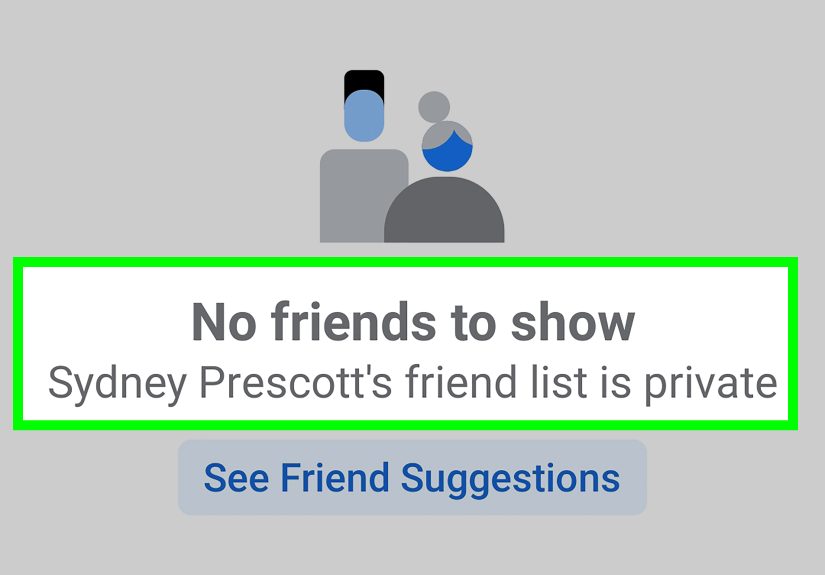
1) Hide Your Friends Section
This is the most important step. On Android, open the Facebook app, tap the menu icon, go to Settings & Privacy, then Settings. Look for How people find and contact you or a similar privacy section. Then find Who can see your friends list?
Set it to Only me for the strongest privacy. If you do not want to go fully stealth mode, you can choose Friends except… and exclude specific people. That option is useful when you are not trying to hide from the whole internet, just from one especially curious person who treats Facebook like a detective board with yarn and push pins.
This step hides your full Friends section from most viewers. It will not necessarily erase every mutual-friend clue, but it dramatically reduces what people can browse from your profile.
2) Hide the People, Pages, and Lists You Follow
If your version of Facebook shows a setting for Who can see the people, Pages, and lists you follow?, change that to Only me too. This closes another side door into your social activity. Even when people cannot inspect your full friend network, they sometimes piece together your interests and connections from follows and visible engagement.
Think of it as closing the curtains after locking the front door. Different job, same privacy goal.
3) Tighten Your Public Profile Visibility
Now move beyond your Friends list. Review the visibility of your intro details, workplace, education, current city, hometown, relationship status, and contact info. If these fields are public, strangers can still map your social life with surprising ease.
Set sensitive details to Friends or Only me where appropriate. The less public context you expose, the harder it is for someone to connect you to the same circles.
If Facebook offers Profile Lock in your region, that is worth enabling as well. Availability varies, so not every Android user will see it. If you do have it, use it.
4) Limit Who Can Find You
Go to the same privacy area and review settings like:
- Who can send you friend requests
- Who can look you up using your email address
- Who can look you up using your phone number
- Whether search engines outside Facebook can link to your profile
For most privacy-conscious users, the safest setup is to limit friend requests to Friends of friends, restrict email and phone lookups as much as possible, and turn off external search engine linking if that option is available on your account.
This does not hide mutual friends directly, but it reduces how often random people land on your profile in the first place. Privacy is sometimes less about a magic wall and more about fewer doors.
5) Use the Restricted List for Specific Friends
If the concern is not strangers but one or two people already on your friend list, the Restricted list can help. Add them to Restricted and they will mostly see your Public posts and anything you tag them in, but not your regular Friends-only posts.
This does not hide mutual friends. Let me say that again for the people in the back: Restricted is not a mutual-friends hider. What it does do is stop certain friends from seeing most of your non-public content while letting you remain connected.
It is the digital version of saying, “We are still technically friendly, but I do not need you front row at my online life.”
6) Unfriend or Block When Necessary
If someone absolutely must not see your connections, content, or profile activity, the real solution may be to unfriend or block them. That sounds dramatic, but sometimes Facebook privacy settings are less like a security system and more like a polite suggestion box.
Unfriending removes direct friendship visibility. Blocking goes much further and cuts off most interaction entirely. If the issue involves harassment, stalking, impersonation, or repeated boundary-crossing, use the stronger option and skip the guilt.
What This Workaround Actually Helps With
When set up properly, this Android workaround can:
- Hide your full Friends section from most people
- Reduce discovery through phone, email, and search engines
- Limit what certain friends can see from your posts
- Make your profile harder to map socially
- Lower the odds of casual snooping
In other words, it helps against curiosity, not omniscience. A casual visitor will see much less. A determined person may still figure out some shared connections through tagged content, public comments, shared groups, or mutual friends’ visible activity.
What This Workaround Does Not Do
Let us be painfully clear, because Facebook privacy advice often gets dressed up like a miracle cure:
- It does not guarantee that all mutual friends vanish
- It does not hide people who comment publicly on your posts
- It does not stop others from tagging you unless you adjust tagging review settings
- It does not erase clues on mutual friends’ profiles
- It does not stop Facebook from using your network for friend suggestions
This is why the best Facebook privacy strategy on Android is layered. One setting helps. Five settings help more. A little realism helps most.
Simple Example Scenarios
Scenario 1: You want to hide connections from coworkers
Set your Friends list to Only me, make your profile details less visible, and review old public posts. If a specific coworker is too invested in your personal life, move them to Restricted.
Scenario 2: You are dealing with an ex who keeps checking your profile
Hide your Friends section, disable public lookups where possible, review tagging settings, and consider blocking if boundaries are being ignored. This is not overreacting. This is using the tools you already pay for with your attention span.
Scenario 3: You are active in multiple social circles
If you want family, clients, old classmates, and hobby groups to stop overlapping so obviously, reduce public profile signals and tighten your sharing defaults. On Facebook, oversharing often happens through settings you forgot you had.
How to Check Whether It Worked
After making changes on Android, do not just trust the app and wander off. Check your profile from the outside.
The easiest method is to use Facebook’s View As feature in a browser if available, or ask a trusted non-friend to tell you what they can see. Review your profile photo area, About info, Friends section, and recent posts. If your setup still looks too open, go back and tighten individual fields one by one.
Facebook updates its interface often, so menu names may shift slightly. If you do not see the exact wording in this guide, look for related options under privacy, profile visibility, audience, or how people find and contact you.
Extra Privacy Tips for Android Users
- Set your default post audience to Friends instead of Public
- Review old public posts and limit their audience
- Turn on tag review if the option is available
- Audit visible profile fields every few months
- Remove old followers or suspicious accounts from your network
- Enable two-factor authentication for account security
Good privacy on Facebook is not one setting. It is maintenance. Annoying? Yes. Effective? Usually.
Common User Experiences With This Workaround
One of the most common experiences people have is the moment of disappointment right after they hide their Friends list and realize mutual friends still show up. That confusion is completely understandable. Most users assume that if the Friends section is private, then every friend-related clue should disappear too. But Facebook separates those things. The first reaction is usually, “Wait, why can they still see that?” The second reaction is usually less printable.
Another common experience happens with coworkers. Someone wants to keep their work life and personal life separate, but Facebook keeps acting like it is hosting a networking mixer nobody asked for. They lock down their Friends list on Android, switch old posts from Public to Friends, and suddenly the profile feels less like an open house. It does not become invisible, but it does stop broadcasting every connection like a halftime show.
People also run into this issue after breakups. An ex may not be blocked, but the user still wants more distance. That is where the workaround becomes practical. Hiding the Friends section, reducing profile visibility, and limiting who can search by phone number often creates enough breathing room to make Facebook feel less intrusive. It is not emotionally magical, but it is technologically helpful, which is the best kind of realistic.
Parents and teachers often describe a different version of the same problem. They want to stay on Facebook for groups, school notices, relatives, or community pages, but they do not want every acquaintance tracing their social circles. On Android, the privacy menus can feel buried, so once they find the right settings and apply them, the biggest feeling is relief. Not excitement. Relief. The digital equivalent of finally finding the light switch in a hotel bathroom.
Then there are users who discover the Restricted list and think they have found a secret superhero feature. In reality, it is more like a quiet boundary tool. It works well for staying connected to certain people without handing them access to your everyday posts. Users often say this feature is especially useful for distant relatives, coworkers, or acquaintances they do not want to offend by unfriending. It is less dramatic than blocking and more effective than hoping someone gets bored and stops looking.
Finally, many users notice that Facebook privacy is never really “set it and forget it.” App updates move menus around, old public posts remain public until reviewed, and profile fields can stay more visible than expected. The experienced Facebook user eventually learns a simple truth: the platform rewards regular checkups. Once people accept that, the workaround becomes less frustrating. It is no longer about finding one perfect switch. It is about building a profile that shares what you choose and not a pixel more.
Final Thoughts
If you want to hide mutual friends on Facebook on Android, the honest answer is that there is no direct mutual-friend privacy toggle. But there is a solid workaround. Hide your full Friends section, reduce profile visibility, limit discovery settings, use Restricted for specific people, and block when privacy crosses into protection.
Will that make your profile invisible? No. Will it make Facebook stop trying to connect every human being you have ever made eye contact with? Also no. But it will give you a much tighter, safer setupand on Facebook, that counts as a small miracle.