Table of Contents >> Show >> Hide
- What a Layer Mask Is (And Why You Should Care)
- Before You Start: The One Panel You Need
- Option 1: Click the “Add Layer Mask” Button (Fastest + Most Popular)
- Option 2: Use the Menu (Layer > Layer Mask) for Clear Choices
- Option 3: Add a Mask from a Selection (One Click, Clean Result)
- Option 4: Add a Black Mask Instantly (Alt/Option-Click = Hide All)
- Masking Skills That Make You Look Like a Wizard (In a Good Way)
- Common Layer Mask Mistakes (And How to Fix Them Fast)
- Quick Cheat Sheet: Which Option Should You Use?
- FAQ: Layer Masks in Photoshop
- Real-World Experiences: What It’s Like When You Start Using Layer Masks (500+ Words)
- Conclusion
If Photoshop had a superhero cape, it would be a layer mask. Not the flashy kind of cape, eithermore like the practical one with deep pockets that quietly saves your project at 1:47 a.m. Layer masks let you hide parts of a layer without deleting a single pixel, which means you can change your mind later. (And you will. We all do.)
In this guide, you’ll learn four easy ways to add a layer mask in Photoshop, plus the real-world tips that make masks feel less like a mysterious grayscale portal and more like a “why didn’t I do this sooner?” power move.
What a Layer Mask Is (And Why You Should Care)
A layer mask is a grayscale thumbnail attached to a layer. Think of it like stage lighting:
- White reveals the layer (spotlight on).
- Black hides the layer (lights out).
- Gray partially reveals (dimmedgreat for soft blends).
The big win: masks are non-destructive editing. You’re not erasing datayou’re just deciding what’s visible right now. That means cleaner workflows, easier revisions, and fewer “oops” moments when a client says, “Can we go back to version two?”
Before You Start: The One Panel You Need
Most mask actions happen in the Layers panel. If you don’t see it, go to Window > Layers. You’ll also want to keep an eye on which thumbnail is selected: the layer thumbnail or the mask thumbnail. (If your brush is “not working,” nine times out of ten you’re painting on the layer instead of the mask.)
Option 1: Click the “Add Layer Mask” Button (Fastest + Most Popular)
This is the classic, no-drama methodand it’s usually the best place to start.
Steps
- Select the layer you want to mask in the Layers panel.
- At the bottom of the Layers panel, click the Add Layer Mask icon (a rectangle with a circle in it).
- A white mask thumbnail appears next to your layer thumbnailmeaning everything is currently visible.
When to use it
- You want a normal “reveal everything” mask to start painting on.
- You’re blending two photos, fading an edge, or doing subtle cleanup.
- You want the quickest path to “I have a mask now, what’s next?”
Pro tip: Press B for the Brush tool, then use X to swap foreground/background colors (black/white) while painting on the mask. It’s like a visibility toggle switch for your sanity.
Option 2: Use the Menu (Layer > Layer Mask) for Clear Choices
If you like menus because they say what they mean, this option is for you. Photoshop offers several “add mask” commands that spell out exactly what will happen.
Steps
- Select your target layer.
- Go to Layer > Layer Mask.
- Choose one of these common options:
- Reveal All (adds a white mask)
- Hide All (adds a black mask)
- Reveal Selection (turns your selection into the visible area)
- Hide Selection (turns your selection into the hidden area)
When to use it
- You want to start with a black mask (Hide All) and paint in visibility.
- You’re masking from a selection and want to choose reveal vs. hide with zero guessing.
- You’re teaching someone and want the most “obvious” workflow to explain.
Why it’s nice: “Reveal All” and “Hide All” are basically Photoshop saying, “Pick your starting point.” White mask = show everything. Black mask = hide everything. Both are correct. Your future self will thank you for choosing intentionally.
Option 3: Add a Mask from a Selection (One Click, Clean Result)
This is where layer masks go from “neat feature” to “I can’t believe I used the Eraser tool for years.” If you already have a selectionlike a subject, product, or skyyou can convert it straight into a layer mask.
Steps (the simple version)
- Make a selection using tools like Select Subject, Quick Selection, the Pen tool, or any selection method you like.
- With the selection still active (“marching ants”), click the Add Layer Mask icon in the Layers panel.
- Photoshop builds the mask: selected areas become white (visible) and unselected areas become black (hidden).
Steps (if you want more control)
- Make your selection.
- Go to Layer > Layer Mask.
- Choose Reveal Selection or Hide Selection.
Example: Clean product cutout in under a minute
Imagine you have a product photo with a busy background. You select the product, click Add Layer Mask, and instantly the background disappearswithout deleting anything. Need to bring back a little shadow? Paint with white on the mask. Too much? Paint with black. No panic, no “Undo” gymnastics.
Masking tip: If your selection edge looks crunchy (technical term), refine it before masking using Select and Mask. Then apply the mask. Your hair cutouts and tree branches will look significantly less like they were snipped with safety scissors.
Option 4: Add a Black Mask Instantly (Alt/Option-Click = Hide All)
If you do any compositing, retouching, or “reveal the effect only where I paint” work, this is the option you’ll use constantly. It creates a mask that hides everything from the startso you can paint visibility exactly where you want it.
Steps
- Select the layer (or group) you want to mask.
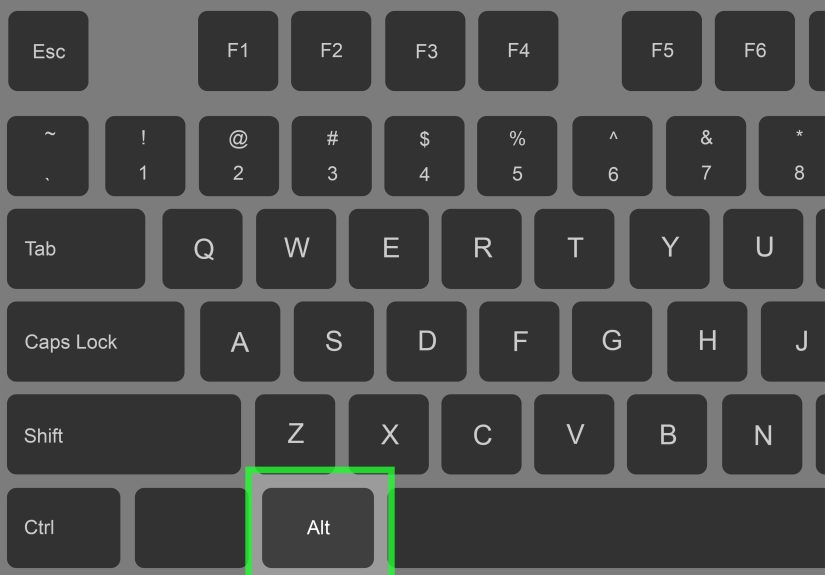
- Hold Alt (Windows) or Option (Mac).
- Click the Add Layer Mask icon in the Layers panel.
- You’ll get a black maskthe layer becomes invisible until you paint with white.
When to use it
- You’re applying a dramatic adjustment (like a color grade) and want it only in specific areas.
- You want to dodge/burn, sharpen, or glow selectively without affecting the whole image.
- You like working “additively” by painting the effect in, instead of hiding parts out.
Example: A subtle spotlight without wrecking your photo
Add a Curves adjustment layer, make it brighter, then add a black mask to the adjustment (Alt/Option-click the mask icon). Paint with a big soft white brush at low opacity on the mask to brighten just the subject’s face. It’s like a gentle studio light, except you didn’t have to rent anything or learn how to fold a reflector.
Masking Skills That Make You Look Like a Wizard (In a Good Way)
1) Know what you’re painting on
Click the mask thumbnail before brushing. If the layer thumbnail is selected, you’ll paint on pixels instead of the masksometimes permanently. If you ever think, “Why is my brush turning my image black and white?”that’s your clue you’re on the wrong thumbnail.
2) Use the right brush settings
- Hardness: Soft edges for blends, hard edges for cutouts and graphics.
- Opacity/Flow: Lower values help build up a natural transition.
- Feathering: Great for softening harsh edges (especially for portraits).
3) Gradients are mask magic
For smooth fadeslike blending a sky or fading text into a textureuse the Gradient tool on the mask. A black-to-white gradient makes a perfect transition without visible brush strokes.
4) Temporarily disable a mask to compare
Want a quick before/after? Shift-click the mask thumbnail to disable it (a red X appears). Shift-click again to enable. It’s an instant reality check to make sure your masking isn’t… let’s say… “artistically overconfident.”
5) View the mask itself
Hold Alt (Windows) or Option (Mac) and click the mask thumbnail to view it in black and white. This makes it way easier to spot accidental smudges, weird edges, and that one random gray patch you swear wasn’t there five minutes ago.
6) Invert a mask in one second
Click the mask thumbnail, then press Ctrl + I (Windows) or Cmd + I (Mac) to invert it. White becomes black, black becomes white. It’s the fastest way to flip “show this” into “hide this” without repainting.
Common Layer Mask Mistakes (And How to Fix Them Fast)
“My mask isn’t doing anything.”
- Make sure you’re painting on the mask, not the layer.
- Check that the mask isn’t disabled (Shift-click toggles it).
- Confirm your brush color: black hides, white reveals.
“My edges look jagged or crunchy.”
- Refine your selection with Select and Mask before creating the mask.
- Use a slightly soft brush and paint at lower opacity for smoother transitions.
- Try adding a subtle feather to the mask edge if it suits the image.
“I need the same mask on multiple layers.”
Put the layers into a group and add a mask to the group. That way, one mask controls the visibility of everything inside. It’s tidy, flexible, and prevents your Layers panel from turning into a never-ending scroll.
Quick Cheat Sheet: Which Option Should You Use?
- Option 1 (button): Best everyday method. Start with a white mask and paint to hide.
- Option 2 (menu): Best for clarity and explicit choices like Reveal All / Hide All / Reveal Selection.
- Option 3 (from selection): Best for cutouts and fast subject isolation.
- Option 4 (Alt/Option black mask): Best for “apply effect only where I paint” workflows.
FAQ: Layer Masks in Photoshop
Can I add a layer mask to an adjustment layer?
Yesand you should. Adjustment layers typically come with a white mask by default. That mask is your “apply this effect selectively” switch. Paint with black on the adjustment’s mask to remove the effect from specific areas.
Can I mask a group of layers at once?
Absolutely. Select the group (folder) in the Layers panel and add a mask the same way you would for a single layer. Group masks are a clean solution when you want multiple layers to share the same hidden/revealed areas.
Is a layer mask the same as an eraser?
Not even close. The eraser deletes pixels. A layer mask hides pixels. Hidden pixels can come back. Deleted pixels are gone unless you undo (or cry softly). If you’re building a professional workflow, masks are the move.
Real-World Experiences: What It’s Like When You Start Using Layer Masks (500+ Words)
Here’s the funny thing about learning how to add a layer mask in Photoshop: the “how” takes about 30 seconds, but the “ohhh” takes a little longer. Not because it’s hardbecause your brain has to switch from a destructive mindset (“remove the background”) to a non-destructive one (“hide the background for now”). That tiny wording difference is the moment where editing starts feeling less like risk and more like control.
A super common early experience goes like this: you add your first mask, grab the Brush tool, and paint… and nothing happens. You paint harder. Still nothing. You zoom in. You mutter a few words that would make a spellchecker blush. Then you realize you were painting on the layer thumbnail, not the mask thumbnail. Once you click the mask thumbnail and try again, it works instantlyand suddenly Photoshop feels like it’s cooperating instead of judging you.
Another classic moment: you make a beautiful selection of a person, click Add Layer Mask, and the background disappears. You feel unstoppable. Then you notice the edge around the hair looks like it was cut out with a kitchen knife. That’s when most people discover that masking is not just “on/off.” It’s refinement. You go into Select and Mask, tweak the edge, maybe soften a transition, and now the result looks like it belongs in the scene. The experience isn’t “I failed,” it’s “Ohthis is where the quality lives.”
Once you start using the black mask trick (Alt/Option-click), your workflow changes in a sneaky way. You stop thinking, “How do I hide everything except this?” and start thinking, “I’ll hide it all and paint in exactly what I want.” That’s a huge shift in control, especially for dodging and burning, sharpening eyes, adding glow, or applying color grading only to the subject. It feels cleanerlike you’re editing with intention instead of wrestling the whole image.
People also tend to have a “gradient epiphany.” They try brushing a blend between two images and get visible strokes. Then they use a gradient on the mask and boominstant smooth transition. It’s one of those experiences where you realize Photoshop isn’t about working harder, it’s about choosing the right tool for the job. The Gradient tool on a mask is basically a shortcut to looking like you planned the blend instead of accidentally discovering it.
And then there’s the “mask comparison habit.” Once you learn to Shift-click a mask to disable it, you start doing quick sanity checks constantly: Is my mask actually improving the image? Did I hide too much? Is that shadow supposed to be missing? Those little before/after toggles keep your edits grounded, especially when you’ve been zoomed in at 300% for long enough to forget what normal looks like.
Finally, the most relatable experience: you finish a complex edit and someone asks for a change you didn’t anticipatemaybe the client wants more background visible, or the subject needs to blend softer, or the adjustment is too strong. If you used masks, you smile because you can fix it in minutes. If you erased pixels… you start bargaining with the universe. Layer masks don’t just help you editthey help you stay flexible. And in Photoshop (and real life), flexibility is a cheat code.
Conclusion
Adding a layer mask in Photoshop is one of those skills that pays dividends every single time you open the app. Whether you click the Layers panel icon, use the Layer menu for explicit options, convert a selection into an instant cutout, or start with a black mask for precision painting, the result is the same: clean, reversible edits that keep your workflow fast and your options open.
Start with Option 1 if you’re new, graduate to Option 3 when you’re selecting subjects, and keep Option 4 in your back pocket for selective effects. Your future self (and your Undo history) will be very grateful.