Table of Contents >> Show >> Hide
- Why Changing Photoshop’s Language Can Feel Weirdly Complicated
- How to Change Language in Photoshop on PC or Mac: 8 Steps
- Step 1: Save Your Work and Close Photoshop
- Step 2: Open the Adobe Creative Cloud Desktop App
- Step 3: Go to Preferences and Find the Language Setting
- Step 4: Choose Your Preferred Photoshop Language
- Step 5: Uninstall and Reinstall Photoshop If It Is Already Installed
- Step 6: Open Photoshop and Go to Interface Settings
- Step 7: Select the UI Language You Want
- Step 8: Restart Photoshop and Check That the Change Worked
- What to Do If Photoshop Still Won’t Change Languages
- Can You Change Photoshop Language Without Reinstalling?
- Quick Example: Changing Photoshop from Spanish to English
- Real-World Experiences: What People Learn the Hard Way When Changing Photoshop’s Language
- Final Thoughts
If Photoshop suddenly starts speaking a language you barely recognize, do not panic, throw your mouse, or accuse your laptop of betrayal. Changing the language in Photoshop is usually pretty simple once you know where Adobe hid the controls. The trick is that Photoshop language settings are not always controlled from one place. Sometimes the change happens through the Creative Cloud desktop app, sometimes inside Photoshop itself, and sometimes your computer’s language settings sneak into the party like an uninvited cousin who still eats all the snacks.
That is why so many users get stuck. They open Photoshop, hunt through menus, find one lonely language option, and then discover the app still refuses to switch. Annoying? Absolutely. Fixable? Also yes.
In this guide, you will learn exactly how to change language in Photoshop on PC or Mac in eight clear steps. You will also see what to do if the language option is missing, why reinstalling Photoshop is sometimes necessary, and how Mac and Windows language settings can affect what you see on screen. So let’s make Photoshop understandable again, one menu at a time.
Note: Menu names can vary slightly depending on your Photoshop and Creative Cloud version, but the overall workflow is the same: choose the install language in Creative Cloud, reinstall Photoshop if needed, then confirm the UI language inside Photoshop and restart the app.
Why Changing Photoshop’s Language Can Feel Weirdly Complicated
Photoshop does not always treat language like a simple on-off switch. In many cases, Adobe ties the app language to the default install language you selected in Creative Cloud. That means changing the interface language for an already installed version of Photoshop may require more than clicking a single menu item. In plain English, Photoshop can be a little dramatic.
There are really three different layers to keep in mind. First, there is the Creative Cloud default install language. Second, there is Photoshop’s own UI Language setting inside the app. Third, there are your Windows or macOS language settings, which can influence how supported apps behave or what languages are available.
Once you understand those three layers, the process becomes much easier. Instead of randomly clicking through menus like you are searching for buried treasure, you can follow a logical order and get the result you want faster.
How to Change Language in Photoshop on PC or Mac: 8 Steps
Step 1: Save Your Work and Close Photoshop
Before changing anything, save your open files and close Photoshop completely. This sounds obvious, but it matters. Some language changes do not take effect until the app relaunches, and reinstalling the app while a project is still open is a great way to create unnecessary chaos.
If you are in the middle of editing a layered masterpiece that already has thirty-seven adjustment layers and a name like final-final-really-final.psd, now is an excellent time to save a backup too.
Step 2: Open the Adobe Creative Cloud Desktop App
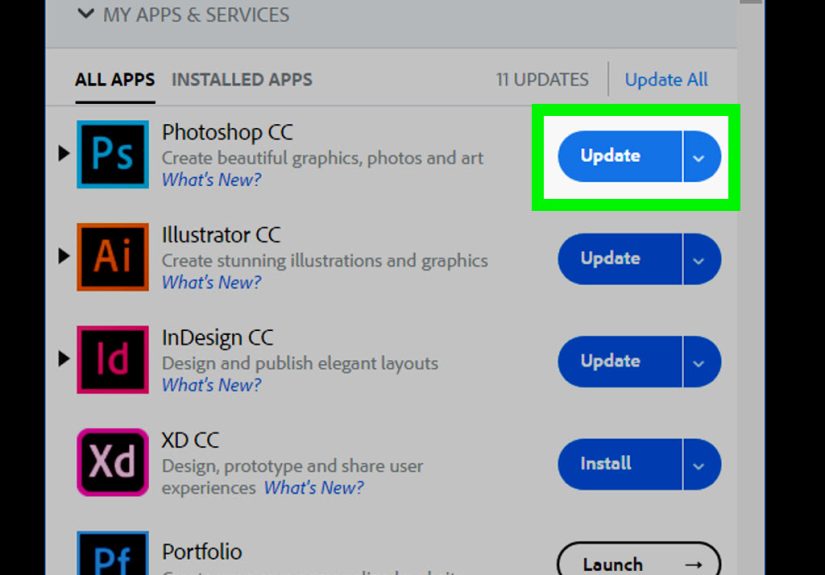
Next, open the Adobe Creative Cloud desktop app. This is where Adobe manages app installation preferences, including the default install language for Photoshop and other Creative Cloud apps.
If you do not usually open Creative Cloud unless something breaks, welcome to the club. Still, this is the control center you need. On both Windows and Mac, launch the desktop app and sign in if prompted.
Step 3: Go to Preferences and Find the Language Setting
In Creative Cloud, click your account icon in the upper-right corner, then open Preferences. Depending on your version, you may see the language option under Apps or under a dedicated Language section.
This is the part that trips people up because Adobe has changed the layout over time. So if you do not see exactly the same labels shown in an older tutorial, do not assume you are lost forever. Just look for anything that says Default install language or a language dropdown tied to app installation.
Step 4: Choose Your Preferred Photoshop Language
From the language dropdown, select the language you want Photoshop to use. For example, you might switch from Spanish to English, from German to French, or from English to Vietnamese if that is more comfortable for your workflow.
This step changes the language for future installs. That is the key detail. If Photoshop is not installed yet, great, you are in easy mode. If Photoshop is already installed, you will likely need to reinstall it for the new language to apply correctly.
Also remember that not every language is available in every situation. Some languages depend on the Photoshop version, regional build, or account restrictions. So if the language you want does not appear, the issue may not be user error. Sometimes it is simply not offered in that installation context.
Step 5: Uninstall and Reinstall Photoshop If It Is Already Installed
This is the step people love to skip and then immediately regret. If Photoshop is already installed, changing the Creative Cloud language setting alone often is not enough. Adobe’s current workflow usually requires you to uninstall and reinstall Photoshop so the app can install in the new language.
Yes, it is mildly annoying. No, grumbling at your screen does not count as a reinstall.
In Creative Cloud, uninstall Photoshop, then install it again after you have chosen the new default install language. If you want to be extra careful, restart your computer after uninstalling and before reinstalling. That is not always required, but it can help clear out lingering weirdness, especially if the app previously launched in the wrong language.
Step 6: Open Photoshop and Go to Interface Settings
Once Photoshop is reinstalled, open the app and check the interface settings.
On Windows, go to Edit > Preferences > Interface.
On Mac, go to Photoshop > Settings > Interface.
You can also use the keyboard shortcuts Ctrl + K on Windows or Command + K on Mac to open Preferences faster, then click Interface.
This is where Photoshop lets you choose the UI Language for the app itself. If your desired language is now available in the dropdown, you are almost done.
Step 7: Select the UI Language You Want
Inside the Interface section, look for UI Language and pick the language you want. This is the in-app confirmation step that tells Photoshop how to display menus, panels, and interface labels.
If you see your language in the list, choose it. If you only see one option, that usually means Photoshop does not currently have another installed language available for that build. In that case, go back and double-check the Creative Cloud install language and reinstall process.
This part is especially helpful for people who want Photoshop in English while keeping the rest of the computer in another language. It can also help when you are following tutorials, sharing screenshots with teammates, or using plugins that seem to behave better when the interface is set to English.
Step 8: Restart Photoshop and Check That the Change Worked
After selecting the new UI language, restart Photoshop. This final relaunch is what makes the language change stick. When Photoshop opens again, the menus, panels, and most interface labels should appear in the language you selected.
If everything looks right, congratulations. Photoshop has officially stopped gaslighting you.
If not, move on to the troubleshooting section below, because there are a few common reasons the change may not appear immediately.
What to Do If Photoshop Still Won’t Change Languages
The Language You Want Is Missing
If your preferred language does not appear in Photoshop’s UI Language dropdown, the most likely cause is that the language was not installed with the app. Go back to Creative Cloud, verify the Default install language, and reinstall Photoshop again.
Also check whether that language is actually supported by your current version of Photoshop. Adobe supports many languages, but not every regional feature behaves the same way. Arabic and Hebrew, for example, have special support in specific regional versions.
Your Subscription and Installed Language Do Not Match
In some cases, Adobe may show an error because the installed app language does not match what your subscription supports. If that happens, choose a supported install language in Creative Cloud, then reinstall Photoshop using that language. This is not common for every user, but it does happen often enough to be worth knowing.
Mac Users Still See the Wrong App Language
On Mac, app-level language settings can also matter. Go to Apple menu > System Settings > General > Language & Region. In the Applications section, you can assign a specific language to an individual app. If Photoshop appears there with the wrong language, change it and reopen the app.
This is a good fix when macOS is politely insisting on one language while you are very clearly requesting another.
Windows Users Need a Language Pack
On Windows, make sure the language you want is installed under Settings > Time & language > Language & region. If it is not installed, add the language pack first. Some language-related behavior across apps and system features depends on Windows having that language available.
That does not replace Adobe’s own language controls, but it can support them and prevent a few head-scratching issues.
The App Changed, but the Keyboard Layout Did Not
Changing Photoshop’s interface language is not the same thing as changing your keyboard layout or text input language. If you are typing in another language and the keyboard feels wrong, that is a separate Windows or Mac setting. In other words, your menus and your keyboard are cousins, not twins.
Can You Change Photoshop Language Without Reinstalling?
Sometimes, yes. If the language you want is already available inside Photoshop’s UI Language dropdown, you may only need to switch it there and restart the app. But if the language pack was not installed with Photoshop in the first place, Adobe’s recommended method is to change the install language in Creative Cloud and reinstall the app.
That is why some internet tips work for one person and fail spectacularly for another. They may already have the necessary language resources installed, while someone else does not.
For current Creative Cloud versions, the cleanest and safest method is the official one. Random file-renaming tricks from ancient forum posts might be tempting, but unless you are dealing with a legacy version and know exactly what you are doing, they are best left in the software archaeology museum.
Quick Example: Changing Photoshop from Spanish to English
Let’s say your Photoshop menus are in Spanish, but every tutorial you follow is in English. Here is the practical version of the process:
Open Creative Cloud, go to Preferences, set the default install language to English, uninstall Photoshop, reinstall it, open Photoshop, go to Interface settings, choose English in the UI Language menu, then restart the app.
That is it. Once finished, menu items like Archivo and Editar should become File and Edit, and your life gets noticeably easier.
Real-World Experiences: What People Learn the Hard Way When Changing Photoshop’s Language
One of the most common real-world reasons people change Photoshop language is not because they suddenly fell out of love with their native language. It is usually because they are trying to learn faster. Most Photoshop tutorials, plugin instructions, presets, and troubleshooting posts are written in English. So if your copy of Photoshop opens in French, German, Japanese, or another language, following along can feel like trying to assemble furniture with half the manual missing.
A lot of users start by searching for a magical button inside Photoshop that instantly changes everything. When that does not work, they assume the app is broken. In reality, Photoshop is just being very Adobe about it. The language you see often depends on how the app was installed, not only on what you click inside the app later. This is why some people swear they changed the language in two clicks, while others spend an hour wandering through menus and still end up staring at the same non-English interface. They are not doing the same thing under the hood.
Another common experience happens on shared computers, school lab machines, or office devices managed by IT. You may sign into your Adobe account expecting English, only to discover Photoshop launches in whatever language the computer used last. That can happen because the machine was originally set up with a different install language or because the operating system itself is configured for another region. In team environments, that leads to hilarious but frustrating moments where one designer says, “Click Select,” and the other says, “I would love to, except I have no idea what Select is called today.”
Mac users often have a slightly different experience. Because macOS supports app-specific languages, some people fix Photoshop without changing the whole system. That is great when you want the computer in one language but Photoshop in another. It is less great when you forget you set an app-specific preference months ago and later wonder why Photoshop is the only app on your Mac acting like it just came back from a study-abroad semester.
Windows users run into their own version of confusion. They may successfully change the Photoshop interface but still have the wrong keyboard layout, date format, or typing language. Then they assume Photoshop failed when really the app language and the system input language are two separate settings. It is a bit like changing the signs in a restaurant from French to English but keeping the menu categories in another language. Related, yes. Identical, no.
There is also the plugin factor. Some older extensions, actions, and tutorial scripts behave more predictably in English because the documentation assumes English menu names. That does not mean Photoshop works better in English in every technical sense, but it can make learning, support, and collaboration much smoother. If you regularly copy exact instructions from forums or training videos, matching the interface language to the tutorial language can save a shocking amount of time.
Then there is the emotional side of the whole experience, which nobody talks about enough. Software feels harder when you cannot instantly recognize commands. Even experienced users can feel clumsy when favorite tools move behind unfamiliar labels. Changing Photoshop back to a familiar language is not just about convenience. It reduces friction, cuts down mistakes, and makes the app feel like your workspace again instead of a puzzle box with layers.
The smartest users usually end up with a simple rule: pick one working language for learning and troubleshooting, keep screenshots of the important settings, and remember that Creative Cloud controls more than you think. That one habit turns a frustrating trial-and-error process into a predictable routine. And honestly, anything that makes Adobe feel predictable deserves a round of applause.
Final Thoughts
If you want to change language in Photoshop on PC or Mac, the fastest reliable path is this: update the default install language in Creative Cloud, reinstall Photoshop if necessary, switch the UI Language inside the app, and restart. That combination solves the issue for most users without strange hacks or mystery fixes.
Once your menus are back in the language you actually want, Photoshop becomes easier to learn, easier to troubleshoot, and a lot less likely to make you question your reading comprehension. Which, frankly, is the kind of peace every creative deserves.