Table of Contents >> Show >> Hide
- The First Thing to Know: HERO3 Support Is Complicated
- What You Need Before You Start
- How to Connect a GoPro HERO3 to the GoPro App
- Special Note for HERO3+ Owners
- Why Your GoPro HERO3 Is Not Connecting to the App
- How to Fix GoPro HERO3 Pairing Problems
- Best Backup Option if the App Will Not Cooperate
- Tips to Make the Connection More Reliable
- Is It Still Worth Connecting a GoPro HERO3 to the App?
- Final Thoughts
- Real-World Experiences Connecting a GoPro HERO3 to the App
If you just pulled a GoPro HERO3 out of a drawer, a backpack, or a mysterious “tech stuff” bin that also contains three dead charging cables and a single AA battery, you are not alone. The HERO3 is old-school GoPro cool: tiny, rugged, and still capable of capturing fun footage. The tricky part is getting it to talk nicely to the GoPro app on a modern phone.
Here is the honest version: the GoPro mobile app is now called Quik, and modern app support for the original HERO3 is not as smooth as it used to be. That said, many people can still get a HERO3 or HERO3+ connected by updating firmware, turning on the right permissions, and manually joining the camera’s Wi-Fi network instead of waiting for magic to happen. In other words, this is less “one-tap wizardry” and more “smart troubleshooting with a little patience.”
This guide walks you through the easiest realistic steps to connect a GoPro HERO3 to the GoPro app, explains where the process can break, and shows you what to do if Quik behaves like your camera is a historical artifact from an ancient civilization.
The First Thing to Know: HERO3 Support Is Complicated
If you search for how to connect a GoPro HERO3 to the GoPro app, you will quickly run into mixed advice. That is because two things are true at the same time. First, older GoPro documentation and firmware updates clearly show that the HERO3 was built to work with the GoPro app over Wi-Fi. Second, current Quik compatibility guidance does not officially support HERO3 in the same way as newer cameras.
So what does that mean in real life? It means the connection process can still work, but it may require more manual setup than newer GoPro models. It also means your results can depend on the exact camera version, your phone, your operating system, and whether the camera’s Wi-Fi settings were updated years ago or forgotten sometime around the era when everyone suddenly got very passionate about mason jars.
The good news is that the core pairing idea is still simple: the camera creates its own Wi-Fi connection, your phone joins that network, and the app uses that link for control, preview, and media access.
What You Need Before You Start
1. A fully charged GoPro HERO3
Low battery is a classic troublemaker. If the camera is weak, Wi-Fi pairing can fail or become unstable. Charge the camera first so you are not debugging a dead battery while blaming the app.
2. The latest HERO3 firmware available
This step matters more than most people think. If your HERO3 has not been updated in years, it may be running older wireless behavior that does not play nicely with later versions of the app. Update the camera before pairing if you can. On HERO3 cameras, this is often done manually rather than through a slick in-app update flow.
3. A reliable microSD card
If your card is flaky, the camera can act flaky too. Use a good-quality card and make sure it is seated correctly. This does not directly create the Wi-Fi connection, but it does help the camera behave like a camera instead of a dramatic performance artist.
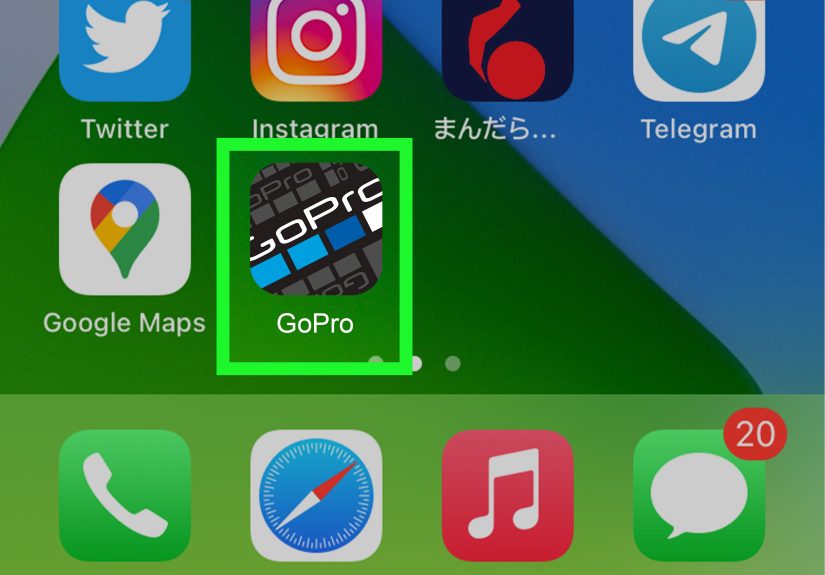
4. The Quik app on your phone
The old “GoPro App” branding has largely been replaced by GoPro Quik. Download the current app from the Apple App Store or Google Play before you start.
5. Permissions turned on
This part gets skipped all the time. On iPhone, local network permission can affect whether the app can discover the camera. On Android, permissions related to nearby devices, Wi-Fi, and sometimes location-related access can also affect pairing. If Quik cannot “see” the camera, permissions are one of the first places to check.
How to Connect a GoPro HERO3 to the GoPro App
Step 1: Power on the camera
Turn on your GoPro HERO3 using the Power/Mode button. Let it boot fully before doing anything else. If the camera freezes, restart it and try again before opening the app.
Step 2: Turn on Wi-Fi on the HERO3
On the HERO3 family, Wi-Fi is the star of the show. Press the Wi-Fi button to turn on wireless mode. On many HERO3 units, blue indicator lights flashing means Wi-Fi is active. If Wi-Fi is off, your phone has nothing to connect to, and Quik will sit there looking confused.
Step 3: Put the camera in GoPro App mode
This is the part people miss. On the camera, go into the wireless or Wi-Fi controls menu and select GoPro App. Depending on the HERO3 version, the menu wording may vary a bit, but the goal is the same: you want the camera prepared to pair with a phone, not a remote.
If you have a HERO3+, the flow is usually more straightforward. You enter the Wi-Fi menu, choose GoPro App, then connect your phone to the camera’s Wi-Fi network. If you have the original HERO3, the process can feel a little more manual, and old Wi-Fi credentials may still be lingering from a previous setup.
Step 4: Open your phone’s Wi-Fi settings
Do not wait for the app to do everything automatically. Open your phone’s Wi-Fi settings and look for the camera’s network name.
On many HERO3+ cameras, the network name begins with something like GOPRO-BP- followed by letters or numbers. If you see it, tap it to connect.
If your phone asks for a password and you own a HERO3+, the default password is often goprohero unless it was changed in the past. If you own the original HERO3 and the password is not obvious, the camera may have older customized wireless settings. In that case, you may need to reset or update the Wi-Fi settings before pairing works reliably.
Step 5: Return to the Quik app
Once your phone is connected to the camera’s Wi-Fi network, go back to the Quik app. Give it a few seconds to discover the camera. If Quik asks for permission to access nearby devices or your local network, say yes. This is not the app being nosy; it is the app trying to do its job.
Step 6: Complete the pairing flow
Follow the prompts inside Quik. On some phones, pairing looks almost automatic. On others, it feels like the app needs a moment to catch up with the fact that you already did the smart part manually in Wi-Fi settings. Stay patient and let it finish.
Step 7: Test remote control and live preview
When the connection succeeds, test basic functions right away. Start and stop recording. Change a mode. Check live preview. If preview works, you are in business.
One helpful note: the live preview on your phone may look softer or lower quality than the final footage on the camera. That is normal. The preview is there for framing and control, not to make your phone feel like a broadcast monitor from a movie set.
Special Note for HERO3+ Owners
A lot of people search for “GoPro HERO3 app setup” when they actually own a HERO3+. That matters because HERO3+ documentation gives more specific app-connection steps than the original HERO3 manuals. If your camera says HERO3+ on the front, your odds are generally better, especially if the Wi-Fi network appears properly and you can join it from the phone first.
In plain English, the HERO3+ tends to be the more cooperative cousin in this family reunion.
Why Your GoPro HERO3 Is Not Connecting to the App
The app cannot find the camera
This is the most common complaint. Usually, one of three things is happening:
- The camera Wi-Fi is not actually on.
- The camera is not in GoPro App mode.
- Your phone denied the app permission to see devices on the local network or nearby Wi-Fi environment.
Start by checking those three before doing anything dramatic.
The password does not work
If your password is rejected, there is a good chance the Wi-Fi credentials were changed years ago and no one remembers doing it. That is peak vintage-tech behavior. A Wi-Fi reset or Wi-Fi settings update may be needed, especially on the original HERO3.
The phone joins Wi-Fi, but Quik still hangs
This can happen when the camera and phone are connected at the Wi-Fi level, but the app does not finish the handshake. Restart both devices, forget the camera network on the phone, reconnect, and try again. Also make sure the app permissions are still enabled.
The camera is simply too old for your current setup
This is the awkward truth no one likes to hear. Some combinations of modern phones, new operating systems, and the current Quik app just do not play especially well with the original HERO3. That does not mean your camera is useless. It just means app-based wireless control may be unreliable compared with newer GoPro models.
How to Fix GoPro HERO3 Pairing Problems
Update the firmware first
If you only do one troubleshooting step, make it this one. Older firmware is a frequent cause of bad pairing behavior on aging action cameras.
Forget the network and reconnect
On your phone, forget the GoPro Wi-Fi network, then reconnect from scratch. This clears out stale settings that can make the app act stubborn.
Check iPhone and Android permissions
On iPhone, make sure Quik has access to the local network. On Android, check permissions for nearby devices and other connection-related access. A denied permission can make the app behave like the camera does not exist, even while the camera is practically waving from across the room.
Manually connect before opening the app
This trick works surprisingly often. Connect to the camera’s Wi-Fi network in your phone settings first, then open Quik. With older cameras, manual beats automatic more often than modern app design would like to admit.
Reset wireless settings if needed
If the SSID or password is a mystery from the distant past, a wireless reset is often the cleanest fix. This is especially relevant on older HERO3 units that have been unused for years.
Best Backup Option if the App Will Not Cooperate
If wireless pairing still refuses to work, the easiest fallback is to skip the app and transfer files directly from the camera or microSD card to your computer or phone. It is not as convenient as remote control from Quik, but it is reliable.
If your main goal is simply getting footage off the camera, direct transfer is often faster than spending an entire afternoon trying to teach a 2012 action camera new tricks.
Tips to Make the Connection More Reliable
- Charge the battery before every pairing attempt.
- Turn Wi-Fi off and back on at the camera if the network disappears.
- Connect through phone Wi-Fi settings before relying on the app.
- Keep the phone close to the camera during setup.
- Update camera firmware before assuming the app is broken.
- Use Quik mainly for control, preview, and quick media access, not as proof that your vintage hardware has become magically modern overnight.
Is It Still Worth Connecting a GoPro HERO3 to the App?
Yes, if you want easier framing, remote control, and quick media review without pulling the card every time. A successful GoPro HERO3 app setup can still make the camera much nicer to use. It is especially helpful when the camera is mounted somewhere annoying, like a helmet, handlebars, or a spot you can reach only by stretching like a yoga instructor.
Just keep your expectations realistic. The HERO3 can still be fun. It is not going to behave like a brand-new flagship action cam, and that is okay. Plenty of older tech still works well once you stop expecting it to act twenty years younger than it is.
Final Thoughts
If you are trying to connect a GoPro HERO3 to the GoPro app, the easiest path is this: update the camera, turn on Wi-Fi, select GoPro App mode, manually join the camera’s Wi-Fi network on your phone, then open Quik and finish the pairing. That is the process with the best odds of success.
The biggest thing to remember is that the modern app ecosystem has moved on, while the HERO3 is still proudly living in its Wi-Fi-first era. When you approach it on its own terms, pairing can still work. And when it does, this little action camera suddenly feels a lot less like a relic and a lot more like a dependable sidekick with a few gray hairs.
Real-World Experiences Connecting a GoPro HERO3 to the App
One very common experience starts the same way every time: someone finds a HERO3 in a drawer, charges it overnight, downloads Quik, and assumes the camera will pop up instantly like a pair of modern earbuds. Then nothing happens. The app keeps scanning, the phone looks innocent, and the camera blinks blue like it is doing something important. In most cases, the fix is not dramatic. The owner opens Wi-Fi settings manually, joins the GoPro network, returns to Quik, and suddenly the camera appears. The lesson is simple: with older GoPro gear, manual Wi-Fi setup is not a backup plan. It is often the plan.
Another very real experience is the password problem. A lot of HERO3 owners have not touched the camera in years, which means the wireless password may have been changed in a previous life and then completely forgotten. People naturally try the obvious password, it fails, and they assume the camera is broken. Usually, it is not broken at all. It is just stubborn and old enough to remember settings nobody else remembers. Once the wireless settings are reset or updated, the connection process becomes much less frustrating. This is why patience matters so much with legacy tech: what looks like failure is often just a stale setting hiding in the background.
Then there is the permissions trap, which feels especially unfair because everything can look correct while still not working. Many people connect the phone to the camera’s Wi-Fi network and still cannot get Quik to cooperate. The missing piece is often a permission on the phone, such as local network access on iPhone or nearby-device access on Android. Once that switch is turned on, the exact same setup can suddenly work in seconds. That experience teaches an important modern-tech lesson: sometimes the camera is fine, the Wi-Fi is fine, and the real villain is one tiny permission toggle buried three menus deep.
There are also users who get the HERO3 connected but notice the preview looks softer than expected. That can be alarming the first time. People think the camera is producing low-quality footage, when in reality the live preview is just lower quality than the actual recording. Once they pull the video file from the camera, the footage looks normal again. This is a good reminder not to judge the HERO3 entirely by what the phone screen shows during preview.
And finally, there is the most relatable experience of all: reaching a point where you say, “You know what? I just need the files.” Plenty of owners end up using the app only when it works easily and switching to direct file transfer when it does not. That is not defeat. That is wisdom. The HERO3 can still earn its keep, even if the fastest route to your footage is sometimes a card reader instead of Quik. In real life, the best setup is the one that gets you shooting again without turning a weekend project into a full-time emotional event.