Table of Contents >> Show >> Hide
- What Makes a Good Watermark?
- Before You Start: Set Up Your File the Smart Way
- How to Create a Text Watermark in Illustrator
- How to Create a Logo Watermark in Illustrator
- How to Make a Repeating Watermark Pattern (Harder to Remove)
- Lock It, Name It, Save It: The “Don’t Make Me Do This Again” Workflow
- Exporting Watermarked Work Without Surprises
- Troubleshooting: Common Watermark Problems (and Fixes)
- Best Practices: Watermark Like a Pro (Without Ruining Your Work)
- Real-World Beginner Experiences (500+ Words of “Yep, That Happens”)
- Conclusion
You made something awesome. A logo, an illustration, a photo overlay, maybe even a meme that’s destined to be “borrowed.”
And now you want a watermark that says, politely but firmly: “Hi, this is mine.”
Adobe Illustrator is a great place to build watermarks because your artwork stays crisp at any size. A vector watermark can be reused across social images,
PDFs, client previews, packaging mockups, and anything else you export. The best part? Once you set it up properly, you can reuse it in seconds instead of
rebuilding the same semi-transparent logo every time (we’ve all been there).
In this beginner-friendly guide, you’ll learn how to create three common watermark styles in Illustrator:
a simple text watermark, a logo watermark, and a repeating “pattern” watermark (the kind that makes thieves sigh and move on).
We’ll also cover export settings, best practices, and a bunch of “why is it doing THAT?” fixes.
What Makes a Good Watermark?
A watermark is a visible marktext, logo, or symbolplaced on your work to signal ownership and discourage unauthorized use.
It should be visible enough to do its job, but not so loud that it ruins the artwork.
Quick watermark checklist
- Simple: A short name, brand mark, or website is usually enough.
- Consistent: Same placement and style across your content builds recognition.
- Subtle: Typically low opacity (often somewhere in the 5–25% range, depending on the background).
- Hard to crop out: Center placement or repeating patterns make removal annoying.
- Reusable: Save it as a symbol, graphic style, or template so you’re not reinventing the wheel.
Before You Start: Set Up Your File the Smart Way
1) Pick your watermark type
If you’re unsure which watermark style to use, here’s the quick decision guide:
- Text watermark: Best for quick social graphics, previews, or educational content.
- Logo watermark: Best for branding and client-facing proofs.
- Repeating pattern watermark: Best when you really don’t want people “accidentally” reposting your work.
2) Create a dedicated watermark layer
In the Layers panel, create a new layer named WATERMARK. Put it above your artwork layers.
This keeps your watermark separate, easy to hide, and easy to lock.
Pro-tip: Color-label the layer if you’re a visual organizer. Your future self will thank you and maybe write you a nice thank-you note.
3) Decide if you’re exporting for web or print
This matters because color mode and export settings can affect how your watermark looks:
- Web/social: RGB documents often look best, and PNG exports are common.
- Print/PDF: CMYK may be required, and transparency can behave differently depending on PDF settings.
How to Create a Text Watermark in Illustrator
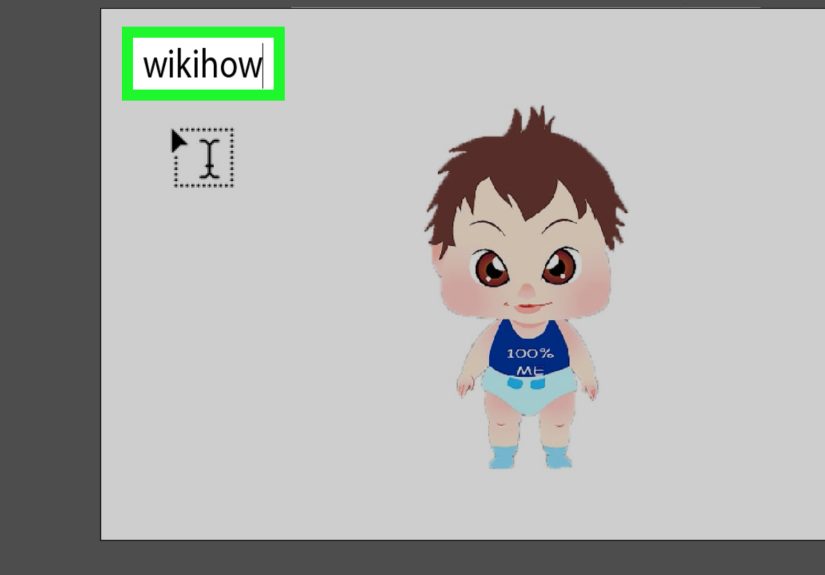
Step 1: Add your watermark text
- Select the Type Tool (T).
- Click on the artboard and type your text (examples: “YourBrand”, “@YourHandle”, “yourwebsite.com”).
- Choose a font that matches your brand style. Clean sans-serif fonts tend to watermark well.
Step 2: Style it so it looks intentional (not like a ransom note)
With the text selected, adjust:
- Weight: Medium or bold often reads better at low opacity.
- Tracking: Slightly increased letter spacing can make it feel more “designed.”
- Case: ALL CAPS can look more watermark-ish, but use what fits your brand.
Step 3: Position and rotate
- Open Window > Align.
- Center-align your text to the artboard if you want a centered watermark.
- Rotate it slightly (try -15° to -30°) for that classic “proof” look.
Step 4: Apply transparency (the watermark magic)
Select the text, then open Window > Transparency. Lower the Opacity until the text is visible but not overpowering.
If the watermark is on a busy background, try a blending mode like Multiply (for darker marks) or Screen (for lighter marks).
Step 5: Make it reusable with a Graphic Style
Once your text watermark looks right (font, size, opacity, blending mode), save it:
- Open Window > Graphic Styles.
- With the watermark selected, click New Graphic Style.
- Name it something obvious like Watermark – Text – Diagonal.
Now you can apply the exact same watermark appearance to other text in one click. Consistency without effort? Yes, please.
How to Create a Logo Watermark in Illustrator
Step 1: Bring your logo into Illustrator
If your logo is already vector (AI, SVG, EPS), you’re living the good life. Just place it or open it.
If your logo is a PNG, you can still use it as a watermarkjust know it won’t be fully editable like vector artwork.
- Go to File > Place and select your logo file.
- Click to place it on the artboard.
- Resize while holding Shift to keep proportions.
Step 2: Simplify the logo for watermark use
Detailed logos can turn into a smudgy whisper at low opacity. For watermark use, simpler is usually better.
Consider:
- Using a single-color version of your logo
- Removing tiny tagline text that won’t be readable
- Using just your icon mark instead of the full lockup
Step 3: Set opacity and blending mode
Select the logo and adjust opacity in Window > Transparency. Start around 10–20% and adjust based on your background.
For darker backgrounds, a white logo at low opacity can look clean. For lighter backgrounds, a darker logo with Multiply can work well.
Step 4: Optional “smart visibility” trick with an opacity mask
If your watermark sometimes disappears on light areas or becomes too strong on dark areas, you can experiment with an opacity mask
to create a more gradual, balanced transparency effect (for example, fading the edges or reducing intensity in the center).
This is optional, but it’s a handy tool once you’re comfortable.
Step 5: Save the logo watermark as a Symbol
Symbols are great for reusable elements:
- Select your logo watermark.
- Open Window > Symbols.
- Click New Symbol and name it (example: Watermark Logo).
Now you can drag your watermark from the Symbols panel into any document like a reusable stamp.
How to Make a Repeating Watermark Pattern (Harder to Remove)
If you want a watermark that’s tough to crop out, repeating is the move. This is common for proofs, previews, and downloadable assets.
You can create repeats using Illustrator’s pattern tools or repeat features.
Option A: Create a pattern swatch (classic and flexible)
- Create a small watermark element (text or logo). Keep it simple.
- Select it and go to Object > Pattern > Make.
- Adjust spacing and layout in the Pattern Options panel until it looks right.
- Click Done to save the pattern to the Swatches panel.
Apply the repeating watermark to your artboard
- Draw a rectangle the size of your artboard (or larger).
- Set its fill to your new pattern swatch.
- Lower the rectangle’s opacity in the Transparency panel.
- Place this rectangle on your WATERMARK layer, above everything.
Option B: Use Object > Repeat (fast for grid or radial repeats)
If you want quick, editable repeats (grid, radial, mirror), select your watermark element and explore:
Object > Repeat > Grid or Radial.
This can be especially nice if you want a repeating watermark that’s easy to tweak later.
Lock It, Name It, Save It: The “Don’t Make Me Do This Again” Workflow
Lock the watermark layer
Once your watermark is placed, lock the WATERMARK layer. This prevents accidental nudges, edits, or the classic “why is everything moving?!”
moment.
Save a watermark template (.AIT)
If you watermark content often (photography overlays, social templates, client proofs), save an Illustrator template:
- Set up your artboard sizes (Instagram post, story, YouTube thumbnail, whatever you use).
- Keep your watermark layer ready, styled, and locked.
- Go to File > Save As and choose Illustrator Template (.ait).
Next time, you start with a ready-to-go document instead of rebuilding your watermark from scratch like it’s a new invention.
Exporting Watermarked Work Without Surprises
Export for web: PNG (transparent) or JPG (solid background)
For social and web, PNG is great when you want transparency. JPG is smaller, but it doesn’t support transparent backgrounds.
Recommended export steps for PNG
- Go to File > Export > Export As (or use Export for Screens if you’re exporting multiple sizes).
- Choose PNG.
- Make sure you enable transparency options if you need a transparent background.
- Export and test the file by placing it over a colored background to confirm transparency.
Export for print/client proof: PDF
If you’re sending a proof to a client, PDF is common. Keep the watermark on a top layer, and consider making it a bit stronger than you would for social.
The goal of a proof watermark is usually “obviously not final,” not “barely detectable.”
Troubleshooting: Common Watermark Problems (and Fixes)
“My watermark is invisible on some backgrounds.”
- Increase opacity slightly.
- Try a different blending mode (Multiply or Screen can help).
- Add a subtle stroke or shadow via the Appearance panel (keep it gentle).
- Switch to a simplified logo mark if details vanish.
“My watermark is way too loud.”
- Lower opacity.
- Reduce size or move it closer to the edge (unless you need anti-crop protection).
- Use a lighter gray instead of pure black (pure black can look harsh at low opacity).
“My PNG exports with a white background.”
- Confirm you exported PNG (not JPG).
- Double-check transparency settings in the export dialog.
- Test the PNG in a different viewer or place it back into Illustrator over a colored rectangle.
- If you’re using print preview features, toggle them off and try again before exporting.
Best Practices: Watermark Like a Pro (Without Ruining Your Work)
- Keep it readable: If it’s too faint to read, it’s more of a ghost than a watermark.
- Use brand consistency: Same font, same logo version, same style builds trust.
- Protect strategically: Center watermarks deter reposting; repeating watermarks deter cropping.
- Don’t rely on a watermark alone: It discourages misuse, but it isn’t a magical force field. Combine it with good file-sharing habits.
Real-World Beginner Experiences (500+ Words of “Yep, That Happens”)
Beginners tend to learn watermarking in Illustrator the same way most people learn cooking: by accidentally making something too spicy and then
slowly figuring out that “a little goes a long way.”
One of the most common early mistakes is choosing a watermark that’s basically a full billboard. It usually starts with good intentions:
“I want to protect my work.” Then the watermark ends up at 70% opacity, in giant bold letters, stretched corner to corner like a superhero cape.
The result is technically protected… and also technically unviewable. A better beginner mindset is: visible, not violent.
If your audience can’t appreciate the artwork, you’re discouraging everyoneincluding the people who would have credited you.
Another classic beginner moment is discovering that a watermark can look perfect on one background and disappear completely on another.
That’s when people realize watermarks aren’t “set it and forget it” unless you design for flexibility. Text watermarks in mid-gray often work well
because they can shift gracefully on different backgrounds, especially when paired with a blending mode. Logo marks sometimes need a one-color version
for watermark usebecause tiny gradients and thin lines can vanish once opacity drops. The practical lesson: have a “watermark version” of your logo
that’s clean, simple, and designed to survive low opacity like a champ.
Beginners also run into the “why did my watermark move?” problem. You set it perfectly, export, and next thing you know it’s slightly off-center,
or rotated weird, or mysteriously behind the artwork. Nine times out of ten, it’s a layers workflow issue: the watermark wasn’t on its own layer,
the layer wasn’t locked, or objects got rearranged while editing. The fix feels almost too simple: create a dedicated WATERMARK layer,
keep it on top, and lock it once you’re happy. It’s not glamorous, but neither is hunting for a missing logo mark at 2 a.m.
The repeating watermark is where beginners often feel like they’ve leveled upuntil the first time they make a pattern and it’s either too crowded
(looks like wallpaper) or too spaced out (easy to crop). The sweet spot usually comes from testing: export a sample image, pretend you’re an unhelpful
internet stranger, and see how easy it is to crop the mark out. If it’s easy, tighten spacing or add a second rotation angle.
If it’s too busy, increase spacing and lower opacity. The best repeating watermarks tend to be “annoying to remove” but “not annoying to view,”
which is a surprisingly delicate balance.
Exporting is another learning curve. Beginners often assume a PNG will “just be transparent,” then panic when the image shows a white box behind it.
Sometimes it’s an export setting. Sometimes it’s just the viewer displaying a white canvas by default. A reliable beginner habit is to test the export:
drop your PNG onto a bright colored rectangle in Illustrator (or any editor) and confirm you truly have transparency. That simple test saves a lot of
unnecessary stressand prevents the classic “I swear it was transparent!” debate with your own eyeballs.
Finally, beginners learn that watermarking isn’t only about protectionit’s also about branding. A good watermark makes it easier for the right people
to find you again. If someone sees your work reposted, your watermark can function like a tiny billboard that’s actually helpful:
your handle, your site, your brand mark. When you aim for “protect + promote,” your watermark starts working for you instead of just sitting there
like a security guard with crossed arms.
Conclusion
Creating a watermark in Illustrator is mostly about building a reusable system: a dedicated layer, a clean watermark design,
and saved styles or symbols you can drop into any file. Start simple with a text watermark, graduate to a logo mark,
and use repeating patterns when you need extra anti-crop protection. Once your workflow is set, watermarking becomes a quick finishing step,
not a weekly creative crisis.