Table of Contents >> Show >> Hide
- What you’ll make (and what you’ll need)
- Step 1: Set up your document like you mean it
- Step 2: Draw the moon base (aka “the confident circle”)
- Step 3: Turn that circle into a crescent (or keep it full)
- Step 4: Add a gradient for instant 3D volume
- Step 5: Create the shadow edge (the “terminator” line)
- Step 6: Draw craters with simple shapes (tiny circles, big payoff)
- Step 7: Keep crater details inside the moon with a clipping mask
- Step 8: Add texture (grain, dust, and “I’m a real designer” energy)
- Step 9: Add finishing touches and export
- Moon variations you can make in minutes
- Quick troubleshooting (because Illustrator loves surprises)
- Experience Notes: What actually helps when you draw a moon in Illustrator
- Conclusion
Drawing a moon in Adobe Illustrator is basically the design equivalent of saying, “I can totally handle outer space,”
while wearing pajama pants and sipping iced coffee. The good news: Illustrator is extremely moon-friendly. The even
better news: your moon doesn’t have to be “scientifically accurate” to look amazingwhat matters is believable
lighting, a little texture, and just enough crater drama to feel lunar.
In this guide, you’ll build a clean vector moon illustration you can use for icons, posters, kids’ space
art, brand marks, UI stickers, or an “I swear I’m productive” wallpaper. We’ll cover a full moon and a
crescent moon workflow, plus shading, craters, and that subtle grain that makes your design feel less
like a flat cookie and more like a glowing space rock.
What you’ll make (and what you’ll need)
You’ll create a stylized moon with highlights, shadows, crater rings, and optional glowusing mostly basic shapes
and a few Illustrator superpowers.
Tools you’ll use
- Ellipse Tool (L) for the moon base and crater shapes
- Pathfinder or Shape Builder to form a crescent
- Gradient Tool (G) to create volume and lighting
- Clipping Mask to keep details inside the moon
- Effects (Gaussian Blur / Glow) for polish
- Brushes (optional) for dust/grain texture
Step 1: Set up your document like you mean it
Open Illustrator and create a new document. A friendly starting point is 2000 × 2000 px (RGB) for
digital work. If you’re designing for print, use CMYK and set a bigger artboard.
Now do one underrated thing that saves future-you from pixelated sadness: go to
Effect > Document Raster Effects Settings and set it to 300 ppi if you plan to use
blur, glow, or grain effects. Those are raster-based effects, and this setting controls their quality.
Quick layer setup
- Create a layer named Moon
- Create a layer named Texture (optional)
- Create a layer named Background (optional)
Step 2: Draw the moon base (aka “the confident circle”)
Select the Ellipse Tool (L). Hold Shift and drag to create a perfect circle.
This is your moon’s main body.
Make it moon-colored (not “printer paper”)
Give it a warm gray or pale yellow fillsomething like a light beige-gray. Remove the stroke for a clean look.
If your moon is pure white, it can look like a ping-pong ball in space. (No disrespect to ping-pong.)
Step 3: Turn that circle into a crescent (or keep it full)
If you want a full moon illustration, you can skip the crescent shaping and move to shading. If you
want a crescent moon, here’s the classic fast method.
Option A: Pathfinder (fast and reliable)
- Select your circle.
- Copy and paste in front: Ctrl/Cmd + C, then Ctrl/Cmd + F.
- Move the top circle slightly to the right (or left) to create the crescent thickness.
- Select both circles.
- Open Window > Pathfinder and click Minus Front.
Tip: The circle you want to “cut” with must be on top. If Minus Front behaves like it’s possessed, check your
stacking order (Object > Arrange) and try again.
Option B: Shape Builder (more hands-on)
Overlap two circles, select them both, then use Shape Builder (Shift + M). Hold Alt/Option
and click the area you want to remove. This is great if you want a slightly uneven, more “handmade” crescent.
Step 4: Add a gradient for instant 3D volume
Real moons have lighting. Your moon needs lighting. Otherwise it’s just… a flat snack.
Select the moon shape and apply a radial gradient.
Simple, good-looking gradient recipe
- Light side: pale warm gray
- Mid tone: slightly darker warm gray
- Shadow side: muted gray-brown
Use the Gradient Tool (G) to drag the highlight toward the side where your imaginary sun lives.
This one step is the difference between “moon” and “sad cookie.”
Step 5: Create the shadow edge (the “terminator” line)
If you want your moon to feel round, add a soft shadow edge. This is especially important for crescents and
gibbous moons, where the dark side sells the shape.
Easy shadow method
- Copy your moon shape and paste in front (Ctrl/Cmd + F).
- Change the copy’s fill to a darker color.
- Apply a gradient that fades from dark to transparent (or dark to the moon base color).
- Set opacity to around 20–50% depending on style.
- Soften it with Effect > Blur > Gaussian Blur (start with 8–20 px).
If the blur looks boxed or crunchy, it usually means your raster settings or transparency background needs adjusting.
That’s not you failing; it’s Illustrator being Illustrator.
Step 6: Draw craters with simple shapes (tiny circles, big payoff)
Craters are just circles with attitude. Start with a few different sizes, placed mostly near the shadow side.
Keep it subtletoo many craters and your moon starts looking like a golf ball that got into skincare.
Crater “ring” method (clean and stylized)
- Draw a small circle on the moon (no stroke, slightly darker fill).
- With it selected, choose Object > Path > Offset Path.
- Use a small negative offset to create an inner ring, or positive for an outer rim.
- Color the rim slightly lighter than the crater fill.
- Add a tiny radial gradient inside the crater to mimic depth.
Pro tip: Craters follow the light
Add a mini highlight on the side facing the light source and a mini shadow on the opposite edge. You can do this
by duplicating the crater shape, clipping it, or using the Appearance panel to stack fills.
Step 7: Keep crater details inside the moon with a clipping mask
As you add crater rings, dust, and shading, some details may spill outside your moon shape. Instead of manually
trimming everything forever (please don’t), use a clipping mask.
Clipping mask steps
- Make sure your moon shape is on top.
- Select the moon shape and all crater/shadow artwork you want contained.
- Choose Object > Clipping Mask > Make.
This keeps your edits flexible. Everything outside the mask becomes invisible, not deletedso you can tweak later
without crying.
Step 8: Add texture (grain, dust, and “I’m a real designer” energy)
Texture is optional, but it’s the difference between “vector icon” and “illustration with charm.”
You have two great options: a scatter brush texture or an effect-based grain look.
Option A: Scatter brush dust (controlled and reusable)
- Create a few tiny circles (different sizes).
- Open Window > Brushes, click New Brush, choose Scatter Brush.
- Adjust size/scatter/spread so dots look random.
- Draw a shape or path across the moon and apply the brush.
- Reduce opacity (often 5–20%).
Option B: Subtle grain via effects (fast “finishing pass”)
Use Illustrator effects to add a light texture layer, but keep it gentle. Heavy grain can look gritty in a cool way
or like your moon was photographed through a dusty aquarium.
Texture placement tip
Put slightly more texture on the shadow side and less on the highlight. That helps reinforce lighting and makes the
moon look rounder.
Step 9: Add finishing touches and export
This is where your moon graduates from “shape exercise” to “space poster worthy.”
Optional glow (tasteful, not “neon sign”)
- Duplicate the moon shape and send it behind.
- Give it a light color (cool blue-gray or soft yellow).
- Apply Effect > Stylize > Outer Glow.
- Lower opacity until it whispers, not screams.
Export settings that won’t betray you
- SVG for scalable vector icons and web UI
- PNG for transparency and quick sharing
- PDF for print workflows
If you used raster effects (blur/glow/grain), export at a high enough resolution so your moon doesn’t turn into a
crunchy snack at 300% zoom.
Moon variations you can make in minutes
1) Half moon / gibbous moon
Start with the full moon circle, then overlay a shadow shape that covers half (or most) of it. Use a gradient and
blur for a smooth terminator edge. This looks fantastic in minimalist poster designs.
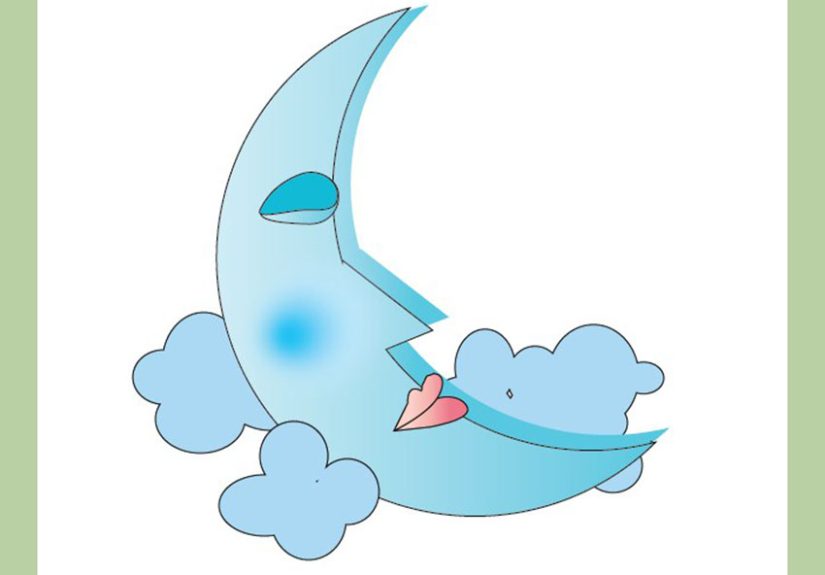
2) Cartoon moon (cute, friendly, and slightly judgmental)
Add a few oversized craters, a soft glow, and maybe a subtle blush tone on the highlight side. Keep gradients simpler
and outlines optional. Congratulations: you now have a moon that could sell stickers.
3) Moon icon (clean UI-ready vector)
Skip texture, use one or two flat fills, and keep craters minimal (or none). Use Pathfinder to get a crisp crescent.
Great for app buttons and dark-mode UI.
Quick troubleshooting (because Illustrator loves surprises)
My Pathfinder result is wrong
Usually the top object isn’t actually on top. Arrange objects so the “cutter” shape sits above the base shape, then
try Minus Front again.
My blur/glow looks pixelated
Increase Document Raster Effects Settings (try 300 ppi) and export at a larger size. Raster effects
can look rough if your settings are too low for your output.
My texture is overpowering
Lower opacity, scale texture down, or keep it mostly on the shadow side. Subtle texture reads as “premium.”
Loud texture reads as “my printer ran out of toner.”
Experience Notes: What actually helps when you draw a moon in Illustrator
The first time most people try to draw a moon in Adobe Illustrator, they assume the hard part is “making the moon.”
It’s not. The hard part is making it feel like a moon instead of a circle that wandered in from a geometry worksheet.
After you’ve made a few versionsicons, space scenes, poster moons, cute cartoon moonsyou start noticing the same patterns
(and the same mistakes) every single time.
The biggest practical lesson: decide your light direction early and stick to it like it’s the plot of the movie. If the highlight
is on the upper left, then crater rims, shadows, and texture emphasis should all quietly agree. When the lighting is inconsistent,
viewers might not know what’s “wrong,” but they feel itlike listening to a song where one instrument is half a beat late.
An easy habit is to drop a tiny “sun” dot off to the side of the artboard as a reminder of where your imaginary light source lives.
Second: gradients do most of the heavy lifting, so it’s worth treating them like a toolnot a decoration. When your gradient is too
dramatic, your moon becomes a shiny marble. When it’s too subtle, your moon looks flat. The sweet spot is usually a gentle radial
gradient plus a secondary shadow overlay with low opacity. Think “soft stage lighting,” not “flashlight directly on face.”
Also, don’t be afraid to nudge the gradient highlight off-center. Perfectly centered highlights scream “button UI,” while slightly
shifted highlights read as “sphere in space.”
Third: craters are better in clusters, not confetti. A few larger craters plus several tiny ones tends to feel natural and stylized.
If you sprinkle medium-sized craters evenly everywhere, the moon can look patterned (and not in a good way). I like to place crater
clusters near the darker side because contrast helps them show up, then add just one or two “hero craters” near the mid-tone area.
It’s like adding frecklesrandom-ish, but not uniform.
Fourth: clipping masks are your sanity. Once you start adding crater rings, dust texture, soft shadows, and glow layers, manual trimming
becomes an unpaid internship. A clean mask setup lets you experiment without fear. You can try five different textures, delete four,
and still have a neat file. That kind of flexibility is what makes Illustrator feel fast instead of fiddly.
Finally: texture is seasoning. The goal isn’t to prove you know what grain is; it’s to make the moon feel tactile and less “perfect.”
If you’re going for a modern icon, skip texture entirely. If you’re illustrating a space poster, a light scatter-brush dust layer at 5–15%
opacity can add warmth without mess. And if you’re exporting for web, always zoom in and check edgesgrain and blur can look gorgeous at 100%
and unexpectedly crunchy at 400%. Illustrator has a gift for humbling people who skip that step.
After a while, drawing moons becomes oddly relaxing: you build the base shape, dial in the light, drop in a few crater rings, add a whisper
of texture, and suddenly you’ve got something that looks like it belongs in a space-themed brand kit. The real win is that these same steps
transfer to drawing planets, buttons, badges, and any “round object that needs depth.” Your moon is basically a practice sphere with charisma.
Conclusion
If you can draw a circle, you can draw a moon in Adobe Illustrator. The magic comes from the details: a well-placed radial gradient, a soft
terminator shadow, a handful of crater rings that follow the light, and optional texture that stays subtle. Use clipping masks to keep your
file clean, and treat glow like hot saucestart small, then step away from the bottle.