Table of Contents >> Show >> Hide
- What a “YouTube subscribe link” actually does
- The two fastest ways to build a subscribe link (no coding)
- How to find your channel URL and channel ID (the easy way)
- Build your subscribe link in 30 seconds (step-by-step)
- How to test your subscribe link like a slightly paranoid scientist
- Where to put your YouTube subscribe link (and what to say)
- Make it look good: short links, QR codes, and tracking
- Bonus: Add a real “Subscribe” button to your website (copy/paste)
- Troubleshooting: when your subscribe link doesn’t work
- A simple “subscribe link strategy” you can use today
- Real-world experiences: what I’ve learned from using YouTube subscribe links
Want a “Subscribe” button that works even when you’re nowhere near YouTubelike in your email signature, Instagram bio,
website, or that one friend’s group chat that somehow turned into your unofficial marketing department? A YouTube
subscribe link is the simple, low-tech, high-impact trick you’re looking for.
In this guide, you’ll learn exactly how to create a subscribe link for your YouTube channel, how to make sure it works
on desktop and mobile, and how to use it in smart places without sounding like a robot reading a teleprompter.
You’ll also get a copy/paste website subscribe button and a troubleshooting section for when YouTube decides to be…
YouTube.
What a “YouTube subscribe link” actually does
A subscribe link is just your channel URL with a small extra piece added to the end. When someone clicks it, YouTube
opens your channel and shows a subscription confirmation prompt (instead of making them hunt for the Subscribe button).
In plain English: fewer steps = more subscribers.
- Regular channel link: sends people to your channel homepage.
- Subscribe link: sends people to your channel homepage and pops a “Subscribe?” confirmation.
Is it magic? No. Is it friction removal? Absolutely. And friction is the sworn enemy of subscriber growth.
The two fastest ways to build a subscribe link (no coding)
Option A: Add ?sub_confirmation=1 to your channel URL
This is the classic method and still the most common. You take your channel link and add:
?sub_confirmation=1
at the end.
Examples (replace with your info):
-
Channel ID URL:
https://www.youtube.com/channel/UCxxxxxxxxxxxxxxxxxxxxxx?sub_confirmation=1 -
Handle URL:
https://www.youtube.com/@YourHandle?sub_confirmation=1 -
Legacy username URL (some channels still have these):
https://www.youtube.com/user/YourUsername?sub_confirmation=1
Important “don’t break the link” rule: If your channel URL already contains a question mark
(?), you must add the subscribe parameter using an ampersand (&) instead.
Otherwise, you’ll end up with two ? marks and a link that behaves like a confused raccoon.
Example when there’s already a ? in the URL:
-
https://www.youtube.com/@YourHandle?feature=shared&sub_confirmation=1
Option B: Copy your channel’s official URL(s), then add the parameter
YouTube channels can have more than one URL (handle URL, custom URL, legacy username URL, and the channel ID URL).
If you’re not sure which one you should use, grab the one YouTube already associates with your channel and build from there.
This keeps your branding consistent (and reduces the chance you accidentally copy a “view as subscriber” link from a weird corner of the internet).
How to find your channel URL and channel ID (the easy way)
Method 1: Use your handle URL (best for humans)
If you have a handle (the @YourHandle name), you can usually use:
https://www.youtube.com/@YourHandle
as your base channel link. It’s short, readable, and looks great on social media and print materials.
Then your subscribe link becomes:
https://www.youtube.com/@YourHandle?sub_confirmation=1
Method 2: Find your Channel ID (best for permanence)
Your channel ID is the most “forever” version of your channel link. Handles and custom URLs can change, but the channel ID
is the underlying identifier YouTube uses.
Typical channel ID format: it starts with UC and looks like a long string of letters and numbers.
General steps (desktop or mobile browser):
- Sign in to YouTube.
- Go to your channel/account settings.
- Open Advanced settings (or the equivalent account details area).
- Copy your Channel ID.
Then your channel ID link looks like:
https://www.youtube.com/channel/UCxxxxxxxxxxxxxxxxxxxxxx
And your subscribe link becomes:
https://www.youtube.com/channel/UCxxxxxxxxxxxxxxxxxxxxxx?sub_confirmation=1
Build your subscribe link in 30 seconds (step-by-step)
- Copy your base channel URL (handle URL or channel ID URL).
-
Add the subscribe parameter:
- If your link has no
?, add:?sub_confirmation=1 - If your link already has
?, add:&sub_confirmation=1
- If your link has no
- Test it (yes, always test it).
- Use it everywhere you want more subscribers (tastefully, like seasoning).
How to test your subscribe link like a slightly paranoid scientist
A subscribe link is only helpful if it actually triggers the confirmation prompt. Testing takes two minutes and can save you
from posting a “Subscribe here!” link that does absolutely nothing (other than quietly judging you).
Best testing checklist
- Test in an incognito/private window (so your logged-in creator account doesn’t skew behavior).
- Test on desktop (Chrome is fine).
- Test on mobile (both inside apps and in a browser if possible).
- Test with a second account if you have one (or ask a friend who owes you a favor).
What you want to see: your channel loads and YouTube displays a subscribe confirmation prompt. If you only land on your channel
homepage with no prompt, jump to the troubleshooting section below.
Where to put your YouTube subscribe link (and what to say)
The best subscribe link is the one people actually click. That usually means placing it where your audience already expects a next step:
after value, not before it.
High-performing places to add your subscribe URL
- Video descriptions (top 2 lines, before the “Show more” cutoff)
- Pinned comment (especially on videos that attract new viewers via search)
- Channel “About” section
- Community posts (when you tease an upcoming series)
- Email signature (quietly powerful and delightfully boring)
- Website header/footer
- Link-in-bio tools (add “Subscribe on YouTube” as a dedicated button)
- QR code on print materials, slides, or packaging
Copy/paste call-to-action lines that don’t feel cringe
- “If this helped, here’s the one-click subscribe link: [link]”
- “New videos weeklysubscribe here so you don’t miss the next one: [link]”
- “Want more tips like this? Subscribe in two seconds: [link]”
- “Yes, this is a subscribe link. Yes, it’s shameless. No, I’m not sorry. [link]”
Pro tip: keep the subscribe link near a specific promise (weekly uploads, a series, a niche). People subscribe when they know what they’re signing up for.
Make it look good: short links, QR codes, and tracking
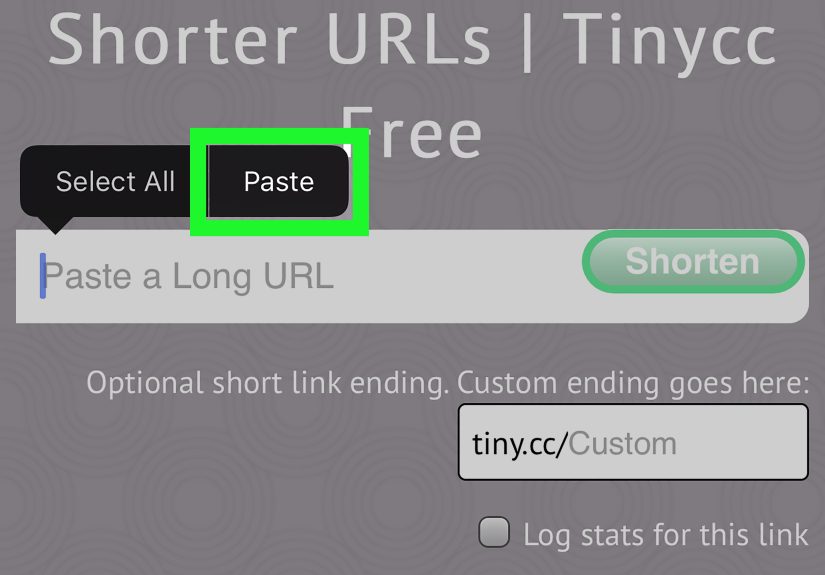
Shorten your subscribe link (so it doesn’t look like Wi-Fi password)
Channel ID links are long. Handle links are shorter, but even they can get messy once you add parameters. If you’re sharing the link
somewhere that benefits from clean presentation (slides, printed materials, Instagram bio), use a reputable link shortener.
Best practice: Use a custom back-half if available (e.g., yourbrand.co/subscribe) so people trust it.
Track clicks without turning your analytics into soup
If you want to measure how many people click your subscribe link from different places (email vs Instagram vs website),
you have two practical options:
- Use a link shortener with analytics (simple, fast, clean reporting).
-
Use consistent UTM naming conventions if you’re routing through a trackable page (for example,
a “Subscribe” landing page on your site that then sends people to your YouTube subscribe link).
If you go the UTM route, be consistent: use lowercase, keep names short, and document your conventions so you don’t end up with
five versions of the same campaign (like SpringLaunch, spring_launch, SPRING-LAUNCH,
and why-did-i-do-this-to-myself).
Create a QR code for offline subscribers
QR codes shine when people can’t conveniently type a link (events, business cards, product inserts, posters, classroom slides).
Use your subscribe link as the destination, then generate a QR code using your preferred tool. Test it with multiple phones
and make sure it doesn’t land on a broken or redirected version that drops the subscribe prompt.
Bonus: Add a real “Subscribe” button to your website (copy/paste)
If you have a website, a clickable YouTube subscribe button can look cleaner than a plain text linkand it can sit in your header,
sidebar, or “Start Here” page like a polite but persistent invitation.
Embedded YouTube Subscribe Button (official-style embed)
Copy/paste template: Replace the channel ID and choose layout/count options.
Quick notes: This is meant for websites (not YouTube descriptions). You only need to load the script once.
If you already use other embedded widgets, test page speed and layout on mobile so the button doesn’t shove your design around.
Troubleshooting: when your subscribe link doesn’t work
Problem: The link opens my channel, but there’s no subscribe prompt
- Double-check the parameter: It must be exactly
sub_confirmation=1. - Check your punctuation: Use
?once; use&if a?already exists. - Try a different base URL: If the handle link acts weird, test the channel ID link.
- Test in a browser: Some in-app browsers or the YouTube app may behave differently than desktop Chrome.
Problem: My link has view_as or other junk in it
Sometimes you copy a channel URL that includes extra parameters (like viewing as a subscriber). That’s not fatal, but it’s messy.
Use a clean base channel link when possible:
https://www.youtube.com/@YourHandle
or
https://www.youtube.com/channel/UC...
and then add the subscribe parameter.
Problem: The link works on desktop but not on mobile
Mobile behavior can vary depending on whether the link opens in the YouTube app, an in-app browser, or a full browser.
If your audience is heavily mobile, test your link inside the platforms where you share it most (Instagram, TikTok, email apps).
If it’s inconsistent, consider routing people through a simple landing page on your site with a big “Subscribe on YouTube” button.
It adds one step, but it gives you reliability and tracking.
Problem: People say they clicked, but subscriber count didn’t change
A subscribe link can only prompt the actionit can’t force it. People still have to confirm and may cancel.
If clicks are high but subscriptions are low, your message may be unclear. Try pairing the link with:
- A specific reason to subscribe (what they’ll get, how often)
- A quick “start here” playlist link alongside it
- A pinned comment that highlights your best beginner-friendly video
A simple “subscribe link strategy” you can use today
If you want this to do more than just exist in your bio looking pretty, here’s a lightweight plan that works for most creators:
1) Put the subscribe link in your top-performing evergreen videos
Videos that rank in search or get consistent recommended traffic bring new viewers every day. Add a subscribe link in the first
two lines of the description and pin it in a comment. That way, new viewers see it right after they get value.
2) Use one “clean” short link everywhere else
Make one memorable link for bios and offline use (like yourbrand.com/subscribe or a short branded link),
and keep it consistent. People trust what they recognize.
3) Refresh your CTA copy every few months
If you rotate the wording occasionally (without spamming), you’ll learn what your audience responds to bestand you’ll keep it from
feeling like a stale sign taped to a lamp post.
Real-world experiences: what I’ve learned from using YouTube subscribe links
Let’s talk about the part nobody tells you: making a subscribe link is easy. Getting people to click it (and actually subscribe)
is the real game. Over time, creators tend to discover the same handful of patternsusually right after they’ve tried the “obvious”
approach and wondered why nothing changed.
First lesson: placement beats perfection. I’ve seen beautifully designed pages with a subscribe link tucked neatly at the bottom…
where it goes to live out its days in peace and quiet. Meanwhile, the plain-text “Subscribe here” link placed right after a helpful
tip in the description gets clicked constantly. People don’t subscribe because the link is fancy. They subscribe because the timing is right.
The best moment is when they’re thinking, “That was usefulI want more of this.”
Second lesson: your subscribe link is not a personality substitute. If your call-to-action is “SUBSCRIBE!!!” with no context,
some viewers will ignore it out of sheer self-preservation. But if you say, “If you’re learning video editing, I post one shortcut a week,”
you’ve given them a reason and a rhythm. People like knowing what they’re signing up for. Surprise is fun for birthday parties, not for inboxes.
Third lesson: mobile is a mischievous little gremlin. A link that behaves perfectly on desktop can act differently when it opens inside the
YouTube app or an in-app browser. That’s why I like a quick “two-device test” before I roll anything out: click from a phone and click from a laptop.
If it works in both places, you’re in decent shape. If it doesn’t, you don’t panicyou adapt. Sometimes that means switching from a handle link to a channel ID link.
Sometimes it means using a simple landing page that says “Tap to Subscribe,” because reliability is worth a tiny extra step.
Fourth lesson: tracking can be your best friend or your worst hobby. It’s tempting to make twenty different subscribe links for every platform,
every campaign, every mood you were in when you pasted the URL. But then you end up with analytics that look like alphabet soup.
A better approach is to create a few consistent variants:
one for your website, one for your email signature/newsletter, and one for your social bio. That’s enough to learn what’s working without needing
a detective board and red string.
Fifth lesson: small copy changes can create big differences. One of the simplest experiments I’ve seen work is changing the CTA line from
“Subscribe” to “Subscribe for weekly [topic]” or “Subscribe so you don’t miss Part 2.” The viewer’s brain loves specifics.
“Subscribe” is a command. “Subscribe for weekly beginner tutorials” is a promise. Promises convert better than commands, and they’re also less annoying.
Win-win.
Finally, the most human lesson: people don’t always subscribe immediatelyeven if they like you. They may watch three videos, lurk for a week,
and subscribe the next time you help them solve a problem. That’s normal. Your subscribe link isn’t just a button; it’s a standing invitation.
So put it where it belongs, phrase it like a helpful guide (not a megaphone), and keep making the kind of content that makes the click feel obvious.
When you combine a working subscribe link with good placement, a clear promise, and consistent testing, you don’t just “add a link.”
You build a smooth on-ramp into your channelone click at a time.