Table of Contents >> Show >> Hide
- The 5 Simple Steps (Quick Overview)
- Step 1: Get Your Printer Ready (Before You Press Anything)
- Step 2: Open the Print Dialog Using the Keyboard
- Step 3: Use the Keyboard Inside the Print Window (No Mouse Required)
- Step 4: Preview, Adjust Settings, and Print Exactly What You Mean
- Step 5: Print (or Save) and Fix Common Problems Fast
- PC vs. Mac: What’s Actually Different (And What’s Basically the Same)
- Mini FAQ: Keyboard Printing Questions People Actually Ask
- Conclusion: Printing by Keyboard Is the Small Skill That Saves Big Time
- Real-World Printing Experiences (Extra )
Printing shouldn’t require a scavenger hunt for the tiny printer icon hiding in a toolbar like it owes you money. Whether you’re on a PC or a Mac, you can print fast (and mostly frustration-free) with a couple of keyboard shortcuts and a few “power moves” inside the print dialog. This guide walks you through five simple steps to print from nearly any appWord docs, PDFs, web pages, spreadsheets, photosusing your keyboard first, mouse second, and panic never.
We’ll cover the universal shortcuts (Ctrl + P on Windows, Command + P on Mac), how to navigate print options without touching the trackpad, how to print exactly what you mean (not 47 blank pages), and what to do when the printer acts like it’s “thinking” (spoiler: it’s not).
The 5 Simple Steps (Quick Overview)
- Get your printer ready (connected, awake, and not silently angry).
- Open the print dialog with the keyboard (Ctrl+P / Command+P).
- Choose printer + settings using the keyboard (Tab, arrows, spacebar, enter).
- Preview and adjust (pages, layout, scaling, double-sided, color vs. black & white).
- Print (or save to PDF) and troubleshoot fast if anything goes sideways.
Step 1: Get Your Printer Ready (Before You Press Anything)
Keyboard shortcuts are powerful, but they can’t fix a printer that’s unplugged, offline, or out of paper. Before you hit print, do a quick “reality check” so your shortcut doesn’t become a shortcut to disappointment:
- Power & paper: Printer on, paper loaded, tray not empty, no blinking error lights.
- Connection: USB seated firmly or Wi-Fi connected (same network if it’s a network printer).
- Right default printer: Especially important if you’ve ever printed at a hotel, coworking space, or your neighbor’s house “just once.”
Keyboard-only tip: Find printer settings without the mouse
- Windows: Press Windows key, type Printers & scanners, press Enter.
- Mac: Press Command + Space, type Printers & Scanners, press Return.
If your printer is missing, add it first. If it’s there but “Offline,” you’ll often fix things faster by restarting the printer and your computer than by staring at the status like it’s going to apologize.
Step 2: Open the Print Dialog Using the Keyboard
This is the main event. In most apps, printing starts the same way:
On PC (Windows): Press Ctrl + P
In web browsers (Chrome, Edge, Firefox), Microsoft Office apps, PDF viewers, and countless other programs, Ctrl + P opens the print screeneither a classic print dialog or a print preview panel.
On Mac: Press Command (⌘) + P
On macOS, ⌘ + P typically opens the system Print dialog with a preview, plus options that can vary depending on the app and printer. Same shortcut, same goal: print without hunting through menus.
What if Ctrl+P / Command+P doesn’t work?
- The app may override the shortcut: Some specialty apps remap keys or disable printing.
- You’re not in a “printable” view: For example, a locked viewer, restricted web app, or sandboxed screen.
- The print system is stuck: Browser print preview or a driver can freeze. (We’ll fix that in Step 5.)
Step 3: Use the Keyboard Inside the Print Window (No Mouse Required)
Opening the print dialog is only half the trick. The other half is moving through options like a pro. Good news: print dialogs are basically big forms, and keyboards are great at forms.
The universal navigation keys
- Tab: Move forward through fields and buttons
- Shift + Tab: Move backward
- Arrow keys: Change dropdown choices, radio buttons, or lists
- Spacebar: Toggle checkboxes and some options
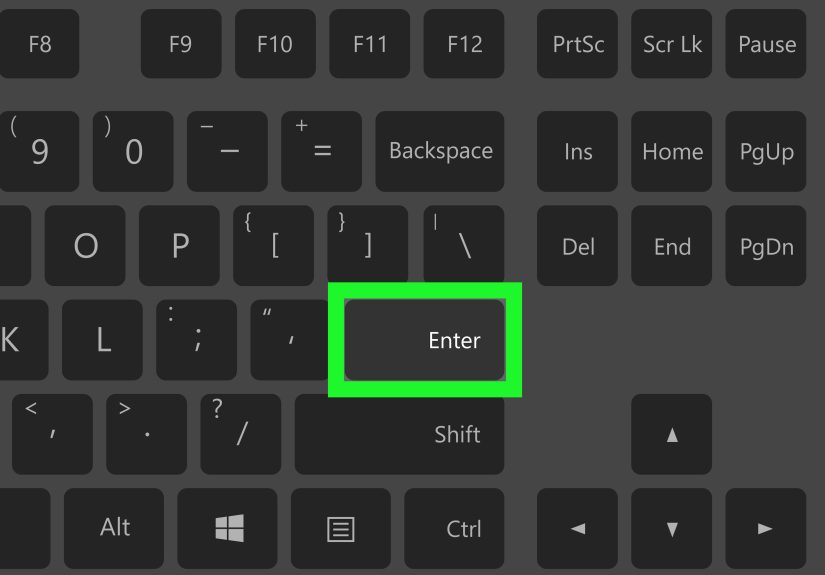
- Enter / Return: Activate the focused button (often “Print”)
- Esc: Close/cancel the print dialog
Windows: Classic dialog vs. browser “Print Preview”
On Windows, some apps show a traditional print dialog box, while browsers often show a print preview panel. The exact layout differs, but the keyboard logic is the same: Tab to move, arrows to choose, Enter to commit.
Mac: “Show Details” is your secret menu
On macOS, the Print dialog can look simple at first. If you don’t see options like paper size, pages, or layout, look for a Show Details button (you can reach it via Tab navigation). Once expanded, you’ll see more settingsand your keyboard can reach all of them.
Example: Print a web page from Chrome with keyboard-first flow
- Open the page.
- Press Ctrl + P (Windows) or ⌘ + P (Mac).
- Press Tab until the printer/destination field is focused.
- Use arrow keys to choose the printer (or “Save to PDF”).
- Tab to the Print button, press Enter.
If you’re printing from a browser and it insists on weird margins or chopped content, don’t assume it’s your fault. Web pages are basically digital origami; sometimes they fold badly on paper. You still have options in Step 4.
Step 4: Preview, Adjust Settings, and Print Exactly What You Mean
The fastest print job is the one you don’t have to redo. Before you hit Print, spend five seconds choosing settings that match your real-world goal. Here are the options that matter most (and how to think about them).
Pick the right printer (sounds obvious, still ruins lives)
If you have multiple printershome, office, “PDF printer,” label maker, that one printer from 2019you must select the destination. Keyboard users: Tab to the printer list, arrow to the correct device, and confirm.
Pages: All vs. a range vs. selection
- All: Use this when you’re confident your document isn’t 120 pages of “Appendix.”
- Range: Print pages 2–4 instead of everything.
- Selection: Some apps let you print only highlighted content (great for articles and excerpts).
Pro move for long web pages or messy layouts: sometimes it’s cleaner to copy what you need into a document (or select the section) and print that, rather than printing the entire page with ads, footers, and cookie popups.
Orientation, scaling, and “fit to page”
If your printout looks like it went through a shrinking machineor it cuts off the right sidelook for:
- Portrait vs. Landscape (wide tables often need Landscape)
- Scale / Fit (Fit to page, Fit to width, or a percentage)
- Margins (especially in browsers)
Double-sided printing (duplex)
If your printer supports duplex printing, you’ll see a “Two-Sided” or “Double-Sided” option. If your printer doesn’t support it, the dialog may offer manual duplex (print odds, flip, print evens). Use Tab to reach the checkbox or dropdown, then toggle with Space/arrow keys.
Color vs. black & white
Printing in grayscale can save ink and often improves readability for text-heavy documents. This option may live under “Printer Properties,” “Quality,” or a printer-specific settings panel.
Save to PDF (the “printing without paper” cheat code)
Sometimes you don’t need paperyou need a PDF to upload, email, or archive. In that case, choose a PDF destination:
- Mac: Use the PDF button/menu in the Print dialog to “Save as PDF.”
- Windows: Many systems offer a virtual PDF printer option (often named like “Print to PDF”).
Saving to PDF is especially useful when a web portal says “Print this form,” but what it really means is “Upload a printable copy.” Congratulationsyou’ve translated it.
Step 5: Print (or Save) and Fix Common Problems Fast
You’ve selected your options. Time to finish strong:
- Tab to the Print button.
- Press Enter (Windows) or Return (Mac).
- If saving to PDF, choose a file name and location, then confirm.
Common issue: “Print Preview Failed” or the preview never loads
Browsers occasionally choke on print previewespecially with heavy pages, extensions, or odd layouts. Quick fixes that often help:
- Try another browser (Edge vs. Chrome vs. Firefox) for the same page.
- Restart the browser (yes, really).
- Disable extensions temporarily if they’re injecting content (ad blockers can sometimes affect print layouts).
- Save as PDF first, then print the PDF from a viewer.
Common issue: It prints the wrong thing (or only one page)
- Check “Pages”: Make sure it’s set to All or the right range.
- Check scaling: “Fit” options can shrink content unexpectedly.
- Web page layout problems: Some modern layouts don’t paginate nicely; printing a selection or saving as PDF can help.
Common issue: Printer is “Offline” or jobs get stuck
When print jobs pile up like a traffic jam, clear the jam. Keyboard-friendly approach:
- Windows: Windows key → type Printers & scanners → Enter → open your printer → open the queue → cancel stuck jobs.
- Mac: Command+Space → type Printers & Scanners → Return → select printer → open queue → remove stalled jobs.
If the queue won’t clear, restart the printer. If that fails, restart the computer. If that fails, take a deep breath, then check cables/Wi-Fi and try again. Printing is the only technology that sometimes responds best to calm authority.
PC vs. Mac: What’s Actually Different (And What’s Basically the Same)
Here’s the practical truth: the shortcut to open printing is almost universal, but the print window you get depends on your app. Microsoft Word doesn’t print exactly like Chrome, and Preview on Mac doesn’t print exactly like Acrobat. Still, the workflow stays consistent:
- Same idea: Ctrl+P / ⌘+P opens printing
- Same controls: Tab, arrows, spacebar, enter
- Different clothing: Windows dialogs vary by app; Mac uses a more consistent system dialog
Example scenarios (with the right keyboard move)
- Printing a spreadsheet table that cuts off: Use Landscape + Fit to width.
- Printing a long article: Save to PDF first if the browser preview looks weird.
- Printing a PDF form: Use a PDF viewer’s print dialog and confirm “Actual size” vs. “Fit.”
Mini FAQ: Keyboard Printing Questions People Actually Ask
Is Ctrl+P / Command+P truly universal?
It’s “universal” in the sense that most mainstream apps follow it. But some programs override shortcuts, and some web apps intercept keyboard commands. If it fails, try the app’s File menu (still reachable by keyboard) or search the app’s keyboard shortcuts.
How do I print without opening a full print window?
Some apps offer “Quick Print” behavior (print immediately using defaults), but this varies widely and can be risky. If you care about page range, duplex, or scaling, use the full print dialog so you don’t accidentally print the entire internet.
How do I cancel printing fast?
If the print dialog is open, Esc usually closes it. If the job already went to the queue, open the printer queue and cancel the job there.
Conclusion: Printing by Keyboard Is the Small Skill That Saves Big Time
Once you train your hands to press Ctrl + P or ⌘ + P, printing stops feeling like a chore and starts feeling like a shortcut. Add keyboard navigation (Tab, arrows, Enter), and you can print pages, adjust settings, save to PDF, and fix common hiccups without ever playing “Where did that Print button go?” in yet another redesigned menu.
The best part: this skill travels with you. New laptop? Different app? Office printer you’ve never met? The five steps still work. And that’s the kind of consistency we lovebecause printers certainly won’t provide it.
Real-World Printing Experiences (Extra )
Printing with the keyboard sounds like a tiny life upgradeuntil you’re the person everyone’s waiting on. I’ve watched meetings stall because someone couldn’t find the Print option in a redesigned toolbar, or because a browser hid it behind three dots, two submenus, and an existential crisis. Meanwhile, the person who knows Ctrl + P is already holding the handouts like a magician who refuses to reveal their secrets. The trick isn’t “being good with computers.” The trick is knowing the one shortcut that almost every program respects and then letting muscle memory do the rest.
One of the most common “real life” moments: printing travel documents. You’ve got a boarding pass, a hotel confirmation, and a directions page that looks fine on screenthen the print preview shows it’s going to cut off the QR code (the part you actually need). Keyboard printing helps here because you can quickly open print, toggle scaling, switch to landscape, and save as PDF instead of burning paper through trial-and-error. The real win is speed: you’re not hunting menus, you’re iterating. Print preview looks wrong? Esc. Adjust. Enter. Done.
Another classic: “Why did it print in tiny font?” That one usually comes from scaling or “fit” settings being too aggressive, especially in browsers. A quick keyboard flow fixes it: open print, Tab to scale, arrow to “Default” or “100%,” and then Print. The humor here is that printers tend to punish optimism. If you assume it will print correctly the first time, it won’t. If you quickly preview and adjust like a cautious professional, it behavesalmost like it respects you.
The office printer story deserves its own category. You sit down at a new workstation, hit Ctrl+P, and suddenly you have eight printers with names like “HP_LaserJet_3rdFloor_CopyRoom_OLD” and “HP_LaserJet_3rdFloor_CopyRoom_NEW2_FINAL.” Keyboard navigation saves you because you can arrow through destinations and pick the right one without clicking a dropdown that disappears the moment you breathe on it. If you print to the wrong printer anyway (it happens), the keyboard still helps: Windows key, type “Printers,” Enter, open the queue, cancel. Fast recovery matters.
My favorite experience-based lesson: saving to PDF is printing’s best friend. Anytime a website says “Print this,” consider whether you actually need paper. Many times you need a PDF for a portal, a client, or a personal archive. On Mac, the PDF menu in the print dialog makes this ridiculously easy. On Windows, a PDF printer option is often available. Once you get used to “Print → Save as PDF,” you stop treating printing like a paper-only action. It becomes a universal “output” command: paper when you want it, PDF when you don’t, and control either way.
Finally, the most human experience: the printer that’s “offline” while sitting three feet away, fully powered on, like it’s pretending not to hear you. Keyboard printing won’t fix hardware drama, but it does speed up your troubleshooting loop. You can quickly jump to printer settings, check the queue, cancel stuck jobs, and try againwithout losing your momentum. In the end, printing with the keyboard isn’t about being fancy. It’s about staying calm, staying fast, and making sure your printer is the one feeling confusednot you.