Table of Contents >> Show >> Hide
- Before You Start: What “Old Messages” Usually Means
- Quick Answer: The Fastest Ways to Read Old Messenger Messages
- Method 1: Search Inside a Conversation (Find One Specific Old Message)
- Method 2: Use the Main Search Bar (Find a Conversation by Name or Keyword)
- Method 3: Find and Read Archived Chats (When a Conversation “Vanished”)
- Method 4: Check Message Requests (The “Hidden Inbox” Problem)
- Method 5: Download Your Messenger/Facebook Data (Best for Full History)
- Special Note: End-to-End Encryption, Secure Storage, and “Where Did My Messages Go?”
- Troubleshooting: If You Still Can’t Read Old Messages
- Privacy and Safety Tips While Digging Through Old Messages
- Wrapping It Up: Your Best Strategy (Without the Endless Scroll)
- Experiences and Real-World Scenarios (Because This Is Never “Just a Message”)
Ever tried to find a five-year-old Messenger message and felt like you were digging through a digital junk drawer?
(You know the one: batteries, a mysterious key, and three takeout menus from 2019.) The good news: you can read
old messages on Facebook Messenger without scrolling until your thumb files for overtime pay.
This guide walks you through the fastest, least-annoying ways to pull up old chats and specific messages on
iPhone, Android, and desktopplus what to do when Messenger “helpfully” hides things in archived chats, message
requests, or encrypted storage. You’ll also get practical examples, troubleshooting tips, and a few privacy notes
so you don’t accidentally turn “find my old message” into “why is my account acting haunted?”
Before You Start: What “Old Messages” Usually Means
People usually mean one of these:
- Old messages in an active chat (you can still open the conversation, but the message is buried).
- Old conversations (you forgot who you messaged, or the thread is far down the chat list).
- Archived chats (you hid the conversation and now it’s playing hide-and-seek).
- Message requests (messages from people you’re not connected to, sometimes filtered as spam).
- Missing messages after switching devices (often related to end-to-end encryption and storage settings).
The best method depends on which bucket you’re in. Start with search (it’s the fastest), then check archived chats and
message requests, and use a data export only if you need a full history.
Quick Answer: The Fastest Ways to Read Old Messenger Messages
- Search inside the conversation (best for finding a specific sentence, link, address, or date clue).
- Use the main Messenger search bar (best for finding a conversation when you only remember a name or keyword).
- Check Archived Chats (best when a conversation “disappeared”).
- Check Message Requests (best when you never saw the message in the first place).
- Download your Messenger/Facebook information (best for a complete archive, backups, or long-term record-keeping).
Method 1: Search Inside a Conversation (Find One Specific Old Message)
If you can open the chat but can’t find that one message (the Wi-Fi password, the job offer, the “don’t tell anyone”
confession), use Search in conversation. This jumps you to matching messages without endless scrolling.
On iPhone or Android (Messenger app)
- Open Messenger and tap the conversation.
- Tap the contact or group name at the top.
- Tap Search in conversation.
- Type a keyword (try names, places, partial phrases, “pizza,” “invoice,” or “the blue door”).
- Tap a result to jump to that message.
On Desktop (Messenger.com or Facebook.com)
- Open the conversation.
- Look for a details/info panel (often an “i” icon or menu in the chat header).
- Select Search in conversation and enter your keyword.
Pro tip: If you don’t remember the exact words, search for something adjacent. For example, instead of searching
“address,” search the street name, the city, or even “parking” if you remember the message mentioned it.
Method 2: Use the Main Search Bar (Find a Conversation by Name or Keyword)
If you don’t know where the conversation is, use Messenger’s main search. This can locate a person or a chat thread, and
it may also surface message snippets containing your keywords.
On Mobile
- From the Chats screen, tap the Search bar at the top.
- Type a name, phone number, business/page name, or a keyword from the conversation.
- Tap the correct result to open the thread.
On Desktop
- Go to Messenger.com or open Messages on Facebook.com.
- Use the search field in the left sidebar.
- Type the name or keyword, then open the matching conversation.
Example: You remember someone sent “Gate code 1973.” Search “1973.” Even if the chat is years old, search can
help you locate the thread faster than scrolling.
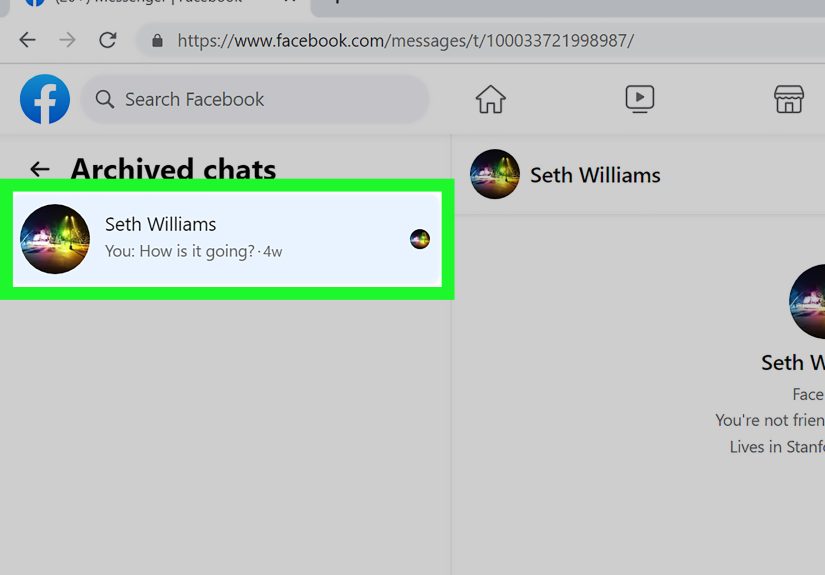
Method 3: Find and Read Archived Chats (When a Conversation “Vanished”)
Archiving a chat hides it from your main chat list. It’s not deletedjust tucked away like winter coats in July. Depending on
your app version and device, you may see a dedicated Archived Chats list, or you may need to pull archived threads
up via search.
Option A: Open “Archived Chats” from the Menu (When Available)
- Open Messenger and tap your Menu (often your profile picture or a menu icon).
- Tap Archived chats.
- Select the conversation to open it and read the old messages.
Option B: Use Search to Find an Archived Conversation
- Go to the main Search bar in Messenger.
- Type the person’s name or a keyword from the chat.
- If the chat is archived, it can still appear in resultstap it to open.
Unarchiving tip: Once you open an archived conversation, sending a new message typically brings it back to your main
chat list. Some versions also offer an explicit “Unarchive” option in chat settings.
Method 4: Check Message Requests (The “Hidden Inbox” Problem)
Sometimes the issue isn’t that a message is oldit’s that you never saw it. Messenger can route messages from people you don’t
follow/friend into Message Requests, and it may filter suspected spam separately. If you’re trying to find an old message
from a stranger, a client, or “that person you met at that conference,” this is the place to look.
How to Check Message Requests
- Open Messenger and go to Menu (profile picture or menu icon).
- Tap Message requests.
- Review requests and any filtered/spam section if shown.
Reality check: If Messenger classified something as spam, you may not get a notification. So yessometimes the internet really
does eat your messages.
Method 5: Download Your Messenger/Facebook Data (Best for Full History)
If you need a complete recordyears of messages, attachments, receipts, or evidence that you did, in fact, tell your friend “I’ll be there in 10 minutes”
(and then arrived 47 minutes later)download your information. This is also the best method for creating a backup.
What You Can Usually Export
- Messages and chat threads
- Photos, videos, and other attachments (depending on export settings)
- Information across specific date ranges (useful if your history is massive)
How to Do It (General Steps)
- Open Facebook settings (often via Settings & Privacy).
- Go to Accounts Center or Your information and permissions (wording varies).
- Choose Export or Download your information.
- Select Messages (or Messenger data) and set format/date range.
- Create the export and download when it’s ready.
Tip for large histories: If you’ve had Messenger since dinosaurs roamed the earth (or since 2011), exporting everything at once can be slow.
Consider exporting in chunks by date range.
Special Note: End-to-End Encryption, Secure Storage, and “Where Did My Messages Go?”
Messenger has expanded end-to-end encryption for personal chats, which improves privacy but can change how messages sync across devices.
If you switch phones or use Messenger on a new computer and older messages seem missing, the fix may involve secure storage
and a PIN (or a recovery method) so your encrypted message history can be restored on that device.
When This Matters Most
- You got a new phone and older messages don’t appear.
- You’re using Messenger on the web and can’t see older parts of encrypted chats.
- You want to download encrypted chat data specifically.
If secure storage is available to you, enabling it and setting a PIN can help keep encrypted chat history accessible when you log in elsewhere.
If you’re dealing with encrypted chats, Messenger’s tools may also offer a specific option to download message storage data.
Troubleshooting: If You Still Can’t Read Old Messages
1) You’re logged into the wrong account
This happens more than anyone wants to admit. Double-check which Facebook profile/account is active, especially if you have multiple profiles or use different emails.
2) The conversation was deleted (not archived)
If you deleted a conversation from your side, it may not be recoverable through normal app browsing. Your best options are:
downloading your data (if it still exists in your archive) or asking the other person for screenshots or a resend.
3) Messenger isn’t loading older content
- Update Messenger to the latest version.
- Switch Wi-Fi/cellular or restart the app.
- Try desktop (Messenger.com) if mobile is glitchyor vice versa.
4) You’re looking in the wrong “inbox”
Check Archived chats and Message requests. Many “missing” messages are simply not in the main chat list.
5) You’re searching with the wrong keyword
Search can be literal. Try variations: abbreviations, nicknames, emoji names (yes, really), or unique words from the message like “receipt,” “Zoom,” or “parking.”
Privacy and Safety Tips While Digging Through Old Messages
- Avoid third-party “recovery tools” that ask for your Facebook password. Many are risky or outright scams.
- Use official export tools when you need backups or full archives.
- Be careful with screenshotsold messages can contain personal data you forgot you ever shared.
- Consider enabling security features (like secure storage/PIN where available) to protect access to your message history.
Wrapping It Up: Your Best Strategy (Without the Endless Scroll)
To read old messages on Facebook Messenger efficiently:
- Search in conversation for exact messages.
- Use the main search bar to locate old threads.
- Check archived chats if a conversation disappeared.
- Check message requests if you never saw the message.
- Download your data if you need a full history or backup.
Do those in order and you’ll usually find what you need in minutesnot in the year 2047 after your thumb has evolved into a scrolling super-muscle.
Experiences and Real-World Scenarios (Because This Is Never “Just a Message”)
Reading old Messenger messages is rarely about nostalgia alone. It’s usually practical, mildly urgent, and just chaotic enough to feel like a scavenger hunt designed by a raccoon.
Here are a few common real-world scenarios people run intoand what typically works best.
Scenario 1: “I know it’s in there… somewhere.”
A classic: someone needs the address for a party, a client’s apartment number, or the name of the hotel from a trip years ago. They open the chat, start scrolling, and quickly realize
they’ve entered an endless tunnel of memes, “lol,” and blurry screenshots of weather apps. In this situation, Search in conversation is the hero.
Even if you can’t remember the exact message, searching for related words (“street,” the city name, “parking,” “lobby,” “room,” or even a landmark) usually pulls up the right spot.
The funniest part is that the message you need is often followed by something completely unhelpful like “bring chips,” which somehow feels emotionally accurate.
Scenario 2: The Disappearing Thread Mystery
Another common experience: a conversation “vanishes.” People assume it was deleted, or worse, that Messenger is gaslighting them on purpose. In reality, the thread is often
archived. Sometimes there’s an “Archived chats” section you can open directly; other times, the fastest way is searching the person’s name from the main Messenger search bar.
Once the chat opens, it’s usually intactcomplete with the last message being something like “k” from 2020, which is both unhelpful and oddly powerful.
If you want it back in your main list, sending a quick message often unarchives it.
Scenario 3: “Why didn’t I see this message until now?”
This one happens with sellers, clients, acquaintances, or anyone you aren’t connected with: a message gets routed into Message Requests.
People discover it weeks latersometimes after the opportunity is long gonethen wonder why the universe is like this.
Checking Message Requests (and any spam/filtered section Messenger provides) can reveal older messages that never appeared in your normal chat list.
It’s also a reminder to adjust who can contact you if you’re using Messenger for work or selling items online.
Scenario 4: The New Phone, Missing History Panic
Switching devices can trigger the “my messages are gone” panic. Often, the chat list loads, but older content doesn’t show up the way it did beforeespecially with changes related to
encrypted chats and how message history syncs. In these moments, people usually succeed by trying Messenger on desktop (Messenger.com) and reviewing any available settings tied to
secure storage and recovery (like a PIN). If the goal is a permanent record, downloading your Facebook/Messenger information is the most dependable backup plan.
It’s less exciting than scrollingbut it’s also less likely to make you question reality.
The takeaway from all these experiences is simple: search beats scroll, hidden inboxes are real, and if the messages truly matter, an official data export is the safest way
to keep a copy. Messenger history can be surprisingly resilientonce you know where to look.