Table of Contents >> Show >> Hide
- Quick Answer: The 3 Best Ways to See Unread Emails
- Before You Start: Identify Which Outlook You’re Using
- Method 1: Use the Unread Filter (Fastest and Easiest)
- Method 2: Use Search to Find Unread Emails (Most Powerful)
- Method 3: Create an “Unread Mail” Search Folder (Set-It-and-Forget-It)
- Method 4: Change Your View So Unread Emails Stand Out
- Common Problems (and Fixes) When Unread Emails “Disappear”
- Pro Tips: Build an “Unread Workflow” That Actually Sticks
- Real-World Experiences & Lessons Learned (500+ Words)
- Conclusion
Unread emails are like socks in a dryer: you know they exist, but they’re never where you expect them.
The good news? Outlook gives you multiple ways to surface unread messageswhether you’re using the
new Outlook, classic Outlook desktop, Outlook on the web, Mac, or the
mobile app.
This guide walks you through the easiest methods (filters), the most powerful methods (search operators),
and the “set it and forget it” method (Search Folders) so you can stop playing inbox hide-and-seek.
Quick Answer: The 3 Best Ways to See Unread Emails
| Method | Best For | Where It Works | Why You’ll Like It |
|---|---|---|---|
| Filter → Unread | Fastest “show me unread” view | New Outlook, Outlook on the web, mobile, Mac | One click and you’re staring at only unread messages |
Search: isread:no or read:no | Finding unread mail across folders | Classic Outlook desktop (and often web) | Targets unread messages even when they’re scattered |
| Search Folder: “Unread Mail” | Ongoing, always-available unread “hub” | Classic Outlook desktop | A dedicated folder view that updates automatically |
Before You Start: Identify Which Outlook You’re Using
Outlook isn’t one appit’s a small family of apps wearing the same name tag at a reunion.
The steps can look slightly different depending on your version.
- New Outlook for Windows (newer interface, simplified ribbon)
- Classic Outlook for Windows (the traditional desktop app many offices still use)
- Outlook on the web / Outlook.com (in your browser)
- Outlook for Mac
- Outlook mobile (iOS/Android)
Method 1: Use the Unread Filter (Fastest and Easiest)
New Outlook for Windows: Filter to Unread
- Open the folder you want to check (usually Inbox).
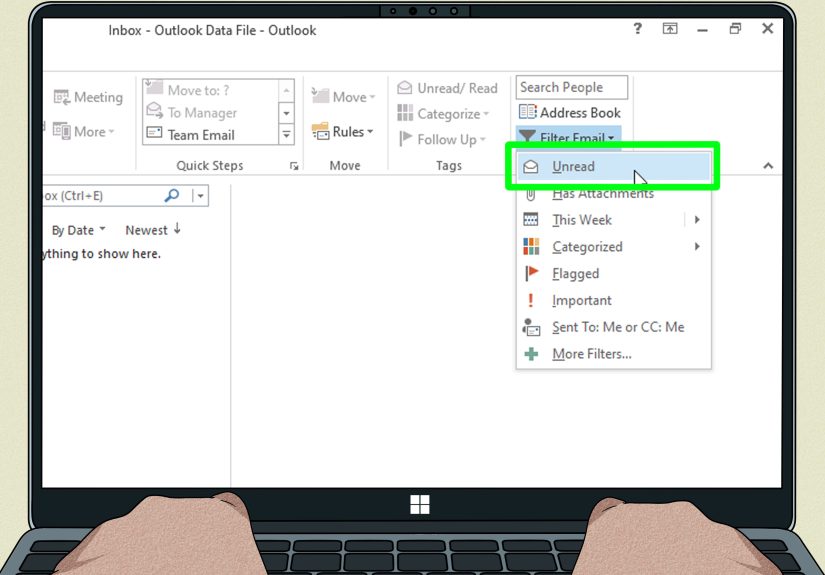
- Look near the top of the message list for Filter (or a filter icon).
- Select Filter → Unread.
- To return to all messages, clear the filter (it usually toggles back to All).
Tip: If you don’t see any unread emails after filtering, it doesn’t always mean you’re “done.” It can mean your unread emails are sitting in a different folder (or in the “Other” inbox tab).
Outlook on the Web / Outlook.com: Filter to Unread
- Go to your inbox in the browser.
- Select the folder you want (Inbox, Archive, etc.).
- Click Filter above the message list.
- Choose Unread.
Bonus move: If your inbox is split into tabs like Focused and Other, check bothunread messages can show up in either place depending on your settings.
Outlook for Mac: View → Filter By → Unread
- Open Outlook on your Mac.
- Go to the top menu: View.
- Select Filter By → Unread.
- Turn the filter off to see all messages again.
Outlook Mobile (iOS/Android): Tap Filters → Unread
- Open the Outlook app.
- Go to Inbox (or any mail folder).
- Tap the Filters icon near the top of the message list.
- Select Unread.
Tip: Mobile filters are great for quick triageespecially when you’re in line at the grocery store pretending you’re not checking email (we see you).
Method 2: Use Search to Find Unread Emails (Most Powerful)
Filters are great when you’re inside a folder. Search is better when unread emails are scattered across subfolders,
rules-based sorting, or that one folder you created in 2019 called “LaterMaybeFinal_FINAL2.”
Classic Outlook for Windows: Search with read:no or isread:no
- Click in the search bar (often labeled Search Current Mailbox).
- Type:
read:no(orisread:no). - Press Enter.
- If needed, change the scope to search more broadly (for example, the current mailbox or all mailboxes).
Example: You want unread emails from your whole mailbox, not just Inbox. Searching read:no is your shortcut to “show me everything I haven’t opened yet.”
Outlook on the Web: When Search Helps More Than Filter
The Unread filter is the simplest. But search can help when you want unread messages and a second condition.
For instance: unread messages from a certain person, or unread messages with attachments.
- Unread from a sender (concept): search for unread + the sender’s name/email
- Unread with a keyword: search for unread + a project name, invoice number, or subject phrase
Tip: If Outlook search results feel incomplete, indexing or sync issues may be the culprit (we’ll fix that later in this guide).
Method 3: Create an “Unread Mail” Search Folder (Set-It-and-Forget-It)
If you want a single place that collects unread emailno matter which folder it lives inSearch Folders are the MVP.
This is especially useful if you use rules that auto-sort mail into subfolders (newsletters, client folders, receipts, etc.).
Classic Outlook for Windows: Add the Unread Mail Search Folder
- In Outlook, go to the Folder tab.
- Click New Search Folder.
- Choose Unread mail.
- Click OK.
Keyboard shortcut option: In many classic Outlook versions, Ctrl + Shift + P opens the New Search Folder window quickly.
What you get: A folder view called Unread Mail that updates automatically. As soon as something arrives unread (or you mark something as unread), it appears there.
Important note: Search Folders are “views,” not duplicates. Opening a message from the Unread Mail Search Folder opens the original email in its real folder.
Method 4: Change Your View So Unread Emails Stand Out
Sometimes the problem isn’t that you can’t find unread emailsit’s that they don’t look different enough,
especially in busy inboxes. Outlook typically shows unread messages in bold, but you can make it more obvious
with view settings and formatting rules.
Classic Outlook for Windows: Use View Filters
- Open the folder you want (Inbox).
- Go to the View tab.
- Select View Settings.
- Choose Filter, then look for options that filter by read/unread status.
Why this matters: Sometimes you (or Outlook) accidentally apply a filter that hides messages and makes it feel like unread mail vanished.
Common Problems (and Fixes) When Unread Emails “Disappear”
Problem 1: “Outlook says I have unread mail… but I can’t find it.”
- Check subfolders: Unread mail can be in folders you don’t open often (Archive, client folders, etc.).
- Use Search Folder: The Unread Mail Search Folder is designed for exactly this problem.
- Verify you’re not filtering: Make sure you didn’t accidentally apply a view filter that hides messages.
Problem 2: “Emails get marked read the second I click them.”
This is usually the Reading Pane setting. Outlook can mark messages as read when you preview them, not when you truly “open” them.
If you want unread emails to stay unread until you’re ready, adjust the timing.
Classic Outlook (Windows): Slow down (or stop) auto-mark-as-read
- Go to File → Options.
- Select Advanced.
- Under Outlook panes, click Reading Pane.
- Adjust options like:
- Mark items as read when viewed in the Reading Pane (and set a longer delay)
- Mark item as read when the selection changes (turn off if you hate surprise “read” statuses)
Problem 3: “Unread filter shows nothing, but I swear there are unread emails.”
- Check Focused/Other: Your unread emails may be in the other tab.
- Clear the filter: Sometimes you’re filtering a different folder than you think.
- Try search: In classic Outlook,
read:noorisread:nocan catch what the view missed.
Problem 4: “Search misses unread emails.”
Outlook search depends on indexing and syncing. If results look incomplete, give Outlook time to index, or review indexing settings.
In real-world use, this is especially common right after:
- Setting up a new computer
- Adding a mailbox
- Switching Outlook versions
- Importing a PST
Pro Tips: Build an “Unread Workflow” That Actually Sticks
Tip 1: Use Search Folder as your command center
If you live in Outlook all day, the Unread Mail Search Folder reduces stress because it’s always the same place
no matter how your inbox is organized.
Tip 2: Add a “mark unread” habit
If you scan an email but can’t act on it yet, mark it as Unread so it stays in your unread workflow.
That turns “Unread” into a mini task list without needing a separate system.
Tip 3: Combine unread + flags for “priority triage”
Unread doesn’t always equal important. Consider using flags for messages that need action and leaving newsletters unread only if you truly plan to read them.
Otherwise, newsletters become the inbox equivalent of doomscrolling.
Real-World Experiences & Lessons Learned (500+ Words)
Even though the steps to view unread emails are simple, the experience of managing unread mail in Outlook can feel like juggling flaming bowling pins
mostly because real inboxes are messy. Here are common, very human scenarios people run into (and what usually works).
1) The “Phantom Unread” Panic
You glance at Outlook and it insists you have “1” unread message. You click Inbox. Nothing looks bold. You filter to Unread. Still nothing.
This is where most people begin bargaining with the universe (“If this unread email appears, I will finally organize my folders…”).
What usually fixes it is switching from “looking” to “hunting.” Instead of staring at Inbox, use the Unread Mail Search Folder
(classic Outlook) or run a mailbox-wide search like read:no. If there’s an unread message hiding in a deep subfolder, those tools
are designed to flush it out.
2) The Reading Pane “Betrayal”
Many users don’t realize the Reading Pane can mark messages as read automatically. So you click an email, glance at it for half a second,
get distracted by a Teams message, andpoofyour “unread” reminder is gone. This is why people say, “I swear I never read that.”
The fix is simple: change the Reading Pane behavior so messages aren’t marked as read immediately. A delay (like 10–30 seconds) gives you breathing room.
If you want the strictest control, turn off the “mark as read when selection changes” option so only deliberate reading changes status.
3) The “Rules Did This” Mystery
If your company or personal setup uses rules to move messages into folders automatically, unread mail becomes harder to spot because Inbox isn’t the whole story.
People often assume “Inbox = everything,” but with rules, Inbox is just the front porch. The mail is already inside the housesometimes in the basement.
In these setups, Search Folder is the hero because it collects unread messages across folders. It’s like installing a smoke detector that works in every room,
not just the kitchen.
4) The Focused Inbox Surprise
A classic moment: you’re in Outlook on the web, you filter to Unread, and it looks clean. Then you notice the “Other” tab has a number on it.
Suddenly, you realize your unread emails are split across two tabs, and you’ve only been living in one. If you rely heavily on unread status to track tasks,
it helps to either check both tabs during triage or adjust Focused Inbox settings so you don’t miss things you consider important.
5) The Mobile Inbox Reality Check
On mobile, the Unread filter is fantastic for quick scanningbut the real “experience” lesson is this: mobile is for decisions, not archaeology.
People who succeed with unread mail on mobile typically do one of three things: (1) delete junk immediately, (2) archive anything they don’t need in Inbox,
and (3) flag what needs action. If you try to fully process a complicated inbox on a phone, you’ll likely just create more unread chaos (plus thumb cramps).
The Unread filter on mobile works best as a fast “what needs me right now?” view.
The biggest takeaway? Pick one primary method you trustFilter, Search, or Search Folderand make it your default. Switching methods every day is like
switching calendars mid-week: technically possible, emotionally expensive.
Conclusion
If you want the quickest way to see unread emails in Outlook, use Filter → Unread.
If you need power and precision, search with read:no / isread:no.
And if you want a reliable “one place for all unread mail,” set up the Unread Mail Search Folder in classic Outlook.
Once you combine these tools with smarter Reading Pane settings, you’ll spend less time chasing missing unread messages and more time actually… you know… answering them.
Or at least starring them dramatically for later. Progress is progress.