Table of Contents >> Show >> Hide
- Before You Start: Quick Reality Check (So You Don’t Yell at Your TV)
- The 6 Steps to Uninstall Netflix on a Samsung Smart TV
- Model Differences: Why Your Friend’s TV Has a Delete Button and Yours Doesn’t
- If You Can’t Delete Netflix (Common Reasons + Fixes)
- Bonus: The “Netflix Isn’t Working” Reset Path (Without Nuking Your Whole TV)
- Last Resort: Reset Smart Hub (Use With Caution)
- FAQs
- Conclusion
- Real-World Experiences: What People Commonly Run Into (and How They Get Past It)
- 1) “The Delete button is missing, and I feel personally attacked.”
- 2) “I removed it… and it came back.”
- 3) “Netflix won’t open, so I tried uninstalling… but I actually needed a reset.”
- 4) “My TV storage is full, and everything is slowNetflix was just the messenger.”
- 5) “Different remotes, different menus, different vibes.”
- 6) “I wanted Netflix gone, but I didn’t want to lose everything else.”
Netflix is the friend who always shows up to the party… even when you’re trying to clean the house.
Maybe the app is glitching, taking up storage, or you simply want it off your Samsung Smart TV for a while.
The good news: deleting apps on Samsung TVs is usually quick. The slightly less-good news: on some models,
Netflix may be considered a “pre-installed” app, meaning you can’t fully uninstall itonly remove it from the Home screen.
This guide walks you through the most reliable method (the same basic flow used across many Samsung Smart TVs running Tizen),
plus what to do if you don’t see a Delete option. We’ll keep it simple, specific, and drama-freelike a good remote control should be.
Before You Start: Quick Reality Check (So You Don’t Yell at Your TV)
- Uninstalling Netflix does not cancel your Netflix subscription. Your billing stays the same until you cancel through Netflix.
- Some Samsung TVs won’t let you fully delete Netflix. If Netflix came preloaded, you may only be able to remove the icon or
reinstall/reset it. - Your menus may look slightly different depending on your TV model year and Tizen version, but the logic is the same:
Home → Apps → App Settings → Delete.
The 6 Steps to Uninstall Netflix on a Samsung Smart TV
These six steps work on many Samsung Smart TVs (especially newer models) when Netflix is a removable app.
If you hit a walllike a greyed-out Delete buttondon’t worry. Scroll down to the troubleshooting section for the workaround that fits your situation.
Step 1: Press the Home Button
On your Samsung remote, press Home to open the Smart Hub (the main launcher bar/menu).
Step 2: Open the Apps Menu
Use the directional pad to navigate to Apps, then select it. This is your TV’s “app drawer,” where the real decisions happen.
Step 3: Go to App Settings (The Gear Icon)
Inside Apps, look for a Settings gear icon (often in the top-right corner). Select it to manage installed apps.
On some TVs, this may be labeled App Settings or Manage Apps.Step 4: Find and Select Netflix
Scroll through the installed apps list until you see Netflix. Select it to open the options panel.
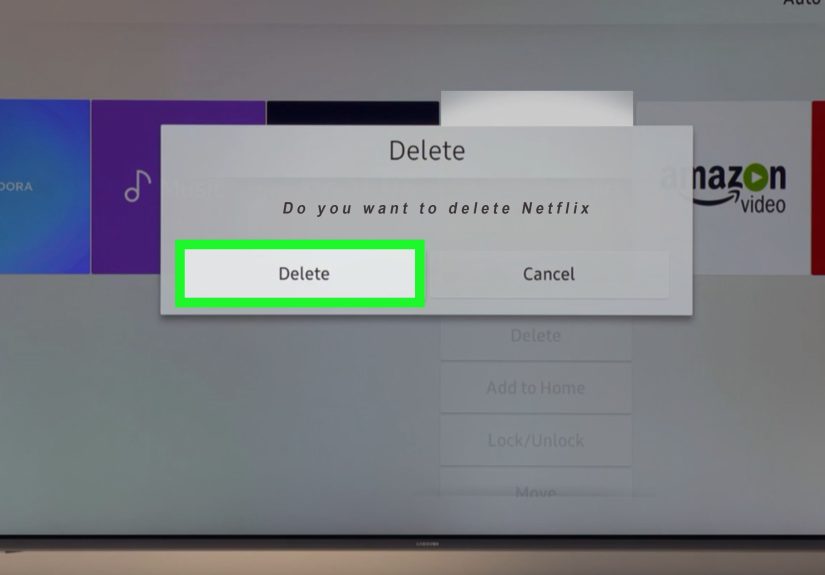
Step 5: Choose Delete (Or Uninstall)
Select Delete (sometimes shown as Remove or Uninstall, depending on model).
If Delete is missing or disabled, jump to the section:
“If You Can’t Delete Netflix (Common Reasons + Fixes)”.Step 6: Confirm the Deletion
Your TV will ask you to confirm. Choose Delete again (or Yes).
Once it finishes, Netflix should disappear from your installed apps list.
Model Differences: Why Your Friend’s TV Has a Delete Button and Yours Doesn’t
Samsung’s Smart TV interface changes by year, and Netflix sometimes falls into the “can’t remove” bucket.
Here’s a practical cheat sheet:
| Samsung TV Type | What You’ll Usually See | What You Can Do |
|---|---|---|
| Newer Tizen models (commonly 2021+) | Apps → Settings → Select app → Delete | Uninstall many downloaded apps; Netflix may vary |
| Some 2020 models | Device Care / Manage Storage paths | Remove apps through storage management |
| Older Tizen models (roughly 2017–2019) | Smart Hub → Apps → Settings gear | Delete downloaded apps; pre-installed apps may be locked |
| Very old Samsung Smart TVs (pre-Tizen or early Tizen) | My Apps / Options / Delete | May only remove app shortcuts or limited uninstall support |
If You Can’t Delete Netflix (Common Reasons + Fixes)
1) Netflix is pre-installed (Delete is disabled)
This is the #1 reason people can’t uninstall Netflix on Samsung Smart TVs. If the TV treats Netflix as a built-in app,
the Delete option may be greyed out or missing entirely.
What to do instead:
- Remove Netflix from the Home screen (hides it from your main launcher, which is what most people actually want):
- Go to the Home bar where the Netflix icon appears.
- Highlight Netflix.
- Press Down (or press-and-hold Select/OK, depending on remote/model).
- Choose Remove / Remove from Home.
- Reinstall Netflix if it’s buggy:
- Home → Apps → Search → type Netflix → Install/Reinstall.
2) Your TV needs a software update
If your Smart Hub is acting weird, options can disappear (because the TV is essentially a tiny computer trying its best).
Updating can restore normal app management.
- Go to Settings → Support → Software Update.
- Select Update Now (or similar wording).
3) Not enough storage (ironically stops you from deleting sometimes)
Low storage can cause apps to crash, stall, or refuse to behave. It’s annoying and very on-brand for modern electronics.
Fix: Delete a few unused apps first, then try deleting Netflix again.
4) You’re on the “Device Care / Manage Storage” interface
Some Samsung models route app removal through device maintenance tools.
If you don’t see a normal delete option inside Apps, check:
- Settings → Support → Device Care
- Then look for Manage Storage (or similar)
- Select Netflix → choose Delete (if available)
Bonus: The “Netflix Isn’t Working” Reset Path (Without Nuking Your Whole TV)
If your main goal is to fix Netflixnot banish ittry these steps before a full uninstall or reset:
1) Power-cycle the TV (the adult version of “turn it off and on again”)
- Turn off the TV.
- Unplug it from power for 30–60 seconds.
- Plug it back in and open Netflix again.
2) Sign out of Netflix on the TV
If Netflix is stuck on loading screens, account sign-out can help. In many Netflix TV apps, you can open Netflix settings/help
and choose Sign Out. If you don’t see it, look for Get Help or a settings gear inside Netflix.
3) Reinstall Netflix
If the app is removable, uninstall it using the 6 steps above, then reinstall it from the Apps store.
This often clears corrupted data without requiring a bigger reset.
Last Resort: Reset Smart Hub (Use With Caution)
If Netflix won’t delete, won’t reinstall, and generally behaves like a haunted VHS tape, resetting the Smart Hub can help.
This may remove downloaded apps and require you to sign in againso it’s a “save the big hammer for the big nail” move.
- Go to Settings → Support → Self Diagnosis.
- Select Reset Smart Hub.
- Enter your TV PIN (often 0000 by default unless you changed it).
FAQs
Why can’t I uninstall Netflix on my Samsung Smart TV?
The most common reason is that Netflix is treated as a pre-installed app on your model. In that case, Samsung may not allow full deletion.
You can usually remove it from the Home screen, and you can often reinstall or reset the app if it’s malfunctioning.
If I uninstall Netflix, will my Netflix account be deleted?
Nope. Uninstalling Netflix only removes the app from the TV. Your Netflix account and subscription stay active until you cancel through Netflix.
How do I put Netflix back after uninstalling?
Home → Apps → Search → type “Netflix” → Install. Then sign in again.
Can I uninstall Netflix on every Samsung TV model?
Not always. Many downloaded apps can be removed, but some models restrict removal of certain preloaded apps.
When uninstall isn’t possible, removing the icon from Home is the closest alternative.
Conclusion
Uninstalling Netflix on a Samsung Smart TV is usually a clean six-step job: Home → Apps → Settings → Netflix → Delete → Confirm.
But if your TV refuses to cooperate, it’s often because Netflix is pre-installed. In that case, your best move is to remove Netflix from the Home screen,
reinstall it to fix glitches, or reset the Smart Hub if things get truly messy.
The main takeaway: you’re not “doing it wrong” if you don’t see Delete. Sometimes the TV just… has opinions.
Fortunately, you still have options to hide Netflix, free up space, and get your Smart Hub back under control.
Real-World Experiences: What People Commonly Run Into (and How They Get Past It)
In real homes (not showroom floors where everything magically works), uninstalling Netflix can feel less like “six steps”
and more like “six steps plus a bonus round.” Here are common experiences people report when trying to remove the Netflix app
from a Samsung Smart TVand what typically helps.
1) “The Delete button is missing, and I feel personally attacked.”
A lot of users start confidently: they open Apps, find Netflix, and expect a big, friendly Delete option.
Instead, they see a few choicesmaybe Move, Lock, or nothing useful at all. This is most common when Netflix is
bundled as a pre-installed app on that TV model. The best “real life” solution is usually not a deeper hackit’s simply removing the Netflix icon
from the Home bar. For many people, the goal is visual and practical: “I don’t want it on my screen.” Removing it from Home solves that without
fighting the TV’s built-in restrictions.
2) “I removed it… and it came back.”
Another common experience: someone removes Netflix from the Home screen, updates the TV later, andsurpriseNetflix appears again.
Smart TV updates can refresh the launcher layout or re-pin partner apps. When that happens, people typically repeat the remove-from-Home process.
It’s annoying, yes, but it’s also normal behavior on many smart platforms where streaming apps are tightly integrated.
The practical approach is to treat it like rearranging icons on a phone: sometimes you have to do it again after major updates.
3) “Netflix won’t open, so I tried uninstalling… but I actually needed a reset.”
Many users only try to uninstall Netflix because the app starts acting upfreezing, buffering endlessly, or refusing to launch.
In those cases, the winning move is often a power cycle (unplug the TV briefly), followed by a reinstall (if allowed).
If Netflix still fails, a Smart Hub reset often fixes whatever is corrupted behind the scenes.
People describe this as “annoying but effective,” because it can force you to sign back into appsyet it frequently restores normal behavior.
4) “My TV storage is full, and everything is slowNetflix was just the messenger.”
Some households run into this pattern: the TV gets sluggish, apps crash, and Netflix becomes the most visible problem.
But the real issue is storage pressure. Once storage is low, TVs can behave unpredictablyapps may fail to update, menus can lag,
and even uninstall actions can feel unreliable. The fix that tends to work in the real world is a quick “declutter”:
remove a few unused apps, reboot the TV, then try again. People often find that once storage is freed up, Netflix becomes easier to manage.
5) “Different remotes, different menus, different vibes.”
Samsung has multiple remote styles, and the same action might be triggered by pressing Down, long-pressing Select,
or opening a submenu. In everyday use, this is where most confusion comes from: two TVs that are both “Samsung Smart TVs” can look different.
What helps is thinking in functions instead of exact labels:
Find Apps → Open app management → select Netflix → look for Delete/Remove options.
Once users stop hunting for one exact button name and start hunting for the “app options panel,” success rates go way up.
6) “I wanted Netflix gone, but I didn’t want to lose everything else.”
People often hesitate at resetsand for good reason. Resetting Smart Hub can feel like it’s going to wipe the TV’s personality.
In practice, it’s usually not as dramatic as a factory reset, but it can remove downloaded apps and require re-logins.
A common real-world compromise is: remove Netflix from Home first, try power cycling, then try reinstalling.
Only if Netflix is still broken (or the TV is still struggling) do people escalate to a Smart Hub reset.
That step-by-step escalation avoids unnecessary “start over” pain.
Bottom line: the clean six-step uninstall is realwhen Netflix is removable. When it isn’t, the real-world win is knowing the next best option
(remove from Home), plus the fix-it options (reinstall, power cycle, Smart Hub reset) that actually solve the problem people usually have.