Table of Contents >> Show >> Hide
- Step 0: What does “not connecting” actually mean?
- Fast fixes (try these firstmost people stop here)
- When the problem is physical: cleaning fixes more than you’d think
- Software/settings traps that make one AirPod “seem” disconnected
- Forget and re-pair (a polite breakup and a clean reunion)
- Factory reset AirPods (the “big hammer” that often works)
- If you replaced one AirPod: sync the “mismatched pair” properly
- Firmware: the invisible update that can fix stubborn connection bugs
- Troubleshoot by scenario (quick answers for common “one side” problems)
- Scenario A: One AirPod connects, but there’s no sound
- Scenario B: One AirPod won’t charge (battery stuck at 0%)
- Scenario C: The “quiet” AirPod is connected but much softer than the other
- Scenario D: Works on your iPhone, fails on your Mac (or vice versa)
- Scenario E: Using AirPods with Android or Windows
- When it’s probably hardware (and you should stop suffering)
- Conclusion
- Bonus: Real-world “one AirPod not connecting” experiences (and what they teach)
Few tech mysteries are as annoying as this one: your AirPods are right there, fully within arm’s reach, and yet one of them decides it’s on a silent retreat.
The other bud is playing music like nothing’s wrong while the “missing” AirPod either won’t connect, won’t charge, or acts like it’s never met your iPhone in its life.
Bluetooth gremlins? Pocket lint sabotage? A setting you accidentally bumped at 1:00 a.m.? Yes, yes, and also yes.
The good news: most “one AirPod not connecting” problems are fixable at home in under 15 minutesoften in under 2.
This guide walks you from quick wins to deeper fixes (cleaning, settings, re-pairing, firmware, and full resets), with model-specific tips that won’t waste your time.
Step 0: What does “not connecting” actually mean?
Before you start mashing buttons like you’re trying to enter the Konami code, identify the symptoms. “One AirPod not connecting” usually falls into one of these buckets:
- No sound in one ear (but it shows up as connected).
- One AirPod won’t charge (battery stays at 0% or never appears).
- It connects, but it’s super quiet (like it’s whispering your podcast).
- It keeps switching devices (Mac steals it, iPhone steals it back, chaos ensues).
- It won’t pair at all (no pop-up, no connection, only despair).
Each symptom points to a different “most likely” fix, so you’ll move faster if you match the problem to the right solution.
Fast fixes (try these firstmost people stop here)
1) Charge both AirPods and the case (yes, both)
It’s extremely common for one AirPod battery to drain faster than the other. It’s also common for the case to be low,
so it’s basically a dead power bank wearing a fancy white tuxedo.
- Put both AirPods in the case.
- Confirm the case has power (plug it in if you’re not sure).
- Let them charge for at least 30 seconds (longer is fine30 minutes is better if one is at 0%).
- Open the case near your iPhone/iPad and check that both buds show a battery level.
If one bud still doesn’t show a charge, jump ahead to the cleaning and “not charging” sectionsdirty contacts are a top culprit.
2) The “one-in-ear, one-in-case” trick (surprisingly effective)
This is the simplest “wake up, AirPod” move and it’s official-troubleshooting-level legit.
The idea is to force the problem bud to renegotiate the connection while the other stays put.
- Put the AirPod that isn’t working in your ear.
- Leave the working AirPod in the case and close the lid.
- Play audio for 10–15 seconds and see if the quiet AirPod starts playing.
- If it works, put both back in the case for 30 seconds, then test again with both in your ears.
3) Toggle Bluetooth and reselect AirPods as the output
Sometimes your AirPods are connected… but your phone is sending audio somewhere else (like the car, a speaker, or the void).
Do a quick reset of the connection path:
- On iPhone/iPad: Settings → Bluetooth → toggle Bluetooth off, wait 5 seconds, toggle on.
- Open Control Center and use the AirPlay/Audio Output picker to select your AirPods again.
- Turn volume up briefly (not foreverjust enough to confirm output isn’t set to “whisper”).
4) Restart the device you’re connecting to
It’s not glamorous, but restarting your iPhone, iPad, Mac, or Android phone clears temporary Bluetooth glitches.
If one AirPod won’t connect after the fast steps above, restart before you go nuclear with a full reset.
When the problem is physical: cleaning fixes more than you’d think
5) Clean the AirPods speaker mesh (quiet or “dead” audio)
If one AirPod is connected but sounds muffled, faint, or silent, debris on the speaker mesh can block sound.
Earwax and pocket lint are basically acoustic insulationgreat for winter, terrible for music.
- Inspect the speaker mesh on both AirPods in bright light.
- If you see buildup, clean gently with a soft, dry, lint-free cloth.
- Avoid sharp objects and abrasive materials (you want sound back, not a DIY teardown).
- If the AirPods were exposed to lotions, sweat, or anything sticky, wipe with a cloth slightly dampened with fresh water, then dry fully.
- Let them dry completely before using or charging (give it timerushing can create new problems).
6) Clean the case contacts (the #1 fix for “one AirPod not charging”)
If one AirPod won’t charge, the issue is often a bad connection inside the case.
Tiny lint clumps can keep the metal contacts from touchinglike a microscopic pillow blocking your AirPod from “going to bed.”
- Remove debris from the case using a clean, dry, soft-bristled brush.
- Wipe the case with a soft, dry, lint-free cloth. If needed, lightly dampen with isopropyl alcohol.
- Make sure no liquid gets into charging ports or deep inside the case.
- Re-seat both AirPods firmly and check if the problem bud now shows charging.
Software/settings traps that make one AirPod “seem” disconnected
7) Check Audio Balance (the sneaky “it’s not broken” fix)
This one is legendary because it feels like a prank: your AirPods are fine, but your phone is set to send sound mostly (or entirely) to one side.
If one AirPod is quiet or silent while the other is normal, check balance:
iPhone/iPad: Settings → Accessibility → Audio/Visual → Balance → set the slider to the middle.
8) Stop the “device switching tug-of-war”
If your AirPods keep connecting to the wrong device (Mac steals the connection when you open it; iPad grabs it when you hit play),
it can look like “one AirPod not connecting” when the real issue is your audio jumping devices.
- With AirPods in your ears and connected, go to Settings → Bluetooth.
- Tap the ⓘ next to your AirPods.
- Tap Connect to This iPhone (or iPad).
- Select When Last Connected to This iPhone instead of “Automatically.”
This reduces surprise switching and makes troubleshooting way less confusing.
9) Update your phone/computer software
AirPods issues can be caused (or fixed) by updates to iOS, iPadOS, and macOS. If you’re running a very old version,
you may hit weird pairing glitches that vanish after an update. Keep your device current before you spend money or time on repairs.
Forget and re-pair (a polite breakup and a clean reunion)
If the AirPod still won’t connect, re-pairing can clear out a corrupted Bluetooth relationship.
Think of it as: “It’s not you, it’s… okay it might be you, but let’s start fresh.”
- On iPhone/iPad: Settings → Bluetooth → tap ⓘ next to your AirPods.
- Tap Forget This Device and confirm.
- Put both AirPods in the case, close the lid for 15–30 seconds, then open it.
- Hold the open case near your iPhone and follow the on-screen pairing prompts.
Factory reset AirPods (the “big hammer” that often works)
If forgetting and re-pairing doesn’t fix it, do a full reset. This reinitializes the AirPods so they pair like they’re new.
Different models reset slightly differently, so use the path that matches your AirPods.
Reset most AirPods models (classic method)
- Put AirPods in the case and close the lid for about 20–30 seconds.
- Open the lid.
- Press and hold the setup button on the back of the case for about 15 seconds.
- Release when the status light flashes amber and then white.
- Reconnect by holding the open case near your iPhone/iPad and following prompts.
Reset AirPods 4 (all models) or AirPods Pro (3rd gen)
On these models, Apple uses a tap sequence on the front of the case:
- Put AirPods in the case, close the lid, wait 30 seconds, then open the lid.
- Double-tap the front of the case while the status light is on.
- Double-tap again when the light flashes white.
- Double-tap a third time when the light flashes faster.
- When the light flashes amber, then white, you’re resetreconnect normally.
If you replaced one AirPod: sync the “mismatched pair” properly
A replacement earbud may not automatically sync with your original AirPod and case until you run the correct setup.
If you’ve got one new bud and one old bud acting like strangers at a party, do this:
- Put both AirPods in the case.
- Connect the case to power, close the lid, and wait 20 minutes.
- Open the lid and check the status light. If it doesn’t flash white, initiate pairing/reset for your model (button hold or front-case tap sequence).
- Before you tap Connect on the setup animation, go to Settings → Bluetooth and Forget This Device if your AirPods still appear there.
- Then connect again using the on-screen prompt.
Firmware: the invisible update that can fix stubborn connection bugs
AirPods firmware updates happen automatically, but if you’re troubleshooting a persistent “one AirPod not connecting” issue,
making sure firmware is current is worth doing. The trick is: you can’t press an “Update” buttonyou can only set the stage for the update to happen.
How to encourage an AirPods firmware update
- Make sure your iPhone/iPad/Mac is updated and Bluetooth is on.
- Connect your device to Wi-Fi.
- Put AirPods in the case and connect the case to power.
- Close the lid and keep the case within Bluetooth range of your device.
- Wait at least 30 minutes.
- Open the lid and reconnect; then check firmware version again in Bluetooth details.
If firmware won’t update after multiple tries, a reset can help clear the path.
Troubleshoot by scenario (quick answers for common “one side” problems)
Scenario A: One AirPod connects, but there’s no sound
- Run the “one-in-ear, one-in-case” trick.
- Check Audio Balance (Accessibility → Audio/Visual).
- Clean the speaker mesh (debris can block sound completely).
- Forget device and re-pair, then reset if needed.
Scenario B: One AirPod won’t charge (battery stuck at 0%)
- Clean the case contacts and the AirPod charging surface.
- Reseat the AirPod firmly and confirm the case has charge.
- Try a different charging cable/adapter if the case battery seems unreliable.
- Forget/re-pair and reset if the charging status won’t refresh.
Scenario C: The “quiet” AirPod is connected but much softer than the other
- Check Audio Balance first (it’s the fastest win).
- Clean the mesh; clogged grilles often cause volume drop on one side.
- Test with a different app (to rule out app-specific audio quirks).
Scenario D: Works on your iPhone, fails on your Mac (or vice versa)
- Turn off automatic switching (set “Connect to This iPhone/Mac” to “When Last Connected”).
- On the problem device, forget AirPods and re-pair.
- Restart the device and ensure Bluetooth is enabled.
Scenario E: Using AirPods with Android or Windows
You won’t get Apple’s pop-up pairing animation, but core Bluetooth troubleshooting still applies:
remove/forget the AirPods in Bluetooth settings, reset the AirPods using the case method,
then pair again like a standard Bluetooth headset.
When it’s probably hardware (and you should stop suffering)
If you’ve done charging, cleaning, settings checks, re-pairing, and a factory resetand one AirPod still won’t connect or chargehardware failure is on the table.
Common signs include:
- The same AirPod never charges in any case position (even after cleaning).
- Battery percentage jumps wildly or disappears constantly.
- Crackling, static, or persistent dropouts that don’t improve after firmware updates and resets.
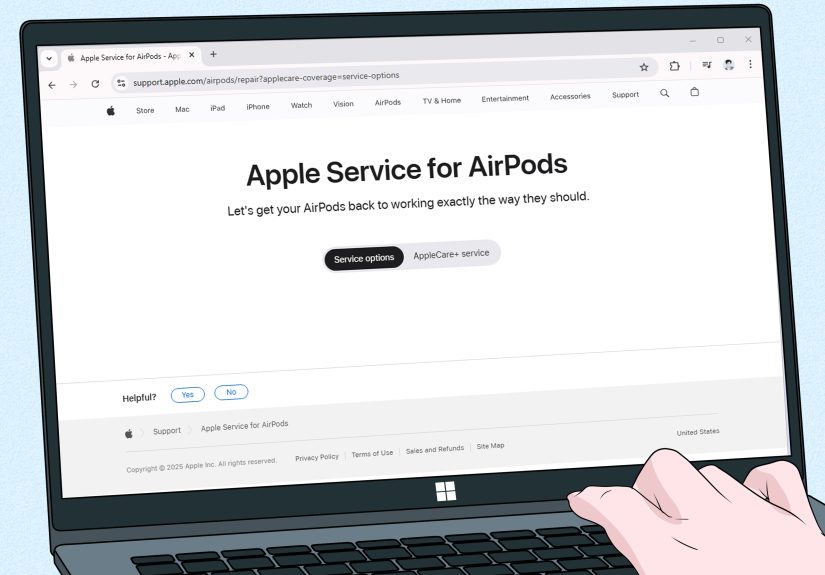
At that point, check warranty/AppleCare+ coverage and consider service. If only one earbud is bad, you may be able to service or replace a single AirPod rather than buying a whole new set.
Conclusion
When one AirPod won’t connect, it’s usually one of three things: power (one bud or the case is low),
contact (dirty case/mesh), or software (settings, pairing data, or switching behavior).
Start simple: charge, test the “one-in-ear” trick, and toggle Bluetooth. Then clean the case contacts and check Audio Balance.
If it’s still acting stubborn, forget/re-pair and do a full reset. And if you recently replaced one AirPod, follow the replacement setup steps so the pair can sync properly.
Most importantly: don’t assume your AirPods are doomed just because one side is silent. Sometimes the fix is a 10-second setting slider…
and sometimes it’s pocket lint executing a tiny but powerful coup.
Bonus: Real-world “one AirPod not connecting” experiences (and what they teach)
Experience #1: The Gym-Sweat + Pocket-Lint Combo. A common story goes like this: you hit the gym, you wipe your AirPods on your shirt (heroic effort),
and you toss them into a pocket that also contains… everything your pocket has ever known. Later, one AirPod won’t charge and shows 0% forever.
The fix is almost never “Bluetooth magic.” It’s usually cleaning the case contacts and the charging surfaces so metal actually touches metal.
Lesson: if one AirPod isn’t charging, treat the case like a tiny charging docknot a lint museum.
Experience #2: The Accidental Accessibility Slider. Plenty of users discover the “Balance” setting only after a panic spiral:
they reset AirPods, restart the phone, re-pair everything, and still get sound only in the right ear. Then someone checks Accessibility → Audio/Visual,
and the balance slider is shoved hard left like it’s trying to escape the screen. Slide it back to center andboomboth AirPods “magically” work.
Lesson: before you do a factory reset, check settings that can mimic hardware failure.
Experience #3: The Device-Switching Tug-of-War. In multi-Apple-households (iPhone + iPad + Mac),
one AirPod can appear “not connected” because your audio is bouncing between devices. A Mac notification pops up, you click Connect,
then your iPhone steals it when a video autoplays, and suddenly you’ve got one AirPod playing audio from a different device than you expected.
Turning “Connect to This iPhone/Mac” to “When Last Connected” calms the chaos and makes troubleshooting straightforward again.
Lesson: control switching behavior before you assume the earbuds are malfunctioning.
Experience #4: The Firmware Update That Didn’t… Until It Did. Firmware updates for AirPods are silent and automatic,
which is convenient right up until you need one. Users often report weird behaviorone side cutting out, inconsistent connection
that improves only after the AirPods sit in the case on power near a Wi-Fi-connected device for a while. The trick is patience:
close the lid, plug in the case, keep it nearby, and wait the full 30 minutes. If nothing changes, a reset and another attempt can help.
Lesson: firmware is invisible, but it can matterespecially for stubborn, repeatable connection bugs.
Experience #5: The “It Pairs… But Only on One Device” Mystery. Another pattern: AirPods work fine with an iPhone but refuse to behave on a laptop,
or they’re fine on a Mac but one bud won’t connect on the phone. The fix is usually local to the problem device:
forget the AirPods on that device, restart it, and re-pair from scratch. In other words, don’t punish the AirPods for something your laptop’s Bluetooth stack did.
Lesson: isolate the variabletest on a second device to figure out whether you have an AirPods issue or a device issue.