Table of Contents >> Show >> Hide
- Can You Play Xbox Game Pass on Steam Deck?
- What You Need Before You Start
- How to Set Up Xbox Cloud Gaming on Steam Deck
- How to Make Xbox Cloud Gaming Look Better in Your Steam Library
- Can You Install Game Pass Games Locally on Steam Deck?
- Best Settings for Playing Xbox Game Pass on Steam Deck
- Troubleshooting Xbox Cloud Gaming on Steam Deck
- Xbox Cloud Gaming vs. Windows on Steam Deck
- Best Types of Game Pass Games to Play on Steam Deck
- Personal Experience: What Playing Xbox Game Pass on Steam Deck Feels Like
- Conclusion
The Steam Deck is already a tiny miracle: a handheld PC that lets you play serious games while sitting on the couch, hiding from your responsibilities, or pretending the laundry will fold itself. But if you also have Xbox Game Pass, one big question appears fast: can you play Game Pass games on Steam Deck?
Yes, you can play many Xbox Game Pass games on your Steam Deck, but there is an important catch. On SteamOS, you generally do not install PC Game Pass games directly the way you would on a Windows computer. Instead, the easiest and most reliable method is to use Xbox Cloud Gaming through a browser, usually Microsoft Edge, and add it to your Steam library as a non-Steam game. Once set up, it launches from Gaming Mode almost like a native app.
This guide explains exactly how to play Xbox Game Pass on Steam Deck, what you need before starting, how to set up Xbox Cloud Gaming, what to do if the controller does not work, and whether installing Windows is worth it. Spoiler: for most people, cloud gaming is the smoothest path. It is not perfect, but neither is trying to type a 90-character command with the Steam Deck touchscreen while your cat judges you.
Can You Play Xbox Game Pass on Steam Deck?
The answer depends on what you mean by “play.” If you mean streaming games from the cloud, then yes. Steam Deck supports Xbox Cloud Gaming through a web browser, and Microsoft provides a Steam Deck-specific setup path using Microsoft Edge. This lets you stream supported Game Pass titles from Xbox servers to your handheld.
If you mean downloading PC Game Pass games directly through the Xbox app on SteamOS, then no, not in the normal official way. The Xbox app is built for Windows, and most PC Game Pass downloads rely on Microsoft Store and Windows services that SteamOS does not provide. SteamOS is Linux-based, and while Proton works wonders for many Steam games, it does not magically turn the Xbox app into a cooperative citizen.
So, for SteamOS users, there are two practical routes:
- Xbox Cloud Gaming: Best for most users. No Windows install required, no massive downloads, and no storage panic.
- Windows on Steam Deck: Best for advanced users who specifically want to install PC Game Pass games locally through the Xbox app.
This article focuses mainly on the cloud gaming method because it is simpler, safer, and closer to the experience most Steam Deck owners actually want: tap, launch, play, repeat.
What You Need Before You Start
Before setting up Xbox Game Pass on Steam Deck, make sure you have the basics ready. You do not need a gaming desktop, a PhD in Linux, or a candlelit ceremony for Gabe Newell. You just need a few practical things.
1. A Compatible Xbox Game Pass Plan
Xbox Cloud Gaming is included with eligible Xbox Game Pass plans, including Essential, Premium, and Ultimate in supported regions. Ultimate usually gives the most complete cloud gaming experience, including the largest catalog and higher-end benefits, but the exact library varies by plan, country, and platform. The safest move is to check your current Game Pass plan and confirm that the games you want are marked as cloud playable.
2. A Supported Region
Xbox Cloud Gaming is not available everywhere. If the cloud play button does not appear, your region, account, subscription tier, or the game itself may be the reason. This is not the Steam Deck being dramatic; it is usually a licensing and availability issue.
3. A Strong Internet Connection
Cloud gaming lives and dies by your network. Microsoft recommends a high-speed connection, with stronger performance on stable 5 GHz Wi-Fi. In real life, you want more than “technically connected.” You want low latency, steady speed, and a router that is not hiding behind three walls and a refrigerator.
For best results, sit closer to your router, use 5 GHz Wi-Fi, avoid huge downloads in the background, and consider using a dock with Ethernet if you play at a desk or TV. Cloud gaming can feel surprisingly good when your network behaves. When it does not, it turns every racing game into a slideshow with ambition.
4. Microsoft Edge or Another Supported Browser
Microsoft Edge is the recommended browser for the official Steam Deck setup. Xbox Cloud Gaming may also work through other supported browsers, but Edge has the clearest documented setup path for Steam Deck, especially when adding it to Gaming Mode and enabling controller input.
How to Set Up Xbox Cloud Gaming on Steam Deck
The setup has several steps, but none are especially scary. You will switch to Desktop Mode, install Microsoft Edge, give Edge access to Steam Deck controls, add Edge to Steam, and customize the launch options so it opens Xbox Cloud Gaming directly.
Step 1: Switch to Desktop Mode
Press the Steam button, go to Power, then choose Switch to Desktop. The Steam Deck will move from its console-like interface into a Linux desktop environment. This is where you can install apps, adjust files, and briefly feel like you are doing “computer stuff” in the most handheld way possible.
Step 2: Install Microsoft Edge
In Desktop Mode, open the Discover Software Center. Search for Microsoft Edge, then install it. If you have a keyboard and mouse, this step is easier. If you only have the touchscreen, it still works, but prepare for a small amount of finger gymnastics.
Once Edge is installed, do not launch into victory mode yet. You still need to make sure Steam Deck controls are passed through properly.
Step 3: Give Edge Access to Steam Deck Controls
Open the application launcher, go to System, and open Konsole. Enter the following command:
This command allows Microsoft Edge to access the Steam Deck controller hardware through the proper system path. Without it, Xbox Cloud Gaming may load perfectly but ignore your buttons like a stubborn vending machine.
After running the command, type:
Then press Enter to close Konsole.
Step 4: Add Microsoft Edge to Steam
Still in Desktop Mode, open the Steam desktop client. Click Add a Game, then choose Add a Non-Steam Game. Find Microsoft Edge in the list, check it, and add it to your library.
Now right-click Microsoft Edge in your Steam library and open Properties. Rename it to something cleaner, such as:
This is optional, but it makes your library look less like a browser shortcut wandered in from accounting.
Step 5: Add the Xbox Cloud Gaming Launch Options
In the same Properties window, look for Launch Options. Add the following after the existing launch text:
This tells Edge to open in a clean, app-like window and go straight to Xbox Cloud Gaming. The kiosk mode helps reduce browser clutter, which is exactly what you want on a handheld screen. You are here to play games, not admire tabs.
Step 6: Return to Gaming Mode
Close Steam, then use the desktop shortcut to return to Gaming Mode. Open your Steam library, go to the Non-Steam section, and launch your new Xbox Cloud Gaming shortcut.
Sign in with your Microsoft account, connect to your Game Pass library, choose a cloud-enabled game, and start playing. If everything worked, your Steam Deck controls should behave like a standard controller.
How to Make Xbox Cloud Gaming Look Better in Your Steam Library
By default, your new shortcut may look plain. It might have a blank tile, a generic icon, or the visual personality of a tax form. You can fix that by adding custom artwork.
In Desktop Mode, open Steam, right-click your Xbox Cloud Gaming shortcut, and use the artwork options to set a custom icon, banner, capsule, and background. Microsoft has provided official artwork for Xbox Cloud Gaming and Edge in its setup resources, or you can create your own images if you want the library to look more personal.
This step is not required, but it makes the shortcut feel more like a real app. On Steam Deck, that matters more than you might expect. A clean tile in Gaming Mode makes the whole setup feel less like a workaround and more like a feature.
Can You Install Game Pass Games Locally on Steam Deck?
On SteamOS, not really. The Xbox app for PC is designed for Windows, and PC Game Pass downloads rely on Microsoft’s Windows ecosystem. That means you cannot simply install the Xbox app in SteamOS and download Game Pass games the same way you would on a Windows laptop.
If you want local PC Game Pass downloads, you can install Windows on your Steam Deck. Valve provides Windows drivers for Steam Deck, and many users run Windows either from internal storage or a separate drive. Once Windows is installed, you can use the Xbox app and download PC Game Pass titles like you would on any Windows gaming handheld.
However, this route comes with trade-offs. Windows can be less smooth on Steam Deck than SteamOS, especially for handheld controls, sleep behavior, interface comfort, and general console-like convenience. It can work well, but it requires more maintenance. For most users, Xbox Cloud Gaming is easier.
Best Settings for Playing Xbox Game Pass on Steam Deck
After setup, a few tweaks can improve the experience. Cloud gaming is not only about raw internet speed. Stability, controller layout, display scaling, and expectations all matter.
Use 5 GHz Wi-Fi Whenever Possible
Cloud gaming depends on fast response times. A 5 GHz Wi-Fi connection usually performs better than 2.4 GHz because it offers higher throughput and less congestion, especially if you are close to the router. If your game feels delayed, the first thing to test is not your Steam Deck. It is your network.
Choose the Right Controller Layout
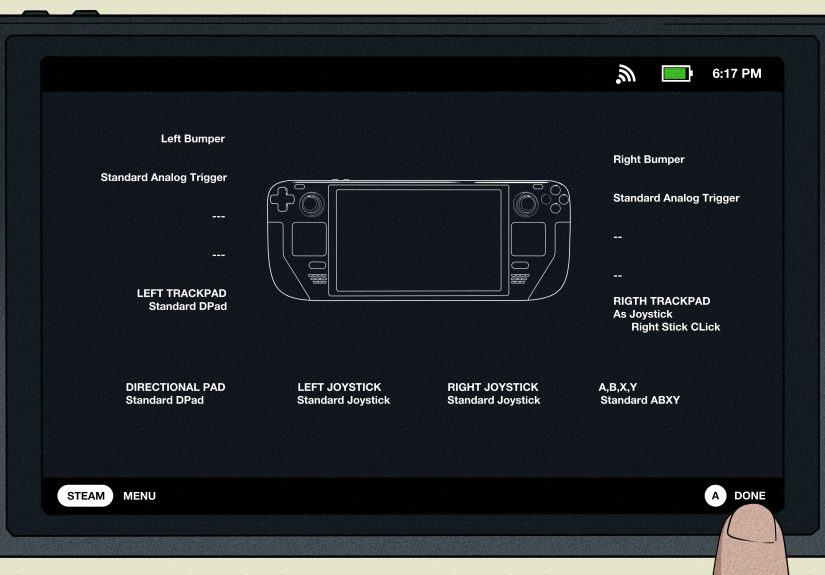
In Steam Gaming Mode, open the controller settings for your Xbox Cloud Gaming shortcut. A standard gamepad layout usually works best. If controls feel strange, switch to a basic controller template instead of a desktop or mouse-heavy layout.
Keep the Screen Brightness Reasonable
Streaming uses less local processing power than running a demanding game natively, but Wi-Fi and screen brightness still drain battery. Lowering brightness a little can stretch your play session without making the screen look like a cave painting.
Do Not Expect Every Game to Feel the Same
Turn-based RPGs, adventure games, platformers, and slower single-player titles often feel great through Xbox Cloud Gaming. Competitive shooters, rhythm games, and twitchy fighting games can expose latency more quickly. You can still play them, but your tolerance for delay matters.
Troubleshooting Xbox Cloud Gaming on Steam Deck
If Xbox Cloud Gaming does not work immediately, do not panic. Most issues have simple causes.
The Controller Does Not Work
Recheck the Konsole command. Make sure it matches exactly and uses com.microsoft.Edge. Then restart Steam and try launching the shortcut again from Gaming Mode. Also confirm that your shortcut uses a gamepad controller layout.
The Page Opens, But It Is Not Full Screen
Check the launch options. The window-size, scale factor, and kiosk commands should be added after the existing text. A missing space or quotation mark can make Edge behave like it has forgotten the assignment.
Games Lag or Stutter
Move closer to your router, switch to 5 GHz Wi-Fi, pause downloads, or test with Ethernet through a dock. Also try a different time of day. If everyone in the house is streaming movies, downloading updates, and holding a video call, your cloud game may not get the royal treatment.
The Game You Want Is Missing
Not every Game Pass game is cloud-enabled, and availability can vary by region, plan, and time. Some games rotate in and out of the catalog. Others may be available for console or PC download but not cloud streaming. Always check the cloud library before assuming something is broken.
Xbox Cloud Gaming vs. Windows on Steam Deck
Choosing between cloud gaming and Windows depends on what kind of player you are.
Use Xbox Cloud Gaming if you want the fastest setup, do not want to repartition storage, have reliable internet, and mainly want to sample or casually play Game Pass titles. It is also great if your Steam Deck storage is already full of enormous games with names like “Complete Edition,” “Remastered,” and “Why Is This 140GB?”
Use Windows if you want to download PC Game Pass games locally, play offline, use the Xbox app directly, or avoid cloud latency. Windows gives more compatibility with Microsoft’s PC gaming ecosystem, but it also adds complexity.
For the average Steam Deck owner, the best first move is simple: try Xbox Cloud Gaming through Edge. If you love the Game Pass library and later decide you need local installs, then consider Windows. Do not start with the complicated route unless you actually need it.
Best Types of Game Pass Games to Play on Steam Deck
The Steam Deck’s handheld format pairs beautifully with certain Game Pass games. Cloud streaming is especially enjoyable for games that do not require frame-perfect timing.
- RPGs: Great for long sessions, exploration, and story-heavy play.
- Turn-based strategy games: Latency matters less, so the experience feels comfortable.
- Indie games: Many load quickly and look great on the Deck’s screen.
- Racing games: These can be excellent if your connection is strong.
- Adventure games: Perfect for relaxed handheld sessions.
For competitive shooters or fast online games, test before committing to a long session. A small amount of input delay may not matter in a cozy farming game, but it can feel like betrayal in a ranked match.
Personal Experience: What Playing Xbox Game Pass on Steam Deck Feels Like
The best way to describe Xbox Game Pass on Steam Deck is this: it feels like turning the Deck into a portable Xbox screen, but with a tiny bit of internet-flavored uncertainty sprinkled on top. When the connection is good, the experience is genuinely impressive. You tap the shortcut, sign in, pick a game, and within moments you are playing something that would normally require a console, a Windows PC, or a large download.
The first thing most people notice is convenience. The Steam Deck already has a quick-sleep, pick-up-and-play personality, and Xbox Cloud Gaming fits that mood nicely. You can try a Game Pass title without clearing 80GB of storage or waiting through a giant install. This is especially useful for games you are curious about but not fully committed to. Instead of asking, “Do I want to download this?” you can ask, “Do I want to play this right now?” That is a much better question.
The second thing you notice is that the experience depends heavily on your network. On strong 5 GHz Wi-Fi, many games feel smooth enough that you stop thinking about the fact that they are streaming. Slower games, story games, and RPGs can feel almost native. But if your Wi-Fi gets crowded or the signal dips, the illusion breaks. You may see visual compression, input delay, or the occasional stutter. It is not always terrible, but it reminds you that cloud gaming is basically a long-distance relationship with a server.
Battery life can also be better than running demanding games locally because the Steam Deck is not doing all the heavy rendering work. That does not mean the battery lasts forever, but streaming can be easier on the hardware than pushing a huge AAA game natively. The fan may stay quieter too, which is nice if you are playing in bed and do not want your handheld to sound like a tiny airport.
The controls usually feel natural once configured correctly. The built-in Steam Deck buttons map well to Xbox-style controls, and most cloud games expect a controller anyway. The biggest frustration is setup friction. Typing commands, editing launch options, and adjusting artwork are not difficult, but they are also not as seamless as downloading an app from the Steam Store. Once it is done, though, the shortcut feels clean enough that you mostly forget the setup ever happened.
Overall, Xbox Game Pass on Steam Deck is best viewed as an excellent streaming companion, not a full replacement for native Steam games or a Windows handheld. It is fantastic for sampling the Game Pass library, playing console-style games on the couch, and keeping storage free. It is less ideal for offline play, competitive gaming, or anyone with unreliable internet. But when everything lines up, it feels wonderfully futuristic: a handheld Linux gaming PC casually streaming Xbox games from the cloud like that was always supposed to be normal.
Conclusion
Playing Xbox Game Pass games on your Steam Deck is absolutely possible, but the best method depends on your expectations. If you want the easiest setup on SteamOS, use Xbox Cloud Gaming through Microsoft Edge. Install Edge, add it to Steam, apply the controller access command, set the Xbox Cloud Gaming launch options, and launch it from Gaming Mode like a regular app.
If you want to install PC Game Pass games locally, you will need Windows on Steam Deck. That option gives you direct Xbox app access, but it also requires more setup and maintenance. For most players, cloud gaming is the better starting point because it is quick, flexible, and does not invade your storage like a digital raccoon.
The Steam Deck and Xbox Game Pass make a surprisingly good pair. One gives you handheld freedom; the other gives you a huge rotating game library. Put them together, add decent Wi-Fi, and you have a portable gaming setup that can jump from indie gems to big-budget adventures without downloading half the internet first.