Table of Contents >> Show >> Hide
- Can You Remove All Likes on Instagram at Once?
- Where to Find Your Liked Posts on Instagram
- How to Remove All Likes on Instagram on iPhone
- How to Remove All Likes on Instagram on Android
- How to Remove Instagram Likes by Date Range
- How to Remove Likes on Instagram Desktop
- Should You Use Third-Party Apps to Remove All Instagram Likes?
- What Happens When You Unlike a Post?
- Can Other People See What You Like on Instagram?
- How to Hide Like Counts Instead of Removing Likes
- Why You Might Want to Remove All Likes on Instagram
- How to Remove Likes Faster Without Breaking Instagram Rules
- Troubleshooting: Why Can’t I See My Instagram Likes?
- Mobile vs. Desktop: Which Is Better for Removing Likes?
- Can You Recover Likes After Removing Them?
- Best Practices Before You Remove All Likes
- Experience Notes: What It’s Really Like to Remove All Instagram Likes
- Conclusion
There comes a moment in every Instagram user’s life when they scroll through their old activity and think, “Wait… I liked that?” Maybe it was a questionable meme from 2017, a post from an account you no longer follow, a brand giveaway you entered during a midnight snack spiral, or simply thousands of tiny red hearts you no longer want attached to your account. Whatever brought you here, this guide will show you how to remove all likes on Instagram using the tools Instagram actually provides.
The good news: Instagram now makes it much easier to review and unlike multiple posts from the Your Activity section. The slightly annoying news: there is no perfect “delete every like forever in one magical button” feature for every account, every device, and every region. Instagram’s interface changes often, and desktop tools can be more limited than the mobile app. So the safest, most reliable method is still to use Instagram’s built-in bulk unlike feature on iPhone or Android.
This complete mobile and desktop guide explains where your liked posts are stored, how to bulk unlike Instagram posts, how to filter old likes by date, what to do when the feature is missing, and why you should avoid sketchy third-party “Instagram like remover” apps that promise miracles but deliver stress with a side of password theft.
Can You Remove All Likes on Instagram at Once?
Yes and no. You can remove many Instagram likes in bulk, but Instagram does not always offer a true one-tap “remove all likes” button that instantly clears your entire like history. Instead, Instagram allows you to open your liked posts, select multiple items, and unlike them together. If you have a small number of likes, you may be able to clean everything in a few rounds. If you have years of likes, you may need to repeat the process.
Think of it like cleaning out a closet. Instagram gives you trash bags, labels, and a hallway. It does not send a professional organizing team with matching beige containers.
Where to Find Your Liked Posts on Instagram
Your liked posts are found inside Your Activity. This section collects many of your account interactions, including likes, comments, story replies, tags, archived content, recently deleted content, and search activity depending on your app version and region.
Quick Path on Mobile
Open Instagram and go to:
Profile > Menu > Your activity > Interactions > Likes
From there, you can view the posts, Reels, and videos you have liked. You can sort them from newest to oldest or oldest to newest, filter by date range, select multiple posts, and unlike them in batches.
How to Remove All Likes on Instagram on iPhone
The iPhone app is one of the easiest ways to remove Instagram likes in bulk. Before starting, update Instagram from the App Store so your menu names match the latest version as closely as possible.
Step-by-Step Instructions for iPhone
- Open the Instagram app.
- Tap your profile picture in the bottom-right corner.
- Tap the three-line menu in the top-right corner.
- Select Your activity.
- Tap Interactions.
- Choose Likes.
- Tap Select in the top-right corner.
- Tap each post or Reel you want to unlike.
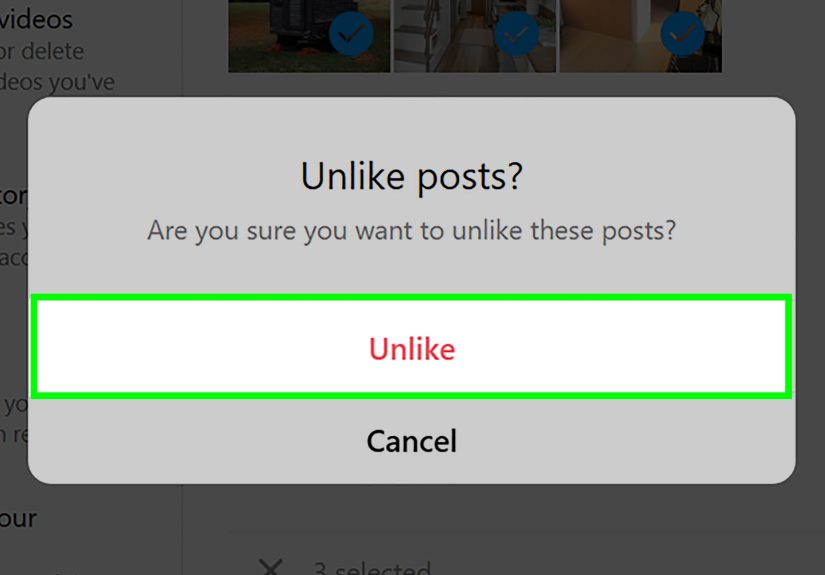
- Tap Unlike at the bottom.
- Confirm your choice when Instagram asks.
Repeat the same process until the list is clean. If you have thousands of likes, work in batches instead of trying to select everything at once. Instagram may slow down, freeze, or temporarily stop loading older activity if you move too aggressively.
Pro Tip: Start With the Oldest Likes First
If your goal is a full digital cleanup, tap the sorting option and switch from Newest to oldest to Oldest to newest. This helps you attack the ancient history first. You know, the era of blurry food photos, over-filtered sunsets, and usernames like “xX_SavageDreamer_Official_Xx.”
How to Remove All Likes on Instagram on Android
The Android process is almost identical to iPhone. Menu placement can vary slightly depending on your Instagram version, screen size, and whether Meta is testing a new layout on your account.
Step-by-Step Instructions for Android
- Open the Instagram app on your Android phone.
- Tap your profile icon in the bottom-right corner.
- Tap the three-line menu in the top-right corner.
- Go to Your activity.
- Tap Interactions.
- Select Likes.
- Tap Select.
- Choose the posts, videos, or Reels you want to remove likes from.
- Tap Unlike.
- Confirm the action.
For best results, do this while connected to stable Wi-Fi. If Instagram stops loading older likes, close the app, reopen it, and continue. You are not doing anything wrong; Instagram’s activity pages can get dramatic when asked to process years of emotional thumb-tapping.
How to Remove Instagram Likes by Date Range
One of the most useful features inside Instagram’s Likes section is filtering. Instead of scrolling endlessly, you can narrow your liked posts by time period.
How to Filter Likes Before Removing Them
- Open Your activity.
- Tap Interactions.
- Select Likes.
- Tap Sort & filter or the visible sorting option.
- Choose a date range, such as newest first, oldest first, or custom dates if available.
- Tap Apply.
- Select the posts you want to unlike.
- Tap Unlike.
This is helpful when you only want to remove likes from a certain period, such as old college years, a past relationship, an old fandom phase, or a brand research project that got a little too enthusiastic.
How to Remove Likes on Instagram Desktop
Instagram’s desktop website has improved over the years, but it still does not always offer the same full activity controls as the mobile app. Some users can access liked posts through Instagram’s web activity page, while others may find that the feature is missing, limited, or redirected.
Desktop Method 1: Use the Direct Activity Page
On a desktop browser, sign in to Instagram and try opening the activity likes page from your account. If the page is available for your account, you may see your liked posts and be able to select items to unlike. If the page does not load properly or does not show bulk controls, use the mobile app instead.
Desktop Method 2: Unlike Posts Manually
If you can see a post you previously liked on desktop, you can remove the like manually:
- Open the post on Instagram.com.
- Look for the filled heart icon.
- Click the heart to unlike the post.
This works for individual posts, but it is not efficient for clearing hundreds or thousands of likes. It is better for removing a few specific likes rather than cleaning your entire history.
Desktop Method 3: Use Mobile Instagram in a Browser
Some users try Instagram in a mobile browser or use browser developer tools to imitate a phone screen. This may help display mobile-style pages, but it is not guaranteed. Instagram frequently changes how features appear on web, so the mobile app remains the most reliable option.
Should You Use Third-Party Apps to Remove All Instagram Likes?
No. Avoid third-party apps, browser extensions, scripts, and websites that ask for your Instagram login and promise to remove all likes instantly. Many of these tools violate Instagram’s rules, break when Instagram updates its interface, or put your account at risk.
The biggest risks include:
- Account theft: A fake tool may capture your username and password.
- Temporary restrictions: Instagram may limit your activity if it detects unusual automated behavior.
- Privacy exposure: You may give unknown developers access to personal account data.
- Broken tools: Many scripts depend on Instagram’s current page design and can fail without warning.
- Permanent account trouble: Repeated automation can trigger security checks or account locks.
If a tool says it can erase ten years of Instagram likes in sixty seconds, treat it like a suspicious free buffet in an alley. Technically possible? Maybe. A good idea? Absolutely not.
What Happens When You Unlike a Post?
When you unlike a post, your like is removed from that post’s like count. The post owner usually does not receive a new notification saying you removed the like. If they previously saw your like or notification, they may remember it, but Instagram does not send a dramatic breakup letter on your behalf.
If you unlike and then like the same post again, your activity may appear again. So if your goal is privacy or cleanup, avoid re-liking old posts immediately after removing them.
Can Other People See What You Like on Instagram?
Instagram does not provide a public page where someone can see every post you have liked. However, your likes may still be visible in certain places. For example, someone may see your username under a specific post’s like list if they can view that post. Instagram has also tested and updated social discovery features over time, including ways friends may discover activity on certain content types.
If you are cleaning likes for privacy reasons, removing old likes is only one part of the job. You may also want to review who follows you, what posts you are tagged in, your activity status, your close friends list, and who can see your content.
How to Hide Like Counts Instead of Removing Likes
Removing likes affects your interaction history. Hiding like counts is different. Instagram allows users to hide like counts on their own posts and, in some cases, hide like counts while browsing. This does not remove your likes from other people’s posts. It only changes how numbers are displayed.
Use hiding like counts when you want a calmer Instagram experience. Use removing likes when you want to erase your previous interactions from posts you liked.
Why You Might Want to Remove All Likes on Instagram
People clean their Instagram likes for many normal reasons. Some are practical. Some are personal. Some are simply the result of looking at your old activity and whispering, “We don’t know her.”
1. Privacy Cleanup
Your likes can reveal interests, habits, old relationships, political opinions, hobbies, brands, creators, and communities. Even if Instagram does not show a public “all likes” page, individual likes can still be visible under posts. Removing old likes helps reduce your visible footprint.
2. A Fresh Start
Maybe your Instagram account has changed. You used to follow meme pages, fitness influencers, celebrity gossip accounts, or niche hobby pages you no longer care about. Removing likes can make your account feel more aligned with who you are now.
3. Better Recommendations
Instagram uses many signals to understand what you enjoy. Likes are one of those signals. Removing old likes may not instantly reset your Explore page, but cleaning up your interactions can help reduce outdated signals over time, especially if you also mark posts as “Not interested” and unfollow irrelevant accounts.
4. Professional Reputation
If you use Instagram for business, freelancing, influencing, or networking, your public interactions matter. Removing old likes from questionable or off-brand posts can be part of a broader account audit.
5. Emotional Decluttering
Sometimes the reason is simple: you do not want old reminders hanging around. Removing likes from posts connected to past situations, outdated friendships, or old interests can make Instagram feel less cluttered.
How to Remove Likes Faster Without Breaking Instagram Rules
Instagram does not love suspicious rapid-fire behavior. If you unlike too many posts too quickly, the app may slow down, fail to load, or temporarily restrict some actions. To avoid that, use a steady pace.
Safe Cleanup Strategy
- Remove likes in batches of 25 to 100, depending on how smoothly the app works.
- Take short breaks between large batches.
- Use date filters to clean one time period at a time.
- Do not use bots or automation tools.
- Keep the Instagram app updated.
- Use Wi-Fi for a more stable cleanup session.
For example, you could clean likes from 2020 first, then 2021, then 2022. This makes the process easier to track and less likely to overwhelm the app.
Troubleshooting: Why Can’t I See My Instagram Likes?
If you cannot find your liked posts, do not panic. The feature may still be there under a slightly different menu name.
Problem: “Likes” Is Missing From Your Activity
Update Instagram from the App Store or Google Play Store. Then close and reopen the app. If the option is still missing, log out and log back in. Some features also roll out gradually, so two accounts on the same phone may not always look identical.
Problem: Old Likes Will Not Load
Switch between Wi-Fi and mobile data. Clear the app cache on Android if needed. On iPhone, restarting the app or reinstalling Instagram may help. Older activity can take time to load, especially on accounts with years of interactions.
Problem: The Unlike Button Does Not Work
Try selecting fewer posts at once. If you selected a large batch and Instagram freezes, reduce the batch size. You can also restart the app and continue with a smaller group.
Problem: Desktop Does Not Show the Same Options
Use the mobile app. Instagram’s desktop experience can be inconsistent for activity management, while the app usually has the most complete version of the Likes section.
Mobile vs. Desktop: Which Is Better for Removing Likes?
| Platform | Best For | Limitations |
|---|---|---|
| iPhone App | Bulk unlike, sorting, filtering, full cleanup | May require repeated batches for large histories |
| Android App | Bulk unlike, date filters, stable activity controls | Menu names may vary by version |
| Desktop Website | Manual unliking and occasional activity access | Bulk tools may be missing or inconsistent |
| Third-Party Tools | Not recommended | Security, privacy, and account restriction risks |
Bottom line: use the mobile app if your goal is to remove all likes on Instagram. Desktop can help in special cases, but it is not the best tool for a full cleanup.
Can You Recover Likes After Removing Them?
There is no special “restore removed likes” button. If you unlike a post and later change your mind, you must find the post again and like it manually. That is why you should move carefully if you are cleaning important saved content.
Before removing everything, consider saving posts you truly care about into Collections. Saving a post is private and makes it easier to find later. Liking is more public and can be visible under the post. If you want a personal bookmark, saving is usually better than liking.
Best Practices Before You Remove All Likes
- Save important posts first: If a post contains a recipe, tutorial, product idea, or travel plan, save it before unliking.
- Work by date range: Clean old periods first to make progress easier to measure.
- Avoid automation: Manual cleanup is slower but safer.
- Review your follows too: Likes are only one part of your Instagram footprint.
- Check tagged posts: Your tags may reveal more than your likes.
- Adjust privacy settings: Consider switching to a private account if appropriate.
Experience Notes: What It’s Really Like to Remove All Instagram Likes
Removing all likes on Instagram sounds like a tiny task until you actually start doing it. Then you realize your thumb has been signing little emotional contracts with the internet for years. A coffee photo here, a vacation Reel there, a motivational quote posted by someone named “wealth.mindset.daily” at 2:13 a.m. Suddenly, your Likes page becomes a personal museum curated by your past attention span.
The first thing most people notice is that the process is easier when you treat it like a cleanup project instead of a race. If you try to remove thousands of likes in one intense session, Instagram may lag, the app may stop loading older posts, or you may simply get bored and start questioning every life decision that led to this scrolling marathon. A better approach is to divide the cleanup into categories: old likes, recent likes, likes from certain years, or likes from specific types of content such as Reels, memes, brand posts, or accounts you no longer follow.
In real use, date filters are the MVP. They turn a chaotic wall of posts into manageable sections. For example, if you want a cleaner professional profile, start with the oldest likes first. Those are often the posts most likely to feel outdated. If you are removing likes after a breakup, a job change, a rebrand, or a personal reset, custom date ranges can help you focus on the period that matters instead of nuking your entire history blindly.
Another useful lesson: do not remove likes from posts you may want to find later unless you save them first. Many people use likes as lazy bookmarks. That is fine until cleanup day arrives and you accidentally remove the only easy path back to a recipe, workout routine, hotel recommendation, or funny Reel you planned to send to a friend. Before unliking in bulk, skim the batch and save anything valuable into a Collection. Collections are private, organized, and much better for “I need this later” content.
Desktop cleanup can feel tempting because a big screen seems more efficient. In reality, Instagram’s mobile app usually wins. The app tends to show the activity tools more reliably, and selecting multiple likes feels smoother. Desktop is useful if you already have a specific post open and want to unlike it manually, but for mass removal, the phone app is the practical choice.
The biggest mistake is trusting random like-removal tools. They often sound efficient, but your Instagram account is not the place to experiment with mystery software. If a tool asks for your password, promises instant deletion, or tells you to paste code into your browser console without understanding it, step away. A slower manual cleanup is still better than losing access to your account or triggering Instagram’s security systems.
The final experience is surprisingly satisfying. Your account feels lighter. Your old activity feels less messy. Your recommendations may gradually feel more relevant as you stop feeding Instagram outdated signals. Most importantly, you gain a clearer sense of what you actually want your online presence to reflect. Removing Instagram likes is not just about deleting hearts. It is about taking back a little control from the algorithmic scrapbook you accidentally built one tap at a time.
Conclusion
Learning how to remove all likes on Instagram is mostly about knowing where to look. The key section is Your activity > Interactions > Likes. From there, mobile users can select multiple posts and unlike them in batches. Desktop users may have limited options, so the Instagram app is usually the best route for a complete cleanup.
There is no need to panic, download suspicious apps, or hand your login to a random “instant unlike” website. Use Instagram’s built-in tools, move in batches, filter by date, save important posts before removing likes, and give the app a break if it starts acting like it needs a nap. A clean Instagram history is possible. It just takes a little patience and a very honest look at your past scrolling habits.