Table of Contents >> Show >> Hide
- Before You Tap Anything: Subtitles vs. Closed Captions (Quick, Useful, Not Boring)
- Simple Way #1: Turn Subtitles On/Off During Playback (Works on Almost Everything)
- Simple Way #2: Set Your Default Subtitle Preferences in Your Netflix Profile
- Simple Way #3: Fix “Subtitles Won’t Turn Off” by Checking Device Accessibility Settings
- Simple Way #4: Customize Subtitle Appearance (or Fix Giant Subtitles) Using Netflix Settings
- Troubleshooting: Quick Fixes When Netflix Subtitles Act Weird
- FAQ: The Stuff People Google at 1:17 a.m.
- of Real-Life Subtitle Experiences (Because This Is Where Subtitles Shine)
- Conclusion
Netflix subtitles can be a lifesaveror a tiny, sassy narrator that won’t stop talking. One minute you’re using captions to catch every whispery plot twist, the next you’re wondering why the screen is shouting [DRAMATIC MUSIC SWELLS] at 2 a.m.
This guide shows you how to turn Netflix subtitles on and off in four simple, real-world wayson TVs, streaming sticks, phones, tablets, and browsersplus how to fix the classic “subtitles won’t turn off” situation. We’ll also cover subtitle language options, closed captions (CC/SDH), and the settings that quietly override your choices when you’re not looking. (Yes, I’m side-eyeing your device accessibility settings.)
Before You Tap Anything: Subtitles vs. Closed Captions (Quick, Useful, Not Boring)
Subtitles usually show spoken dialogue. Closed captions (often labeled CC or SDHSubtitles for the Deaf and Hard of Hearing) may include sound cues like [DOOR SLAMS] or [FOOTSTEPS APPROACHING]. Netflix often lists these as different options under the same language (for example, English vs. English (CC)).
One more thing: sometimes Netflix shows forced subtitles when a character speaks a different language than the main audioeven if you set subtitles to Off. That’s intentional and usually can’t be disabled without changing the title’s audio/subtitle choices.
Simple Way #1: Turn Subtitles On/Off During Playback (Works on Almost Everything)
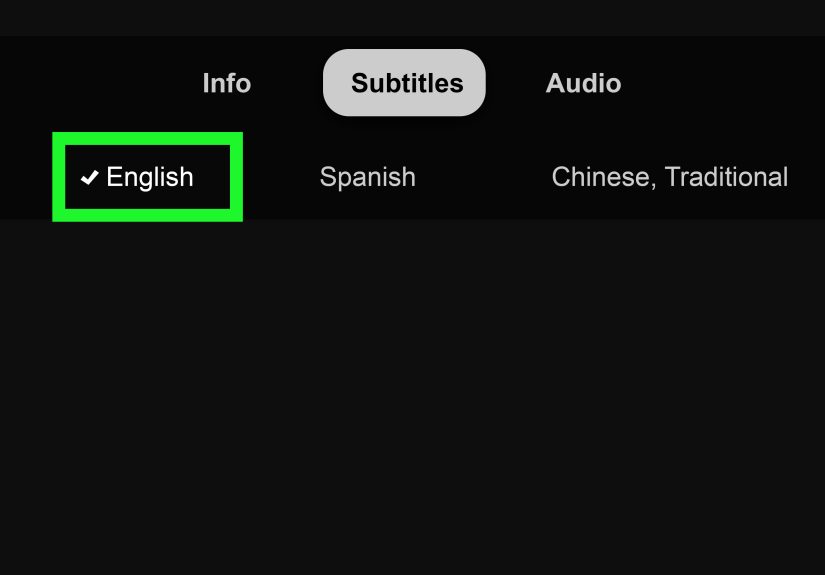
If you only remember one method, remember this one. Netflix lets you change subtitles while the show is playing. The exact button labels vary, but the idea is the same everywhere: open the Audio & Subtitles menu, then choose Off (or pick a language).
On Smart TVs & Streaming Devices (Roku, Fire TV, Apple TV, Google/Android TV)
- Start playing a movie or episode on Netflix.
- Bring up the player controls (usually by pressing Up, Down, or OK/Select on the remote).
- Select Audio & Subtitles (sometimes shown as a speech-bubble icon).
- Under Subtitles, choose a languageor select Off.
- Resume playback and enjoy the quiet… visually.
On Game Consoles (PlayStation / Xbox)
The Netflix steps are basically the same as TV apps (open Audio & Subtitles and pick Off). If subtitles still appear after that, jump to Simple Way #3 because consoles can enforce system-level captions.
On Mobile (iPhone/iPad/Android)
- Play something on Netflix.
- Tap the screen to reveal controls.
- Tap Audio & Subtitles.
- Select Off or choose your subtitle language.
On a Web Browser (Chrome, Edge, Safari, Firefox)
- Start watching on Netflix.com.
- Move your mouse to show playback controls.
- Click Audio & Subtitles.
- Pick a subtitle option or click Off.
Pro tip: If you’re trying to watch in another language, you can mix-and-match audio language and subtitle language from the same menu (availability depends on the title).
Simple Way #2: Set Your Default Subtitle Preferences in Your Netflix Profile
If you’re tired of turning subtitles off (or on) every single time like it’s a part-time job, set a preference in your Netflix account. This is also where you can manage language behavior in a way that sticks better across devices.
How to Set Subtitle Preferences (Best done on a computer or mobile browser)
- Open Netflix in a browser and go to your Account page.
- Under Profiles (or Profile & Parental Controls), choose the profile you use.
- Look for language/subtitle-related settings (Netflix may label these by region and account type).
- Save changes, then restart Netflix on your devices if needed.
Why this helps: Netflix profiles store viewing preferences, so if your household has one person who wants subtitles always-on and another person who believes subtitles are “spoilers,” separate profiles prevent daily caption-related drama.
Simple Way #3: Fix “Subtitles Won’t Turn Off” by Checking Device Accessibility Settings
Here’s the sneaky truth: your device can override Netflix. If your phone/TV/console has system-wide captions enabled, Netflix may keep showing subtitles even when you select Off in the app.
If you turned subtitles off in Netflix and they’re still there, use these device checks.
On Roku (Streaming Stick / Roku TV)
- Go to Settings > Accessibility (or Captions).
- Find Captions mode and set it to Off (or “Always Off,” depending on your model).
- Reopen Netflix and test playback again.
On Apple TV (tvOS) and iPhone/iPad (iOS/iPadOS)
- Apple TV: Settings > Accessibility > Subtitles and Captioning > toggle Closed Captions + SDH off if you don’t want system captions.
- iPhone/iPad: Settings > Accessibility > Subtitles & Captioning > toggle Closed Captions + SDH.
On Xbox
If Netflix subtitles won’t turn off on Xbox, the console can be the reason.
- Open Settings.
- Go to Ease of access (or accessibility options).
- Find Closed Captioning and set it to Off.
- Return to Netflix and try again.
On Android TV / Google TV / Some Smart TVs
- Look for Accessibility settings at the device level.
- Disable system captions/closed captions if you don’t want them forced in streaming apps.
- Then reopen Netflix and confirm subtitles are Off.
Heads up: If you actually do want captions everywhere (great for clarity), keep device captions onbut then don’t be surprised when Netflix insists on being helpful.
Simple Way #4: Customize Subtitle Appearance (or Fix Giant Subtitles) Using Netflix Settings
Sometimes the issue isn’t “subtitles on/off.” It’s “why are these subtitles the size of a billboard?” Netflix lets you adjust subtitle size and style on many devices, and you can also set appearance at the account level so it affects how captions look across your devices.
Adjust Subtitle Size/Style During Playback (When Supported)
- Start playing a title on Netflix.
- Pause and open the player controls.
- Look for Settings within the subtitle/caption controls.
- Choose a Size and Style you like, then resume playback.
If you don’t see “Settings,” your device may not support on-device subtitle styling for that language/app version. In that case, use the account-level appearance approach below.
Set Subtitle Appearance in Your Netflix Account (Great for Consistency)
On a web browser, Netflix typically allows you to customize subtitle/caption appearance (font, size, color, shadow, background). This can help if subtitles are too large or hard to read.
Common example: You’re watching on a bedroom TV with a bright scene. White text disappears. Adding a darker background or stronger shadow makes captions readable without turning your TV brightness into a miniature sun.
Troubleshooting: Quick Fixes When Netflix Subtitles Act Weird
If Subtitles Won’t Turn On
- Try a different title: Not every show has every subtitle language option.
- Restart the app: Close Netflix completely and reopen.
- Restart the device: A quick power cycle fixes more streaming weirdness than we’d like to admit.
- Check updates: Update Netflix and your device software if options are missing.
If Subtitles Won’t Turn Off
- Double-check Netflix playback: Audio & Subtitles > Subtitles: Off.
- Then check device captions (see Simple Way #3), especially on Roku, Apple TV, and Xbox.
- Remember: forced subtitles can still appear for foreign-language dialogue.
If Subtitle Appearance Doesn’t Change
- Switch Netflix profiles, then switch back.
- Sign out of Netflix and sign back in on the device.
- Give it one episode. (Kidding. Mostly. But sometimes a full app restart is the magic.)
FAQ: The Stuff People Google at 1:17 a.m.
Why do subtitles turn on automatically?
Usually one of three reasons: (1) your device has system captions enabled, (2) someone else on the profile turned them on, or (3) the show uses forced subtitles for certain dialogue.
Can I set subtitles to always be on?
Yesbetween Netflix profile preferences and device-level captions, you can make subtitles a default. If you share an account, separate profiles are the cleanest way to avoid “subtitle wars.”
Why don’t I see the language I want?
Subtitle and audio languages depend on the title, licensing, and region. Netflix Originals often have more options than older licensed movies. If you don’t see it, it may not be available for that specific title.
Are subtitles available on downloads?
Typically yesdownloaded titles usually retain subtitle options, but available languages still depend on the specific show/movie.
of Real-Life Subtitle Experiences (Because This Is Where Subtitles Shine)
I didn’t always consider myself a “subtitle person.” I used to think captions were only for noisy airports or quiet offices where you’re pretending to work while watching a documentary about volcanoes. Then real life happened. Real life is loud, chaotic, and occasionally powered by a blender.
Experience #1: The “Snack Crunch” Household. You know that scene where the detective whispers the one clue that explains everything? That’s exactly when someone opens a family-size bag of chips like they’re starting a campfire. Subtitles become the only trustworthy narrator in the room. With captions on, you catch the line, understand the plot, and don’t have to rewind three times while everyone insists they “didn’t crunch that loud.” (They did.)
Experience #2: Late-Night Watching Without Becoming the Villain. If you’ve ever tried to watch Netflix while someone else sleeps, you know the volume slider is basically a moral test. Too loud? Monster. Too quiet? You miss half the dialogue because actors have discovered “cinematic mumbling” and refuse to stop. Turning subtitles on is the peace treaty: you keep the volume low, your brain still receives words, and nobody storms out at sunrise asking why your “dramatic music” was shaking the walls.
Experience #3: Accents, Whispering, and the Great Audio Mix Mystery. Sometimes it’s not you. Sometimes the audio mix is doing that thing where explosions are at 300% and dialogue is at 12%. Subtitles turn a confusing plot into an understandable one. And if you’re watching shows with heavy accents (or fast talkers, or chaos goblins who speak in jokes), captions help your ears catch up to your eyes. It’s not cheatingit’s accessibility for your patience.
Experience #4: Language Learning That Doesn’t Feel Like Homework. Subtitles are secretly a language-learning tool wearing a Netflix hoodie. Watching a Spanish series with English subtitles, or an English show with Spanish subtitles, can reinforce vocabulary without the pressure of flashcards. The trick is experimenting: if you’re a beginner, use audio in the language you’re learning and subtitles in your strongest language. If you’re more advanced, match the subtitles to the audio and see how much you can follow. Either way, it’s progressand it comes with popcorn.
Experience #5: The “Wait, What Did They Say?” Friendship Bonding Moment. Watching with friends? Subtitles prevent the endless rewind spiral. Instead of pausing every five minutes to debate what someone said, you just… read it. This dramatically reduces chaos and increases snack time, which is basically the goal of modern civilization.
In the end, learning how to turn Netflix subtitles on and off isn’t just a settings tutorialit’s a quality-of-life upgrade. You’re not “that person who uses subtitles.” You’re that person who actually knows what’s happening in the show. That’s power.
Conclusion
Turning Netflix subtitles on and off is easy once you know where to look: use Audio & Subtitles during playback, set preferences in your Netflix profile, andif captions refuse to leavecheck your device’s accessibility settings. Add in subtitle appearance controls, and you’ve got a setup that matches your life: quiet nights, loud households, language learning, and everything in between.