Table of Contents >> Show >> Hide
- The Reality Check Before You Upgrade
- What Was New in Pop!_OS 20.10?
- Who Should Use This Guide?
- Before You Upgrade: Do the Boring Stuff First
- Method 1: Upgrade to Pop!_OS 20.10 in Settings
- Method 2: Upgrade to Pop!_OS 20.10 in Terminal
- What Happens During the Upgrade?
- How to Verify the Upgrade Worked
- Common Upgrade Problems and How to Handle Them
- Should You Upgrade to Pop!_OS 20.10 Today?
- Experience and Practical Lessons From Real Upgrade Scenarios
- Conclusion
If you are here to upgrade to Pop!_OS 20.10, let’s start with the awkward-but-important truth: this version is old enough to remember when everybody suddenly cared about sourdough, mechanical keyboards, and “just one more Zoom call.” In other words, Pop!_OS 20.10 was exciting in its day, but it is now a legacy release. That does not make this guide useless. It makes it a careful guide for people working with older machines, lab systems, offline test environments, archived VMs, or anyone trying to understand the original upgrade path from Pop!_OS 20.04 to 20.10.
This article walks through what Pop!_OS 20.10 brought to the table, how the upgrade process originally worked, what commands matter most, what can go wrong, and what you should do today if your system is still sitting on an ancient release like a dinosaur in a very pretty dark theme.
The Reality Check Before You Upgrade
Historically, the upgrade path to Pop!_OS 20.10 was straightforward for users already on Pop!_OS 20.04. Pop!_OS had already introduced graphical upgrades in Settings, and System76 also provided a cleaner terminal-based release upgrade flow through the pop-upgrade utility. That made version-to-version upgrades easier than the older “cross your fingers and hope APT likes you today” approach.
Today, however, you should think of Pop!_OS 20.10 as a legacy destination, not a modern recommendation. If you are maintaining an old image, documenting a historical setup, or reviving a machine for a narrow use case, this guide will help. If this is your daily driver, the smarter move is to aim for a supported release rather than intentionally landing on 20.10.
What Was New in Pop!_OS 20.10?
Part of the appeal of Pop!_OS 20.10 was that it felt like Pop!_OS growing up without losing its charm. It was based on Ubuntu 20.10, but it kept the custom Pop!_OS personality that made it popular with developers, Linux newcomers, and productivity nerds who enjoy a desktop that behaves like it drank coffee before sunrise.
The standout upgrades included better window management and display scaling. Pop!_Shell gained window stacking, which let tiled windows sit in tab-like stacks rather than sprawling across the screen like a deck of cards in a wind tunnel. Users could also create floating window exceptions, which was especially handy for apps that do not play nicely with tiling. On high-resolution displays, fractional scaling returned with more flexible increments, which mattered a lot for 4K users who wanted text larger than “microscopic” but smaller than “billboard.”
So yes, 20.10 was a meaningful release. It was not just “same desktop, different wallpaper.” It improved workflow, especially for people who live in multiple windows all day long.
Who Should Use This Guide?
This guide is most useful in four situations:
1. You are documenting or reproducing an older Pop!_OS environment
Maybe you need to match a legacy development setup, recreate a tutorial environment, or boot an archived virtual machine.
2. You are upgrading an old Pop!_OS installation that missed its moment
Some machines stay frozen in time because they were tucked in a closet, assigned to a secondary office, or used only once every blue moon. When they wake up, they often wake up confused.
3. You want to understand the historical upgrade process
If you are writing documentation or comparing Linux distribution upgrade tooling, Pop!_OS 20.10 is a useful case study because it sits in the middle of Pop!_OS’s transition toward more polished in-place upgrades.
4. You want the safest possible legacy path
Even if you do not plan to stay on 20.10, understanding its upgrade mechanics can help you decide whether to do one hop at a time or skip directly to a fresh install on a newer release.
Before You Upgrade: Do the Boring Stuff First
I know, I know. Backups are the vegetables of operating system maintenance. Nobody gets excited about them until something catches fire. Still, this part matters.
Back Up Your Files
Before starting, copy important files from your home directory to an external drive, network location, or cloud storage. Do not assume an upgrade will fail, but do not assume it will behave like a perfect angel either. If you have work documents, SSH keys, browser exports, dotfiles, project folders, or irreplaceable photos, save them first.
Install Pending Updates
Release upgrades behave better when the current system is fully updated. This reduces package conflicts and makes the transition smoother. In plain English: do not try to build a new floor while the old one is still missing boards.
Review Third-Party Repositories
If you added PPAs or outside repositories, they may become a problem during the release jump. Pop!_OS is fairly good about warning you, and those sources are often disabled during the upgrade process. That is normal. The more custom repositories you have, the more likely you are to hit dependency drama.
Make Sure You Have Power and Space
Do the upgrade while plugged into wall power. Also make sure you have enough free storage for downloaded packages, temporary files, and the installation phase. Release upgrades are not fond of low-battery heroics or nearly full disks.
Update the Recovery Partition
This is one of the more underrated Pop!_OS ideas. The recovery partition can be updated separately and used for repair, refresh, or reinstall tasks. Keeping it current gives you a better fallback if the upgrade goes sideways.
Method 1: Upgrade to Pop!_OS 20.10 in Settings
Pop!_OS had already introduced graphical upgrades before 20.10, so many users could upgrade without living in Terminal for an afternoon.
Step-by-Step GUI Upgrade
- Open Pop!_Shop and install any pending updates.
- Open Settings.
- Go to the upgrade area, historically exposed through the operating system upgrade and recovery tools.
- If an update for the Recovery Partition appears, apply that first.
- Download the available release upgrade.
- Start the upgrade and allow the machine to reboot when prompted.
This method was ideal for users who wanted the simple path: click buttons, sip coffee, nod approvingly at progress bars, and let the OS handle the heavy lifting. On a clean 20.04 installation with default repositories, this often worked very well.
The catch today is that very old systems may no longer present the historical upgrade in a clean GUI flow. That does not mean you are doomed. It just means the terminal route is usually more dependable for legacy recovery work.
Method 2: Upgrade to Pop!_OS 20.10 in Terminal
If you want the more direct route, or your GUI upgrade is unavailable, the terminal method is the one to know. This is also the route many experienced Linux users prefer because it exposes the process clearly and helps you catch prompts instead of discovering them later like surprise raccoons in the attic.
Run These Commands in Order
What These Commands Do
sudo apt update refreshes package indexes so your machine knows what updates exist.
sudo apt full-upgrade installs the latest updates for the current release and allows packages to be added, removed, or adjusted to satisfy dependencies. This is the “get your house in order before moving day” step.
pop-upgrade recovery upgrade from-release updates the recovery environment from the release data. That gives you a more current rescue option if anything goes wrong.
pop-upgrade release upgrade begins the actual release transition.
Prompts You May See
During the upgrade, expect prompts about third-party repositories being disabled, the lock screen being temporarily changed, and obsolete packages being removed near the end. Read carefully, then approve the prompts that make sense for a standard upgrade. This is not the time to enter autopilot and mash Enter like you are speed-running your own operating system.
What Happens During the Upgrade?
Under the hood, Pop!_OS’s upgrade utility is designed to be more integrated than Ubuntu’s traditional release upgrade tooling. It checks the current release, stages package operations, updates source lists, fetches packages for the next release, and can use offline installation methods so the system is not trying to replace the floor while still standing on it.
That is one reason Pop!_OS upgrades often felt cleaner than older Linux upgrade experiences. The goal was not just “make it possible.” The goal was “make it less error-prone and keep critical packages intact.”
How to Verify the Upgrade Worked
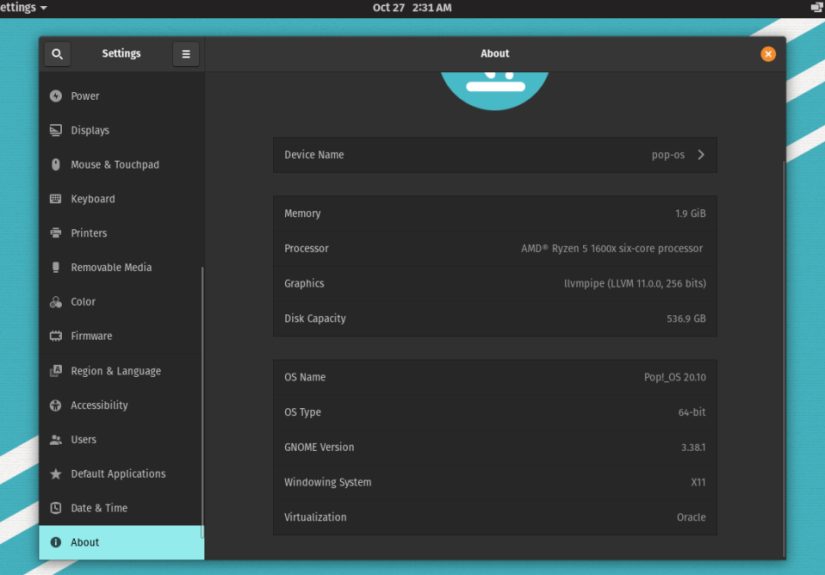
Once the system reboots, check the installed version. You can do this in Settings or run:
You should see Pop!_OS 20.10 listed. You can also sanity-check the system by opening Pop!_Shop, running another package update, and confirming that basic hardware features such as Wi-Fi, graphics, Bluetooth, audio, and suspend still behave as expected.
Common Upgrade Problems and How to Handle Them
Problem: The Upgrade Fails or Stops Midway
Sometimes the upgrade process can be interrupted by repository hiccups, partial downloads, or source-list problems. A documented repair path for incomplete upgrades is to remove a broken Pop source file, restart the upgrade service, and rerun the release upgrade command.
This is not a magic wand for every problem, but it is a practical first repair step if the process broke in the middle.
Problem: Third-Party PPAs Are Disabled
That is expected. After the upgrade, re-enable only the repositories you still need, and only after confirming they support the target release. Re-enabling everything at once is a great way to turn a stable desktop into a troubleshooting hobby.
Problem: The System Feels Off After the Upgrade
That can happen if you were using extra GNOME extensions, old package pins, or driver combinations that do not age gracefully. Update packages again, review your added repositories, and test with default settings where possible.
Problem: You Are Jumping From a Very Old Release
This is where things get serious. Modern System76 guidance recommends a fresh installation for releases older than Pop!_OS 22.04. So if your machine is badly out of date, or if package sources are stale and broken, a clean install may be the faster and safer solution than trying to perform a heroic in-place resurrection.
Should You Upgrade to Pop!_OS 20.10 Today?
For a normal desktop or work machine, no. Not as an end goal.
If you are already on an older Pop!_OS release and your real objective is a usable modern system, treat 20.10 as a historical checkpoint, not a finish line. The better long-term strategy is to move to a currently supported release, and on especially old systems, a fresh install is often the least painful route.
That said, the original path to Pop!_OS 20.10 was one of the better Linux release-upgrade experiences of its era. If you are studying how Pop!_OS handled upgrades, repairing a legacy deployment, or rebuilding an old machine for a specific purpose, the workflow still teaches useful lessons: update first, back up early, keep the recovery partition current, and do not pretend third-party repositories are innocent bystanders.
Experience and Practical Lessons From Real Upgrade Scenarios
The most useful stories around upgrading to Pop!_OS 20.10 all tend to sound surprisingly similar. The machines that upgraded cleanly were rarely the flashy ones. They were the boring ones. They had enough free disk space, no jungle of random PPAs, a healthy package database, and owners who did one deeply unglamorous thing first: they backed up their files. Nothing about that sounds cinematic, but in Linux land, boring is often the highest form of success.
A typical smooth case looked like this: a user on Pop!_OS 20.04 updated everything first, ran the release upgrade, rebooted, and landed on 20.10 with the new stacking and scaling features ready to go. On laptops with high-resolution displays, fractional scaling was often the star of the show. Suddenly, the desktop felt more comfortable instead of forcing users to choose between tiny text and cartoonishly oversized interface elements. On tiling-friendly workflows, window stacking also made a real difference. It felt less like “organized chaos” and more like “organized chaos wearing a tie.”
Another common scenario involved dual-purpose machines: part work laptop, part evening entertainment station. These users appreciated Pop!_OS because it tried to balance productivity with sane graphics handling, and the upgrade to 20.10 often felt worthwhile when the desktop became more flexible without requiring a full reinstall. For them, the upgrade was not about chasing novelty. It was about getting a better day-to-day workflow with fewer paper cuts.
Then there were the less cheerful stories, which are just as educational. Systems that had accumulated years of tweaks, disabled packages, third-party drivers, and mystery repositories were the ones most likely to turn the upgrade into a scavenger hunt. One forgotten PPA here, one half-removed package there, and suddenly an “easy release upgrade” becomes a part-time relationship. The lesson is simple: every customization adds personality, but also potential friction. When you upgrade, the machine remembers everything, including your bad decisions.
Legacy systems also taught another important lesson: sometimes the clean install is not defeat. It is maturity. If a machine is many releases behind, if repositories are broken, or if the OS has become an archaeological dig of old packages, forcing an in-place upgrade can waste more time than reinstalling cleanly and restoring user data. Linux users occasionally treat reinstalling like admitting defeat. It is not. Sometimes it is just choosing the exit that does not involve wrestling a cactus.
The biggest takeaway from all these upgrade experiences is that Pop!_OS generally rewarded preparation. Users who updated first, read prompts carefully, and kept their systems reasonably tidy had the best outcomes. Users who treated the process like a roulette wheel were more likely to spend the evening in Terminal, muttering at source lists and wondering why their wallpaper is the only thing still functioning correctly. That is true for Pop!_OS 20.10, and honestly, it is true for most operating system upgrades ever attempted by humanity.
Conclusion
Upgrading to Pop!_OS 20.10 originally offered a nice mix of convenience and control. You could use the graphical route in Settings or take the terminal path with apt and pop-upgrade. Either way, the smart process was the same: update your current system, back up your data, refresh the recovery partition, start the upgrade, and verify the result afterward.
As a modern target, Pop!_OS 20.10 belongs more in the history books than on your primary machine. But as a legacy release, it still shows how Pop!_OS matured into a friendlier Linux desktop with thoughtful upgrade tooling and practical productivity features. So if your goal is historical accuracy, legacy maintenance, or simple Linux curiosity, you now have the map. Just try not to bring too many PPAs on the journey.