Table of Contents >> Show >> Hide
- What Are Liked Pages on Facebook?
- Why You Might Want to View Your Liked Pages
- Method 1: View Liked Pages from Your Facebook Profile
- Method 2: View Liked Pages Through Activity Log
- Method 3: Search for a Specific Liked Page
- How to Unlike a Facebook Page on iPhone or iPad
- How to Unfollow a Page Without Unliking It
- How to Hide or Control Who Sees Your Liked Pages
- What to Do If You Cannot Find the Likes Section
- Why Your Liked Pages Matter for Your Facebook Feed
- Best Practices for Managing Liked Pages
- Common Problems and Simple Solutions
- Example: Cleaning Up Your Liked Pages in 10 Minutes
- Personal Experience: What It Feels Like to Review Old Facebook Likes
- Conclusion
At some point, nearly every Facebook user has the same tiny digital identity crisis: “Wait… why am I still following a muffin shop from a vacation I took in 2014?” Your list of liked Facebook Pages can quietly grow over the years, collecting brands, bands, restaurants, meme pages, local businesses, public figures, hobby groups, and a few mystery pages you do not remember liking at all. The good news is that you can view a list of your liked Pages on Facebook using your iPhone or iPad. The slightly less glamorous news is that Facebook’s menus move around more often than a cat avoiding bath time.
This guide explains how to find liked Pages on Facebook on iPhone or iPad, how to review them, how to unlike or unfollow Pages, and what to do if the option seems hidden. Whether you want to clean up your Feed, improve your privacy, reduce irrelevant recommendations, or simply figure out why your timeline thinks you are deeply invested in luxury lawn equipment, this step-by-step tutorial will help.
What Are Liked Pages on Facebook?
Liked Pages are Facebook Pages you have chosen to support or connect with by tapping the Like button. These may include businesses, celebrities, sports teams, news outlets, local organizations, entertainment pages, creators, restaurants, stores, or community pages. When you like a Page, Facebook may use that action to personalize your experience, including what appears in your Feed, what ads or recommendations you see, and what public interests may appear on your profile depending on your privacy settings.
It is important to understand the difference between liking and following a Page. Liking a Page usually shows support for it, while following a Page controls whether updates from that Page may appear in your Feed. In many cases, liking a Page also follows it automatically, but you can sometimes unfollow a Page while still liking it. That means you can politely remain connected without inviting every update into your daily scroll session.
Why You Might Want to View Your Liked Pages
There are several practical reasons to check your liked Pages list. First, it helps you clean up your Facebook Feed. If your Feed feels random, noisy, or full of posts from Pages you forgot existed, your liked and followed Pages may be part of the reason. Reviewing the list gives you a chance to remove outdated interests.
Second, it can improve privacy. Some liked Pages may be visible to others depending on your profile settings. If you liked Pages years ago that no longer reflect your interests, values, hobbies, or professional image, reviewing the list is a smart digital housekeeping habit.
Third, it helps you regain control of recommendations. Facebook uses many signals to personalize content, and Page interactions are one piece of the puzzle. If you want better recommendations, start by pruning the Pages you no longer care about. Think of it like cleaning your closet, except instead of finding old jeans, you find a Page called “I Hate Mondays” that somehow survived three phone upgrades.
Method 1: View Liked Pages from Your Facebook Profile
The easiest way to view liked Pages on Facebook on an iPhone or iPad is usually through your profile’s About information. Facebook may update wording and menu placement from time to time, but this method is still one of the most common routes.
Step-by-Step Instructions
- Open the Facebook app on your iPhone or iPad.
- Tap the Menu icon. On iPhone, this is often in the bottom-right corner. On iPad, it may appear in a different area depending on the layout.
- Tap your name or profile picture to open your profile.
- Look for the section under your profile details and tap See Your About Info.
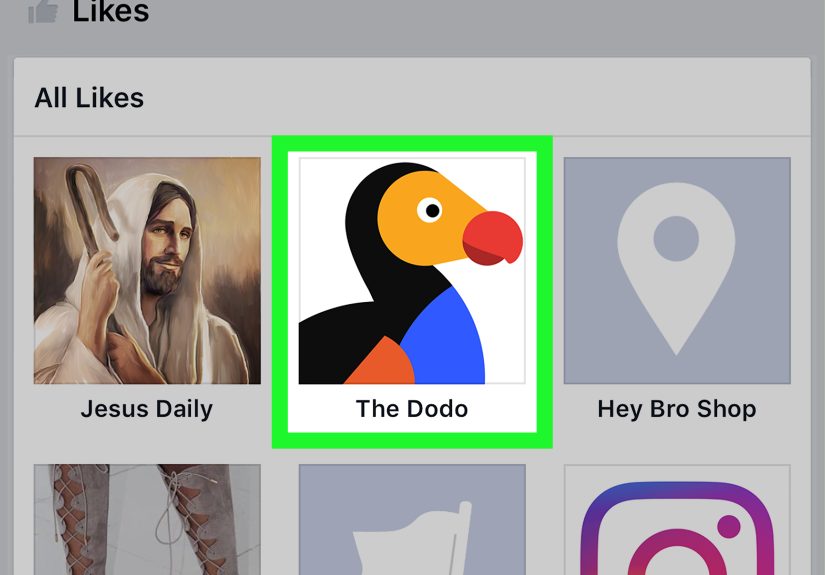
- Scroll down until you find a section related to Likes or Pages.
- Tap See All if available.
- Review the list of Pages you have liked.
This method is helpful because it shows your liked Pages in a profile-based view. If your goal is simply to see what Pages are associated with your profile, this is the place to start. However, not every account layout is identical. Some users may see “Likes,” while others may see categories or sections arranged differently. Facebook likes consistency in the same way toddlers like bedtime: occasionally, but not always.
Method 2: View Liked Pages Through Activity Log
If you cannot find your liked Pages through your profile, use Facebook’s Activity Log. The Activity Log is a record of your activity on Facebook, including interactions such as likes, reactions, comments, follows, searches, and other account actions. It is especially useful when you want to review older activity or manage past interactions.
How to Open Activity Log on iPhone or iPad
- Open the Facebook app.
- Tap Menu.
- Tap your profile name to go to your profile.
- Tap the three-dot menu or profile options button near your profile area.
- Select Activity Log.
Another route may be available through Settings & privacy, then Settings, then Activity Log. Facebook sometimes changes the exact path, so if one route does not appear, try the other.
How to Find Page Likes in Activity Log
- Once inside Activity Log, look for Categories, Connections, or a similar filter menu.
- Tap Connections if it appears.
- Look for an option such as Pages, Page likes and interests.
- Open that section to review Pages you have liked or connected with.
The Activity Log route is useful because it focuses on actions you have taken. If you liked a Page years ago and want to find it by activity history, this method may be more helpful than scrolling through your profile sections. It also makes it easier to manage your Facebook history without digging through every corner of your profile like an online archaeologist with a Wi-Fi connection.
Method 3: Search for a Specific Liked Page
If you do not need the full list and only want to check whether you liked a particular Page, Facebook search can be faster.
- Open the Facebook app.
- Tap the Search icon.
- Type the name of the Page.
- Open the Page from the search results.
- Look for the button that shows whether you have liked or followed it.
If the Page shows that you have liked it, you can decide whether to keep it, unfollow it, or unlike it. This is a practical shortcut when one specific Page is annoying you, showing up too often, or making your Feed feel like a never-ending commercial break.
How to Unlike a Facebook Page on iPhone or iPad
Once you find a Page you no longer want to like, removing it is usually simple.
- Open the Page you want to unlike.
- Look for the Liked button, three-dot menu, or Page action menu.
- Tap the option that shows your current relationship with the Page.
- Select Unlike if available.
- Confirm the action if Facebook asks.
After unliking a Page, it should no longer appear as one of your liked Pages. It may take a little time for the change to fully update across your profile, Feed, and activity records. If you still see the Page immediately afterward, refresh the app or check again later.
How to Unfollow a Page Without Unliking It
Sometimes you do not want to fully unlike a Page. Maybe it belongs to a local business you support, a friend’s project, or a useful brand that posts too often. In that case, unfollowing is the better option.
- Go to the Facebook Page.
- Tap the Following or Page options button.
- Choose Unfollow.
Unfollowing means you may stop seeing that Page’s posts in your Feed, but you can still remain connected to the Page. It is the Facebook version of saying, “I support you, but I do not need twelve updates before lunch.”
How to Hide or Control Who Sees Your Liked Pages
Facebook privacy settings can affect who sees parts of your profile, including some liked Page categories or followed Pages. The exact privacy controls may vary depending on app version, region, and account settings, but it is worth reviewing your audience settings.
Check Profile Privacy Settings
- Open the Facebook app.
- Tap Menu.
- Go to Settings & privacy, then Settings.
- Look for Audience and visibility.
- Review sections such as Followers and public content or Profile details.
You may be able to limit who sees people, Pages, or lists associated with your profile. However, Facebook does not always allow every individual liked Page to be hidden separately from the mobile app. In some cases, privacy options are broader and category-based. If you need more detailed privacy controls, you may want to check Facebook from a desktop browser as well.
What to Do If You Cannot Find the Likes Section
If you cannot find the Likes section on your iPhone or iPad, do not panic. Facebook menus can vary by account, app version, device type, and testing group. Yes, sometimes you and your friend can open the same app and see slightly different menu labels, because apparently social media enjoys giving everyone a tiny puzzle.
Try These Fixes
- Update the Facebook app: Open the App Store and check whether an update is available.
- Restart the app: Close Facebook completely and reopen it.
- Use Activity Log: If the profile method does not work, Activity Log is often the better route.
- Search manually: Search for a specific Page and check whether you have liked it.
- Try Facebook in Safari: Open Facebook in a mobile browser and check your profile About section.
- Use desktop Facebook: Some privacy and likes settings may be easier to manage from a computer.
Why Your Liked Pages Matter for Your Facebook Feed
Your liked Pages can influence the kind of content Facebook thinks you want to see. If you liked several recipe Pages, you may see more cooking posts. If you liked sports Pages, you may see more sports updates. If you liked one random novelty sock Page during a midnight shopping spiral, well, congratulations: your Feed may now believe socks are your personality.
Cleaning up liked Pages can make Facebook feel more relevant. It will not magically fix everything, because Facebook also considers friends, groups, comments, watch history, ads, clicks, and other interactions. Still, reviewing your liked Pages is one of the easiest ways to remove old signals from your account.
Best Practices for Managing Liked Pages
Review Your Pages Every Few Months
A quick review every three to six months can keep your Facebook profile cleaner. You do not have to inspect every Page like a detective in a crime drama. Just remove the obvious ones: inactive brands, outdated interests, duplicate Pages, or Pages that post too much irrelevant content.
Unfollow Instead of Unlike When Appropriate
If you still support a Page but do not want its posts in your Feed, unfollow it. This is useful for local businesses, professional organizations, school pages, community groups, or brands you may want to find again later.
Be Careful with Public Likes
Before liking a Page, remember that some Page connections may be visible depending on your settings. For personal accounts, this may not be a big concern. For professionals, creators, job seekers, or business owners, it is smart to keep public-facing interests polished and intentional.
Use Search When Cleaning Specific Topics
If you want to remove Pages about a particular topic, use Facebook search. For example, search for old bands, restaurants, games, political Pages, sports teams, or brands you no longer follow. This is faster than scrolling through a long list and wondering why you ever liked “Daily Potato Facts.”
Common Problems and Simple Solutions
The Page Still Appears After I Unlike It
Give Facebook a little time to update. Refresh the app, close and reopen it, or check again later. If the Page still appears, visit the Page directly and confirm whether the Like status has actually changed.
I Can See Followed Pages but Not Liked Pages
Facebook has shifted emphasis from Page likes to follows over the years. Some menus may show followed Pages more clearly than liked Pages. Check both your profile About section and Activity Log for the most complete view.
I Cannot Unlike a Page
If the Unlike button does not work, update the app, try again from a browser, or use desktop Facebook. If the Page has been removed, merged, restricted, or changed, the interface may behave oddly.
My iPad Layout Looks Different from My iPhone
That is normal. Facebook on iPad often uses a wider layout, and menu icons may appear in different locations. The names of the options are usually similar, but the placement can change.
Example: Cleaning Up Your Liked Pages in 10 Minutes
Here is a practical example. Suppose your Facebook Feed feels cluttered with old entertainment Pages, shopping Pages, and local businesses from places you no longer visit. Start by opening your profile and checking See Your About Info. Go to the Likes section and tap See All. Remove anything that clearly no longer matters.
Next, open Activity Log and check Pages, Page likes and interests. This may reveal older activity that does not appear clearly in your profile view. Open suspicious Pages directly and choose Unlike or Unfollow. Finally, visit your privacy settings and review who can see Pages or people you follow. In less time than it takes to choose a streaming show, you can make your Facebook account feel more current.
Personal Experience: What It Feels Like to Review Old Facebook Likes
Reviewing your liked Facebook Pages on an iPhone or iPad can feel surprisingly nostalgic. It is not just a settings task; it is a tiny tour through your past interests. You may find a restaurant you loved during college, a band you followed for one summer, a gym you promised yourself you would visit more often, or a brand you liked just to enter a giveaway. No judgment. We have all made brave choices for a 10 percent discount code.
One of the most useful experiences when checking liked Pages is realizing how much your interests have changed. A Page that once felt relevant may now feel completely random. Maybe you once liked five travel Pages because you were planning a trip. Maybe you followed a dozen parenting Pages during one season of life. Maybe you liked several tech gadget Pages because you were researching a purchase. These likes can stay attached to your profile long after the moment has passed.
The cleanup process also shows how Facebook builds a picture of your preferences. If your Feed has been showing too many posts about topics you barely care about anymore, your old Page likes may be one reason. Removing or unfollowing those Pages can make the experience feel lighter. It is not instant magic, but it does help. Think of it as telling the algorithm, “Thank you for your service, but I have moved on from novelty kitchen gadgets.”
Another common experience is discovering Pages that are inactive, renamed, or no longer what they used to be. A Page you liked years ago may have changed its content style, posting frequency, or even its topic. That is why reviewing the actual Page before unliking can be helpful. Sometimes you may still want to support the Page but stop seeing posts from it. In that case, unfollowing is the perfect middle ground.
Privacy is another reason the review feels worthwhile. Your liked Pages can say a lot about you: hobbies, humor, beliefs, brands, entertainment choices, and local interests. Most people do not think about this until they see the list. If your Facebook profile is visible to coworkers, clients, relatives, or potential employers, it makes sense to keep public interests tidy. You do not need to turn your profile into a museum of professionalism, but removing outdated or awkward likes can give you peace of mind.
Using an iPhone or iPad makes the process convenient because you can do it casually while waiting for coffee, sitting on the couch, or avoiding that one household chore that has been staring at you since Tuesday. The main challenge is navigation. Facebook’s app layout changes often, and the path that worked last year may not look exactly the same today. That is why it helps to know multiple routes: profile About info, Activity Log, direct Page search, and browser access.
The best approach is not to obsess over every single Page. Start with obvious cleanup. Remove Pages that are inactive, irrelevant, spammy, embarrassing, too political for your comfort, too sales-heavy, or simply no longer interesting. Then unfollow Pages you still like but do not want in your Feed. After that, check your privacy settings. This simple routine can make Facebook feel less cluttered and more intentional.
In the end, viewing your liked Pages is less about chasing a perfect profile and more about taking back a little control. Social media platforms are designed to keep collecting signals from your behavior. Reviewing your liked Pages lets you edit some of those signals. It is a small action, but it can improve your Feed, your privacy, and your sense that your account actually reflects who you are todaynot who you were when you liked a vampire fan Page in 2011.
Conclusion
Knowing how to view a list of your liked Pages on Facebook on iPhone or iPad is a simple but useful skill. Start with your profile and See Your About Info, then check the Likes section. If that does not work, use Activity Log and look for Page-related activity under connections or categories. From there, you can unlike Pages, unfollow Pages, review privacy settings, and clean up your Facebook experience.
Facebook menus may change, but the goal remains the same: find the Pages connected to your account and decide which ones still deserve a place there. A cleaner liked Pages list can help improve your Feed, reduce clutter, and make your profile feel more accurate. And if you discover a few ancient likes along the way, consider it free entertainment from your past self.
Note: Facebook frequently updates its app layout, so menu names and button locations may vary slightly by account, device, region, or app version. If one path does not appear, try the Activity Log method or open Facebook in a mobile browser.