Table of Contents >> Show >> Hide
- Quick Answer: Can You Actually Arrange Desktop Icons Horizontally?
- How to Arrange Desktop Icons Horizontally on a Windows PC
- How to Arrange Desktop Icons Horizontally on a Mac
- Best Ways to Arrange Desktop Icons Horizontally
- Common Mistakes That Ruin a Horizontal Desktop Layout
- FAQ: Horizontal Desktop Icon Arrangement on PC and Mac
- Conclusion
- Experience: What It Is Actually Like to Use a Horizontal Desktop Layout Every Day
- SEO Tags
If your desktop currently looks like a yard sale for shortcuts, screenshots, random PDFs, and one mysterious file you are emotionally attached to but no longer recognize, you are not alone. A lot of people want their desktop icons arranged horizontally in clean rows, not stacked in awkward columns or tossed around like confetti after a system restart.
The good news is that you can line up desktop icons horizontally on both Windows and macOS. The less exciting news is that neither operating system gives you a giant shiny button labeled “Make My Desktop Beautiful.” Instead, you do it by turning off automatic sorting, adjusting grid behavior, and then placing icons the way you want.
This guide walks through exactly how to arrange desktop icons horizontally on a Windows PC and a Mac, what settings to avoid, how to keep the layout from going rogue, and how to make the result look clean enough that future-you will feel oddly proud.
Quick Answer: Can You Actually Arrange Desktop Icons Horizontally?
Yes, but it works a little differently on each platform:
- Windows: Turn off Auto arrange icons, then drag icons into left-to-right rows. Keeping Align icons to grid on usually makes the row look cleaner.
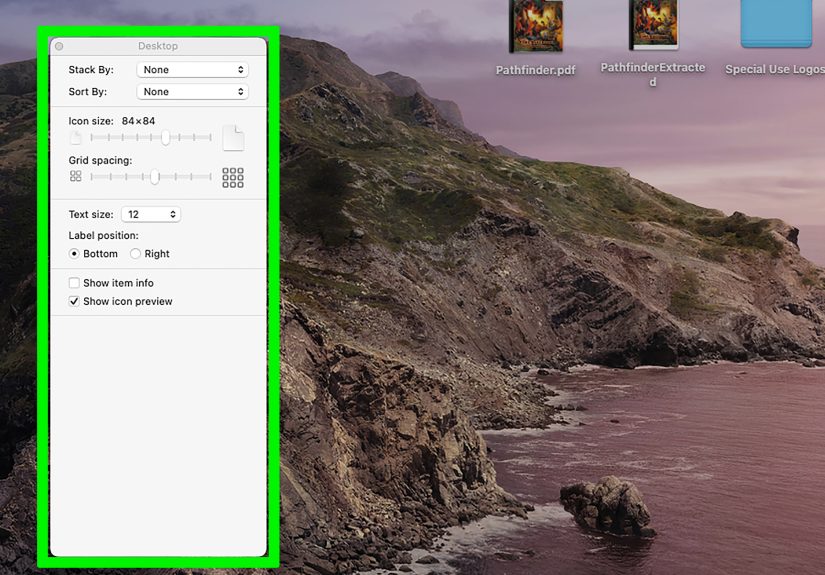
- Mac: Set Sort By to None, turn off Use Stacks if needed, then drag items into a row. You can also adjust grid spacing in Show View Options.
So yes, the horizontal layout is real. It just lives behind a few menus, like most useful computer settings and nearly all printer sanity.
How to Arrange Desktop Icons Horizontally on a Windows PC
Method 1: Turn Off Auto Arrange and Build Your Own Row
This is the simplest and most reliable way to make desktop icons line up horizontally on Windows.
- Right-click a blank area of the desktop.
- Hover over View.
- Make sure Auto arrange icons is unchecked.
- Leave Align icons to grid turned on if you want even spacing.
- Click and drag your icons into a row from left to right.
That is the whole trick. Once auto arrange is off, Windows stops trying to be your interior decorator and lets you place icons where you want them. If Align icons to grid is enabled, the icons will snap into neat positions instead of drifting into weird half-pixel territory.
For example, you could place your most-used items in a top row like this: browser, work folder, downloads, screenshots, recycling bin. Suddenly the desktop feels less like a junk drawer and more like a command center.
Should You Keep “Align Icons to Grid” On?
Usually, yes.
If your goal is a clean horizontal desktop icon layout, grid alignment helps a lot. It keeps spacing consistent and stops one icon from sitting slightly higher than the next, which is the desktop equivalent of a crooked picture frame: small problem, weirdly annoying.
If you want total freedom, you can turn Align icons to grid off too. That lets you place icons almost anywhere, but most people find the result messier over time. Horizontal rows tend to look best when the grid is still doing some quiet background parenting.
What If Windows Keeps Re-Sorting the Icons?
If your icons keep snapping back, one of two things is usually happening:
- Auto arrange icons is still on, even if you thought it was off.
- The display changed, such as after a reboot, resolution change, docking to another monitor, or switching monitor layouts.
The first fix is easy: go back to View and confirm that Auto arrange icons is unchecked. The second issue is more annoying. If your screen size, scale, or monitor setup changes, Windows may shift icon positions. If that happens, drag them back into place once the display setup is stable.
Make the Horizontal Row Look Better
Once your icons are in a row, a few small tweaks can make the layout look much more intentional:
- Use Small icons or Medium icons if the row feels crowded.
- Group similar shortcuts together instead of mixing files, folders, and apps randomly.
- Keep one clear top row, then leave the rest of the desktop open for temporary items.
To resize icons in Windows, right-click the desktop, choose View, and pick Large, Medium, or Small icons. You can also hold Ctrl and use the mouse wheel to fine-tune icon size. That shortcut is one of those surprisingly useful little Windows tricks people learn once and then use forever.
A Practical Windows Layout Example
Here is a simple horizontal layout that works well on a laptop or desktop monitor:
- Left side of the row: daily apps like Chrome, Word, Excel, or Slack
- Center: active project folders
- Right side: temporary files, downloads, or shortcuts you will probably delete later but not today
This keeps the desktop usable without turning it into an icon parking lot.
How to Arrange Desktop Icons Horizontally on a Mac
macOS can absolutely support a horizontal desktop icon arrangement, but it is pickier about it. If icons refuse to stay where you put them, the culprit is usually Sort By or Stacks.
Step 1: Set Sort By to None
- Click on the desktop so Finder is focused on the desktop itself.
- From the menu bar, choose View.
- Select Sort By and set it to None.
This is the key move. When Sort By is set to anything else, macOS keeps organizing icons automatically. That means your lovingly arranged row can be replaced by the operating system’s idea of order, which may be tidy but not necessarily what you wanted.
Step 2: Turn Off Stacks if You Want Individual Icons
If your desktop uses Stacks, files are grouped automatically by kind, date, or tags. That is useful for clutter control, but terrible if you want a custom horizontal row of separate icons.
- Click the desktop.
- Open View.
- If Use Stacks has a checkmark, click it to turn it off.
Once Stacks is off and Sort By is set to None, you can move items freely again.
Step 3: Adjust Grid Spacing and Icon Size
- Control-click the desktop.
- Select Show View Options.
- Adjust Icon size, Grid spacing, and text settings as needed.
This step is where the Mac gets surprisingly helpful. If your icons feel too cramped, increase grid spacing. If they are oversized and make your row look bulky, reduce icon size. A little tuning here makes a big difference in whether the desktop feels polished or accidentally theatrical.
Step 4: Drag the Icons into a Horizontal Row
Now that Finder is no longer auto-sorting the desktop, drag your files, folders, and shortcuts into a row from left to right. Many users prefer placing the row near the top or bottom edge of the desktop so the middle stays visually open.
If the icons are messy to begin with, use Clean Up once to realign them neatly, then drag them into the row you want. You can also use Clean Up By for a one-time organization pass without permanently locking the layout into automatic sorting.
Mac Settings That People Mix Up Constantly
On a Mac, these terms matter:
- Sort By: automatically keeps icons sorted. Great for order, bad for custom placement.
- Clean Up: quickly realigns icons neatly.
- Clean Up By: performs a one-time arrangement by criteria like name or kind.
- Use Stacks: groups files into piles automatically.
If your goal is a true horizontal icon row, Sort By must be None. That is the setting most likely to solve the “Why does my Mac keep rearranging everything?” mystery.
Best Ways to Arrange Desktop Icons Horizontally
Once you unlock manual placement, do yourself a favor and use a layout with some logic behind it. A horizontal row looks great only when it also makes sense.
Option 1: By Frequency of Use
Put your most-used items on the left and less common items toward the right. This works especially well if you naturally scan the screen from left to right.
Option 2: By Category
Create mini-zones within the row. For example: apps first, folders second, temporary files last. This reduces the time spent hunting for one icon in a lineup of twenty lookalikes.
Option 3: One Permanent Row, One Temporary Zone
Keep a single clean row for important items, then reserve another area for short-term clutter. This gives you structure without pretending your desktop will stay spotless forever. Let us be realistic, not mythical.
Common Mistakes That Ruin a Horizontal Desktop Layout
Leaving Auto-Sort On
On Windows, this means Auto arrange icons. On Mac, it is usually Sort By set to anything other than None. If your icons keep moving, start there.
Trying to Organize Too Many Items at Once
A horizontal row works best when it contains the things you actually need. If your desktop has 73 icons, the problem is not alignment. The problem is that your desktop has 73 icons.
Ignoring Icon Size
Oversized icons can make a horizontal row wrap awkwardly or eat too much screen space. Smaller icons often make the layout feel cleaner and more intentional.
Using the Desktop as a Permanent Storage Unit
Your desktop should be quick access, not a digital attic. If a file has lived there long enough to qualify for property tax, it probably belongs in a folder.
FAQ: Horizontal Desktop Icon Arrangement on PC and Mac
Is there a one-click option to arrange desktop icons horizontally?
Not exactly. On both Windows and Mac, the usual solution is manual placement after turning off the settings that keep re-sorting icons automatically.
Can I keep icons in a straight row permanently?
Usually yes, as long as auto-sorting stays off and your display setup does not keep changing. Reboots, resolution shifts, and monitor changes can sometimes force a quick reset.
Why won’t my Mac let me drag icons where I want?
Because Sort By is probably not set to None, or Use Stacks is turned on. Once those are disabled, manual placement should work again.
Why do my Windows desktop icons keep snapping into columns?
That is usually Auto arrange icons. Turn it off, then rebuild your row.
Should I use folders instead of arranging lots of icons horizontally?
Yes, often. A row of six to twelve icons looks clean. A row of thirty-four icons looks like you are trying to win a spreadsheet contest with your wallpaper.
Conclusion
If you want to arrange desktop icons horizontally on a PC or Mac, the real trick is not some secret power-user wizardry. It is simply knowing which settings to disable before you start dragging things around.
On Windows, turn off Auto arrange icons, keep Align icons to grid on if you want cleaner spacing, and line up your icons in rows. On Mac, set Sort By to None, turn off Use Stacks if necessary, tweak grid spacing in Show View Options, and place the icons manually.
That is the whole recipe. No third-party app required. No dramatic system overhaul. Just a few small settings and a better layout.
And once you do it, your desktop stops feeling like a random drop zone and starts behaving more like an actual workspace. Which, frankly, is nice. Your wallpaper deserves better than being buried under twenty-seven icons and one suspiciously old ZIP file.
Experience: What It Is Actually Like to Use a Horizontal Desktop Layout Every Day
The practical experience of arranging desktop icons horizontally is less about aesthetics and more about friction. A messy desktop slows you down in tiny ways all day long. You do not always notice it, but every time your eyes scan the screen looking for one folder, one screenshot, or one shortcut hidden in a visual pile, your brain is doing extra work. A horizontal layout removes a lot of that low-grade chaos.
On Windows, the biggest improvement usually comes from the moment you disable auto arrange and realize the desktop will finally stop “helping.” Once you can place icons in one row, the whole screen feels calmer. People often put the most-used icons across the top edge, almost like a personal quick-launch strip. It works well because the center of the desktop stays clear, and the eye learns the sequence fast. Browser, project folder, downloads, notes, recycle bin. After a few days, you stop searching and start clicking from memory.
On a Mac, the experience is a little more dramatic because Finder’s sorting rules can make it seem like the desktop has opinions. The first time you switch Sort By to None and turn off Stacks, it suddenly becomes obvious that the desktop is much more flexible than it first appears. Then you adjust grid spacing, shrink the icons a little, drag everything into a neat row, and the desktop finally feels custom instead of pre-decided.
There is also a psychological benefit to a horizontal arrangement. Rows feel intentional. Columns often feel inherited. A row suggests that you chose what matters. That sounds a little dramatic for desktop icons, but it is true. When the layout is horizontal, you are forced to be selective. You start asking smarter questions: Do I really need this shortcut here? Should this live in a folder? Why is a PDF from eight months ago still on my desktop like it pays rent?
Another real-world advantage is consistency. With a row layout, it is easier to notice when clutter starts creeping back in. One extra file stands out. Five new screenshots look like an invasion. That makes cleanup faster because the mess becomes visible sooner. In contrast, a scattered desktop can absorb new clutter quietly until one day it resembles an archeological site.
The only real annoyance comes when you use multiple monitors or switch resolutions often. On both platforms, icon positions can shift when the display environment changes. That does not mean the layout is a bad idea. It just means the best horizontal setup works on a reasonably stable display arrangement. If you dock and undock constantly, you may occasionally need a quick five-second icon reset. Still worth it.
Overall, the experience is simple: a horizontal icon layout makes the desktop easier to scan, faster to use, and much less visually noisy. It will not transform your life, but it will remove one tiny repeating irritation from it. And honestly, modern computing is often just a series of small victories over nonsense. This is one of the easier ones.
Note: Menu names can vary slightly depending on your version of Windows or macOS, but the core settings and workflow remain the same.