Table of Contents >> Show >> Hide
- Why Your iPhone Date and Time Matter More Than You Think
- How to Change Date and Time on iPhone Automatically
- How to Manually Change Date and Time on iPhone
- How to Change Time Zone on iPhone
- Why “Set Automatically” Is Grayed Out on iPhone
- Fix: iPhone Time Is Wrong Even with Set Automatically On
- Fix: iPhone Calendar Shows the Wrong Time
- Fix: iPhone Alarm Did Not Change After Travel
- Can You Change Date and Time to Trick Apps?
- Best Settings for Most iPhone Users
- Quick Troubleshooting Checklist
- Real-World Experiences: What Actually Happens When iPhone Time Goes Wrong
- Conclusion
Your iPhone is usually very good at knowing what time it is. It changes for daylight saving time, follows you across time zones, and politely keeps your alarms, calendar events, messages, and reminders marching in the right order. But every now and then, your iPhone looks at the clock and decides to live in another dimension.
Maybe the time is wrong after a flight. Maybe the date is off by a day. Maybe “Set Automatically” is grayed out, and your iPhone is acting like a tiny locked filing cabinet. The good news: learning how to change date and time on iPhone is simple once you know where to tap and what settings can interfere.
This guide walks you through the easy steps to set the date, time, and time zone on iPhone, plus practical fixes for common problems like incorrect time, wrong time zone, calendar confusion, travel issues, and settings that will not change.
Why Your iPhone Date and Time Matter More Than You Think
The date and time on your iPhone do more than decorate the Lock Screen. They help apps work correctly, support secure sign-ins, keep message timestamps accurate, and make calendar alerts show up when they should. When the iPhone time is wrong, small annoyances can multiply fast.
A wrong time zone can make meetings appear at the wrong hour. A wrong date can confuse reminders. Messaging apps may show odd timestamps. Some services, including Apple features such as iMessage and FaceTime, may also need your time zone to be correct before activation works smoothly.
In plain English: your iPhone clock is not just a clock. It is the backstage manager for half your digital life. If it is wearing the wrong watch, the whole show can get messy.
How to Change Date and Time on iPhone Automatically
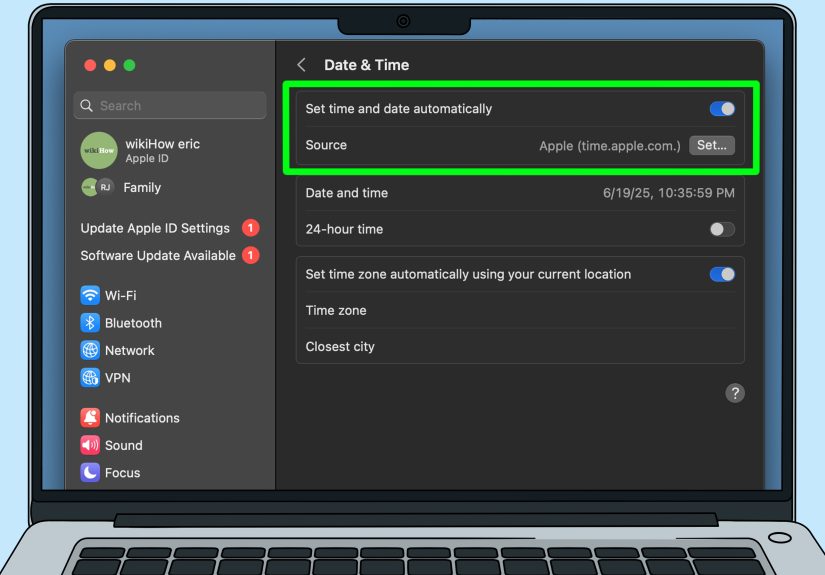
For most people, the best setting is automatic date and time. This lets your iPhone update the time based on your location, network connection, and time zone. It is especially useful if you travel, cross state lines, or live somewhere with daylight saving time changes.
Steps to Set Date and Time Automatically
- Open the Settings app on your iPhone.
- Tap General.
- Tap Date & Time.
- Turn on Set Automatically.
Once this option is enabled, your iPhone should automatically choose the correct date, time, and time zone. This is the easiest solution if your iPhone clock is wrong by an hour, especially after daylight saving time or travel.
When Automatic Time Is the Best Choice
Use automatic date and time if you want fewer headaches. It is ideal when you travel internationally, move between time zones, rely on calendar alerts, use two-factor authentication, or schedule important calls. It also reduces the risk of manually setting the wrong date and then wondering why your calendar suddenly looks like it has joined a time-travel club.
How to Manually Change Date and Time on iPhone
Sometimes you may want to manually change the date and time on your iPhone. This can be helpful when you are in an area with no service, when your time zone is not detected correctly, or when you need to troubleshoot a clock issue.
Steps to Manually Change Date and Time
- Open Settings.
- Tap General.
- Tap Date & Time.
- Turn off Set Automatically.
- Tap Time Zone.
- Search for a city in the time zone you want to use.
- Select the correct city or location from the results.
- If date and time fields appear, adjust them manually as needed.
For example, if you are in New York but your iPhone is showing Pacific Time, you can turn off automatic time, tap Time Zone, search for “New York,” and select it. Your iPhone should then display Eastern Time.
One important note: changing the time manually can affect alarms, app behavior, calendar events, and some online services. If you are only trying to fix a temporary issue, it is usually better to turn Set Automatically back on after troubleshooting.
How to Change Time Zone on iPhone
If your date is correct but the hour is wrong, the issue is probably the time zone. The iPhone time zone setting tells your device whether it should display Eastern Time, Central Time, Mountain Time, Pacific Time, or another global zone.
Change Time Zone Manually
- Go to Settings.
- Tap General.
- Tap Date & Time.
- Turn off Set Automatically.
- Tap Time Zone.
- Enter a city name, such as Chicago, Denver, Los Angeles, London, or Tokyo.
- Tap the correct result.
You do not always need to search for your exact town. Pick a major city in the same time zone. For example, if you are in a smaller city in California, selecting Los Angeles works because it uses the same time zone.
Make iPhone Change Time Zones Automatically
To make your iPhone update time zones automatically, turn on Set Automatically under Settings > General > Date & Time. Then make sure Location Services are available, because your iPhone may need location access to determine your current time zone accurately.
To check Location Services:
- Open Settings.
- Tap Privacy & Security.
- Tap Location Services.
- Make sure Location Services is turned on.
- Scroll down and tap System Services.
- Make sure Setting Time Zone is turned on if available on your device.
This is one of the most useful fixes when your iPhone does not update after travel. Your phone may be smart, but it still needs permission to know where in the world it has landed.
Why “Set Automatically” Is Grayed Out on iPhone
If the Set Automatically switch is dimmed or unavailable, your iPhone is not necessarily broken. Several settings or restrictions can prevent you from changing date and time manually.
Possible Reasons It Is Grayed Out
- Screen Time restrictions: Parental controls or device limits may block changes.
- Carrier requirements: Some cellular carriers may require automatic time settings.
- Work or school management: A company or school profile may control date and time settings.
- Location or network issues: Your iPhone may need internet or cellular access to verify the correct time.
- Software problems: An outdated iOS version can sometimes cause unusual settings behavior.
Fix Screen Time Restrictions
If this is a child’s iPhone or a device with Screen Time controls, check whether restrictions are blocking changes.
- Open Settings.
- Tap Screen Time.
- Tap Content & Privacy Restrictions.
- Enter the Screen Time passcode if asked.
- Review the settings under allowed changes.
- Allow changes where appropriate.
If the phone belongs to a child in a Family Sharing group, the family organizer may need to adjust the setting. In other words, if your iPhone is saying “ask your parents,” it may mean that quite literally.
Check for a Work or School Profile
If your iPhone is managed by an employer, school, or organization, some settings may be controlled by a configuration profile. To check:
- Open Settings.
- Tap General.
- Look for VPN & Device Management.
- Check whether a management profile is installed.
If a profile controls date and time settings, you may need to contact your administrator. Do not remove a management profile unless you understand what it does, especially on a work device.
Fix: iPhone Time Is Wrong Even with Set Automatically On
If your iPhone time is wrong even though Set Automatically is enabled, work through these fixes in order. Start with the simple ones before jumping to the “reset everything and hope for peace” stage.
1. Check Your Internet Connection
Your iPhone may need a working Wi-Fi or cellular connection to update date and time correctly. Open Safari and visit a website, or check whether apps are loading properly. If nothing connects, fix Wi-Fi or cellular data first.
2. Turn Airplane Mode On and Off
Airplane Mode can temporarily disconnect cellular and wireless features. Toggling it can help your iPhone reconnect to the network and refresh time zone information.
- Open Settings.
- Turn on Airplane Mode.
- Wait about 15 to 30 seconds.
- Turn Airplane Mode off.
This trick is especially useful after travel or when your iPhone is showing “No Service,” “SOS,” or an outdated network connection.
3. Restart Your iPhone
A restart can clear temporary glitches. After restarting, go back to Settings > General > Date & Time and confirm that Set Automatically is on.
4. Turn Location Services On
If Location Services are disabled, your iPhone may have trouble setting the correct time zone automatically. Go to Settings > Privacy & Security > Location Services and turn it on. Then check System Services for time zone-related options.
5. Update iOS
Software updates can fix bugs, improve security, and keep system features working correctly. To update your iPhone:
- Open Settings.
- Tap General.
- Tap Software Update.
- Install any available update.
Before updating, connect to Wi-Fi, plug in your iPhone or make sure it has enough battery, and back up important data. A fully updated iPhone is less likely to behave like it just woke up from a nap in 2017.
6. Check Carrier Settings
Carrier settings help your iPhone communicate properly with your mobile network. To check for a carrier settings update:
- Connect to Wi-Fi or cellular data.
- Open Settings.
- Tap General.
- Tap About.
- If an update appears, follow the onscreen instructions.
This is a quick check and can help when the time issue appears after switching SIM cards, activating eSIM, or traveling internationally.
7. Reset Network Settings
If your iPhone still cannot detect the correct time zone, resetting network settings may help. This removes saved Wi-Fi networks and passwords, cellular settings, VPN settings, and related network configurations.
- Open Settings.
- Tap General.
- Tap Transfer or Reset iPhone.
- Tap Reset.
- Tap Reset Network Settings.
Use this only after easier fixes fail. It will not erase your photos, apps, or messages, but you will need to reconnect to Wi-Fi networks afterward.
Fix: iPhone Calendar Shows the Wrong Time
Sometimes the iPhone clock is correct, but Calendar events look wrong. That usually points to a Calendar time zone setting rather than the main iPhone date and time setting.
Check Calendar Time Zone Override
Time Zone Override lets the Calendar app display events in a specific time zone. This can be useful for people who schedule across regions, but confusing if it is turned on accidentally.
- Open Settings.
- Tap Apps.
- Tap Calendar.
- Tap Time Zone Override.
- Turn it off if you want Calendar to follow your current location.
- Or turn it on and choose a specific time zone if that is your goal.
For example, if you live in Los Angeles but work with a team in New York, Time Zone Override can show calendar events in Eastern Time. That is helpful when intentional and deeply annoying when accidental.
Fix: iPhone Alarm Did Not Change After Travel
Alarms generally follow the time shown on your iPhone. If your phone changes time zones automatically, alarms should ring according to the current local time. If the time zone did not update, your alarm may seem off.
To avoid surprises while traveling:
- Keep Set Automatically turned on.
- Keep Location Services enabled.
- Turn Airplane Mode on and off after landing.
- Check the Lock Screen time before going to sleep.
- Use the World Clock app if you are coordinating with another city.
One practical habit: after landing, look at the local airport clock and compare it with your iPhone. It takes three seconds and can save you from becoming the person sprinting through a hotel lobby at breakfast.
Can You Change Date and Time to Trick Apps?
Technically, you may be able to set the date and time manually on some iPhones. Practically, it is not a great idea to use this to trick apps, games, trials, subscriptions, or time-based limits. Many apps use server time, account activity, location data, or other checks. Changing your iPhone clock may not work and can cause more problems than it solves.
Manual time changes can interfere with reminders, messages, calendar events, app logins, two-factor authentication, and saved data. If the goal is troubleshooting, fine. If the goal is “outsmart the app,” the app probably brought a calculator, a server, and a lawyer.
Best Settings for Most iPhone Users
If you want the most reliable setup, use these settings:
- Set Automatically: On
- Location Services: On
- Setting Time Zone: On, if available
- iOS: Updated to the latest available version for your device
- Calendar Time Zone Override: Off, unless you specifically need it
This setup works best for everyday use, travel, calendar accuracy, reminders, messaging, and app reliability.
Quick Troubleshooting Checklist
If your iPhone date and time are still wrong, use this quick checklist:
- Go to Settings > General > Date & Time.
- Turn on Set Automatically.
- Confirm Wi-Fi or cellular data is working.
- Turn Airplane Mode on, wait, then turn it off.
- Go to Privacy & Security > Location Services and turn it on.
- Check System Services for Setting Time Zone.
- Restart your iPhone.
- Install iOS updates.
- Check for carrier settings updates under General > About.
- Reset network settings if nothing else works.
Real-World Experiences: What Actually Happens When iPhone Time Goes Wrong
Most iPhone date and time problems show up at the worst possible moment. Nobody calmly discovers this issue at 2:00 p.m. on a relaxed Sunday with tea and a fully charged battery. No, it usually happens at an airport, before a meeting, during a family trip, or five minutes before a video call with someone who uses phrases like “circle back.”
One common experience is the travel time-zone surprise. You land in another city, your iPhone connects to a weak airport network, and the clock stays stuck in your old time zone. At first, everything looks fine. Then you check your calendar and realize dinner appears to be at breakfast, your hotel check-in reminder looks late, and your alarm is suspiciously confident but possibly wrong. The fix is usually simple: turn on Set Automatically, enable Location Services, and toggle Airplane Mode off and on so the phone reconnects properly.
Another real-life scenario happens with parents managing a child’s iPhone. A teen wants to change the clock manually, often because an app limit, downtime schedule, or game timer is involved. Suddenly, the Date & Time setting is grayed out. This is not a glitch; it may be Screen Time doing its job. The family organizer may need to review Content & Privacy Restrictions. In this case, the fix is less about technology and more about household diplomacy. Good luck, negotiators.
People who work across time zones also run into calendar confusion. The iPhone clock may be correct, but Calendar events look wrong because Time Zone Override is enabled. This setting is useful for remote workers, frequent travelers, and anyone scheduling across cities. But if you forgot it was turned on, it can make your day look like it was planned by a raccoon with a spreadsheet. Checking Calendar settings can quickly reveal whether the app is forcing events into a specific time zone.
A less obvious experience involves iMessage, FaceTime, and account services. If the iPhone time zone is wrong, activation or sign-in features may not behave normally. People often blame Wi-Fi first, then passwords, then the phone, then Mercury retrograde. But the humble Date & Time setting deserves a look early in the troubleshooting process. Correct time settings help your iPhone communicate accurately with online services.
There is also the “manual time experiment” problem. Some users change the date to test an app, adjust a game timer, or see what happens. What happens is often not glamorous. Reminders may appear at strange times, calendar events may shift, and apps may refuse to cooperate because they rely on server time. The best lesson from experience is simple: manual date and time changes are useful for troubleshooting, but they are not something to leave on permanently.
The most reliable habit is to keep automatic time enabled, especially if your iPhone is your alarm clock, travel assistant, business calendar, and digital brain extension. Before an important trip or meeting, check the time zone, confirm your calendar events, and make sure Location Services are on. It is not exciting, but neither is missing a flight because your phone thought it was still yesterday.
Conclusion
Changing the date and time on iPhone is easy once you know the path: Settings > General > Date & Time. For most users, Set Automatically is the best option because it keeps the iPhone aligned with the correct time zone, daylight saving time, and travel changes. If you need manual control, turn off Set Automatically, choose a time zone, and adjust the date or time when available.
If something goes wrong, do not panic. Check your internet connection, Location Services, Screen Time restrictions, iOS updates, carrier settings, and Calendar Time Zone Override. Most iPhone date and time issues are not mysterious; they are usually one setting away from being fixed. Your iPhone may occasionally lose track of time, but with the steps above, you can bring it back to reality without needing a tiny clock-shaped intervention.