Table of Contents >> Show >> Hide
- What You Need Before You Create a Group on GroupMe
- How to Create a Group on GroupMe on iPhone
- How to Create a Group on GroupMe on Android
- How to Create a Group on GroupMe on the Web
- How to Create a Group on GroupMe on PC
- What to Do Right After You Create the Group
- How to Add More Members Later
- Common Problems When Creating a Group on GroupMe
- Best Practices for a Better GroupMe Group
- Can You Create Discoverable or Campus Groups?
- Final Thoughts
- Real-World Experiences With Creating a Group on GroupMe
- FAQ
If your text thread is a chaotic soup of “Who’s bringing ice?” “Wait, what time?” and one mysterious thumbs-up from your cousin who never explains himself, GroupMe can help. It’s built for exactly this kind of organized chaos: clubs, classes, roommates, teams, families, friend groups, and anyone else trying to keep a conversation in one place instead of scattering it across five apps and a prayer.
This guide walks you through how to create a GroupMe group on iPhone, Android, web, and PC, plus what to do after the group is live. You’ll learn the basic setup steps, how to add members, how to use sharing links, and how to avoid a few beginner mistakes that make group chats feel like digital raccoons got into your pantry.
What You Need Before You Create a Group on GroupMe
Before you start tapping buttons like you’re on a game show, make sure you have a few basics ready:
- A GroupMe account
- The GroupMe app on iPhone or Android, or access to GroupMe on the web
- A group name
- An optional group avatar or profile picture
- The names, phone numbers, or email addresses of the people you want to add
One reason GroupMe remains popular is that it’s flexible. You can add people by name, email, or phone number, and in many cases, people who do not already use the app can still participate through SMS. That makes it handy for school groups, event planning, neighborhood updates, and those family chats where at least one person still believes downloading apps is a government experiment.
How to Create a Group on GroupMe on iPhone
If you’re using an iPhone, creating a new GroupMe group is straightforward. The app keeps the process short, which is excellent news for anyone with the attention span of a caffeinated squirrel.
Step-by-step instructions for iPhone
- Open the GroupMe app.
- Go to the Chats tab.
- Tap New chat.
- Tap Start Group.
- Enter your group name.
- Add a group avatar if you want. This is optional, but it helps your chat stand out from the dozen other threads fighting for attention.
- Tap Next.
- Add members by typing their name, email, or phone number, or choose from your existing contacts.
- Tap the checkmark to create the group.
That’s it. Your new GroupMe group is now alive and ready for messages, reactions, inside jokes, scheduling disasters, and at least one person who will reply only with GIFs.
iPhone tip
After you create the group, tap the group avatar to open group options. From there, you can manage settings, update the group name, add a topic, invite more people, and control who can join.
How to Create a Group on GroupMe on Android
The process on Android is very similar to iPhone, so you do not need to relearn the laws of mobile messaging just because your phone uses a different operating system.
Step-by-step instructions for Android
- Open the GroupMe app on your Android phone.
- From the Chats tab, tap New chat.
- Select Start Group.
- Type your group name.
- Add a group avatar if you want.
- Tap Next.
- Add members using their name, phone number, or email address.
- Tap the checkmark to finish creating the group.
Once the group is created, you can start chatting right away, send photos or videos, and update settings later. If you want better organization, add a topic early. A topic gives members instant context, especially if the group name is something vague like “Important Stuff” or “The Squad 2.0 Final Final.”
Android tip
If you are building a larger group, think about the joining settings before you start inviting everyone. GroupMe lets owners and admins control whether anyone can join with a link or whether approved members only can enter. That matters a lot if you are setting up a class group, volunteer team, or community chat.
How to Create a Group on GroupMe on the Web
If you prefer typing on a real keyboard instead of pecking at your screen with your thumbs, the GroupMe web version is a great option. It works well for people who manage groups from a laptop or desktop during the day.
Step-by-step instructions for GroupMe web
- Sign in to GroupMe on the web.
- Go to the Chats area.
- Select Start a new chat.
- Choose Start Group.
- Enter the group name.
- Add a group avatar if you want.
- Select Create Group.
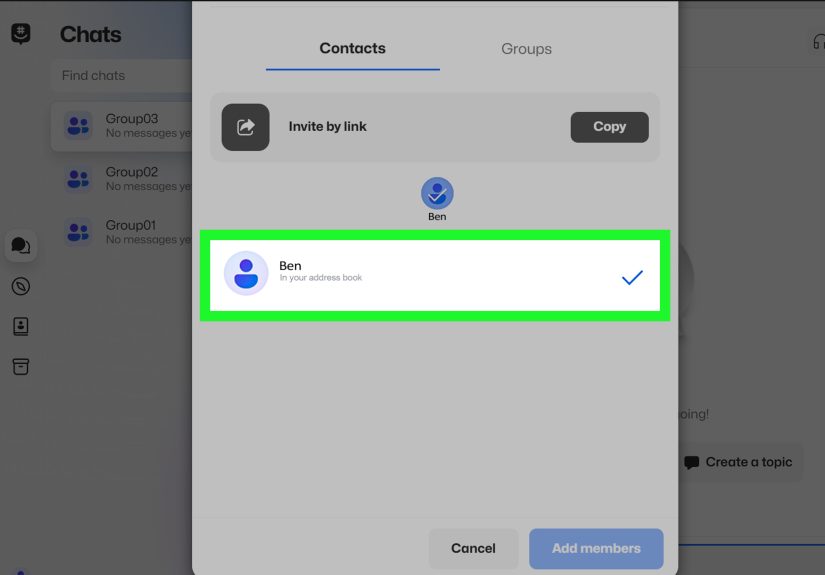
- In the Add Members window, search for people by name, phone number, or email.
- Select Add member(s) to finish.
Creating a GroupMe group on the web is especially useful if you are building a larger list or copying names from a roster, spreadsheet, or event registration list. It feels less like juggling and more like actual organizing.
How to Create a Group on GroupMe on PC
When people search for how to create a GroupMe group on PC, they usually mean one of two things: using GroupMe in a web browser on a desktop or using the Windows app. The good news is that the desktop flow is very similar in both cases.
GroupMe on Windows PC
If you have the Windows version of GroupMe, the process follows the same general pattern:
- Open GroupMe on your PC.
- Go to Chats.
- Select New conversation.
- Choose Start Group.
- Enter the group name and optional avatar.
- Use the arrow or continue button to move forward.
- Add members by name, email, or phone number.
- Select the checkmark to create the group.
So yes, if you were wondering whether you can create a GroupMe group on your computer instead of your phone, the answer is absolutely yes. Your keyboard may finally feel appreciated.
What to Do Right After You Create the Group
Creating the group is only step one. The next five minutes determine whether your chat feels organized or turns into digital spaghetti.
1. Add a clear group name
Use a name people recognize instantly. “Fall Soccer Parents,” “Marketing Team Launch,” or “Lake House Weekend” works better than “Hey Guys.” This seems obvious, yet humanity continues to test the limits of unclear naming.
2. Upload a group avatar
A visual icon makes the group easier to spot. For event groups, use a logo or simple image. For family or friend chats, choose something recognizable and mildly charming.
3. Write a topic
GroupMe allows owners and admins to add a topic. Use it to explain the purpose of the chat, post quick rules, or add details like dates and deadlines.
4. Review who can join
You can set the group so anyone can join with a share link or QR code, or require approved members. For private or professional groups, approval is often the better choice.
5. Turn on a share link or QR code if needed
If you need to invite many people quickly, GroupMe lets admins share the group through a link or QR code. This is handy for events, clubs, and school communities, but remember: if you open the door too wide, random guests may walk in wearing metaphorical muddy boots.
How to Add More Members Later
Forgot someone? It happens. Maybe you remembered the team captain but not the assistant coach. Maybe Grandma has a new number again. GroupMe lets you add members after the group is created.
- Open the group chat.
- Tap or select the group avatar.
- Go to Members.
- Choose Add members.
- Search by name, email, or phone number.
- Confirm to add them.
If direct adding fails, a share link or QR code may work better.
Common Problems When Creating a Group on GroupMe
You cannot find someone to add
Double-check the phone number or email address. If that still fails, send a share link instead.
You created the wrong group setup
No panic. GroupMe lets owners and admins edit the group name, avatar, topic, and join settings later.
The group feels too noisy
Set expectations early. You can also mute the group, adjust permissions, and use approval settings to keep the membership list under control.
You need a similar group with the same people
GroupMe also supports cloning a group. That can save time if you run recurring teams, classes, or events and want a fresh thread without rebuilding the member list from scratch.
Best Practices for a Better GroupMe Group
- Keep the name specific. Specific beats cute almost every time.
- Add a topic. It prevents repeated questions.
- Use approval settings for larger groups. Not every group needs an open door.
- Share links carefully. A public link can spread faster than gossip at a family reunion.
- Choose an owner or admin who actually checks messages. Power without attention is how chaos gets a corner office.
Can You Create Discoverable or Campus Groups?
Yes, in some cases. GroupMe offers Campus options for colleges, universities, and certain schools. If your community qualifies, you can create a group that is discoverable to others with an eligible school email address. This is useful for student organizations, study groups, club recruiting, and campus event coordination.
If privacy matters more than discoverability, keep the group hidden and invite-only. That is often the safer route for smaller teams and personal groups.
Final Thoughts
Learning how to create a group on GroupMe is refreshingly simple whether you use an iPhone, Android phone, web browser, or Windows PC. The core steps stay consistent: start a new chat, choose Start Group, name the group, add an avatar if you want, invite members, and create it.
From there, the magic is in the setup. A smart name, clear topic, sensible join settings, and a clean invite method can turn your group from “another noisy chat” into something genuinely useful. And that, in the grand tradition of modern communication, is about as close to peace as most of us get.
Real-World Experiences With Creating a Group on GroupMe
In real life, creating a GroupMe group usually starts with one tiny problem that suddenly becomes a giant organizational headache. A birthday dinner needs a head count. A class project has six people who all have different schedules. A soccer team keeps missing practice updates. A family trip has somehow produced seventeen separate text threads and exactly zero useful information. That is the moment when GroupMe stops being “just another app” and starts looking like the hero in a very low-budget but emotionally satisfying movie.
One of the most common experiences is the event-planning rescue. Someone creates a GroupMe group for a weekend trip, gives it a simple name like “Cabin Weekend May 2026,” uploads a goofy pine-tree avatar, and suddenly everything is easier. One person posts the address, another shares the grocery list, someone else asks who is driving, and the whole plan lives in one place. No more scrolling through random texts trying to find the message with the check-in code from three days ago.
Another classic use case is the school or campus group. Students often need a fast way to coordinate deadlines, reminders, and questions that feel too small for email but too important to forget. A GroupMe group for “BIO 204 Study Team” or “Friday Lab Partners” can become the central place for updates, notes, quick questions, and occasional panic. The nice part is that it feels immediate without being as formal as a learning platform. The less nice part is that somebody will absolutely send “Are we meeting today?” after the answer has already been posted four times.
Then there is the family-group experience, which is a category all its own. Family GroupMe chats can be surprisingly useful because they bring together people with different devices, different habits, and wildly different texting styles. One person writes novels. One sends only emojis. One accidentally replies to the wrong message every single time. Even with that glorious confusion, the group still works because everyone can see the updates in one place. For reunions, holidays, weddings, and shared caregiving responsibilities, that convenience matters a lot.
Small teams and volunteer groups also tend to love GroupMe because it lowers friction. If you are coordinating a fundraiser, church event, neighborhood cleanup, or rec league, creating a group takes only a minute but saves hours of back-and-forth later. You can add members quickly, share a link, update the topic, and keep all the details visible. It feels less like herding cats and more like politely guiding cats with a flashlight and snacks.
What most people discover after using GroupMe for a while is that the actual creation part is easy; the real experience depends on how well the group is set up. The best groups have a clear name, a useful topic, sensible members, and a purpose. The worst groups have a vague title, no context, open invites, and forty-seven notifications before breakfast. So if you want a great experience, spend an extra minute on setup. Future you will be grateful, and your group members may even stop asking questions that were answered in the first message.
FAQ
Is GroupMe free to use?
Yes, GroupMe is generally free to use. Standard carrier SMS charges may apply in some situations depending on the user’s mobile plan.
Can I create a GroupMe group without the mobile app?
Yes. You can create a GroupMe group on the web and on Windows desktop, so you do not need to use only a phone.
Can I change the group name later?
Yes. Owners and admins can edit group details such as the name, avatar, topic, and some join settings.
Can people join with a link?
Yes. If group sharing is enabled, people can join through a share link or QR code. You can also require admin approval.
What is the difference between web and PC for GroupMe?
For most users, “web” means using GroupMe in a browser, while “PC” often means using it on a Windows computer. The steps are very similar on desktop.