Table of Contents >> Show >> Hide
- Why Empty Gmail Trash Instead of Waiting?
- What Happens When You Empty Trash in Gmail?
- How to Empty Trash in Gmail on a Computer
- How to Empty Trash in Gmail on Android
- How to Empty Trash in Gmail on iPhone or iPad
- How to Recover an Email Before Emptying Trash
- How to Empty Trash Faster When You Have a Huge Gmail Mess
- Common Questions About Emptying Gmail Trash
- Best Practices Before You Click “Empty Trash Now”
- Conclusion
- Real-World Experiences: What Emptying Gmail Trash Actually Feels Like
- SEO Tags
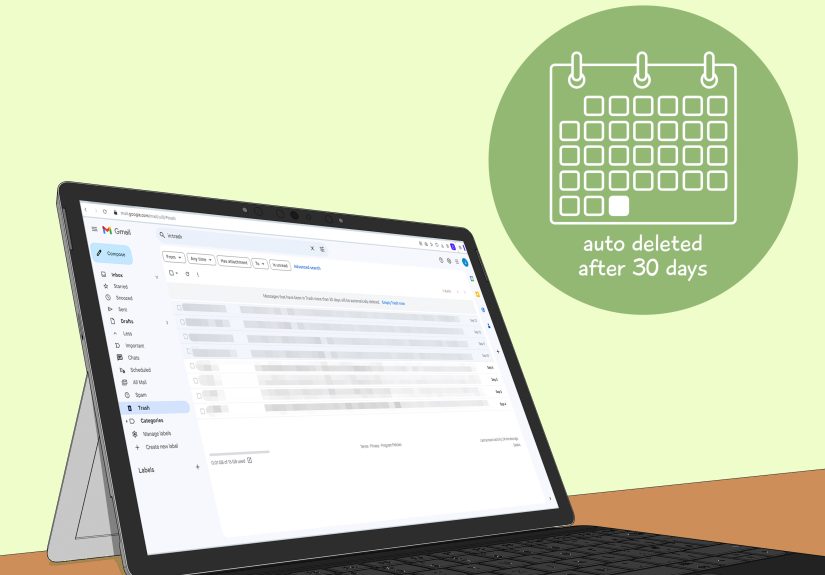
Let’s be honest: Gmail Trash is where newsletters, promo blasts, mystery receipts, and the occasional “Oops, I did not mean to delete that” email go to contemplate their life choices. Most of the time, you can ignore it. Gmail usually clears Trash automatically after 30 days. But sometimes you want those messages gone nowto free up storage, protect privacy, or finally stop pretending that 18,000 deleted emails are part of a sophisticated organizational system.
This guide walks you through exactly how to empty Trash in Gmail on a computer, Android phone, and iPhone or iPad. You’ll also learn what happens after you empty it, how to recover something before it disappears forever, and a few smart cleanup tricks that make the whole process faster and less painful. Think of this as spring cleaning for your inbox, minus the dust bunnies.
Why Empty Gmail Trash Instead of Waiting?
Gmail keeps deleted messages in Trash for a while, which is great when you accidentally send an important message into exile. But there are good reasons to empty Trash manually instead of waiting for the automatic cleanup:
- Free up Google storage: Gmail shares account storage with Google Drive and Google Photos. If your account is close to full, emptying Trash can help reclaim space.
- Protect private information: Deleted emails still exist in Trash until they are permanently removed.
- Reduce clutter while troubleshooting: When you are cleaning up mail in bulk, it helps to finish the job.
- Avoid confusion across devices: If you use Gmail on your laptop, phone, and tablet, keeping Trash full can make it harder to spot something you actually meant to restore.
In short, emptying Trash is the inbox equivalent of taking out the garbage instead of just smashing the lid down and hoping for the best.
What Happens When You Empty Trash in Gmail?
Before you click the big scary button, here is the most important thing to know: emptying Gmail Trash permanently deletes those emails. Once they are gone, there is generally no reliable “undo” button waiting to save the day. If an email matters even a little, check carefully before you empty the folder.
Another key detail: Gmail is synced across devices. That means if you delete an email or empty Trash on one device, the change affects your account everywhere. Your phone, computer, and tablet are not keeping separate secret stashes like dramatic siblings.
How to Empty Trash in Gmail on a Computer
If you are using Gmail in a web browser on your desktop or laptop, the process is quick.
Step-by-Step Instructions
- Open Gmail in your browser and sign in.
- Look at the left sidebar.
- Click More if you do not see the Trash folder right away.
- Select Trash.
- At the top of the Trash page, click Empty Trash now.
- Confirm the action if Gmail asks.
That is the fast method. If you only want to permanently delete certain messages instead of the whole folder, you can check the boxes next to those emails and click Delete forever.
When “Trash” Is Missing
If Trash is not visible in the sidebar, do not panic. Gmail hides some labels under More. Click it, and Trash should appear. Gmail loves a clean sidebar almost as much as it loves hiding useful stuff one click deeper.
Desktop Tip for Bulk Cleanup
If your real goal is not just emptying Trash, but cleaning up old mail first, search tools can help. For example, you can find older messages using filters like date-based searches, delete them in bulk, and then empty Trash afterward. This is especially handy when giant attachments and ancient promotions are squatting in your account like they pay rent.
How to Empty Trash in Gmail on Android
The Gmail app on Android also lets you empty Trash directly. The steps are simple enough that you can do them while standing in line, waiting for coffee, or pretending to listen in a group chat.
Step-by-Step Instructions for Android
- Open the Gmail app.
- Tap the Menu icon in the top-left corner.
- Scroll down and tap Trash.
- At the top, tap Empty trash now.
- Confirm if prompted.
If you only want to save a few messages from Trash, press and hold the email, tap the menu options, and move it back to another label or folder before you empty everything.
Android Cleanup Bonus
On Android, you can also use Google’s storage tools to review what is eating space across Gmail, Drive, Photos, and even Trash. That can be useful if your account storage is full and you want a broader cleanup plan instead of randomly deleting things like a person in an action movie.
How to Empty Trash in Gmail on iPhone or iPad
If you use Gmail on an iPhone or iPad, the steps are very similar to Android. The app experience stays fairly consistent, which is one of those rare moments in tech that feels almost suspiciously kind.
Step-by-Step Instructions for iPhone & iPad
- Open the Gmail app.
- Tap the Menu icon in the top-left corner.
- Tap Trash.
- At the top, tap Empty trash now.
- Approve the permanent deletion if Gmail asks.
You can also customize swipe actions in the Gmail app so deleting messages becomes faster in the future. That is helpful if your inbox attracts marketing emails the way porch lights attract moths.
How to Recover an Email Before Emptying Trash
Maybe you opened Trash and suddenly saw a message you actually needed. Classic. Good news: if the email is still in Trash, you can move it back before you empty the folder.
On a Computer
- Open Trash in Gmail.
- Select the email you want to keep.
- Click Move to.
- Choose Inbox or another label.
On Mobile
- Open Trash in the Gmail app.
- Touch and hold the message.
- Tap the menu.
- Choose Move or Move to.
- Select the destination.
If you are trying to find a deleted email and are not sure where it went, search before you empty Trash. On desktop, Gmail lets you search across Mail, Spam, and Trash. On mobile, search tools like in:anywhere can help surface messages that are not in the inbox.
How to Empty Trash Faster When You Have a Huge Gmail Mess
If your Gmail account looks like it has been collecting mail since the invention of Wi-Fi, use a smarter cleanup strategy:
1. Delete Old Messages First
Search for old emails by date, sender, or size. For example, focus on promotions, receipts, or giant attachment-heavy threads you no longer need. Delete those first, then empty Trash.
2. Clean Spam Too
Spam also takes up space until it is permanently deleted. If you are already doing digital housekeeping, clean Trash and Spam in one session. It is the productivity equivalent of washing the dishes and wiping the counter while you are already in the kitchen.
3. Check Storage Afterward
Do not expect your storage number to update instantly every single time. Sometimes it refreshes after a short delay. So if you empty Trash and your storage still looks crowded, give it a little time before accusing Gmail of betrayal.
4. Use Google One Storage Tools
If your account is full, Google’s storage manager can help you review items by service, including Gmail and Trash. That is useful when you want a bigger-picture cleanup instead of treating one folder like it personally offended you.
Common Questions About Emptying Gmail Trash
Does Gmail automatically empty Trash?
Yes. Gmail generally removes emails from Trash after 30 days. Manually emptying Trash just speeds up the process.
Can I recover emails after emptying Trash?
Usually, no. Once Trash is emptied and the messages are permanently deleted, recovery is unlikely. That is why it is smart to review the folder first.
Will emptying Trash free up storage immediately?
It often helps quickly, but storage indicators may take a little time to update. If your account remains full right away, wait a bit and check again.
Do I need to empty Trash separately on each device?
No. Gmail is account-based and synced. Emptying Trash once affects the entire account across your connected devices.
Can I delete only some Trash emails forever?
Yes. On desktop, select specific messages in Trash and use Delete forever. On mobile, you can restore selected items before clearing the rest.
Best Practices Before You Click “Empty Trash Now”
- Scan the folder for anything important.
- Search for names, invoices, travel confirmations, or work threads you may have deleted by accident.
- Move important emails back to Inbox or another label first.
- Empty Spam too if your main goal is reclaiming storage.
- Wait for storage numbers to refresh before doing more desperate cleanup.
That last point matters. Nothing says “I should have slowed down” quite like deleting five extra years of email because the storage meter had not updated yet.
Conclusion
Emptying Trash in Gmail is simple, but it is one of those tiny tasks that can make your digital life feel dramatically more under control. On a computer, go to More > Trash > Empty Trash now. On Android or iPhone, open the Gmail app, tap Menu > Trash > Empty trash now. Easy, fast, satisfying.
The only catch is that it is permanent. So give Trash a quick look before you clear it, especially if you have been deleting emails in a caffeine-fueled cleanup spree. Once you know the process, you can use it anytime to free up space, tidy your account, and keep your inbox from turning into a digital attic full of junk mail and regret.
Real-World Experiences: What Emptying Gmail Trash Actually Feels Like
Most people do not think about Gmail Trash until one of two things happens: their Google storage gets dangerously full, or they start wondering why deleted messages are still technically hanging around. In real life, emptying Trash often begins as a tiny task and ends with a full-blown digital reset.
A common experience is the “storage panic” moment. Someone tries to send an email, upload a file, or back up photos, and suddenly Google warns them they are almost out of space. They open Gmail expecting a quick fix, only to discover thousands of messages sitting in Trash and Spam. A few clicks later, they clear both folders and feel like they just found money in an old jacket pocket. The number may not always update instantly, but the psychological relief is immediate.
Another familiar scenario is the accidental delete spiral. You start cleaning your inbox with noble intentions. You remove a few promotional emails, then a few shipping alerts, then a few newsletters you swore you would read one day. Ten minutes later, you are in Trash, staring at a message you absolutely needed. This is why experienced Gmail users often pause before emptying Trash. The smartest ones treat Trash like a waiting room, not a shredder, until they are sure everything inside is truly disposable.
Mobile users often describe the process as surprisingly satisfying because it is quick. A few taps in the Gmail app and the clutter is gone. But there is also a strange moment of finality. Emptying Trash on your phone while sitting on a bus or lying in bed somehow makes you feel wildly efficient, like a tiny CEO of email cleanup. Then, naturally, you spend the next three minutes wondering whether you just deleted the one message containing a coupon, school form, or interview detail you were supposed to keep.
People who use Gmail for work usually learn a bigger lesson: deleting and permanently deleting are not the same thing. Trash is a buffer zone. Once you understand that, your cleanup habits get better. You start checking labels, searching before deleting, and moving important messages back instead of assuming you will remember later. Spoiler: later-you is not always reliable.
The best experience reports all share one thing: after emptying Trash intentionally, not recklessly, Gmail feels lighter. Searches are easier. Storage worries calm down. The inbox looks less chaotic. It does not magically turn anyone into an organized superhuman, but it does create that rare and beautiful feeling that your digital life is not actively plotting against you.