Table of Contents >> Show >> Hide
- Why Instagram Shows a Black Screen in the First Place
- Try These Quick Fixes First
- How to Fix Instagram Black Screen on iPhone
- How to Fix Instagram Black Screen on Android
- How to Fix Instagram Live Black Screen
- What to Do if Instagram Goes Black in Stories, Reels, or the In-App Browser
- When Nothing Works
- How to Prevent Instagram Black Screen Issues in the Future
- Final Thoughts
- Experiences With Instagram's Black Screen Issue: What It Often Looks Like in Real Life
- SEO Tags
Instagram is supposed to be a place for selfies, Stories, Reels, and the occasional suspiciously perfect brunch photo. It is not supposed to become a dramatic black rectangle that stares back at you like it just discovered modern art. Yet that is exactly what happens for some users: the app opens to a black screen, Live turns dark, Stories refuse to load, or a Reel plays audio while the screen stays as black as your coffee.
The good news is that this problem is usually fixable. The less-good news is that the cause can be annoyingly vague. A black screen on Instagram can come from a buggy update, corrupted cache, missing permissions, low storage, flaky internet, aggressive battery-saving settings, or an Instagram-side hiccup. In other words, the culprit could be your phone, your network, the app, or the internet gods having a laugh.
This guide walks through the fastest fixes first, then the more targeted solutions for iPhone, Android, Instagram Live, and even desktop browsing. Whether your feed is dark, your camera refuses to appear on Live, or the whole app opens like a tiny portable eclipse, here is how to bring Instagram back from the shadows.
Why Instagram Shows a Black Screen in the First Place
Before you start tapping every setting like a game-show contestant, it helps to know what usually causes the issue. Instagram’s black screen problem typically shows up in one of these situations:
- The app launches but never loads beyond a black page.
- Instagram Live opens, but your camera view or the stream stays black.
- Stories, Reels, or videos play audio while the picture stays dark.
- The screen flickers black after an update.
- The in-app browser or a linked page loads into a blank or black screen.
In plain English, the app is running, but something in the video pipeline, rendering process, permissions stack, cached data, or network handshake is failing. Fancy words, simple meaning: Instagram is trying to do its job and tripping over its own shoelaces.
Try These Quick Fixes First
Start with the easy wins. These solve a surprising number of black screen complaints without requiring a digital archaeology expedition into your settings menu.
1. Force close Instagram and reopen it
Sometimes the app is just stuck. Fully close Instagram from your recent apps screen, then reopen it. Do not merely minimize it. If you are lucky, this is the software equivalent of telling the app to walk it off.
2. Restart your phone
A restart clears temporary glitches, resets background processes, and can fix app rendering problems. If Instagram went black after running for hours, after switching networks, or after using the camera in another app, a restart is especially worth trying.
3. Check whether Instagram is partly down
If your app suddenly goes black while other apps work fine, the issue may not be your device at all. Check Meta’s status information or a reputable outage tracker. If there is an outage, your best fix may be patience, which is rude but true.
4. Switch networks
Move from Wi-Fi to mobile data or from mobile data to Wi-Fi. Weak or unstable connections can cause black screens during video-heavy features like Live, Reels, and Stories. If your signal is poor, Instagram may load the shell of the app but fail when it tries to pull video or camera data.
5. Update Instagram
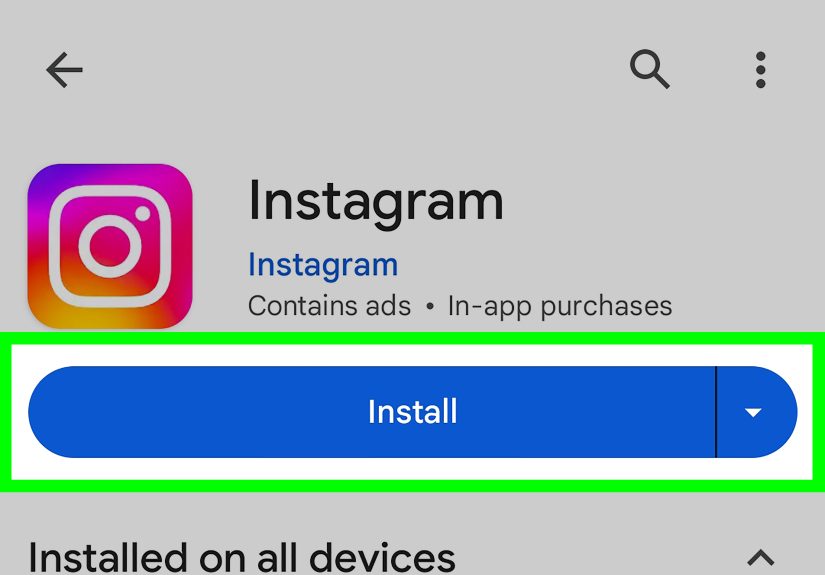
Running an outdated version can cause compatibility problems, especially after server-side changes or operating system updates. Install the latest Instagram update from the App Store or Google Play. This is one of the most important fixes when the problem appeared right after the app started behaving differently overnight.
How to Fix Instagram Black Screen on iPhone
iPhones handle app cleanup a bit differently than Android devices, so the fix list changes slightly.
Make sure camera and microphone permissions are enabled
If Instagram Live shows a black preview, your camera or microphone permissions may be off. Go to Settings > Privacy & Security, then check Camera and Microphone. Make sure Instagram is allowed. If permissions were denied earlier, Live may open, but the video side of the experience can break in weird ways.
Check for iOS updates
If the issue appeared after an operating system bug, updating iOS may help. Go to Settings > General > Software Update. A mismatched combo of old iOS plus new Instagram can behave like two coworkers who pretend they are “aligned” while setting the office on fire.
Turn off Low Data Mode temporarily
If Instagram struggles only on cellular or certain Wi-Fi networks, Low Data Mode may be throttling background behavior. Temporarily disable it and test again. This is especially relevant when Live or video features load halfway and then turn blank.
Free up iPhone storage
Low storage can cause apps to behave unpredictably, especially media-heavy ones. Go to Settings > General > iPhone Storage and make room if you are running low. Instagram loves video. Video loves storage. Your almost-full phone does not love either of them.
Delete and reinstall Instagram
Unlike Android, iPhone does not give you a simple “clear app cache” button for Instagram. Reinstalling the app is the cleanest equivalent. Delete Instagram, reinstall it from the App Store, then sign back in. This often fixes corrupted local data, black loading screens, and glitchy video playback.
Force restart the iPhone if the entire app freezes
If Instagram triggers a more serious freeze, perform a force restart. On most newer iPhones, press volume up, then volume down, then hold the side button until the Apple logo appears. It is not glamorous, but it is effective.
How to Fix Instagram Black Screen on Android
Android users usually get a few more repair tools, which is great news unless you enjoy mysterious menus and twelve nearly identical settings screens.
Clear Instagram cache
Go to Settings > Apps > Instagram > Storage & cache, then tap Clear cache. Cached files speed up app loading, but when those files go bad, the app can start acting like it has just been emotionally overwhelmed by its own existence.
Clear app storage if cache alone does not work
If clearing the cache does not fix the problem, clear storage or app data. This resets Instagram locally on your phone, so you may need to sign back in. It is a stronger fix for black screens, app freezes, and features that stop loading correctly after an update.
Review app permissions
Open Settings > Apps > Instagram > Permissions and confirm that camera and microphone access are allowed. This is essential for Instagram Live, video recording, voice features, and some camera-based tools.
Turn off Data Saver or allow unrestricted data
On some Android phones, Data Saver can interfere with media-heavy apps. If Instagram works on Wi-Fi but not mobile data, check whether background or unrestricted data access is limited. When the app cannot fetch video or connect cleanly in the background, black screens can appear where streams or content should be.
Check battery optimization settings
Some Android devices, especially heavily customized ones, can aggressively restrict background activity. If the black screen happens mainly during Live sessions or after the app sits in the background, set Instagram to a less restrictive battery mode.
Update Android and Google Play apps
Outdated system software can also contribute to app crashes or rendering issues. Update Android, update Google Play, and update Instagram. Yes, this is the “did you try turning it off and on again” part of the internet, but it remains popular because it works.
How to Fix Instagram Live Black Screen
Instagram Live deserves its own section because black screen issues here are often more specific. If your feed works but Live does not, focus on these fixes:
Test your camera in another app
Open your phone’s default camera app or another trusted video app. If the camera also fails there, the problem is not Instagram. It is a device-level issue involving permissions, camera conflicts, or hardware trouble.
Close other apps using the camera
If another app is still holding the camera or microphone in the background, Instagram Live may show a black preview. Close video calling apps, camera apps, and screen-recording tools before going Live.
Confirm camera and microphone permissions again
This sounds repetitive because it is repetitive. It is also one of the most common causes of Live video failures. When in doubt, check permissions again.
Use a stronger connection
Live is more demanding than scrolling your feed. Weak Wi-Fi, congested public networks, or unstable mobile data can cause the stream to stall or appear black. If possible, move closer to your router, disable a problematic VPN, or try a different network entirely.
Reinstall Instagram before an important Live
If you are planning a business launch, interview, or creator event, do not gamble on a glitchy app. Reinstall Instagram ahead of time, test a private setup, and make sure your phone has battery, storage, and a stable network. Hope is not a strategy; it is just anxiety in nicer clothing.
What to Do if Instagram Goes Black in Stories, Reels, or the In-App Browser
Not every black screen happens on the main app home page. Sometimes the problem is confined to certain features.
Stories and Reels
If audio plays but video stays black, the issue often points to app corruption, weak connection, outdated software, or temporary content loading failure. Try force closing the app, switching networks, clearing cache on Android, or reinstalling the app on iPhone.
Instagram’s in-app browser
Sometimes a link inside Instagram opens into a blank or black screen. In that case, copy the link and open it in Safari or Chrome instead. If the page loads normally there, the issue is likely with Instagram’s in-app browser session rather than the destination site.
Desktop browser version
If Instagram looks black or blank on desktop, refresh the page, clear your browser cache, disable suspicious extensions, and try another browser window. Some outages affect desktop more than mobile, so test the mobile app too before you decide your account has entered the void.
When Nothing Works
If you have updated the app, restarted the phone, checked permissions, freed storage, tried another network, and still get a black screen, do these final steps:
- Log out and back into Instagram.
- Reinstall the app completely.
- Check Meta-related status pages for service issues.
- Report the problem inside Instagram.
- Wait a few hours and test again.
Instagram itself recommends reporting technical problems when standard troubleshooting fails. If the bug is tied to an app release or account-specific issue, your report can help flag it faster.
How to Prevent Instagram Black Screen Issues in the Future
You cannot prevent every glitch, but you can reduce the odds of one ruining your next Live or doomscroll session.
- Keep Instagram updated.
- Keep iOS or Android updated.
- Leave enough free storage on your phone.
- Review camera and microphone permissions after system updates.
- Avoid overly aggressive battery or data-saving restrictions for Instagram.
- Restart your device occasionally instead of treating it like an immortal brick.
- Test Instagram Live before important events.
Final Thoughts
Instagram’s black screen issue looks dramatic, but it is usually less apocalypse and more inconvenience with good branding. In most cases, the fix is straightforward: restart the app, update it, check permissions, clear cache on Android, reinstall on iPhone, and rule out network or service outages. If the problem only affects Live, pay special attention to camera access, microphone settings, and connection quality.
The key is to troubleshoot in order instead of randomly pressing buttons until your phone feels judged. Start simple, escalate only when needed, and remember that when Instagram breaks, it is often temporary. The app may want to be mysterious, but your troubleshooting plan does not have to be.
Experiences With Instagram’s Black Screen Issue: What It Often Looks Like in Real Life
One of the frustrating things about Instagram’s black screen issue is that it rarely announces itself politely. It shows up in the middle of normal use, usually when timing is already bad. A common experience goes like this: someone taps Instagram during lunch, the app opens, and instead of the feed, there is just a black screen with maybe a top bar, maybe nothing, and definitely no joy. They assume the internet is broken, switch Wi-Fi, get the same result, mutter something unprintable, and then discover a simple force close fixes it in ten seconds. That is classic black-screen behavior: dramatic entrance, embarrassingly simple solution.
Another very real-feeling scenario happens with creators and small business owners who rely on Instagram Live. Everything is ready. Ring light on. Hair behaving. Product launch lined up. They hit Live and suddenly the preview is black, or viewers can hear them but cannot see them. Panic arrives immediately and uninvited. In many of these cases, the cause turns out to be camera permission, another app still using the camera, or a flaky connection that was “technically connected” but not strong enough for a video stream. The emotional arc is always the same: confidence, confusion, bargaining, settings menu, relief.
There is also the update-related experience. Instagram was fine yesterday, then today it opens into darkness after an app update or phone update. Users often spend a while blaming their phone before realizing the app version itself may be unstable on their device. Reinstalling the app, updating the operating system, or waiting for the next patch often solves this version of the problem. It feels unfair, mostly because it is unfair. Nobody enjoys losing fifteen minutes to a bug they did not create.
Android users often describe a slightly different journey. They clear cache, and suddenly the app is normal again. This makes them feel powerful for exactly three minutes, right up until another app breaks next week. iPhone users, meanwhile, tend to discover there is no neat little “clear cache” button and must go straight to deleting and reinstalling the app. This inspires a special kind of annoyance, but it also works surprisingly often.
Then there is the black screen that is not really your black screen. Sometimes Instagram itself is having a rough day. Users compare notes, search for outages, and realize the problem is wider than their device. This is weirdly comforting. A personal tech problem feels like failure; a platform outage feels like community. Suddenly thousands of people are united by the same broken app and the same sentence: “Oh good, it’s not just me.”
The biggest lesson from these experiences is simple: black screen problems feel catastrophic in the moment, but they are usually fixable. The fastest wins tend to come from calm, boring steps rather than desperate ones. Restart. Update. Check permissions. Clear cache or reinstall. Try another network. Report it if needed. It is not glamorous, but neither is staring at a black Instagram screen while your best content waits in the draft folder like an abandoned movie premiere.