Table of Contents >> Show >> Hide
- Why Snapchat Has Different Types of Profiles
- How to View Your Own Personal Snapchat Profile
- How to View a Friend’s Snapchat Profile
- How to View a Public Snapchat Profile
- Can You View Snapchat Profiles on a Browser?
- Why You Might Not Be Able to View a Snapchat Profile
- How to Tell Which Type of Snapchat Profile You Are Looking At
- Best Practices for Viewing Snapchat Profiles Respectfully
- Quick Troubleshooting Tips
- Real-World Experiences With Personal, Friend, and Public Snapchat Profiles
- Conclusion
- SEO Tags
If Snapchat sometimes feels like a secret club where the map moves, the icons wiggle, and everyone already knows the rules except you, welcome. You are not alone. One of the most common questions people ask is surprisingly basic: how do you actually view Snapchat profiles? Not just your own profile, but a friend’s profile and a public profile too.
The confusion makes sense. Snapchat does not present every account the same way. Your own account has one set of controls. Friends unlock a different view. Public accounts open another door entirely. Add in Stories, Charms, Snap Stars, subscriptions, and enough Bitmoji to populate a small animated nation, and it is easy to tap the wrong thing and wonder where everything went.
This guide breaks it all down in plain English. You will learn how to view a personal Snapchat profile, a friend profile, and a public Snapchat profile, what you can actually see in each one, and what you absolutely cannot see unless the person has chosen to make it public. No hacks, no sneaky workarounds, no “one weird trick.” Just the real, current way Snapchat profiles work.
Why Snapchat Has Different Types of Profiles
Before getting into the steps, it helps to understand one big idea: Snapchat separates private social interaction from public discovery. In other words, the app treats “my actual friends” differently from “people, creators, and brands I can follow.” That is why profile viewing changes depending on who you are looking at.
In practical terms, Snapchat users usually run into three profile situations:
- Personal profile: your own everyday account view, plus the private side of someone else’s account that is limited to friends.
- Friend profile: the relationship-based profile you can access with someone you are connected to on Snapchat.
- Public profile: a creator, personal public, professional, or business profile that is meant to be discoverable by a wider audience.
Once you understand those lanes, Snapchat starts making a lot more sense and a lot fewer people start randomly pressing icons like they are disarming a cartoon bomb.
How to View Your Own Personal Snapchat Profile
Viewing your own Snapchat profile is the easiest place to start. This is the profile screen where you manage your account, add friends, review your Stories, change privacy settings, and access any Public Profile tools if your account has them.
Steps to open your personal profile
- Open Snapchat on your phone.
- From the main camera screen, tap your Bitmoji, avatar, or profile icon in the top-left corner.
- Your profile screen will open.
On this screen, you may see your display name, username, Snap score, profile image or Bitmoji, friend tools, Stories, settings, and possibly a section for My Public Profile if that feature is active on your account.
This personal profile is mostly your control center. It is where you adjust how public or private your account feels. For example, if you want to change who can contact you, who can view your Story, or whether certain profile details are visible, this is where the app eventually sends you.
What you can usually see on your own profile
- Your display name and username
- Your Snap score
- Your own Stories and profile options
- Add Friends and settings tools
- Privacy controls
- Public Profile tools, if available
If your account also has a Public Profile, your personal profile becomes the front door to that public-facing version. Think of it like having a private apartment and a small storefront in the same building. One is for actual friends. The other is for people passing by.
How to View a Friend’s Snapchat Profile
Viewing a friend’s profile is where many users get tripped up, because Snapchat does not always label it in the most obvious way. When you are connected with someone, you can usually access what Snapchat calls a Friendship Profile. This is not the same as browsing a public creator page. It is the profile built around your relationship with that specific person.
How to open a friend profile
- Open Snapchat.
- Swipe right from the camera screen to go to the Chat area.
- Find the friend you want to view.
- Tap their Bitmoji, profile icon, or name area to open the profile view.
Depending on the current app layout, you may also reach a friend profile from your Friends list, from a chat thread, or from a Story bubble. The exact path can vary a little by device and app version, but the general idea is the same: enter Chat, select the person, and open their profile area rather than just the message composer.
What you may see on a friend profile
A friend profile can show more than people expect. Instead of acting like a static “bio page,” it often behaves like a shared relationship dashboard.
- Saved messages and Snaps in your chat history
- Friendship-specific features such as Charms
- Friend emojis or Best Friends indicators
- Options to mute, manage, remove, or block
- Snap Map or location-related settings if shared
- Story access, depending on that person’s privacy settings
This is why the Snapchat friend profile feels different from Instagram or Facebook. It is less about broadcasting identity and more about showing the context of your connection.
What you will not see on a friend profile
Here is the important privacy reality check: viewing someone’s friend profile does not mean you get to browse their entire private life. You do not automatically gain access to every Story, every saved item, or every hidden setting. If they have limited who can view certain content, that content stays limited.
So, if you open a friend profile and it looks sparse, that does not mean Snapchat is broken. It often means the account is simply set up to share less.
How to View a Public Snapchat Profile
A public Snapchat profile is designed for broader visibility. These profiles are common for creators, influencers, public figures, brands, and some regular users who want a discoverable presence on the app.
Public profiles are different from friend profiles because they are built for audience-facing content. Instead of showing your private relationship with the account, they highlight public information and published content.
How to find and open a public profile
- Open Snapchat.
- Use the Search function at the top of the app.
- Type the person’s display name, username, brand name, or creator name.
- Tap the relevant result.
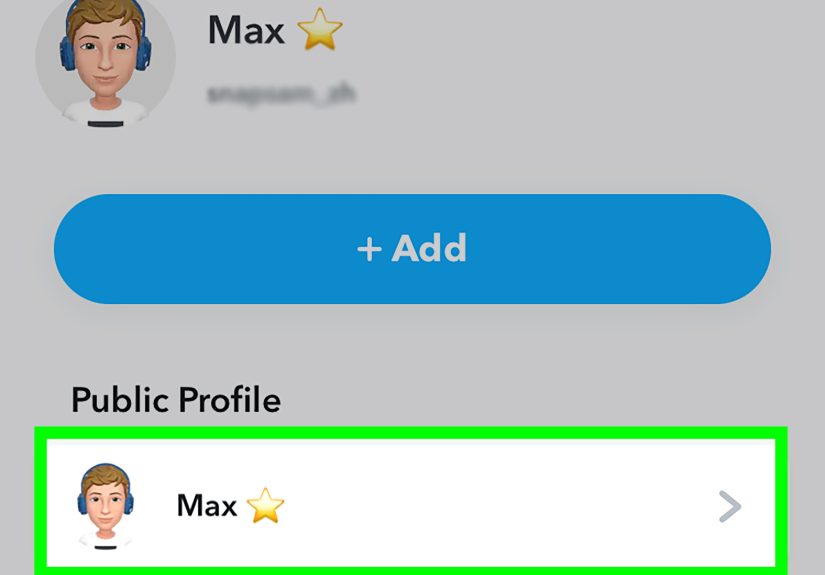
- If the account has a Public Profile, it should open into that public view.
You may also reach a public profile by tapping on someone’s public Story, Spotlight content, Snap Star account, or shared Snapcode. In many cases, a public post acts like a trail of breadcrumbs leading straight back to the profile.
What you can see on a public profile
- Profile photo or Bitmoji
- Display name and public account identity
- Bio or description
- Public Stories
- Spotlight content
- Lenses or featured content
- Subscriber count, if the account chooses to display it
- Labels such as Snap Star or other public account identifiers
This is the version of Snapchat built for discovery. You do not need to be close friends with a public creator to see their public content. That is the whole point. If a profile is public, the account owner has intentionally opened a visible window to the wider Snapchat community.
Public profile vs friend profile: the key difference
Here is the simplest way to think about it:
Friend profile = your relationship with that person.
Public profile = that person’s audience-facing identity on Snapchat.
That one distinction clears up almost every profile-viewing question people have.
Can You View Snapchat Profiles on a Browser?
In most normal cases, no. If you are trying to view other Snapchat users’ profiles from a regular web browser, Snapchat does not make that the standard experience. Profile viewing is primarily meant to happen inside the mobile app.
That means if you are clicking around on a desktop, hoping to inspect someone’s Snapchat profile like you would a LinkedIn page, you are probably going to hit a wall. Snapchat prefers that profile interaction stay in the app environment.
So if you are asking, “Why can’t I open someone’s Snapchat profile online?” the answer is usually simple: you need the mobile app.
Why You Might Not Be Able to View a Snapchat Profile
Sometimes the profile issue is not your tapping skills. Sometimes Snapchat is just doing exactly what the other person asked it to do.
Common reasons a profile is limited or missing
- The person does not have a Public Profile enabled
- You are not friends, so you only see limited information
- The person has removed or blocked you
- Their privacy settings restrict contact or Story visibility
- The profile was deleted, renamed, or deactivated
- The app layout changed after an update
In plain English: if you cannot see everything, that is usually privacy working as intended, not Snapchat playing hide-and-seek for fun. Though, to be fair, Snapchat does occasionally redesign things like it is paid in confusion.
How to Tell Which Type of Snapchat Profile You Are Looking At
If you are unsure whether you are on a personal, friend, or public profile, look for these clues:
Signs you are viewing a personal or private-side profile
- You accessed it from your own Bitmoji or settings area
- The page focuses on account controls, privacy, or friend management
- It does not look designed for audience discovery
Signs you are viewing a friend profile
- You opened it from Chat or a friend conversation
- You see friendship-based details such as saved chats or Charms
- The view feels specific to your relationship with that person
Signs you are viewing a public profile
- You found it through Search, Spotlight, a public Story, or a shared public link path
- You see a bio, featured public content, or subscriber-facing layout
- The profile appears built for general visibility rather than private interaction
Best Practices for Viewing Snapchat Profiles Respectfully
This part should be obvious, but social media has a talent for making obvious things mysteriously optional.
- Use only the official app and normal search tools
- Do not expect access to private content without permission
- Remember that public content is public, but private relationships are still private
- Do not confuse subscribing to a public creator with having the same access as a close friend
- Check your own privacy settings if you are worried about what others can see
If your real question is not “how do I view a Snapchat profile?” but “how do I see more than the person wants me to see?” then the answer is: you do not. And that is a good thing.
Quick Troubleshooting Tips
If profile viewing is acting weird, try these simple fixes:
- Update Snapchat to the latest version.
- Search by exact username instead of display name.
- Open the profile from Chat if Search is messy.
- Check whether the account has a Public Profile at all.
- Restart the app if profile pages are not loading properly.
These steps solve a surprising number of Snapchat mysteries. The remaining mysteries are usually user error, app design, or the cosmic energy released whenever Snapchat moves one icon two pixels to the left.
Real-World Experiences With Personal, Friend, and Public Snapchat Profiles
In real everyday use, the difference between these profile types becomes clear fast. People usually notice it the first time they try to look up someone they know casually, someone they actively talk to, and someone famous. Three searches, three different experiences.
For example, opening your personal Snapchat profile feels administrative. It is less “look at me” and more “where are the settings, why is my Story here, and how did my Bitmoji get that outfit?” It is your operating panel. Most people use it when they want to change privacy settings, add friends, review their own Story activity, or jump into Public Profile tools if they have them enabled.
Viewing a friend profile on Snapchat feels more relational. You are not just visiting a page; you are opening the history of your connection. That is why users often say the friend profile feels more personal than other social platforms. You may see saved messages, shared moments, Charms, and little signs that Snapchat is keeping score on your friendship like an enthusiastic digital scrapbook assistant.
Then there is the public profile experience, which feels completely different. When people search for a creator, a brand, or a Snap Star, the layout becomes more polished and audience-focused. Suddenly you are not looking at a private social thread. You are looking at content packaging: bio, featured Stories, Spotlight posts, maybe a subscriber count, maybe profile branding. It is less “we talk” and more “here is what I publish.”
One common user experience is confusion when someone expects a public profile but only sees a basic account result. Usually that means the person has not set up a Public Profile, or their content is not meant for wide discovery. Another common situation happens when someone opens a friend profile and expects to see everything that person has ever posted. That is not how it works. Snapchat still respects the privacy choices on Stories, contact settings, and public sharing.
There is also a practical difference in how people use these profiles socially. A friend profile is where conversations continue. A public profile is where browsing begins. Your own profile is where you manage the whole circus. Once you understand that rhythm, Snapchat stops feeling random and starts feeling structured.
Many users also find that profile viewing gets easier once they stop thinking of Snapchat as a single profile system. It is really a layered platform. The same person can appear one way to friends, another way to subscribers, and another way inside their own account settings. That is not a bug. That is the design.
So if your first experience with how to view Snapchat profiles felt confusing, that is normal. The app is built around context. Who you are, how you know the person, and whether the account is public all change what you get to see. Once that clicks, profile viewing becomes a lot less mysterious and a lot more useful.
Conclusion
If you want the short version, here it is: tap your own Bitmoji to view your personal Snapchat profile, open Chat and tap a connection to view a friend profile, and use Search or public content trails to open a public Snapchat profile. Each version shows different information because Snapchat separates private friendships from public discovery.
That is actually a smart design once you get used to it. Your closest connections stay more personal, creators can still build an audience, and random strangers do not automatically get a backstage pass to your life. Which is probably for the best. The internet already has enough chaos without handing everyone your private Story like it is party candy.
Once you know where to tap and what kind of profile you are looking at, Snapchat becomes much easier to navigate. And the next time someone says, “Wait, why does this profile look different?” you can smile, nod, and resist the urge to charge consulting fees.