Table of Contents >> Show >> Hide
- What Is the Facebook Blocked List?
- Method 1: Check Your Blocked List on the Facebook Mobile App
- Method 2: Check Your Blocked List on Facebook Desktop
- What Happens When You Block Someone on Facebook?
- Can You Check Blocked People on Messenger?
- Why Your Facebook Blocked List Might Look Empty
- How to Unblock Someone From Your Facebook Blocked List
- Blocking vs. Unfriending vs. Restricting: What Is the Difference?
- Privacy Tips Before You Block or Unblock Someone
- Common Questions About Checking Your Blocked List on Facebook
- 500-Word Experience Section: Real-Life Lessons From Managing a Facebook Blocked List
- Conclusion
At some point, almost every Facebook user has tapped the “Block” button with the energy of someone closing a haunted basement door. Maybe it was a spammer selling sunglasses in your comments, an ex-classmate who discovered motivational quotes a little too aggressively, or a random account that kept sending “Hi dear” messages at 2:13 a.m. Whatever the reason, Facebook gives you a way to control who can interact with youand yes, you can check your blocked list later.
The good news is that finding your blocked list on Facebook is not complicated. The slightly less glamorous news is that Facebook loves moving menus around like it is redecorating a digital living room every few months. Still, the blocked list usually lives in your settings under privacy, audience, visibility, or blocking controls. Once you know where to look, you can review blocked profiles, unblock someone, or simply confirm that your online peace treaty is still holding.
This guide explains two easy ways to check your blocked list on Facebook: through the Facebook mobile app and through Facebook on a desktop browser. You will also learn what blocking actually does, what happens when you unblock someone, why your blocked list might look empty, and how to manage privacy settings without turning your account into a mystery novel.
What Is the Facebook Blocked List?
Your Facebook blocked list is the section of your account where Facebook shows profiles, Pages, or sometimes nicknames you have blocked. Think of it as the velvet rope outside your personal digital club. People on that list generally cannot view your profile the normal way, tag you, invite you to groups or events, send you friend requests, or start conversations with you through Facebook.
Blocking is stronger than unfriending. When you unfriend someone, they may still be able to search for your profile, see public posts, or send another friend request depending on your privacy settings. When you block someone, Facebook puts a much firmer wall between the two accounts. That is why checking your blocked list matters: it helps you understand who is restricted from contacting or interacting with you.
It is also useful for cleaning up old decisions. Maybe you blocked someone during a group chat meltdown in 2019 and now cannot remember who it was. Maybe you want to unblock a family member after a disagreement cooled down. Or maybe you simply want to confirm that a suspicious profile is still blocked. The blocked list is where all of that account housekeeping happens.
Method 1: Check Your Blocked List on the Facebook Mobile App
Most people use Facebook on a phone, so the mobile app is usually the fastest way to check your blocked list. These steps work for many current versions of the Facebook app on iPhone and Android, though labels may look slightly different depending on your app version, device, and region.
Step-by-Step Instructions for Mobile
- Open the Facebook app and make sure you are logged into the correct account.
- Tap the Menu icon. On many phones, this looks like three horizontal lines.
- Scroll down and tap Settings & privacy.
- Tap Settings.
- Scroll until you find Audience and visibility.
- Tap Blocking.
- Your blocked list should appear, showing profiles or Pages you have blocked.
Once you are in the Blocking section, you can review names on the list. If you see an Unblock button beside a profile, that means the account is currently blocked. If your list is empty, you may not have blocked anyone from that account, or you may be using a different Facebook profile than the one you originally used.
Mobile Example: When You Cannot Find “Blocking”
Suppose you open Facebook, tap Menu, and scroll through Settings, but “Blocking” does not jump out at you. Do not panic. Facebook settings can feel like a junk drawer with icons. Try using the search bar inside Settings and type “blocking.” If Facebook shows a result for Blocking, tap it directly. This is often faster than scrolling through every privacy category while wondering why your phone battery is judging you.
If the app still refuses to cooperate, update Facebook from the App Store or Google Play, close the app, reopen it, and try again. You can also use the browser method below, which is often clearer on a larger screen.
Method 2: Check Your Blocked List on Facebook Desktop
If you prefer using a computer, Facebook desktop gives you another simple path to your blocked list. The layout may look slightly different depending on your account interface, but the main idea is the same: go to your settings, open the blocking controls, and view the list of blocked users.
Step-by-Step Instructions for Desktop
- Go to Facebook in your web browser and log into your account.
- Click your profile picture or account menu in the upper-right corner.
- Select Settings & privacy.
- Click Settings.
- Find Audience and visibility, then click Blocking.
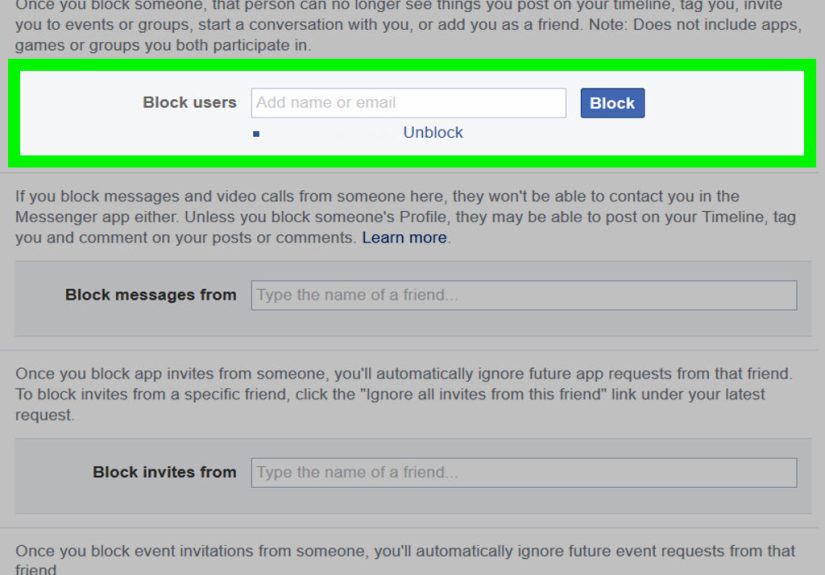
- Look for the Block users section.
- Click Edit, then choose See your blocked list.
This should open a list of profiles you have blocked on Facebook. From there, you can review the list or choose to unblock someone. Desktop is especially helpful if you have a long blocked list, because searching and reading names can be easier on a bigger screen.
Desktop Example: Checking an Old Block
Imagine you blocked someone years ago after they filled your posts with comments like “Nice photo, join my investment group.” Later, you remember the situation and want to check whether that account is still blocked. On desktop, you can open Blocking, click to see your blocked list, and scan for the name. If it is there, the block is still active. If not, the account may have been unblocked, deleted, renamed, or blocked from another profile you manage.
What Happens When You Block Someone on Facebook?
Blocking someone on Facebook is not just a quieter version of unfriending. It changes how the two profiles can interact. In most ordinary situations, a blocked person cannot see your profile in search, send you a friend request, message you through Facebook, tag you, invite you to events, or interact with your posts the normal way.
However, blocking is not a magical invisibility cloak. You may still see limited traces of a blocked person in shared spaces. For example, if both of you are in the same group, you might see some group-related activity depending on Facebook’s rules and the group’s settings. You may also still see old messages in Messenger history, because blocking does not always erase past conversations. It mainly limits future contact and interaction.
Another important detail: if you block someone and later unblock them, Facebook does not automatically make you friends again. If you were previously Facebook friends, you would usually need to send a new friend request if you want to reconnect. So before you unblock someone, make sure you actually want that door open again. The internet has enough surprise reunions already.
Can You Check Blocked People on Messenger?
Messenger and Facebook blocking are closely connected, but they can be confusing. In some cases, blocking a person’s Facebook profile through Messenger can also block that profile on Facebook. Messenger may also have its own blocked accounts area under privacy and safety settings, depending on your app version.
If your goal is to check your main Facebook blocked list, start with Facebook Settings and the Blocking section. If your issue is specifically about calls or messages in Messenger, open Messenger, go to its settings, and look for privacy, safety, or blocked accounts. This matters because someone might be restricted from messaging you even if you are looking in the wrong place on Facebook.
Why Your Facebook Blocked List Might Look Empty
If you open the Blocking section and see nothing, there are several possible explanations. The simplest one is that you have not blocked anyone from that account. It is also possible you blocked the person from another Facebook profile, Page, or account. Many users now manage more than one profile or Page, and blocking settings may not always carry over exactly the way people expect.
Another possibility is that the person changed their name, deactivated their account, or deleted their profile. If an account no longer exists in the same form, the list may look different from what you remember. Facebook interface changes can also temporarily make settings harder to find, especially after an app update.
If you are sure you blocked someone but cannot see them, try checking on both mobile and desktop. Also confirm that you are logged into the right account. This sounds obvious, but it is surprisingly easy to be signed into a second profile, business account, or old account and wonder why your digital filing cabinet looks empty.
How to Unblock Someone From Your Facebook Blocked List
Once you find your blocked list, unblocking someone is usually simple. Next to the person’s name, choose Unblock, then confirm your decision. Facebook may show a warning explaining what will happen after you unblock the person. Read it before confirming.
After unblocking, that person may be able to find your profile again, see public content, contact you depending on your privacy settings, or send a friend request. If you were friends before the block, unblocking usually does not restore the friendship automatically. You may need to add each other again.
Before unblocking, ask yourself why the person was blocked in the first place. Was it spam? Harassment? A temporary argument? A misunderstanding? If the original reason still matters, you may want to leave the block in place. Online peace is valuable, and unlike socks, it should not be thrown away casually.
Blocking vs. Unfriending vs. Restricting: What Is the Difference?
Facebook gives you several ways to manage people, and they are not all the same. Blocking is the strongest everyday option. It cuts off most direct interaction between two profiles. Unfriending removes someone from your friends list, but they may still see public posts or contact you depending on your settings.
Restricting is softer. If you add someone to a restricted audience, they may remain your friend, but they will usually see only your public posts or posts where you tag them. This is useful for coworkers, distant relatives, or that one person who comments “interesting” under every life update with suspicious intensity.
You can also adjust who can see future posts, who can send friend requests, who can look you up by phone number or email, and whether search engines outside Facebook can link to your profile. Blocking is important, but it is only one part of a healthy privacy setup.
Privacy Tips Before You Block or Unblock Someone
Review Your Audience Settings
Before unblocking someone, check who can see your posts. If most of your posts are public, unblocking someone may allow them to view more than you intended. Switching sensitive posts to Friends or a custom audience can give you more control.
Check Your Profile Information
Your profile may include your birthday, hometown, workplace, school, relationship status, or contact details. You do not have to share every field Facebook offers. Leaving certain details blank or limiting their visibility can reduce unwanted attention.
Do Not Accept Every Friend Request
A large friends list can feel impressive until your posts start reaching people you barely recognize. Be selective. If you would not wave to someone in real life, you do not need to hand them a front-row seat to your vacation photos.
Use Blocking Without Guilt
Blocking is a privacy tool, not a courtroom verdict. You do not need a dramatic reason to protect your space. If someone makes Facebook stressful, unsafe, or annoying, blocking can be a reasonable choice.
Common Questions About Checking Your Blocked List on Facebook
Can someone tell if I blocked them?
Facebook does not usually send a notification saying, “Congratulations, you have been blocked.” However, the person may figure it out if they cannot find your profile, message you, or interact with your posts.
Will blocking delete old messages?
Blocking does not necessarily erase past conversations. Old messages may remain visible in Messenger history, but the blocked person should not be able to continue messaging you normally.
Can I block someone again after unblocking them?
Facebook may place temporary limits on re-blocking after you unblock someone. Because rules can vary, read Facebook’s confirmation message carefully before you unblock.
Can I check my blocked list without the Facebook app?
Yes. Use Facebook in a desktop or mobile browser, go to Settings, open Blocking, and review the blocked list from there.
Does blocking someone on Facebook block them on Instagram?
Not automatically in every situation. Facebook and Instagram are both part of Meta, but blocking settings can differ by app, account type, and connected account settings. Check each app if you want full control.
500-Word Experience Section: Real-Life Lessons From Managing a Facebook Blocked List
Checking your Facebook blocked list feels like opening a tiny time capsule of social decisions. Some names make perfect sense immediately. You see them and think, “Ah yes, the person who posted fake giveaways every afternoon.” Other names may feel like finding a mystery receipt in an old jacket pocket. You know something happened, but the details have packed their bags and left town.
One practical experience many users share is that blocking is often done in the heat of the moment, while unblocking is usually done later with a calmer brain. That is why reviewing your blocked list can be surprisingly useful. It gives you a chance to separate old frustration from current reality. Maybe a person was blocked during a family disagreement, but the relationship is better now. Maybe someone was blocked because their account looked hacked. Maybe the block still makes sense, and seeing the name reminds you that your past self made a wise little security decision.
Another common lesson is that Facebook privacy is easier to manage when you do small checkups instead of waiting for a problem. A blocked list review takes only a minute or two, but it can reveal whether your settings match your current life. People change jobs, move schools, end relationships, start businesses, and join new communities. Your Facebook boundaries should be allowed to change too.
For example, someone who once used Facebook only for close friends may later use it for marketplace selling, local groups, or professional networking. In that case, the blocked list becomes part of reputation management. You may want to keep scammers, aggressive buyers, or suspicious accounts blocked. At the same time, you may want to unblock someone who was blocked accidentally or during a misunderstanding.
The experience also teaches a bigger privacy lesson: blocking works best when combined with thoughtful audience settings. If all your posts are public, unblocking someone gives them more access than you might expect. If your posts are limited to friends, custom groups, or specific audiences, you have more control. Blocking is the lock on the door, but privacy settings are the curtains, the fence, and the “please do not knock before coffee” sign.
Finally, managing a blocked list can be emotionally healthy. Social media can become noisy fast. Not every uncomfortable interaction needs a debate, announcement, or dramatic exit. Sometimes the best move is quiet control. You check your list, adjust what needs adjusting, and move on with your day. No fireworks. No public statement. Just a calmer feed and fewer digital mosquitoes buzzing around your notifications.
Conclusion
Checking your blocked list on Facebook is simple once you know where to look. On mobile, open the Facebook app, go to Menu, Settings & privacy, Settings, Audience and visibility, and then Blocking. On desktop, open Settings, find Audience and visibility, choose Blocking, and view your blocked list from the Block users section.
Whether you are reviewing old blocks, unblocking someone, or confirming that a spam account is still safely outside the gates, the blocked list is an important privacy tool. Use it together with audience controls, profile visibility settings, and smart friend-request habits. Facebook may keep rearranging the furniture, but your privacy does not have to be a scavenger hunt.
Note: Facebook may update menu names or layouts over time. If you cannot find the Blocking section, use the search bar inside Facebook Settings and search for “blocking.”