Table of Contents >> Show >> Hide
- What Is a PowerShell Profile?
- Why Create a PowerShell Profile on Windows 10?
- Understanding the $PROFILE Variable
- How to Check Whether Your PowerShell Profile Already Exists
- How to Create a PowerShell Profile on Windows 10
- How to Edit Your PowerShell Profile
- Useful Things to Add to a PowerShell Profile
- A Simple Beginner-Friendly PowerShell Profile Example
- How to Reload Your Profile Without Restarting PowerShell
- Fixing the “Running Scripts Is Disabled” Error
- PowerShell Profile Best Practices
- Windows PowerShell 5.1 vs. PowerShell 7 Profiles
- How to Troubleshoot a Broken PowerShell Profile
- Practical Experience: What I Learned from Using PowerShell Profiles on Windows 10
- Conclusion
If you use PowerShell on Windows 10 more than once a week, creating a PowerShell profile is one of those tiny upgrades that feels suspiciously powerful. It is like setting up your favorite desk before work: the chair is adjusted, the coffee is in reach, and the keyboard is no longer hiding under yesterday’s snack wrapper. A PowerShell profile lets you customize your shell so every new session opens with your preferred aliases, functions, prompt style, modules, and shortcuts already loaded.
In plain English, a PowerShell profile is a script that runs automatically when PowerShell starts. You can use it to save commands you want available every time you open the console. Instead of typing the same setup commands again and again, you put them in your profile once and let PowerShell do the polite little chores for you.
This guide explains how to create a PowerShell profile on Windows 10, how to edit it safely, what to put inside it, how to fix common errors, and how to avoid turning your terminal into a haunted house of mystery commands. Whether you are a beginner, a system administrator, a developer, or just someone who likes a clean command line, your PowerShell profile can make daily work faster and more enjoyable.
What Is a PowerShell Profile?
A PowerShell profile is a .ps1 script file that PowerShell loads at startup. It can contain anything you would normally type in an interactive PowerShell session: aliases, functions, variables, module imports, prompt customizations, startup messages, helper commands, and environment settings.
Think of it as your personal shell recipe. Without a profile, PowerShell opens with the default settings. With a profile, it opens with your preferred workflow already prepared. For example, you can create a shortcut command called projects that jumps to your work folder, define a custom prompt that shows only the current directory, or import a module you use every day.
Why Create a PowerShell Profile on Windows 10?
Windows 10 includes Windows PowerShell 5.1 by default, and many users also install newer PowerShell versions later. A profile is useful in both cases because it helps you create a consistent environment. Instead of rebuilding your setup every morning, your profile handles the repetitive parts.
Benefits of Using a PowerShell Profile
- Faster startup workflow: Load favorite aliases, functions, and modules automatically.
- Cleaner navigation: Create shortcuts to common folders such as Desktop, Documents, projects, downloads, or scripts.
- Better productivity: Save small helper functions that replace long commands.
- Custom prompt design: Make the console easier to read by shortening or styling the prompt.
- Reusable settings: Keep your PowerShell environment familiar across sessions.
A good profile is not about showing off. It is about removing friction. If you type a command every day, your profile is probably a good place to automate it.
Understanding the $PROFILE Variable
The easiest way to find your PowerShell profile path is by using the built-in $PROFILE variable. Open PowerShell and run:
On Windows 10 with Windows PowerShell 5.1, the result usually looks similar to this:
Your username and Documents path may be different, especially if your Documents folder is synced with OneDrive. That is normal. PowerShell knows where the profile should be, even if the file does not exist yet.
Important Profile Types
PowerShell supports several profiles. The most common one for personal customization is the current user, current host profile. That is the one shown by $PROFILE.
You can view all profile paths with this command:
You may see profile locations for all users, all hosts, the current user, and the current host. For most Windows 10 users, especially beginners, the default $PROFILE path is the right choice. It customizes your own PowerShell console without affecting other users on the computer.
How to Check Whether Your PowerShell Profile Already Exists
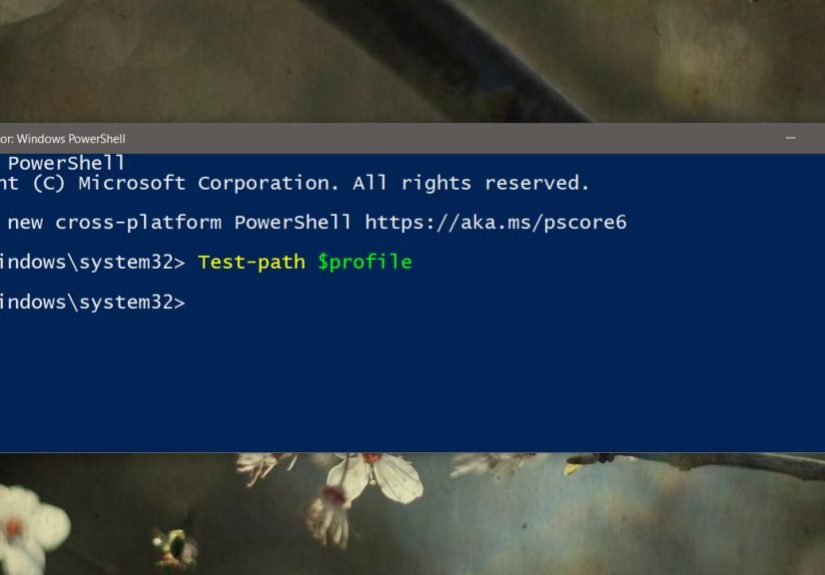
Before creating the file, check whether it already exists. In PowerShell, run:
If the result is True, your profile already exists. If the result is False, PowerShell knows where the profile belongs, but the file has not been created yet. No drama. No confetti. Just an empty parking spot waiting for your script.
How to Create a PowerShell Profile on Windows 10
To create the profile file and any missing folders, run this command:
The -Force parameter is helpful because it creates the necessary folders if they do not already exist. After the command runs, you should have a new Microsoft.PowerShell_profile.ps1 file in your WindowsPowerShell folder.
Step-by-Step Summary
- Open Windows PowerShell.
- Run
$PROFILEto view the profile path. - Run
Test-Path $PROFILEto check whether it exists. - If it does not exist, run
New-Item -Path $PROFILE -ItemType File -Force. - Open the file in a text editor.
- Add your custom commands.
- Save the file and restart PowerShell.
How to Edit Your PowerShell Profile
After creating the file, open it with Notepad:
If you use Visual Studio Code, you can open it with:
Notepad is perfectly fine for simple edits. Visual Studio Code is better if you want syntax highlighting, extensions, and a more comfortable editing experience. Either way, the profile is just a script file. Edit it, save it, and open a new PowerShell window to test it.
Useful Things to Add to a PowerShell Profile
Now comes the fun part: deciding what to put in your profile. Start small. A profile should make PowerShell easier to use, not slower, louder, or more confusing. Below are practical examples that work well for many Windows 10 users.
1. Add Folder Shortcuts
If you frequently jump into the same folder, create a function for it:
Now, instead of typing a long folder path, you can type:
You can create similar functions for Downloads, scripts, work folders, or Git repositories.
2. Create Helpful Aliases
Aliases let you create shorter names for commands. For example:
After saving this in your profile, typing np opens Notepad. Simple, useful, and less likely to make your fingers file a complaint.
Use aliases carefully. They are great for interactive shortcuts, but functions are usually better when you need parameters or more complex behavior.
3. Add a Custom Prompt
The default PowerShell prompt can get long when you are deep inside folders. You can make it shorter with a custom prompt function:
This prompt displays only the current folder name instead of the full path. It keeps the screen cleaner, especially when working in deeply nested project directories.
4. Import Modules Automatically
If you use a module regularly, import it from your profile:
PSReadLine improves the PowerShell command-line editing experience with features such as syntax coloring, better history, customizable key bindings, and command-line editing enhancements. Some features depend on the PowerShell version you are using, but it remains one of the most useful modules for interactive shell work.
5. Add a Friendly Startup Message
A startup message is not necessary, but it can be fun:
Use this lightly. A short message is charming. A paragraph of motivational wisdom every time you open PowerShell becomes digital wallpaper very quickly.
A Simple Beginner-Friendly PowerShell Profile Example
Here is a clean starter profile you can copy, adjust, and use:
This profile keeps things practical. It adds folder shortcuts, a Notepad alias, a shorter prompt, and a friendly startup line. You can expand it as your workflow grows.
How to Reload Your Profile Without Restarting PowerShell
After editing your profile, you do not always need to close and reopen PowerShell. You can reload it with dot sourcing:
Notice the dot, then a space, then $PROFILE. This command runs the profile in the current session, making new functions and aliases available immediately. It is perfect for testing changes.
Fixing the “Running Scripts Is Disabled” Error
Sometimes, after creating a profile, PowerShell may show an error saying scripts are disabled on the system. This usually involves the execution policy, which controls when PowerShell can load scripts and configuration files.
To check your current execution policy, run:
For a personal Windows 10 machine, many users choose to allow locally created scripts by setting the current user policy to RemoteSigned:
This setting affects the current user instead of the entire computer, which is usually safer and does not require changing policy for every account. If your computer is managed by a school, company, or organization, Group Policy may override your choice. In that case, do not wrestle the machine like it owes you money; ask the administrator or follow your organization’s security rules.
PowerShell Profile Best Practices
A PowerShell profile can become messy if you treat it like a junk drawer. Keep it organized from the beginning. Future you will be grateful, and future you is already dealing with enough browser tabs.
Keep It Fast
Your profile runs every time PowerShell starts. Avoid slow network calls, large scripts, heavy module imports, or commands that pause the session. If startup begins to feel sluggish, temporarily rename your profile and test PowerShell again.
Add Comments
Use comments to explain why a function exists:
Clear comments make your profile easier to maintain, especially when you return months later and wonder why you created a command called banana.
Back Up Your Profile
Your profile is worth backing up if it contains important shortcuts and functions. You can copy it to a safe folder, store it in a private Git repository, or sync it with your normal backup system.
Avoid Risky Commands
Do not put destructive commands in your profile. Commands that delete files, modify system settings, or make network changes should not run automatically when a shell opens. Your profile should prepare your workspace, not surprise-attack your computer.
Windows PowerShell 5.1 vs. PowerShell 7 Profiles
On Windows 10, Windows PowerShell 5.1 and PowerShell 7 use different profile folders. Windows PowerShell 5.1 usually stores profiles under:
PowerShell 7 usually stores profiles under:
This matters because customizing one profile does not always customize the other. If you open Windows PowerShell and PowerShell 7 and see different behavior, check the value of $PROFILE in each one. The answer is usually hiding there, wearing a tiny detective hat.
How to Troubleshoot a Broken PowerShell Profile
If PowerShell opens with errors after you edit the profile, do not panic. Most profile problems come from a typo, a missing module, an invalid path, or a command that works only in a specific host.
Start PowerShell Without Loading the Profile
You can launch PowerShell without loading profiles by using the -NoProfile option:
This lets you open a clean session and fix the file. It is the PowerShell equivalent of entering through the side door when the front door is covered in error messages.
Comment Out Recent Changes
If the profile broke after your last edit, comment out the newest lines by placing # at the beginning of each line. Reload the profile and test again. Add commands back one by one until you find the problem.
Check Paths Before Using Them
If your profile depends on a folder, test it first:
This prevents errors when a folder has been moved, renamed, or not yet created.
Practical Experience: What I Learned from Using PowerShell Profiles on Windows 10
The best PowerShell profile is usually born from mild annoyance. You type the same folder path ten times. You import the same module every morning. You run the same command to check a service, open a log folder, or jump into a project directory. At first, it feels harmless. Then one day you realize your keyboard has been doing cardio for no reason.
In real-world Windows 10 use, the most valuable profile customizations are rarely the fanciest ones. They are the tiny helpers that remove repeated work. A folder shortcut like projects can save more time than a complicated 40-line function you use twice a year. A simple alias for Notepad or a custom function that opens your scripts folder may become part of your muscle memory within a week.
Another practical lesson is to build your profile slowly. It is tempting to search the internet, copy a giant profile, and instantly transform your console into something that looks like it belongs in a hacker movie. That can be fun, but it often creates confusion. When something breaks, you do not know which line caused it. A better approach is to add one useful command, test it, use it for a few days, and then add another.
Performance also matters. A profile that loads instantly feels invisible in the best possible way. A profile that takes five seconds to load becomes annoying quickly, especially if you open new PowerShell windows all day. Avoid commands that reach across the network, call external tools unnecessarily, or import large modules you only use occasionally. If a module is not needed in every session, load it manually when required.
Good naming is another underrated skill. Choose function names that are short but clear. A function called logs is easy to remember if it opens your log folder. A function called x1 may feel clever for about four minutes, then become a riddle left by your past self. Your profile should feel like a helpful assistant, not an escape room.
It is also wise to keep a backup. Once your PowerShell profile becomes part of your workflow, losing it feels surprisingly inconvenient. Copy the file to a backup folder or keep it in a private repository. If you set up a new Windows 10 computer later, restoring your profile can make the machine feel familiar almost immediately.
Finally, remember that the goal is comfort, not complexity. A PowerShell profile should help you move faster, reduce typing, and make the console feel like your workspace. Start with a few folder shortcuts, a clean prompt, and one or two aliases. Over time, your profile will grow naturally around the way you actually work. That is when PowerShell starts feeling less like a plain command window and more like a well-organized toolbox.
Conclusion
Creating a PowerShell profile on Windows 10 is one of the easiest ways to personalize and speed up your command-line workflow. The process is simple: check the $PROFILE path, create the file with New-Item, edit it with Notepad or Visual Studio Code, and add the functions, aliases, modules, and prompt settings that make your daily work smoother.
The key is to keep your profile practical. Add shortcuts you genuinely use. Avoid risky startup commands. Keep the file organized with comments. Test changes as you go. If something breaks, launch PowerShell with -NoProfile, fix the issue, and carry on like the calm, command-line professional you are becoming.
A well-made PowerShell profile does not need to be flashy. It just needs to save time, reduce repetition, and make Windows 10 PowerShell feel more like your own environment. Once you create one, you may wonder why you waited so long.