Table of Contents >> Show >> Hide
- What “Recording Audio With Chrome Using HTML5” Really Means
- Why Chrome Is a Great Fit for Browser-Based Audio Recording
- Key Requirements Before You Start
- The Basic HTML5 and JavaScript Setup
- Understanding File Formats and MIME Types
- How to Improve Audio Quality
- Common Errors and How to Handle Them
- UX Tips for a Better Recorder
- Debugging Audio Recording in Chrome
- Real-World Use Cases
- Best Practices for Production
- Conclusion
- Experience Notes: What Building Chrome Audio Recorders Actually Feels Like
Recording audio in Chrome with HTML5 feels a little like modern web magic. One minute you have a plain old webpage. The next minute, your browser is politely asking for microphone access, capturing voice input, and turning it into a downloadable audio file without begging users to install a sketchy plugin from 2011. That is a huge win for developers, users, and anyone who still has flashbacks from the phrase “Please update Java.”
If you want to build a voice memo tool, an interview recorder, a language-learning app, a podcast note taker, or a support widget that captures spoken feedback, Chrome gives you a powerful path through standard web APIs. The phrase Recording Audio With Chrome Using HTML5 usually refers to a stack built around getUserMedia(), MediaRecorder, and a little bit of JavaScript glue. HTML5 sets the stage, while browser media APIs do the heavy lifting.
In this guide, we will break down how Chrome audio recording works, what developers need to watch out for, how to improve recording quality, and why some microphone prompts feel smooth while others feel like they were designed by a raccoon on espresso.
What “Recording Audio With Chrome Using HTML5” Really Means
Let’s clear up one common misunderstanding right away. HTML by itself does not record sound. It can display controls, structure the page, and host media elements, but the actual recording workflow depends on web APIs that modern browsers expose to JavaScript.
In Chrome, the typical flow looks like this:
1. Ask for microphone access
Your code calls navigator.mediaDevices.getUserMedia({ audio: true }). Chrome then asks the user for permission to use the microphone. If the user says yes, you get a live audio stream.
2. Create a recorder
You pass that stream into new MediaRecorder(stream). This creates a recorder object that can start and stop capture.
3. Collect chunks
As recording happens, Chrome fires dataavailable events. These contain chunks of audio data that you can store in an array.
4. Save or upload the result
When recording stops, you combine the chunks into a Blob. From there, you can let users preview the clip in an <audio> element, download it, or upload it to a server.
That is the whole concept in plain English: ask, record, collect, save. Elegant. Slightly dramatic. Very useful.
Why Chrome Is a Great Fit for Browser-Based Audio Recording
Chrome has long been one of the strongest browsers for real-time media work. It supports the core APIs needed for HTML5 audio recording, handles microphone permissions in a familiar way, and gives developers debugging tools for media behavior. For teams building browser-based voice features, that matters.
Chrome is especially attractive when you want to:
- Record voice notes directly in the browser
- Capture audio for customer support or user feedback
- Build online language practice tools
- Create a web-based podcast draft recorder
- Support quick audio uploads without native apps
There is also a big user experience benefit here. Recording inside the browser removes friction. No separate app, no extra installer, no “please locate your temporary audio driver,” and no mysterious toolbar from an unrelated weather service.
Key Requirements Before You Start
Before your Chrome audio recording feature works, a few technical rules must be respected.
Use HTTPS
Microphone access is considered sensitive, so your site generally needs to run in a secure context. In practical terms, that means HTTPS in production. Localhost works during development, but a random non-secure page on the public web will not get very far.
Handle permissions gracefully
Users can allow access, deny access, or simply stare at the prompt and ignore it like it is a gym membership reminder. Your code needs to handle all three possibilities. A clean interface should explain why microphone access is needed before the prompt appears.
Expect hardware and browser variation
Not all microphones are created equal. Laptop mics, USB headsets, Bluetooth earbuds, and studio gear behave differently. Your app should not assume the input will be crisp, loud, or free from background fan noise. Some users are basically recording next to a jet engine disguised as an office PC.
The Basic HTML5 and JavaScript Setup
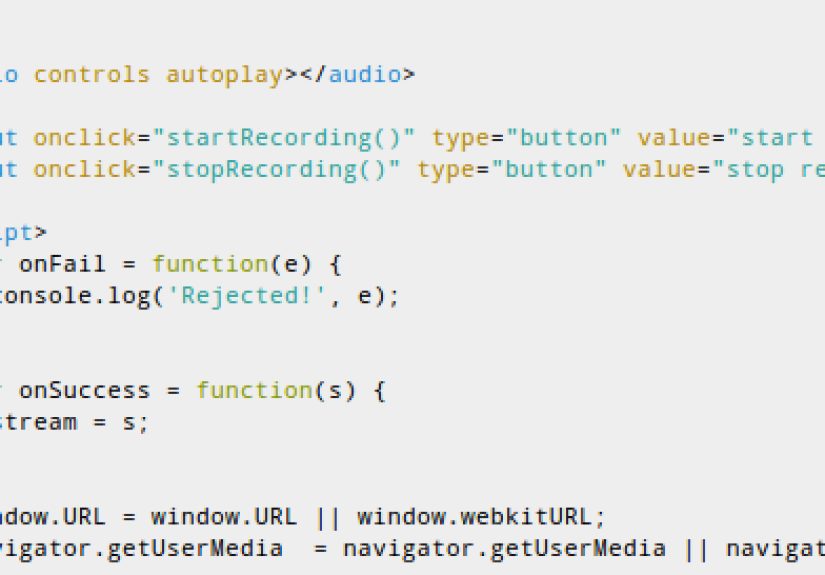
Here is a simple example of how a recorder can be structured in Chrome using HTML5 and JavaScript:
This example is intentionally small, but it demonstrates the heart of the process. Once you understand this pattern, you can expand it with timers, waveform displays, upload buttons, pause and resume controls, file naming, and error messaging.
Understanding File Formats and MIME Types
One of the most practical questions in Recording Audio With Chrome Using HTML5 is simple: what format will I get back?
The answer depends on browser support and how you configure MediaRecorder. Chrome commonly works well with WebM-based output for recorded audio. Developers often check supported types with MediaRecorder.isTypeSupported() before choosing a MIME type.
This matters because file format affects compatibility, file size, and audio quality. If your backend pipeline expects a specific format, do not guess. Test your target browsers and devices carefully.
How to Improve Audio Quality
Good audio recording is not just about hitting the red button. It is also about making the captured sound usable. Chrome supports audio constraints that can help shape microphone input. Depending on device support, you can request features such as echo cancellation, noise suppression, and automatic gain control.
These settings can make speech clearer in many real-world scenarios, especially for meetings, casual voice notes, and customer recordings. Still, there is no miracle switch that turns a crowded coffee shop into a broadcast studio. Constraints help, but they do not repeal the laws of acoustics.
If audio quality is mission-critical, follow these best practices:
- Encourage headphones or an external microphone
- Show a mic test before recording begins
- Display recording level feedback when possible
- Warn users about noisy environments
- Keep the microphone close to the speaker
Common Errors and How to Handle Them
Browser media apps fail in predictable ways. The good news is that predictable problems are easier to fix than mysterious ones.
NotAllowedError
This usually means the user denied microphone permission, or the page does not meet permission requirements. Your UI should respond with a friendly explanation, not a silent blank screen that makes users wonder whether the app retired mid-session.
NotFoundError
This appears when no matching audio input device is available. In plain English: there is no usable microphone, or the selected one is not actually connected.
Overconstrained situations
If you request very specific constraints that the device cannot satisfy, the stream request can fail. Be careful with exact values and test across a range of hardware.
Hanging permission requests
Sometimes users do not accept or reject the prompt right away. Build your interface so it can survive that awkward limbo without looking broken.
UX Tips for a Better Recorder
Great recording tools feel obvious. Bad ones feel like little legal traps with buttons. If you want your HTML5 audio recorder to work well in Chrome, the interface matters almost as much as the API calls.
Tell users what happens before the browser prompt
A short note such as “We use your microphone only to record your message” increases trust and reduces denial rates.
Show recording state clearly
Use obvious labels like “Recording,” “Paused,” and “Saved.” A timer helps too. People relax when they know the app is actually listening on purpose.
Offer playback before upload
Users love a second chance. Let them preview the clip before sending it. This saves support headaches and prevents accidental uploads of coughs, keyboard smashes, or a confused “Wait, is this on?”
Stop the stream after recording
Always stop media tracks when you are done. Leaving the microphone active is bad for trust, bad for resources, and bad for the little mic indicator that keeps looking suspiciously alive.
Debugging Audio Recording in Chrome
When something goes wrong, Chrome gives developers useful ways to investigate. DevTools includes media-related debugging support, and it is worth using when recordings fail, permissions behave oddly, or playback looks fine but sounds like a haunted ceiling fan.
Debugging should focus on:
- Whether the microphone permission was granted
- Whether the audio stream was actually created
- Whether chunks are being emitted by
MediaRecorder - What MIME type was selected
- Whether the tracks were stopped correctly
You should also log the recorder state and any thrown errors. The difference between “nothing happened” and “NotAllowedError on insecure origin” is the difference between a five-minute fix and a long afternoon filled with dramatic sighing.
Real-World Use Cases
The beauty of browser-based audio recording is that it scales from tiny tools to major products.
Voice feedback widgets
Instead of forcing users to type a wall of text, you can let them record a spoken message. This is especially helpful on mobile devices.
Online education
Students can submit pronunciation exercises, oral presentations, or language practice clips straight from the browser.
Interview and research tools
Researchers and journalists can create quick web-based recorders for capturing short interviews, notes, or observations.
Telehealth and accessibility features
Audio input can reduce friction for users who prefer speaking over typing or who benefit from simpler interaction patterns.
Best Practices for Production
If you are moving beyond a demo, keep these production habits in mind:
- Test on Windows, macOS, Android, and ChromeOS if relevant
- Provide permission guidance before the browser prompt
- Use feature detection instead of assumptions
- Check supported MIME types at runtime
- Keep recordings short if upload speed is a concern
- Compress or transcode on the server when needed
- Be transparent about privacy and storage policies
Also remember that users do not care how elegant your code is if the record button fails. Reliability is the real flex.
Conclusion
Recording Audio With Chrome Using HTML5 is one of those web capabilities that feels simple on the surface and surprisingly rich underneath. Chrome makes it possible to capture microphone input, process it in the browser, and save or upload the result with standard APIs that fit naturally into modern web apps.
The winning formula is straightforward: request microphone access responsibly, use MediaRecorder intelligently, choose formats carefully, handle errors like an adult, and design the interface for real humans instead of imaginary perfect testers in silent rooms. Do that well, and your web recorder can feel fast, trustworthy, and delightfully friction-free.
In other words, the browser is no longer just where users click buttons. It is where real media work gets done.
Experience Notes: What Building Chrome Audio Recorders Actually Feels Like
In practice, working on audio recording features in Chrome is a mix of satisfaction, humility, and occasional detective work. The satisfaction comes from how quickly a prototype can come together. You can build a working recorder in one afternoon, add a start button, a stop button, and a playback preview, and suddenly your app feels ten times more alive. Few front-end features give such an immediate sense of payoff. One permission prompt, one short recording, and users instantly understand the value.
The humility shows up when you move from demo mode into real-world use. In test environments, everything sounds clean because the developer is sitting in a quiet room with a decent microphone and unrealistic confidence. Then actual users arrive. One person records from a laptop in a kitchen with clanking dishes. Another uses a Bluetooth headset with a weak battery. Someone else denies permission, reloads the page, and then writes to support saying the microphone is “probably broken.” This is when you realize the recorder is not just a technical feature. It is a user experience feature, a trust feature, and sometimes a customer education feature.
One of the most useful lessons developers learn is that the permission prompt is not the beginning of the journey from the user’s point of view. The journey starts before that. A simple line of text explaining why the microphone is needed can dramatically improve the experience. People are far more willing to click “Allow” when they know exactly what happens next. Without that context, the prompt feels abrupt, and abrupt prompts get denied.
Another recurring experience is discovering that audio quality is rarely just a code problem. Developers love toggles like noiseSuppression and echoCancellation, and those absolutely help, but they do not perform magic. If a user records in a noisy café while rubbing the laptop mic with a sleeve, the browser cannot fully rescue the situation. This is why practical apps often need guidance built into the interface: speak clearly, stay close to the mic, reduce background noise, and preview the clip before submitting.
Teams that ship recording features also learn to appreciate the little details. A live timer reassures users that recording is active. A playback button reduces mistakes. A visible state change after saving helps prevent duplicate recordings. Even something as small as disabling the start button during active capture can prevent weird edge cases and accidental double clicks. These choices do not look glamorous in sprint planning, but they make the product feel polished.
Perhaps the biggest real-world takeaway is this: browser audio recording in Chrome is no longer a novelty. It is a practical, dependable part of modern web development when handled carefully. The APIs are mature enough to do serious work, but the best results come from combining technical correctness with empathy for users, devices, environments, and expectations. Build for that messy reality, and your recorder stops being a neat demo and becomes a genuinely useful tool.