Table of Contents >> Show >> Hide
- What Is Launchpad on a Mac?
- Why Use Launchpad Instead of Finder or Spotlight?
- Method 1: Open Launchpad from the Dock
- Method 2: Use the Trackpad Gesture
- Method 3: Use a Keyboard Shortcut
- Method 4: Open Launchpad with Hot Corners
- Bonus Tip: Search Inside Launchpad
- How to Organize Apps in Launchpad
- What to Do If Launchpad Will Not Open
- Which Launchpad Method Is Best?
- Real-World Experience: Using Launchpad Faster Every Day
- Conclusion
Note: This guide focuses on Mac versions that include Launchpad, such as macOS Sequoia and earlier. On newer macOS Tahoe systems, Apple’s app-browsing experience is handled through the Apps interface inside Spotlight, so some Launchpad labels may appear as “Apps” instead.
Launchpad is one of those Mac features that feels almost too simpleuntil you start using it properly. It gives you a clean, iPhone-like grid of your installed applications, making it easy to find Pages, Photos, Safari, Notes, System Settings, or that one app you downloaded six months ago and immediately forgot existed. Instead of digging through Finder like you are searching for buried treasure, Launchpad lets you see your apps in one convenient place.
The good news is that there is more than one way to open Launchpad on a Mac. In fact, there are several quick methods, and the best one depends on how you use your computer. Some people love the trackpad gesture because it feels fast and natural. Others prefer the Dock because it is visual and impossible to forget. Keyboard fans may want a shortcut, while productivity-minded users may enjoy setting up Hot Corners.
In this guide, you will learn four practical ways to quickly open Launchpad on a Mac, plus useful troubleshooting tips, setup advice, and real-world experience notes to help you choose the fastest method for your workflow. Whether you are new to macOS or simply tired of opening Finder every time you need an app, this article will help you launch apps faster and make your Mac feel a little more organized.
What Is Launchpad on a Mac?
Launchpad is a built-in macOS feature designed to display your installed apps in a full-screen grid. It is especially helpful if you like browsing visually instead of typing app names into Spotlight. Apps from the Mac App Store usually appear automatically, and many apps installed in the Applications folder show up there as well.
Think of Launchpad as the Mac’s app drawer. It is not the only way to open apps, but it is one of the most beginner-friendly. You can click an app icon, search inside Launchpad, move apps around, group apps into folders, and move between pages of apps. If your desktop looks like a tornado had a meeting with a downloads folder, Launchpad can bring some peace back to your screen.
Why Use Launchpad Instead of Finder or Spotlight?
Finder, Spotlight, Siri, the Dock, and the Applications folder can all open Mac apps. So why bother with Launchpad? The answer is speed and visibility. Launchpad lets you see many apps at once, which is useful when you remember an app icon but not its exact name. It is also handy for casual users who prefer clicking over typing.
Spotlight is excellent when you already know what you want. Press Command + Space, type “Calendar,” and you are there. Launchpad is better when you want to browse, organize, or quickly scan everything installed on your Mac. It is also helpful for users transitioning from iPhone or iPad because the layout feels familiar.
Method 1: Open Launchpad from the Dock
The easiest way to open Launchpad is from the Dock. On many Mac setups, the Launchpad icon appears near the left side of the Dock. It usually looks like a grid of colorful app icons. Click it once, and Launchpad opens immediately.
How to Open Launchpad from the Dock
- Look at the Dock, usually located at the bottom of your screen.
- Find the Launchpad icon, which looks like a grid of app icons.
- Click the icon once.
- Launchpad will open and display your apps.
This method is ideal for beginners because it does not require memorizing shortcuts or adjusting settings. It is also reliable if you use a mouse instead of a trackpad. If you are helping someone new to Mac, this is the method to teach first. It is simple, visible, and unlikely to cause confusion.
What If the Launchpad Icon Is Missing from the Dock?
If Launchpad is not in your Dock, do not panic. Your Mac is not broken, and no tiny software goblin has stolen it. Open Finder, go to the Applications folder, and look for Launchpad if your macOS version still includes it as an app. You can then drag it to the Dock for quick access. On newer macOS versions where Launchpad has been replaced by Apps or Spotlight-based app browsing, you may see an Apps icon instead.
For users who want the fastest visual method, keeping Launchpad in the Dock is a smart move. It takes up only a little space and gives you one-click access to your installed apps.
Method 2: Use the Trackpad Gesture
If your Mac has a built-in Multi-Touch trackpad or you use a Magic Trackpad, the gesture method may be the smoothest way to open Launchpad. The classic gesture is to pinch your thumb and three fingers together on the trackpad. When done correctly, Launchpad appears instantly.
How to Open Launchpad with a Trackpad
- Place your thumb and three fingers on the trackpad.
- Pinch them together toward the center.
- Launchpad should open immediately.
- To close it, click outside the app grid, press Esc, or use the opposite gesture if supported.
This method feels natural after a little practice. At first, you may feel like you are trying to perform a tiny magic trick on a glass rectangle. After a day or two, however, it becomes second nature. It is especially useful on MacBook Air and MacBook Pro models because the trackpad is already under your fingers while you work.
How to Check If the Gesture Is Enabled
If the gesture does not work, open System Settings and go to Trackpad. Look under the gesture options, especially the section for additional or advanced gestures. Depending on your macOS version, you may see an option for showing Launchpad or Apps. Make sure it is turned on.
Trackpad gestures are great for people who like fluid movement and minimal clicking. They are also excellent for students, writers, designers, and anyone who jumps between apps frequently. Once you learn the gesture, opening Launchpad feels faster than moving your pointer down to the Dock.
Method 3: Use a Keyboard Shortcut
Keyboard shortcuts are perfect for users who want speed without moving their hands away from the keyboard. On some Apple keyboards, especially older models, the F4 key may show a Launchpad symbol. Pressing that key can open Launchpad directly. Depending on your keyboard settings, you may need to press Fn + F4 or Globe + F4 instead.
How to Try the Default Launchpad Shortcut
- Press F4 on your keyboard.
- If nothing happens, try Fn + F4.
- If your keyboard has a Globe key, try Globe + F4.
- If Launchpad opens, you have found your shortcut.
Not every Mac keyboard behaves the same way. Some top-row keys control brightness, volume, Mission Control, or media playback unless you hold the Fn or Globe key. That is why F4 may work instantly for one person and do absolutely nothing for another. Macs like to be elegant, but occasionally they also enjoy keeping us humble.
How to Create or Change a Launchpad Shortcut
If the default shortcut does not work, you can create your own. Open System Settings, go to Keyboard, then Keyboard Shortcuts. Look for Launchpad & Dock or a similar section. If “Show Launchpad” appears, select it and assign a shortcut that is easy to remember.
A practical shortcut is Option + Space, because Command + Space is commonly used for Spotlight. However, choose a combination that does not conflict with another shortcut you use often. Avoid shortcuts that interfere with text editing, screenshots, or app-specific commands.
Keyboard shortcuts are best for power users, writers, developers, and anyone who spends most of the day typing. Once set up, this method is extremely fast. Press the shortcut, type the first few letters of an app inside Launchpad, press Return, and you are moving before your coffee has cooled.
Method 4: Open Launchpad with Hot Corners
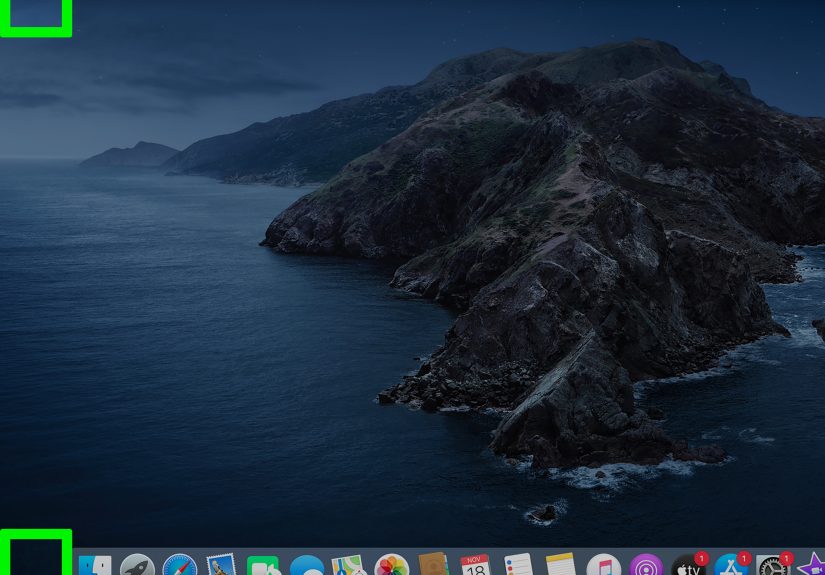
Hot Corners are one of the most underrated macOS productivity features. They let you trigger actions by moving your pointer to a corner of the screen. You can use Hot Corners to start a screen saver, show Mission Control, lock the screen, show the desktop, or open Launchpad on supported macOS versions.
How to Set Up a Hot Corner for Launchpad
- Open System Settings.
- Go to Desktop & Dock or the relevant desktop settings section.
- Scroll to find Hot Corners.
- Choose one corner of the screen.
- Select Launchpad from the available actions.
- Click Done or confirm your settings.
After setup, move your pointer to that corner, and Launchpad opens. This is a great option if you use a mouse, external monitor, or desktop Mac. It is also helpful if you do not want to remember a shortcut or perform a trackpad gesture.
How to Avoid Accidental Hot Corner Triggers
Hot Corners are powerful, but they can be a little dramatic. If you accidentally trigger Launchpad every time you aim for a menu or scroll bar, choose a less busy corner. For example, the bottom-right corner may be safer than the top-left corner if you often use the Apple menu.
Some macOS versions allow you to combine Hot Corners with modifier keys. That means Launchpad opens only when you hold a key, such as Option or Command, while moving the pointer into the corner. This prevents accidental launches and makes the feature feel more intentional.
Bonus Tip: Search Inside Launchpad
Opening Launchpad is only half the story. Once you are inside it, you do not have to swipe through page after page like you are browsing a very tiny app museum. Just start typing the name of the app. Launchpad automatically filters the results.
For example, if you want Calculator, open Launchpad and type “calc.” If you want System Settings, type “settings.” This makes Launchpad much faster, especially if you have many apps installed. The search field is one of the best parts of Launchpad because it combines visual browsing with keyboard speed.
How to Organize Apps in Launchpad
Launchpad becomes more useful when it is organized. You can drag app icons around, move them to different pages, and create folders by dragging one app onto another. For example, you might create folders for Work, School, Creative Tools, Utilities, Games, or Finance.
A clean Launchpad layout saves time because your eyes know where to go. Put your most-used apps on the first page. Move rarely used utilities to later pages or folders. If your Launchpad has become chaotic, spend ten minutes organizing it. Future you will be grateful, and future you deserves nice things.
What to Do If Launchpad Will Not Open
If Launchpad does not open, try a few simple fixes. First, restart your Mac. This solves more problems than anyone wants to admit. Next, check whether your macOS version still includes Launchpad or uses the newer Apps interface. Then confirm that your Dock icon, keyboard shortcut, trackpad gesture, or Hot Corner is still enabled.
You can also try opening apps through Spotlight by pressing Command + Space, typing the app name, and pressing Return. If your goal is simply to launch an app quickly, Spotlight may be the fastest backup method. If you specifically want the visual Launchpad experience, check whether your macOS version supports it.
Which Launchpad Method Is Best?
The best method depends on your habits. If you are a beginner, use the Dock. It is clear, visual, and easy to remember. If you use a MacBook trackpad all day, learn the pinch gesture. If you prefer fast keyboard control, set up a shortcut. If you use a mouse or external display, Hot Corners may feel surprisingly convenient.
There is no single “correct” way to open Launchpad. The real goal is to reduce friction. Your Mac should help you get to your apps quickly, not make you feel like you are solving a puzzle in a spy movie. Try all four methods and keep the one that feels easiest.
Real-World Experience: Using Launchpad Faster Every Day
After using Launchpad across different Mac setups, one thing becomes clear: the fastest method is not always the flashiest one. It is the method you can remember without thinking. On a MacBook, the trackpad gesture often wins because your hand is already on the trackpad. Pinching with your thumb and three fingers takes less than a second once the movement becomes natural.
However, the Dock method remains the most dependable. It works well for users who dislike gestures, use a mouse, or share a Mac with family members. When someone asks, “Where are my apps?” pointing to the Launchpad icon in the Dock is much easier than explaining a four-finger gesture that sounds like a yoga pose for your hand.
The keyboard shortcut method is excellent for focused work. If you write, code, research, or study for long periods, keeping your hands on the keyboard matters. A custom shortcut can make Launchpad feel like part of your workflow instead of a separate place you have to visit. The best setup is to open Launchpad with a shortcut, type the first letters of the app, and press Return. It is fast, clean, and wonderfully nerdy in the best possible way.
Hot Corners are more personal. Some users love them immediately; others trigger them by accident and declare emotional war on their screen corners. The trick is choosing the right corner. If you rarely move your pointer to the top-right corner, that may be a good Launchpad trigger. If you often use that corner for menus or notifications, pick another one or add a modifier key if your system allows it.
One helpful habit is to combine methods. For example, keep Launchpad in the Dock for visibility, use the trackpad gesture on your MacBook, and keep Spotlight as a backup for direct app launching. This way, you are never stuck. If one method feels awkward because you are using an external keyboard or mouse, another method is ready.
Another practical experience tip: do not overload the first Launchpad page. Many users let every new app land wherever macOS puts it, then wonder why Launchpad feels messy. Move your daily apps to the first page and group the rest into folders. A little organization turns Launchpad from a digital junk drawer into a useful command center.
If you use both a MacBook and an external monitor, test your preferred method in both setups. Gestures may feel perfect on the laptop, while Hot Corners may feel better with a mouse. Keyboard shortcuts usually work well everywhere, which is why many productivity-focused users eventually rely on them most.
Finally, remember that Launchpad is meant to reduce effort. If opening it feels slower than pressing Command + Space and typing the app name, use Spotlight instead. macOS gives you several ways to reach the same destination. The best Mac workflow is not the one that looks most impressive; it is the one that gets you to your app before you forget why you opened it.
Conclusion
Learning how to quickly open Launchpad on a Mac can make everyday app launching smoother and more enjoyable. The four best methods are simple: click Launchpad in the Dock, use the trackpad gesture, press a keyboard shortcut, or set up a Hot Corner. Each option fits a different style of Mac user, from casual clickers to shortcut-loving power users.
If you want the easiest method, use the Dock. If you want the most natural MacBook method, use the trackpad gesture. If you want speed while typing, create a keyboard shortcut. If you want a clever pointer-based action, try Hot Corners. Once you find the method that matches your habits, Launchpad becomes less of a hidden feature and more of a daily productivity shortcut.