Table of Contents >> Show >> Hide
- What Is an Alexa Timer?
- How to Set Timers on Alexa: 12 Steps
- Step 1: Make Sure Your Alexa Device Is Ready
- Step 2: Say the Wake Word Clearly
- Step 3: Set a Basic Timer
- Step 4: Set a Named Timer
- Step 5: Set Multiple Timers
- Step 6: Ask How Much Time Is Left
- Step 7: Add Time to an Existing Timer
- Step 8: Remove Time from a Timer
- Step 9: Pause and Resume a Timer
- Step 10: Stop or Cancel a Timer
- Step 11: Set a Sleep Timer
- Step 12: Manage Timers in the Alexa App
- Best Alexa Timer Commands to Remember
- Practical Ways to Use Alexa Timers
- Troubleshooting: What If Alexa Timers Do Not Work?
- Tips for Better Alexa Timer Accuracy
- Common Mistakes When Setting Alexa Timers
- FAQ About Alexa Timers
- Extra Experience Notes: Real-Life Lessons From Using Alexa Timers
- Conclusion
There are two types of people in this world: people who use timers, and people who say, “I’ll remember,” then discover their pasta has become a science experiment. Fortunately, Alexa exists for the rest of us. Whether you’re cooking, doing laundry, timing a workout, keeping kids on schedule, or trying not to burn garlic into a tiny bitter tragedy, Alexa timers are one of the easiest and most useful features on Amazon Echo devices.
The best part? You do not need to tap through menus, unlock your phone, or remember where you put the kitchen timer from 2009. You can simply speak. Alexa can set regular timers, named timers, multiple timers, sleep timers, and timers you can manage from the Alexa app. On Echo Show devices, you can even ask to see your timers on the screen, which is extremely helpful when your kitchen looks like a cooking show finale and your brain has left the building.
This guide explains how to set timers on Alexa in 12 easy steps, with practical examples, troubleshooting tips, and real-life experience notes at the end. Let’s make time behave itself.
What Is an Alexa Timer?
An Alexa timer is a countdown you create using your voice or the Alexa app. Instead of setting an alert for a specific clock time, like 7:00 a.m., you set a duration: 5 minutes, 20 minutes, 1 hour, or whatever your task needs.
For example, you might say, “Alexa, set a 10-minute timer.” Alexa starts counting down immediately and alerts you when time is up. This is different from an alarm, which is tied to a specific time of day, and different from a reminder, which usually includes a message like “remind me to call Dad.”
Alexa Timers vs. Alarms vs. Reminders
Here is the simplest way to understand the difference:
- Timer: Counts down from a duration, such as 15 minutes.
- Alarm: Rings at a specific time, such as 6:30 a.m.
- Reminder: Tells you to do something, such as “take the laundry out.”
If you are cooking rice, use a timer. If you need to wake up tomorrow, use an alarm. If you need to remember why you walked into the garage, well, first good luck, and second, use a reminder.
How to Set Timers on Alexa: 12 Steps
Step 1: Make Sure Your Alexa Device Is Ready
Before setting a timer, make sure your Alexa-enabled device is plugged in, connected to Wi-Fi, and responding to its wake word. Most people use “Alexa,” but some devices may be set to another wake word such as “Echo,” “Amazon,” or “Computer.”
Try asking a simple question first: “Alexa, what time is it?” If Alexa responds, you are ready. If not, check your internet connection, microphone button, and device power. A timer cannot save dinner if the Echo is unplugged behind the toaster like a forgotten robot potato.
Step 2: Say the Wake Word Clearly
Start by saying your wake word. For most users, that means saying:
“Alexa…”
Wait for the device light to activate or for Alexa to begin listening. You do not need to shout unless your dishwasher is auditioning for a heavy metal band. Speak naturally and clearly.
Step 3: Set a Basic Timer
The simplest command is:
“Alexa, set a 5-minute timer.”
You can use seconds, minutes, hours, or a combination:
- “Alexa, set a 30-second timer.”
- “Alexa, set a 12-minute timer.”
- “Alexa, set a 1-hour timer.”
- “Alexa, set a 1-hour and 15-minute timer.”
Alexa will usually confirm the timer by repeating the duration. Once confirmed, the countdown begins.
Step 4: Set a Named Timer
Named timers are where Alexa becomes especially useful. Instead of having three mysterious timers going off like a game show gone wrong, you can label each one.
Try commands like:
- “Alexa, set a pasta timer for 10 minutes.”
- “Alexa, set a laundry timer for 45 minutes.”
- “Alexa, set a chicken timer for 25 minutes.”
- “Alexa, set a homework break timer for 15 minutes.”
When the timer ends, Alexa can announce the timer name, which helps you know what needs attention. This is perfect for cooking, cleaning, studying, exercising, or managing several tasks at once.
Step 5: Set Multiple Timers
Alexa can handle multiple timers at the same time. This is one of the biggest advantages over a basic kitchen timer.
For example, while cooking dinner, you can say:
- “Alexa, set a rice timer for 18 minutes.”
- “Alexa, set a vegetable timer for 7 minutes.”
- “Alexa, set a fish timer for 12 minutes.”
Now each dish has its own countdown. No more guessing whether the timer was for the oven, the sauce, or that cup of tea you made and abandoned with heroic confidence.
Step 6: Ask How Much Time Is Left
To check a timer, say:
“Alexa, how much time is left?”
If you have only one timer running, Alexa will tell you the remaining time. If you have several timers, ask about a specific one:
- “Alexa, how much time is left on the pasta timer?”
- “Alexa, how much time is left on my laundry timer?”
- “Alexa, what timers are running?”
On Echo Show devices, you can also say:
“Alexa, show me my timers.”
This displays active timers visually, which is excellent when your hands are covered in flour or your brain is busy calculating whether “golden brown” means delicious or dangerously close to smoke alarm territory.
Step 7: Add Time to an Existing Timer
Sometimes your cookies need another minute. Sometimes your laundry is “almost dry,” which is dryer language for “see you in 20 minutes.” Alexa lets you adjust timers without starting over.
Say:
- “Alexa, add 5 minutes to my timer.”
- “Alexa, add 2 minutes to the pizza timer.”
- “Alexa, add 30 seconds to the tea timer.”
This is a small feature, but it saves a surprising amount of mental juggling. Instead of canceling and resetting, you simply extend the countdown.
Step 8: Remove Time from a Timer
You can also reduce a timer when something is finishing faster than expected. For example:
- “Alexa, remove 3 minutes from my timer.”
- “Alexa, remove 1 minute from the egg timer.”
This helps when you check the oven and realize your garlic bread has entered the “dramatic transformation” stage. Removing time keeps the timer useful without making you start from scratch.
Step 9: Pause and Resume a Timer
Alexa timers can also be paused and resumed. This is helpful when you are interrupted, need to stop a task temporarily, or want to hold a countdown while you check something.
Use commands like:
- “Alexa, pause my timer.”
- “Alexa, pause the workout timer.”
- “Alexa, resume my timer.”
- “Alexa, resume the laundry timer.”
Pausing is especially useful during workouts, study sessions, board games, and cooking tasks where the next step depends on your timing.
Step 10: Stop or Cancel a Timer
When a timer is ringing, say:
“Alexa, stop.”
To cancel a timer before it rings, say:
- “Alexa, cancel my timer.”
- “Alexa, cancel the pasta timer.”
- “Alexa, delete the laundry timer.”
If you have multiple timers and simply say “cancel my timer,” Alexa may ask which timer you mean. Named timers make cancellation much easier because you can identify the exact countdown.
Step 11: Set a Sleep Timer
A sleep timer is designed to stop audio after a set period. It is useful if you fall asleep listening to music, podcasts, audiobooks, white noise, or relaxing sounds.
Try:
- “Alexa, set a sleep timer for 30 minutes.”
- “Alexa, stop music in 20 minutes.”
- “Alexa, set a sleep timer for 1 hour.”
Depending on your smart home setup, sleep timers may also work with lights, such as dimming or turning off compatible lights after a certain amount of time. This is handy for bedtime routines, although it can also expose the shocking truth that you were asleep before the first podcast ad ended.
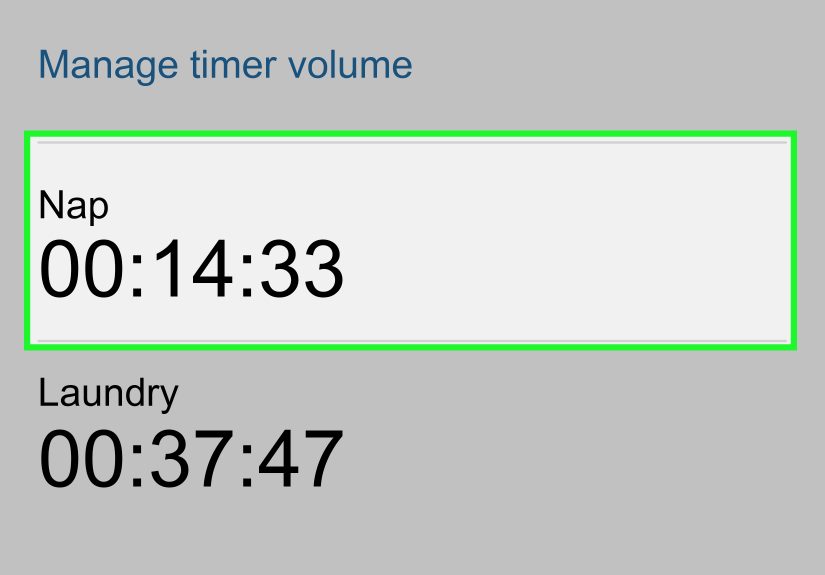
Step 12: Manage Timers in the Alexa App
You can manage timers from the Alexa app when voice commands are inconvenient. This is useful if you are away from the device, in a noisy room, or trying not to wake someone.
To manage timers in the Alexa app:
- Open the Alexa app on your phone.
- Tap More.
- Select Alarms & Timers.
- Tap the Timers tab.
- Select the timer you want to review or manage.
From there, you can check active timers and make changes depending on available options in your app version and device setup.
Best Alexa Timer Commands to Remember
Here are the most useful Alexa timer commands in one place:
- “Alexa, set a 10-minute timer.”
- “Alexa, set a pasta timer for 11 minutes.”
- “Alexa, how much time is left?”
- “Alexa, how much time is left on the laundry timer?”
- “Alexa, add 5 minutes to my timer.”
- “Alexa, remove 1 minute from the egg timer.”
- “Alexa, pause my timer.”
- “Alexa, resume my timer.”
- “Alexa, cancel the rice timer.”
- “Alexa, stop.”
- “Alexa, show me my timers.”
- “Alexa, set a sleep timer for 30 minutes.”
Practical Ways to Use Alexa Timers
Use Alexa Timers for Cooking
Cooking is probably the most common use for Alexa timers. You can set timers for boiling eggs, baking cookies, simmering sauce, roasting vegetables, steeping tea, or resting meat after cooking.
Example:
“Alexa, set a cookie timer for 12 minutes.”
Using named timers in the kitchen prevents confusion. A “12-minute timer” is fine until you also set a “5-minute timer,” a “25-minute timer,” and a “please-don’t-let-the-bread-become-charcoal timer.” Names keep the chaos civilized.
Use Alexa Timers for Laundry
Laundry is sneaky. You put clothes in the washer, blink twice, and suddenly they have been sitting there long enough to develop opinions. Try:
“Alexa, set a laundry timer for 35 minutes.”
You can also set a dryer timer, folding timer, or stain-treatment timer. This is especially useful if your laundry machines do not send phone alerts.
Use Alexa Timers for Studying
Timers can help with focused study sessions. For example, you can work for 25 minutes, then take a 5-minute break.
- “Alexa, set a study timer for 25 minutes.”
- “Alexa, set a break timer for 5 minutes.”
This method gives your brain a finish line. Without one, “I’ll study for a while” can become either three minutes or an accidental deep dive into videos about raccoons opening trash cans.
Use Alexa Timers for Workouts
Alexa timers are great for stretching, planks, interval training, meditation, breathing exercises, or rest periods between sets.
Try:
- “Alexa, set a plank timer for 45 seconds.”
- “Alexa, set a rest timer for 90 seconds.”
- “Alexa, set a stretching timer for 10 minutes.”
Voice control is useful because you do not have to touch your phone with sweaty hands. Your screen will thank you.
Troubleshooting: What If Alexa Timers Do Not Work?
Alexa Did Not Hear the Command
If Alexa sets the wrong timer or does not respond, speak clearly and reduce background noise. Move the Echo device away from loud appliances, televisions, running water, or music speakers.
The Timer Did Not Go Off
If your Alexa timer does not ring, check whether the device is connected to power and Wi-Fi. You can also restart the device by unplugging it, waiting briefly, and plugging it back in. Make sure your Alexa device has the latest software updates.
The Timer Volume Is Too Low
If you cannot hear timer alerts, adjust the alarm and timer volume in the Alexa app. Open the app, go to More, choose Alarms & Timers, open settings, and adjust the volume slider. This is especially important in kitchens, laundry rooms, garages, and other noisy spaces.
Alexa Cancels the Wrong Timer
If you have multiple timers, use names. Instead of “cancel my timer,” say “cancel the pasta timer.” The more specific you are, the less likely Alexa is to guess wrong. Alexa is smart, but she is not psychic. Yet.
Your Echo Show Does Not Display Timers Automatically
On Echo Show devices, ask directly: “Alexa, show me my timers.” Display behavior can vary by device, software version, and screen activity. If you rely heavily on visual timers, keeping the device updated helps.
Tips for Better Alexa Timer Accuracy
Name Every Important Timer
Named timers are easier to check, stop, cancel, and understand. This is the biggest habit upgrade for anyone who uses Alexa daily.
Use Simple Timer Names
Choose names Alexa can easily understand. “Pasta,” “laundry,” “tea,” “pizza,” and “workout” are better than “the thing in the oven that may or may not be done depending on vibes.”
Repeat the Command If Needed
If Alexa confirms something incorrectly, cancel it and set it again. Do not assume the timer is right if the confirmation sounds wrong.
Place Echo Devices Strategically
For kitchen timers, put an Echo device within speaking distance but away from steam, splashes, and heat. For laundry, place one near the laundry area or use the app to check timers from your phone.
Use the Alexa App as Backup
If a timer is important, especially for cooking or medication-related routines, check the Alexa app to confirm it is running. For critical tasks, consider using a second backup timer as well.
Common Mistakes When Setting Alexa Timers
Using Vague Commands
“Alexa, set a timer” may prompt Alexa to ask for a duration. Save time by saying the full command at once: “Alexa, set a 15-minute timer.”
Forgetting Which Timer Is Which
Multiple unnamed timers can become confusing. Use named timers whenever more than one countdown is active.
Setting an Alarm Instead of a Timer
If you say “Alexa, wake me at 5,” Alexa may create an alarm. If you need a countdown, use the word “timer” and include a duration.
Assuming the Timer Rings Everywhere
Timers are usually associated with the device where they are set. If you set a timer in the kitchen, do not assume you will hear it clearly from the garage, basement, or backyard. Use the Alexa app to check active timers when moving around.
FAQ About Alexa Timers
Can Alexa set more than one timer?
Yes. Alexa can set multiple timers, and named timers make them easier to manage.
Can I name an Alexa timer?
Yes. Say something like, “Alexa, set a pizza timer for 15 minutes.”
Can Alexa tell me how much time is left?
Yes. Say, “Alexa, how much time is left?” If you have several timers, ask for a specific one.
Can Alexa stop music with a timer?
Yes. Use a sleep timer by saying something like, “Alexa, set a sleep timer for 30 minutes.”
Can I manage Alexa timers from my phone?
Yes. Open the Alexa app, go to More, select Alarms & Timers, and choose the Timers tab.
Extra Experience Notes: Real-Life Lessons From Using Alexa Timers
After using Alexa timers in everyday routines, one thing becomes obvious: the feature feels small until it saves you from a tiny disaster. A timer is not glamorous. It does not sparkle. It does not make coffee foam shaped like a swan. But it quietly prevents burnt toast, forgotten laundry, over-steeped tea, and study breaks that accidentally become full-length movie marathons.
In the kitchen, Alexa timers are especially helpful because they are hands-free. This matters more than people think. When your fingers are covered in flour, oil, marinade, or mystery sauce, touching your phone is not ideal. Saying “Alexa, set a chicken timer for 25 minutes” is faster, cleaner, and less likely to leave your screen looking like it survived a food fight.
The biggest lesson is to name timers immediately. At first, it may feel unnecessary. One timer? Fine. Two timers? Still manageable. Three timers? Welcome to the countdown circus. A named timer turns confusion into clarity. “Pasta timer,” “sauce timer,” and “garlic bread timer” are much easier to manage than three anonymous beeps competing for your attention like tiny digital chickens.
Another useful habit is asking Alexa to confirm the timer after setting it. Usually, Alexa repeats the timer back to you. Listen to that confirmation. If you asked for 15 minutes and Alexa heard 50 minutes, that is not a harmless misunderstanding. That is dinner entering a new geological era. Cancel the wrong timer immediately and set it again.
Alexa timers also work well for productivity. A 20- or 25-minute timer can make homework, cleaning, writing, or organizing feel less endless. Instead of telling yourself, “I have to clean my entire room,” try “Alexa, set a 15-minute cleaning timer.” Suddenly the task has edges. You are not cleaning forever; you are cleaning until the timer rings. That small mental trick can make boring chores feel less like punishment from a medieval kingdom.
For families, timers help reduce arguments because the timer becomes the neutral referee. Instead of saying, “You have five more minutes,” set a timer. When Alexa rings, the countdown is over. Kids may still negotiate, because children are tiny lawyers with snack crumbs, but at least the boundary is clear.
Sleep timers are another underrated feature. If you like falling asleep to music, rain sounds, or an audiobook, a sleep timer keeps audio from playing all night. That means less battery drain, less noise, and fewer moments where you wake up at 3 a.m. to a podcast host passionately explaining something you definitely did not agree to learn in your sleep.
One practical tip: keep your Echo device in the right place. A kitchen Echo should be close enough to hear you but not so close to the stove or sink that heat, steam, or splashes become a problem. In a laundry room, place the device where it can hear your voice over the washer and dryer. If the room is loud, use the Alexa app to check timers instead of yelling like you are trying to communicate with a ship at sea.
Finally, remember that Alexa timers are useful, but they are not magic. For extremely important tasks, use a backup. If something involves safety, medical needs, or a must-not-miss deadline, set a second timer on your phone or another device. Smart assistants are helpful, but responsible backup habits are smarter.
The real charm of Alexa timers is that they reduce mental clutter. You do not have to carry every countdown in your head. You can hand off the timing and focus on the task. That is the quiet genius of the feature: less remembering, less guessing, less burning, and fewer “Wait, how long has that been in there?” moments.
Conclusion
Learning how to set timers on Alexa is simple, but using them well can genuinely improve your daily routine. With basic voice commands, named timers, multiple timers, sleep timers, app controls, and Echo Show displays, Alexa can help you manage cooking, cleaning, studying, workouts, bedtime, and household chores with less stress.
The best approach is to be specific. Use clear commands, name your timers, listen for Alexa’s confirmation, and manage active timers in the app when needed. Once you get into the habit, Alexa timers become one of those small conveniences that quietly makes life easierlike pockets, dishwasher tablets, and finding out your meeting was canceled.