Table of Contents >> Show >> Hide
- The Short Answer: Bedrock vs. Java
- What Is the Section Sign in Minecraft?
- Minecraft Color Codes List
- How to Type Color Text in Minecraft Bedrock Chat
- How to Type Color Text in Minecraft Java
- Common Mistakes That Make Color Chat Fail
- Java vs. Bedrock: Which One Is Easier?
- Best Uses for Colored Minecraft Chat
- Real-World Experience: What This Actually Feels Like in Practice
- Final Thoughts
- SEO Tags
Minecraft players love to customize everything. Skins? Obviously. Bases? Absolutely. Dramatic entrances with suspiciously expensive armor trims? Naturally. So it only makes sense that sooner or later, someone asks the next important question: can you type color text in Minecraft chat?
The answer is yes, but with a big, blocky asterisk. Bedrock Edition and Java Edition do not handle colored chat the same way. Bedrock is generally more friendly to classic color-code input, while Java prefers modern JSON-based commands and tends to swat the old-school section-sign trick out of your hands like a grumpy librarian.
In this guide, you’ll learn how to type color text in Minecraft chat, which codes work, what the mysterious § symbol does, how Java and Bedrock differ, and how to avoid the classic “why is this not working?” spiral that sends players into forum rabbit holes at 2 a.m.
The Short Answer: Bedrock vs. Java
If you only want the quick version, here it is:
- Bedrock Edition: You can usually type color text by entering the section sign (§) followed by a color code, then your message. Example:
§cHellomakes the text red. - Java Edition: In normal vanilla player chat, you generally cannot just type
§aHelloand expect it to work. For colored chat in Java, you usually need /tellraw, command blocks, data packs, plugins, or mods.
So if Bedrock feels like “type this magic symbol and move on,” Java feels more like “please submit your formatting request in JSON.”
What Is the Section Sign in Minecraft?
The symbol § is called the section sign. In Minecraft, it acts like a formatting trigger. When you place it before a letter or number, the game reads the next character as a command for color or style.
For example:
§4= dark red§a= green§b= aqua§l= bold§o= italic§r= reset formatting
Think of it as Minecraft’s tiny costume designer. You type the symbol, add a code, and your plain text suddenly shows up dressed for the occasion.
Minecraft Color Codes List
Here are the classic Minecraft chat color codes most players use:
| Code | Color | Example |
|---|---|---|
| §0 | Black | §0Shadow |
| §1 | Dark Blue | §1Ocean |
| §2 | Dark Green | §2Forest |
| §3 | Dark Aqua | §3River |
| §4 | Dark Red | §4Warning |
| §5 | Dark Purple | §5Magic |
| §6 | Gold | §6Treasure |
| §7 | Gray | §7Stone |
| §8 | Dark Gray | §8Smoke |
| §9 | Blue | §9Sky |
| §a | Green | §aGo |
| §b | Aqua | §bSplash |
| §c | Red | §cAlert |
| §d | Light Purple | §dDream |
| §e | Yellow | §eSun |
| §f | White | §fDefault |
You can also combine colors with styles. These are the most useful style codes:
§l= bold§o= italic§k= obfuscated or “magical nonsense” text§r= reset everything back to normal
On some Bedrock setups, there are also additional edition-specific color codes beyond §f, which gives Bedrock a few extra toys in the formatting box.
How to Type Color Text in Minecraft Bedrock Chat
Bedrock Edition is the simpler route if your goal is direct colored chat. In many cases, you can type the section sign, add the color code, and then write your message right in the chat box.
Step 1: Type the Section Sign (§)
This is the part that trips people up. The code is easy. The symbol is the tiny goblin boss.
Here are common ways to enter it:
- Windows: Hold
Altand type0167on the numpad. - iPhone: Tap and hold the
&key to find§. - Android: On many keyboards, open symbols and find
§in the extra symbols page. - Xbox: The symbol may appear through alternate character input on the on-screen keyboard.
Once you have the symbol, you’re in business.
Step 2: Put the Color Code Before Your Message
In Bedrock, type the code directly before the text you want to color. No space between the code and the first letter.
Examples:
If you send these in a compatible Bedrock chat context, the text should appear in the chosen color.
Step 3: Reset the Formatting When Needed
Formatting can keep going longer than you expect, so §r is your best friend. It resets color and style back to normal.
Without a reset, your message can keep wearing the same formatting like it forgot to change out of its Halloween costume.
Bedrock Bonus: Extra Color Choices
Bedrock also includes some extra material-themed color codes such as §g, §h, §i, and additional letters beyond that. They are less familiar than the traditional 16 colors, but they can be fun for custom worlds, server announcements, roleplay maps, or creator projects that want more personality.
If you’re experimenting with Bedrock chat colors, those extra codes are worth testing. They won’t always be recognized the same way in Java, so this is one of those version-specific perks.
How to Type Color Text in Minecraft Java
Now for the more complicated sibling.
Why Direct Colored Chat Usually Doesn’t Work in Vanilla Java
In standard Java Edition chat, the section sign is treated as a restricted character in normal player input. That means the classic Bedrock-style trick of typing §aHello in ordinary chat usually won’t work the way many players expect.
This is why so many old guides feel confusing. Some are describing older behavior, some are talking about plugins, and some are mixing Java and Bedrock together like they’re the same game. They are not. They are siblings, not clones.
What Actually Works in Java
If you want color text in Java chat, use one of these methods:
- /tellraw commands
- Command blocks
- Data packs
- Server plugins that translate color codes
- Mods that allow or display formatted chat input
For vanilla Java, /tellraw is the cleanest built-in solution.
Java /tellraw Examples
Java uses raw JSON text formatting. That sounds scarier than it is. Here are a few examples:
That sends a gold message to all players.
That gives you bold red text, which is perfect for panic, drama, or a very intense bake sale.
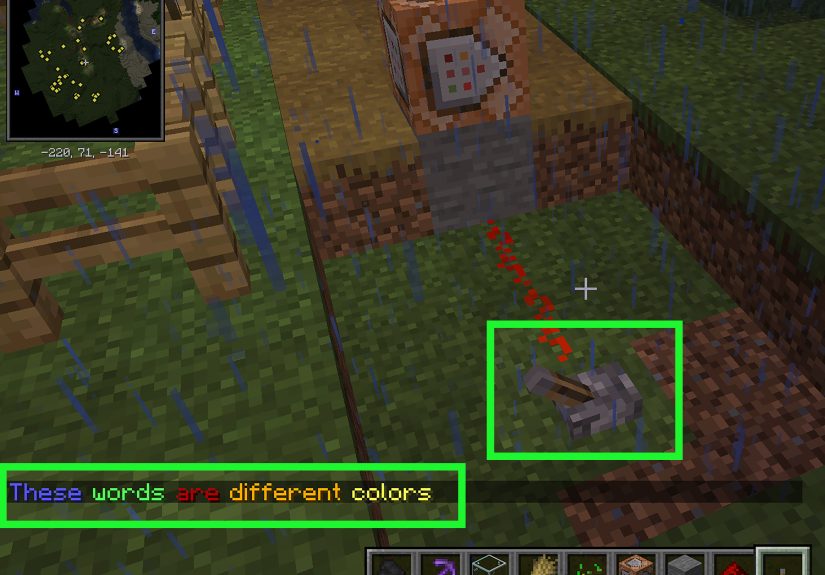
That creates a multi-colored chat message.
One of the nicest Java perks is support for hex colors in raw JSON text. So while Bedrock wins the “simple to type” trophy, Java can be more flexible if you’re building polished server messages or custom content.
What About & Color Codes in Java?
If you’ve seen examples like &aHello, that is usually a plugin-specific shortcut, not standard vanilla Minecraft chat formatting.
Many servers use plugins that convert &a into §a behind the scenes. That’s convenient, but it only works where the server has been set up to allow it. If you try it in pure vanilla and nothing happens, your keyboard is not cursed. The server just isn’t translating it.
Common Mistakes That Make Color Chat Fail
If colored text isn’t working, one of these is usually the reason:
- You used the wrong symbol. The section sign is
§, not&, not$, and definitely not a random emoji that wandered in by accident. - You added a space.
§cHelloworks better than§c Hellowhen you want the formatting to start immediately. - You’re on vanilla Java chat. This is the big one. Direct Bedrock-style chat codes are not the default Java method.
- Your keyboard method for § didn’t work. Try another input route or paste the symbol if your platform allows it.
- You forgot to reset formatting. If everything after the first word looks odd, toss in a
§r.
Java vs. Bedrock: Which One Is Easier?
| Feature | Bedrock | Java |
|---|---|---|
| Direct § color input in regular chat | Usually yes | No, not in normal vanilla chat |
| Simple typing for casual players | Yes | Not really |
| /tellraw support | Yes | Yes |
| Named colors in command JSON | Limited via rawtext approach | Yes |
| Hex color support | Not the same way | Yes |
| Extra edition-specific color codes | Yes | Mostly classic set in standard usage |
So the winner depends on what you want. If you want to type a colored message quickly, Bedrock is easier. If you want precise formatting, richer command control, and custom hex colors, Java is stronger.
Best Uses for Colored Minecraft Chat
Once you know how to type color text in Minecraft chat, it becomes more than a novelty. It’s a practical tool for communication.
- Server announcements: Make important messages stand out.
- Roleplay worlds: Give characters distinct voices or styles.
- Adventure maps: Guide players with clearer instructions.
- Team chat themes: Match colors to teams, ranks, or factions.
- Event coordination: Use red for urgent messages and green for ready signals.
Colored text is basically the difference between “meet here” and “§cMEET HERE NOW,” which has a very different energy.
Real-World Experience: What This Actually Feels Like in Practice
The most relatable part of learning Minecraft chat colors is that almost nobody discovers the right method cleanly on the first try. The usual experience starts with confidence. A player sees a screenshot, a YouTube short, or an old server guide and thinks, “Easy. I’ll type a symbol, add a letter, and boom, cinematic red text.” Five minutes later, they’re staring at plain white text, wondering whether Minecraft personally dislikes them.
On Bedrock, the biggest hurdle is usually not the color code itself. It’s finding the section sign. Once that symbol shows up, everything suddenly feels simple. Players often go from “this makes no sense” to “wait, that worked?” in about ten seconds. After that, the fun starts immediately. They test red, then green, then gold, then bold, then some chaotic combination that makes the chat look like a fantasy shop sign designed by an over-caffeinated wizard. Bedrock gives that quick payoff, and that’s why it feels satisfying. It turns formatting into play.
Java is a different emotional journey. The first experience is often confusion because the internet is packed with mixed advice. One page talks about §a, another uses &a, another says to install a plugin, and a fourth casually drops a giant JSON command like it’s the most normal sentence in the world. For Java players, the breakthrough usually happens when they stop asking, “Why won’t regular chat change color?” and start asking, “Which Java method am I actually using?”
Once that clicks, Java gets much less annoying and much more powerful. A simple /tellraw message can feel like opening a secret control panel. Suddenly, chat messages can be gold, bold, multi-colored, or even custom hex shades that look cleaner than the old classic palette. For server owners, map makers, and command nerds, this is where Java starts to shine. It’s not as immediate as Bedrock, but it rewards precision. Bedrock feels like grabbing markers. Java feels like opening Photoshop.
There’s also a social side to it. Players use colored text because it helps messages stand out in busy chat, but also because it adds personality. A bright aqua welcome message feels more polished than plain white text. A red event warning feels urgent. A gold title feels important. Even in a goofy survival world with friends, color changes the mood. The message may say the same thing, but the presentation does half the work.
In the end, the experience of using colored text in Minecraft is a tiny example of what makes the game fun in the first place. You learn one small trick, and suddenly the world feels a little more customizable, a little more expressive, and a lot more yours. It’s not just chat formatting. It’s another way to leave your fingerprint on the blocky universe.
Final Thoughts
If you want to type color text in Minecraft chat, the first thing to know is which version you’re playing. Bedrock Edition is the easiest path for direct color-code input with the section sign. Java Edition is stricter in normal chat, but it opens the door to powerful formatting through /tellraw, JSON text components, server plugins, and command tools.
In other words, Bedrock is easier for quick flair, and Java is better for advanced control. Neither is wrong. They just speak different dialects of the same wonderfully obsessive Minecraft language.
Once you know the rules, colored chat stops feeling mysterious and starts feeling useful. And maybe, just maybe, your next server message will look dramatic enough that people actually read it.