Table of Contents >> Show >> Hide
- Can You Turn on Android Location Services from a Computer?
- Method 1: Use Microsoft Phone Link to Turn on Location from a Windows Computer
- Method 2: Use Google Find Hub to Locate an Android Phone
- Method 3: Use Samsung SmartThings Find for Galaxy Phones
- Method 4: Use ADB from a Computer for a Prepared Android Phone
- Method 5: Use Remote Support Apps If They Were Already Installed
- Method 6: Enterprise or School-Managed Android Devices
- How to Turn on Location Directly on Android
- Location Accuracy vs. App Location Permission
- Troubleshooting: Why Location Still Is Not Working
- Privacy and Safety Tips
- Real-World Experience: What Actually Works Best
- Conclusion
- SEO Tags
Trying to turn on Location Services on an Android phone from a computer sounds like the kind of thing that should be easy. You open a website, click a shiny button, and your phone obediently reports its location like a well-trained golden retriever. Unfortunately, Android is not built that wayand for good reason. Location is sensitive. If anyone could enable it remotely from a computer, “Where’s my phone?” would quickly become “Why does my cousin know I’m at Taco Tuesday?”
The short answer is this: you usually cannot remotely turn on Android Location Services from a computer unless the phone was already prepared for remote access, debugging, or enterprise management. However, there are several legitimate ways to manage or enable location-related features from a computer when the device is yours, accessible, signed in, and properly set up.
This guide explains what is possible, what is not possible, and the safest step-by-step methods to turn on Android location from a computer using tools like Microsoft Phone Link, Google Find Hub, Samsung SmartThings Find, Android Debug Bridge, and remote support apps.
Can You Turn on Android Location Services from a Computer?
Yes, but only in certain situations. If your Android phone is nearby, unlocked, paired with your computer, or already configured for remote control, you can use your computer to open the phone’s screen and turn Location on. If the phone is lost, locked, offline, or was never set up for remote access, your options are much more limited.
Android treats Location Services as a user-controlled privacy setting. That means a random computer cannot simply force your phone to enable GPS, Wi-Fi scanning, Bluetooth scanning, or precise location. This protects users from stalking, theft, spyware, and unauthorized account access.
What You Can Usually Do from a Computer
From a computer, you may be able to:
- Use Google Find Hub to locate, ring, lock, or erase a prepared Android device.
- Use Microsoft Phone Link to control a supported Android phone screen from Windows.
- Use Samsung SmartThings Find for supported Galaxy devices.
- Use ADB if USB debugging was already enabled and the computer was authorized.
- Use a remote support app if it was installed and granted permission in advance.
- Use an enterprise mobility management tool for company-owned managed devices.
What You Usually Cannot Do
You usually cannot:
- Turn on Location Services on a lost Android phone that is offline.
- Enable GPS remotely on a phone that was never paired or prepared.
- Bypass the lock screen just because you know the Google account.
- Force precise location permission for apps without user approval.
- Use Find Hub as a magic “turn on location” button.
In other words, the best time to set this up is before you need it. Technology loves preparation. It is basically a smoke alarm with a charging cable.
Method 1: Use Microsoft Phone Link to Turn on Location from a Windows Computer
If you have a Windows PC and a compatible Android phone, Microsoft Phone Link can let you interact with your phone from your computer. On supported devices, the Phone screen or Apps feature may allow you to open Android Settings and manually enable Location.
Before You Start
You need:
- A Windows 10 or Windows 11 computer.
- An Android phone running Android 10 or later.
- The Phone Link app on Windows.
- The Link to Windows app on Android.
- Both devices connected to the same Wi-Fi network.
- Permission granted on the Android phone.
Steps to Turn on Location Using Phone Link
- On your Windows computer, open Phone Link.
- Make sure your Android phone is connected and available.
- Select Phone screen or Apps, depending on what your device supports.
- When your Android screen appears, open the Settings app.
- Go to Location.
- Turn on Use location.
- Open Location services.
- Turn on Location Accuracy if you want better results for maps, delivery apps, weather, and finding a lost phone.
- Optionally enable Wi-Fi scanning and Bluetooth scanning to help apps estimate location more accurately.
This is one of the most user-friendly ways to turn on Android Location Services from a computer because you are not hacking anything or poking around in developer tools. You are simply using your computer as a larger screen and keyboard for your phone.
When Phone Link Will Not Work
Phone Link may fail if the phone is not nearby, not connected to Wi-Fi, not paired, not compatible with screen control, or waiting for permission on the Android device. If the phone is locked in another room, that is usually fine. If it is in another state, under a sofa, powered off, and emotionally unavailable, Phone Link will not save the day.
Method 2: Use Google Find Hub to Locate an Android Phone
Google Find Hub, formerly known as Find My Device, is the main Google tool for finding, locking, ringing, or erasing an Android device. It is useful when you lose your phone, but it does not necessarily let you turn Location Services on if Location was disabled.
How to Use Find Hub from a Computer
- Open a browser on your computer.
- Go to Google Find Hub.
- Sign in with the Google Account connected to your Android phone.
- Select the Android device from the list.
- Check its location on the map if available.
- Use options like Play sound, Secure device, or Erase device if needed.
Find Hub works best when the Android phone has power, is connected to mobile data or Wi-Fi, is signed in to a Google Account, is visible on Google Play, and has Find Hub enabled. On newer Android devices, Google may also store encrypted recent locations and use the Find Hub network to help locate compatible devices and accessories.
Important Limitation
Find Hub can help you locate a device, but it is not a universal remote switch for Location Services. If Location is off, the phone is offline, or the feature was not prepared in advance, Find Hub may show the last known location, a less accurate location, or no location at all.
Still, you should set it up now. It is one of those boring five-minute tasks that becomes heroic when your phone disappears between couch cushions, car seats, or the mysterious kitchen drawer where old chargers go to retire.
Method 3: Use Samsung SmartThings Find for Galaxy Phones
If you own a Samsung Galaxy phone, Samsung SmartThings Find gives you another computer-friendly option. It can help locate, lock, ring, or erase supported Galaxy devices, depending on the device model, account status, and previous setup.
Steps to Use SmartThings Find from a Computer
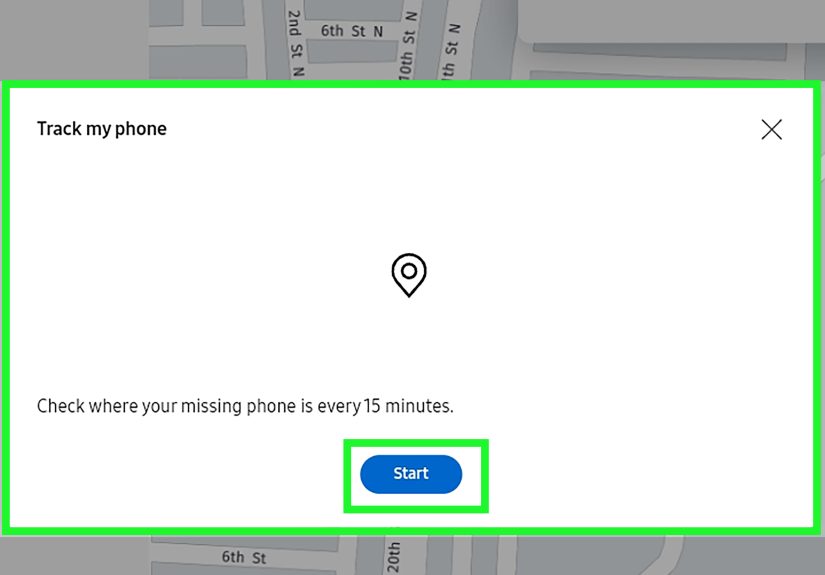
- Open the SmartThings Find website on your computer.
- Sign in with the Samsung account used on your Galaxy phone.
- Select your Galaxy phone from the device list.
- Review the available options, such as locating, ringing, locking, or erasing the device.
For best results, Samsung users should enable Allow this phone to be found and Offline finding before the phone is lost. These settings make the device easier to locate later.
Can SmartThings Find Turn on Location Remotely?
SmartThings Find is excellent for finding supported Galaxy devices, but it is still not a guaranteed way to enable Android Location Services after the fact. Like Google Find Hub, it depends on preparation, account access, device power, network status, and privacy settings.
Method 4: Use ADB from a Computer for a Prepared Android Phone
Android Debug Bridge, better known as ADB, is a developer tool that allows a computer to communicate with an Android device. This method is more advanced and should only be used on your own phone or a device you are authorized to manage.
What You Need for ADB
- Android SDK Platform Tools installed on your computer.
- USB debugging already enabled on the Android phone.
- The phone connected by USB.
- The computer previously authorized through the Android RSA prompt.
- Access to the phone screen if approval is still required.
If USB debugging was never enabled, ADB will not help. Android requires the user to unlock the phone and approve the computer before debugging commands can run. This is a security feature, not a bug wearing a tiny trench coat.
Safer ADB Method: Open Location Settings
The safest ADB approach is to open the Location Settings screen, then manually enable Location from the device interface.
After the Location Settings screen opens on the phone, you can turn on Use location. If your phone screen is visible through a remote control tool or connected display, you may be able to complete the process from the computer.
What About ADB Commands That Toggle Location Directly?
You may see old tutorials suggesting commands that write directly to secure Android settings. These commands may work on older Android versions, emulators, rooted devices, or certain test environments, but they are unreliable on modern consumer phones. Android secure settings are meant to be changed by the user through system settings. For a normal phone, do not build your plan around an old command found in a forum thread from the era when phones still had headphone jacks and optimism.
Method 5: Use Remote Support Apps If They Were Already Installed
Remote access apps such as TeamViewer, AnyDesk, AirDroid, and similar tools can sometimes let you control an Android phone from a computer. These tools are popular for IT support, family tech help, and managing devices used in kiosks or field work.
The key phrase is already installed and approved. Android typically requires screen-sharing permission, accessibility permission, or session approval before a remote control app can control the phone. If the app was not set up in advance, you cannot usually install and grant all permissions from a computer while the phone is locked or missing.
Basic Remote Access Steps
- Install a trusted remote access app on the Android phone.
- Grant the required permissions while holding the phone.
- Set up unattended access only if you understand the security risks.
- Connect from your computer using the matching desktop app or web portal.
- Open Android Settings, go to Location, and turn on Use location.
Remote access apps are helpful, but they should be treated like spare house keys. Useful? Absolutely. Something you hand to a stranger on the internet? Please do not.
Method 6: Enterprise or School-Managed Android Devices
For company-owned Android phones, tablets, kiosks, scanners, or school devices, IT administrators may use Android Enterprise tools or a mobile device management platform. These systems can enforce or restrict many settings through policy.
Even then, Android’s rules vary by management mode, Android version, and device ownership. On newer Android versions, some work-profile situations may still require user action to turn Location on. Fully managed company-owned devices may offer more administrative control than personal phones with a work profile.
If your Android device belongs to your employer or school, do not try to bypass policy. Contact the administrator. They may be able to push a policy, send instructions, or confirm whether location is intentionally disabled for privacy or compliance reasons.
How to Turn on Location Directly on Android
If you have the phone in your hand, the simplest method is still the best method. No computer. No command line. No dramatic soundtrack.
Steps for Android 12 and Newer
- Open Settings.
- Tap Location.
- Turn on Use location.
- Tap Location services.
- Open Location Accuracy.
- Turn on Improve Location Accuracy.
- Return to Location services and enable Wi-Fi scanning or Bluetooth scanning if desired.
Steps for Older Android Versions
On older Android phones, the menu may be called Security & Location, Location access, or Location mode. Older devices may offer modes such as High accuracy, Battery saving, or Device only. For most users, high accuracy gives the best results because it combines GPS, Wi-Fi, mobile networks, and sensors.
Location Accuracy vs. App Location Permission
Turning on Android Location Services is only part of the job. Apps also need permission to use location. For example, Google Maps, Uber, DoorDash, weather apps, camera apps, and fitness trackers may each have separate permissions.
How to Check App Location Permissions
- Open Settings.
- Tap Location.
- Tap App location permissions.
- Choose an app.
- Select Allow all the time, Allow only while using the app, Ask every time, or Don’t allow.
- For Android 12 and newer, choose whether the app can use Precise or Approximate location.
This matters because your phone can have Location turned on while an individual app is still blocked. That is why a map app may complain about location access even though the main Location toggle is enabled.
Troubleshooting: Why Location Still Is Not Working
If you turned on Location Services from a computer but apps still cannot find you, check these common problems.
The Phone Is Offline
Remote tools need the phone to communicate with the internet or local network. Make sure Wi-Fi or mobile data is working. Airplane Mode should be off unless you are intentionally avoiding the world.
Battery Saver Is Interfering
Battery Saver can reduce background activity and affect some location-based features. Turn it off temporarily while testing location.
The App Has No Permission
Open the app’s permissions and confirm that location access is allowed. For navigation or delivery apps, precise location may be necessary.
Location Accuracy Is Off
If GPS is weak indoors, Location Accuracy can help by using wireless signals and sensors. Turn it on for better performance in buildings, parking garages, malls, and neighborhoods where GPS likes to wander like a tourist without coffee.
The Device Is Managed
Work phones and school devices may restrict location settings. If a policy controls the phone, contact the administrator instead of fighting the settings menu.
Privacy and Safety Tips
Location Services are powerful, so use them wisely. Only enable remote access tools for devices you own or manage. Avoid unknown tracking apps, suspicious APK files, and websites promising to “turn on GPS remotely without permission.” That kind of promise is usually either impossible, unsafe, illegal, or all three wearing one big red flag.
Use strong screen locks, two-step verification, and trusted accounts. Review which apps have location access every few months. If an app does not need your location to do its job, remove the permission. A calculator app asking for your precise location is not doing math; it is doing too much.
Real-World Experience: What Actually Works Best
In everyday use, the smoothest way to turn on Android Location Services from a computer is not the most technical one. It is the method that was prepared before the problem happened. A phone already paired with Microsoft Phone Link is easy to manage because you can open the phone screen on the PC, go to Settings, and enable Location almost as if the phone were in your hand. This is especially useful for people who keep their phone charging across the room, parents helping family members, or workers using Android phones alongside Windows laptops.
The biggest surprise for many users is that Google Find Hub is not designed to be a remote Location toggle. People often assume that because Find Hub can locate a phone, it must also be able to turn on GPS. In practice, Find Hub is more like a rescue tool than a remote control panel. It can help tremendously if the phone is powered, online, signed in, and already configured. But if everything was turned off beforehand, it has less to work with. The lesson is simple: set up Find Hub before your phone disappears. Future-you will send present-you a thank-you card, probably from the couch cushion where the phone was hiding.
ADB is useful, but it is not ideal for the average user. Developers and advanced Android fans may already have USB debugging enabled, platform tools installed, and a trusted computer authorized. For them, opening the Location Settings screen with an ADB command can save time. For everyone else, ADB is usually a dead end because Android requires approval on the device first. That requirement can feel annoying when you are trying to fix your own phone, but it is also what prevents someone else from plugging in your device and taking control.
Remote access apps can be excellent in the right context. For example, if you help an older family member with phone settings, setting up a reputable remote support app in advance can prevent long phone calls that begin with “tap the gear icon” and end with both people questioning their life choices. However, these apps need careful permission management. Unattended access should be used only when necessary, protected with strong passwords, and removed when it is no longer needed.
For businesses, the best experience usually comes from proper Android Enterprise management. Company-owned devices can be prepared, monitored, and supported more consistently than personal phones. But even business tools have limits, especially when privacy rules, work profiles, and Android version changes come into play.
The practical takeaway is this: if your goal is to turn on Android Location Services from a computer, plan ahead. Pair your phone with Phone Link, enable Find Hub, check Samsung SmartThings Find if you use Galaxy, keep account recovery options updated, and review app location permissions. Once these pieces are ready, your computer becomes a helpful control center. Without them, it becomes a very expensive rectangle politely telling you, “Sorry, I needed permission yesterday.”
Conclusion
Turning on Location Services on an Android from a computer is possible only when the phone has already been set up for safe remote access, debugging, device finding, or enterprise management. For most everyday users, Microsoft Phone Link is the easiest option when the phone is nearby and supported. Google Find Hub and Samsung SmartThings Find are essential for locating lost devices, but they work best when configured ahead of time. ADB is powerful for advanced users, while remote support apps and enterprise tools are best for planned management situations.
The smartest move is preparation. Turn on Location, enable Find Hub or SmartThings Find, review app permissions, and pair your Android with your computer before you need help. Android protects location settings for good reasons, but with the right setup, your computer can still be a very useful assistantnot a magic wand, but definitely better than crawling under the couch with a flashlight.